
Begin by downloading and installing the free trial version of DRmare Spotify Music Converter for your macOS or Windows system. Click the appropriate "Download" button below for your operating system, then double-click the setup file to install the software.
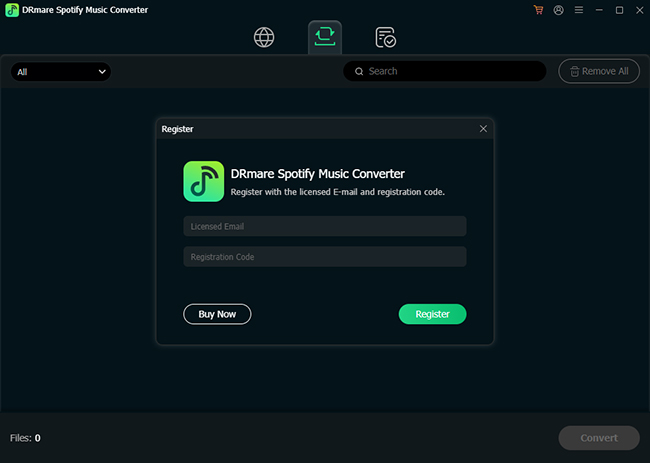
Since the trial version only converts the first 30 seconds of each song, we recommend purchasing a license to unlock full functionality. After payment, you'll receive a license key via email. To register:
Tips: Avoid adding any spaces when entering your license information to prevent registration failure.
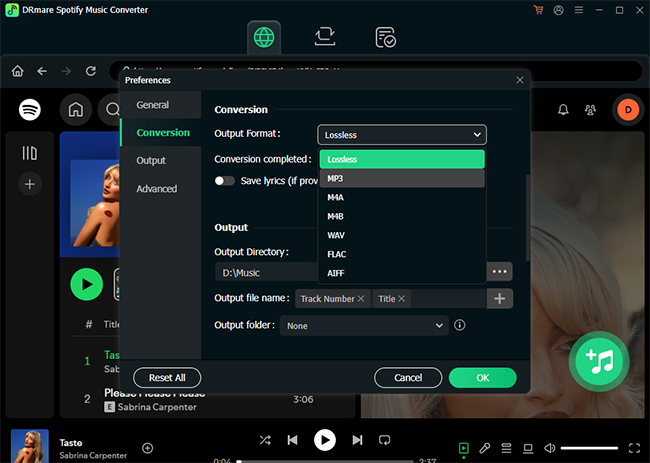
First, log into your Spotify account using the built-in Spotify web player. Click the "menu" icon in the top-right corner on Windows or "DRmare Spotify Music Converter" from the top-left Apple menu bar on Mac, then select "Preferences". Under the "Conversion" section, customize your preferred audio format, quality, and other output parameters.
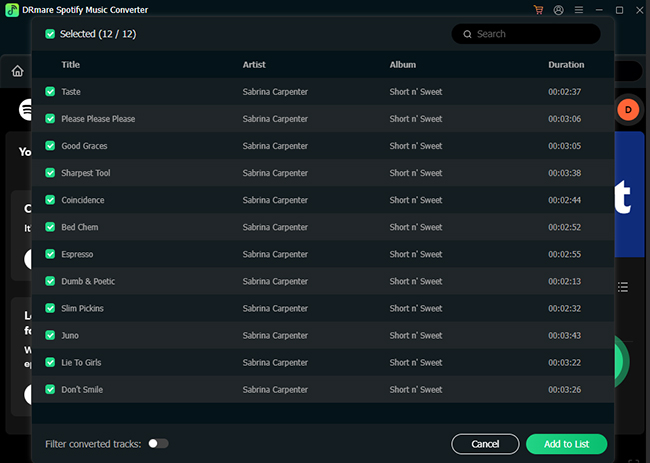
Browse your Spotify library, select the Spotify content you want to convert, and drag and drop tracks, playlists, or albums directly onto the green "Music" icon in the bottom-right corner or directly click this icon. You can remove unwanted tracks and click "Add to List" to confirm your selection.
Tips: DRmare Spotify Music Converter supports batch conversion, allowing you to process multiple Spotify songs simultaneously. You can add as many as songs you want.
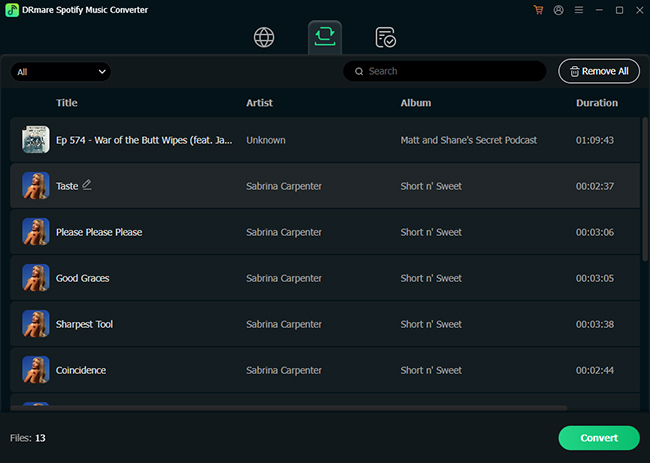
Once you've configured all settings, click the "Convert" button under the "Converting" tab. The software will automatically download and convert your selected Spotify songs or playlists to MP3 or your chosen audio format in batch.
After conversion completes, find your converted tracks listed under the "Converted" tab. You can directly listen to them within DRmare's built-in music player and change the Spotify playback speed by tapping the "Speed" icon.
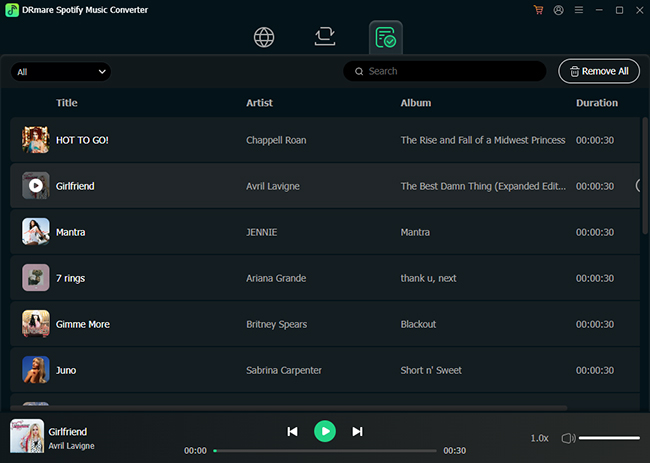
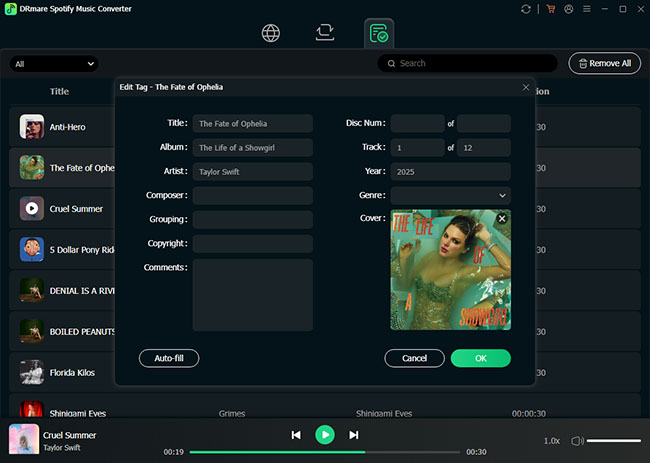
You can tap the "Edit Tag" icon to customize ID3 tags for downloaded Spotify tracks. After that, click the "Open Folder" icon to locate them on your local computer. Since these files are now stored offline on your computer, you can freely transfer and play them on any device, anytime you want.
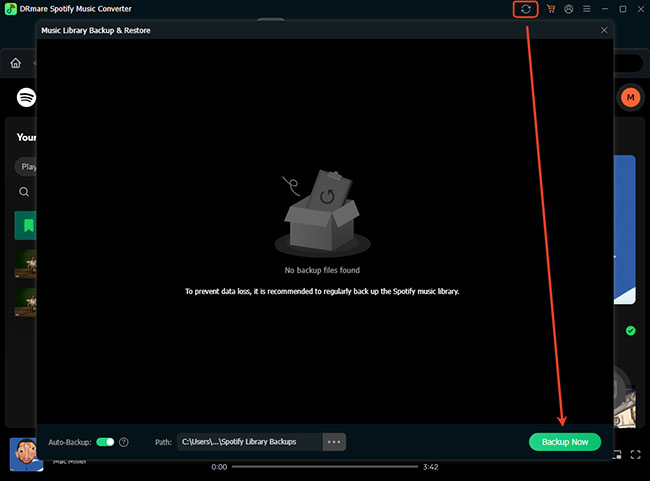
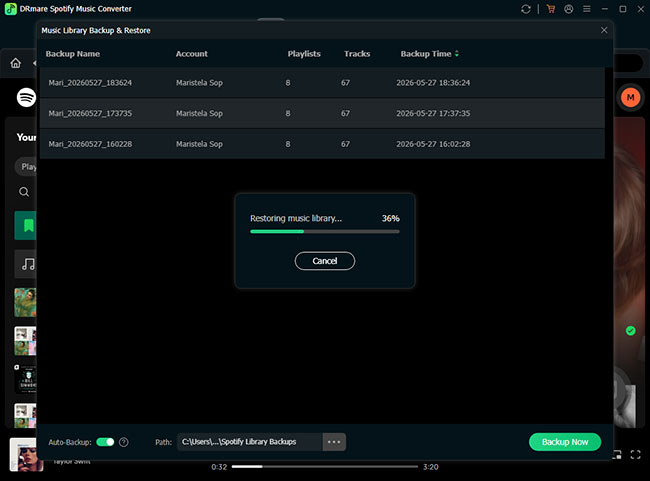
To protect your Spotify playlists from being lost, you can easily back up your library using DRmare and restore it whenever needed. Follow these steps:
Click the "Music Library Backup & Restore" icon in the top-right corner of the main interface, then click the "Backup Now" button. DRmare will automatically back up your Spotify account data.
If you ever lose your Spotify library, navigate back to the backup section. Click the "Restore" button next to your target Spotify account, and then click the secondary "Restore" button to begin the recovery process.
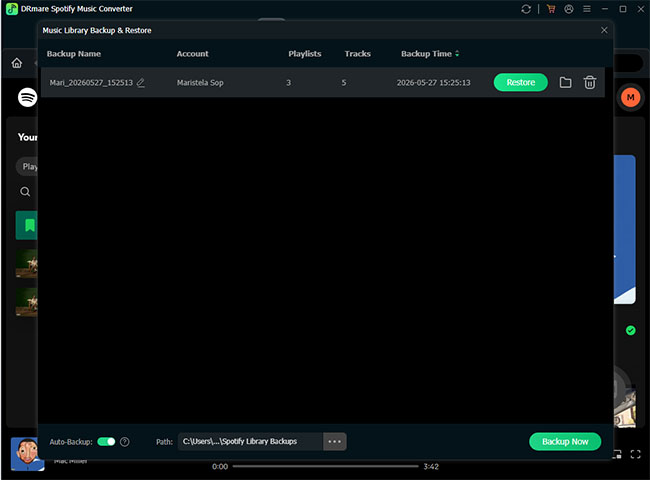
You can monitor the restoring progress on the screen. Once the process is complete, open your Spotify app or web player to verify that all of your restored content has safely reappeared.
Here's the straightforward video guide of DRmare Spotify Music Downloader on how to download and convert Spotify songs to MP3 and other formats step by step.