Begin by downloading and installing the free trial version of DRmare Apple TV Downloader for your macOS or Windows system. Click the appropriate "Download" button below for your operating system, then double-click the setup file to install the software.
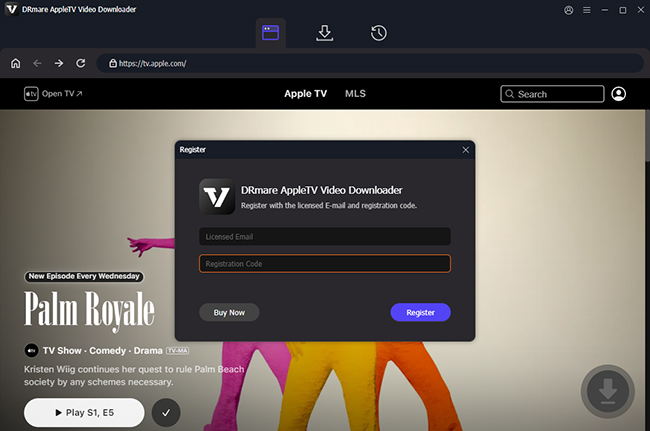
Since the trial version has download limitations, we recommend purchasing a license to unlock full functionality. After payment, you'll receive a license key via email. To register:
Tips: Avoid adding any spaces when entering your license information to prevent registration failure.
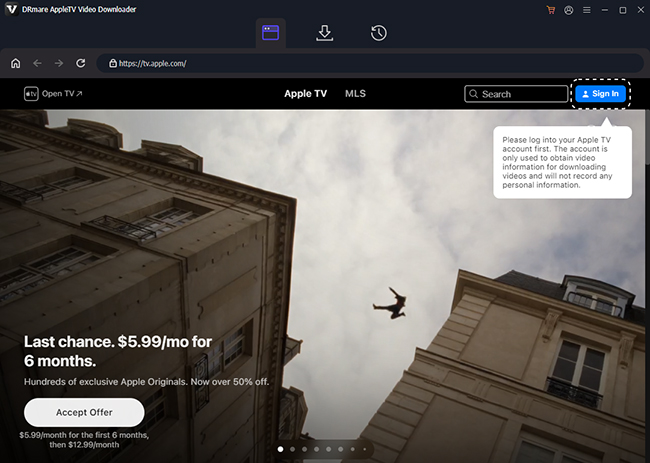
Tap the "Sign In" button to log in to your Apple TV account directly within the built-in browser of the software using your Apple TV credentials.
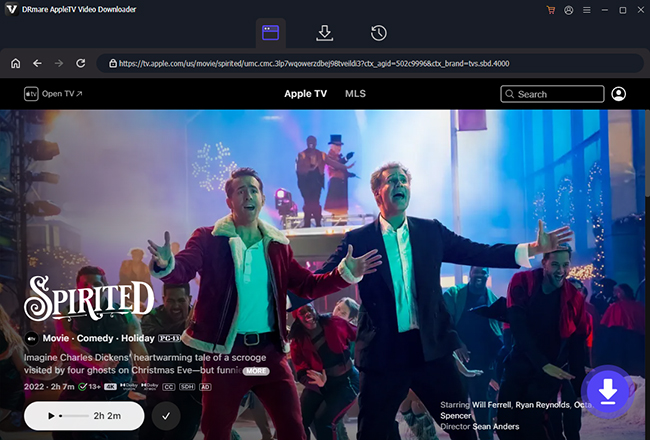
Browse your Apple TV library within the integrated Apple TV web player and find your favorite movies to download. Once found, tap the item to the detailed page and tap the "Download" icon to load it.
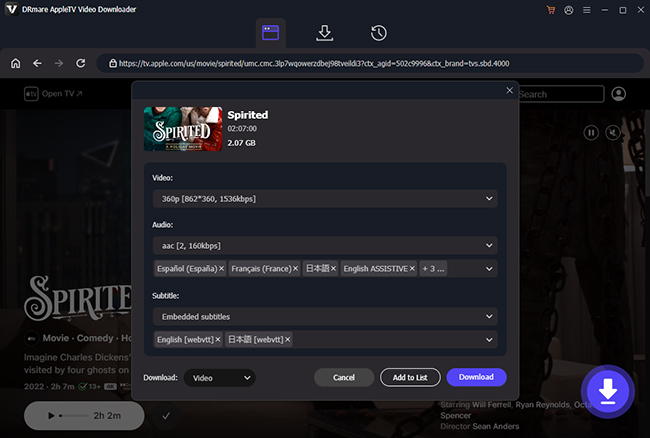
Before downloading added movie, you can customize the output video quality, output format, output audio tracks and subtitles. After that, click the "Download" button to download Apple TV movie to your local computer.
Tips: If you want to batch download favorite movies, you can tap the "Add to List" button to load it to the download queue and add more movies before download.
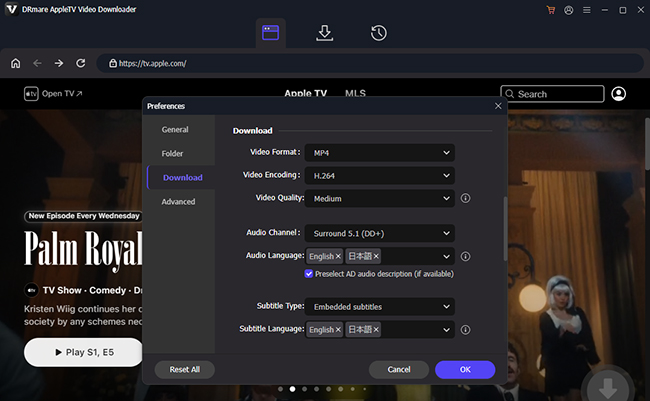
Before adding TV shows, you can configure your output settings. Click the "menu" icon in the top-right corner (Windows PC), or the "DRmare Apple TV Downloader" option from Apple menu bar (Mac) and select "Preferences".
In the Download section, you can choose your desired output format (MP4 or MKV), and customize video parameters like quality, subtitle language, and audio track depending on your preferences.
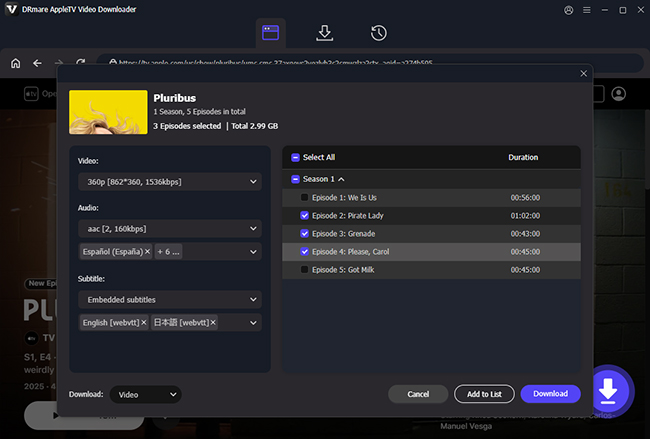
Authorize your Apple TV account and browse your library. Find and open the TV show you want to download. Click the "Download" button to add and select the episodes you want to download. Click the "Add to List" button to add them to the download queue.
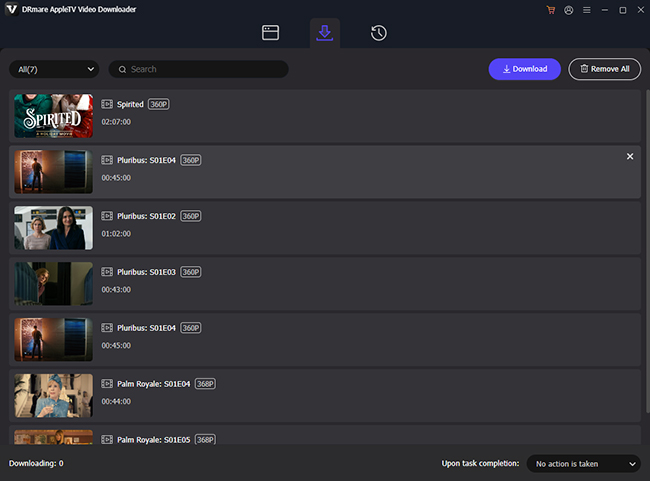
Once you've added all the TV shows you want to download, click the "Download" button under the "Download List" tab. The software will automatically batch download your selected all episodes in your chosen format and save them to your local computer.
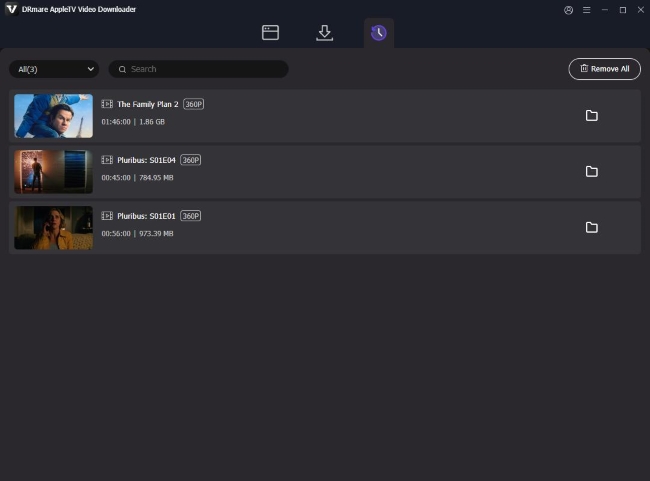
After the download completes, find your downloaded videos listed under the "History" tab. You can open the output folder to access the local files. Since these files are now stored offline on your computer, you can freely transfer and play them on any device, anytime you want.
This step-by-step video tutorial shows you how to use DRmare Apple TV Downloader to bypass streaming restrictions and save your favorite Apple TV Originals in permanent, high-quality MP4/MKV files.