





For audiobook enthusiasts, learning how to download Audible books to MP3 is a common pursuit. The default .aax format is protected by DRM, limiting playback to authorized apps and devices. This is where the AAXtoMP3 tool comes into play. In the review, we will explore what AAXtoMP3 is and how to use it. We will also examine its common issues and explore alternative solutions to help you rip Audible files to MP3 smoothly.
Part 1. What Is AAXtoMP3
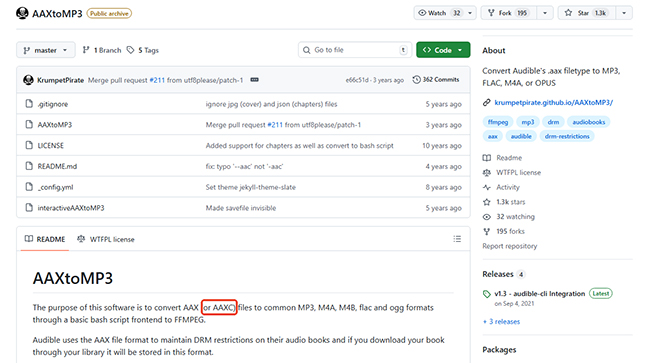
AAXtoMP3 is a popular open-source script hosted on GitHub by KrumpetPirate. This tool allows you to convert AAX or AAXC files to MP3 and other common audio formats, including M4A, M4B, FLAC, and OGG. Unlike many commercial applications, this is a completely free AAX to MP3 converter running seamlessly on Linux.
The developer specifically created it to provide a reliable method for downloading and storing your purchased library. It ensures you have an offline backup of your media just in case you unexpectedly lose access to your account. By leveraging this script, you can confidently convert an Audible audio file to MP3 or other preferred high-quality formats. And you can play your audiobooks on any media player without being locked into a single ecosystem.
Pros and cons of this method
Pros
 100% Free: A completely free AAX to MP3 converter with no hidden subscription costs.
- Lossless Quality: Decrypts the audio directly, maintaining the original audiobook fidelity.
- Chapter Splitting: Easily allows you to convert aax to mp3 with chapters fully preserved.
- Native Linux Support: Runs exceptionally well on Linux and macOS via standard Bash.
Cons
 Archived Status: The project is abandoned; no future updates or bug fixes will be released.
- Steep Learning Curve: Operates strictly via the command line with zero graphical interface.
- Complex Setup: Requires manually installing external dependencies like FFmpeg and jq.
- Authcode Required: Need your Audible activation code to decrypt files.
Part 2. How to Use AAXtoMP3 to Convert Audible to MP3
Converting an audible audiobook to MP3 free using this tool requires some comfort with a command-line interface. Since there is no graphical window to click through, you must execute text-based commands in your terminal to process the files. Before you start to rip audible files to mp3, you must obtain your personal 8-character Audible activation bytes (authcode), which decrypts the files linked to your specific account.
Step 1. Install the Core System Requirements and Dependencies. Before running the script, your system must have Bash (3.2.57 or later) and FFmpeg (2.8.3 or higher) installed. Additionally, you will need the libmp3lame encoder and standard GNU utilities like grep, sed, and find.
Step 2. Download the AAXtoMP3 to Your Device. You can pull the script down manually from its source repository on GitHub, or you can retrieve it using standard package management systems like apt or yum. Once downloaded, verify that the bash script is marked as executable on your system.
Step 3. Convert AAX Files into MP3 Audio Formats. Place your downloaded .aax files into a dedicated directory alongside the script for easy access. Open your terminal, navigate to your working directory, and run the primary conversion command. A basic execution to convert an aax file to mp3 looks like this:

If typing out command flags feels overwhelming, the developers have included an excellent alternative. You can launch a guided, step-by-step wizard by typing the following code into your terminal.
Part 3. Troubleshooting AAXtoMP3 Converter Issues
While generally reliable, you might occasionally run into AAXtoMP3 converter problems. You may find AAXtoMP3 no longer working after a system update or when trying to process newly formatted Audible files. Don't worry, most AAXtoMP3 converter issues stem from incorrect authentication codes or mismanaged files. If your script fails abruptly, follow these organized troubleshooting steps to isolate and resolve the problem.
1. Verify Your Activation Bytes and Command Syntax
An invalid authentication code will immediately halt the decryption process. Ensure you are passing the correct 8-character string. For command-line users testing FFmpeg directly to bypass the bash script, the syntax should look exactly like this:
2. Maintain Original File Names and Directory Placements
A common terminal error is "File NOT Found (*.voucher)". To fix this, ensure the .aax file has not been renamed from its original downloaded state. Furthermore, ensure that all required files are located in the same folder before running the script.
3. Check Your Underlying System Dependencies
If the script fails to launch entirely or you find AAXtoMP3 no longer working after an operating system update, verify that FFmpeg is properly installed and correctly added to your system's PATH variable. You can easily confirm this by typing ffmpeg -version directly into your terminal. Reviewing the terminal output logs is always your best first line of defense to identify exactly which background dependency is missing when you attempt to convert an aax file to mp3.
4. Redownload the Correct Audible Format
Corrupted downloads are a surprisingly common reason for broken or failed output. Additionally, if you downloaded .aaxc files via the Audible Android app, standard offline converters often struggle with this newer format. Always redownload the file as a standard .aax directly from the Audible website on your desktop computer.
5. Reauthorize Your Audible Account
If you are still facing DRM issues or generic "Not Working" errors, the problem might be tied to your computer's local authorization. Re-installing Audible Manager and ensuring your PC is properly authorized can often fix underlying file ownership and protection roadblocks.
Part 4. Best Audible to MP3 Alternatives to AAXtoMP3
If you simply want to convert Audible files to MP3 quickly, setting up command-line scripts like AAXtoMP3 can be unnecessarily complicated. A dedicated Audible to MP3 converter like DRmare Audible Converter provides a much easier solution. Its user-friendly interface lets you batch convert all Audible content in lossless quality. With just a few clicks, it lets you convert AAX to MP3 with chapters and ID3 tags, making it simple to prepare your audiobooks for offline playback.
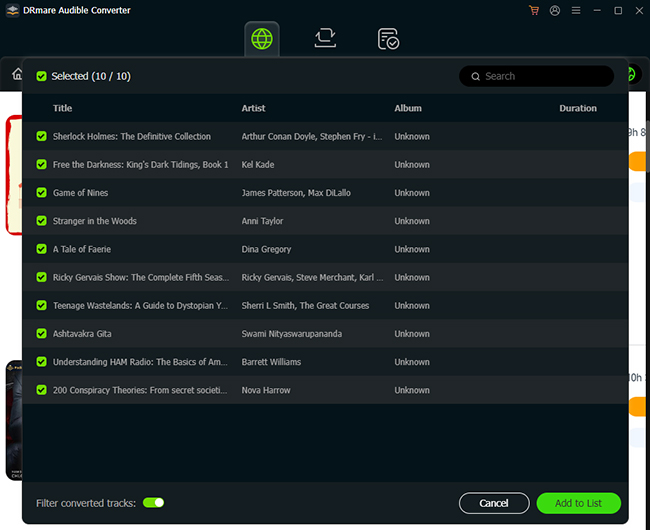
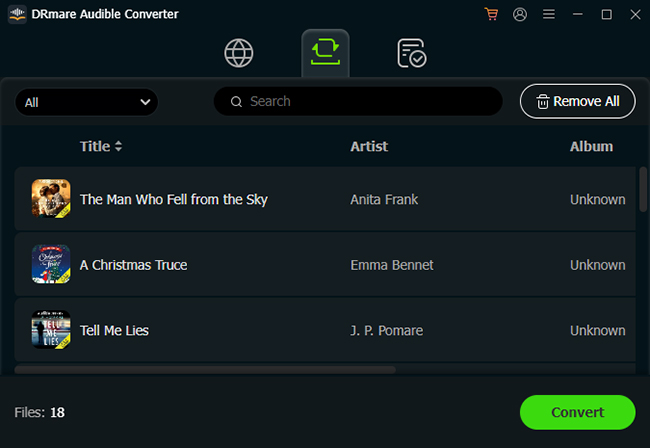
Step 1. Load your Downloaded Audiobooks into the Application. DRmare provides a highly visual and intuitive interface. Use the integrated web player to sign in and securely access your entire Audible library. Then select your desired books and push them straight into the processing queue using the "Add" > "Add to List" button.
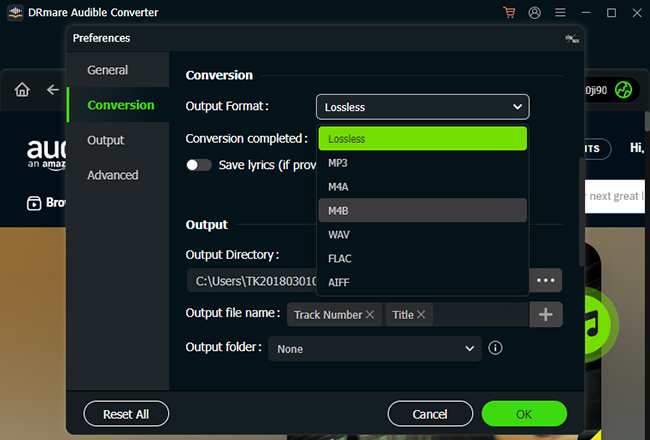
Step 2. Customize your ideal audio output settings. To successfully convert an AAX file to MP3, navigate to the top menu, select "Preferences", and click on the "Conversion" option. Here, you can easily define MP3 as your target format without worrying about complex parameter settings.
Step 3. Execute the conversion process. With your preferences locked in, simply hit the "Convert" button at the bottom of the screen. The software will swiftly process your queued audiobooks, stripping away the DRM restrictions automatically. Once finished, your newly converted MP3 files will be saved directly to your computer.
Part 5. FAQs About AAXtoMP3
Can I use AAXtoMP3 on a phone?
AAXtoMP3 is a bash script designed for Unix-like systems. You cannot run this script directly on a mobile phone. You must convert the AAX file to MP3 on a computer and then transfer the audio files to your smartphone.
Can I convert AAX to MP3 with chapters?
Yes, it is entirely possible to convert AAX to MP3 with chapters intact. By default, the AAXtoMP3 bash script is specifically designed to split your bulky audiobooks into individual chapter files while retaining all essential metadata. If you prefer avoiding command-line tools, the DRmare Streaming Audio Recorder is an excellent alternative.
What are the AAXtoMP3 suggested settings?
The AAXtoMP3 suggested settings are generally just the default parameters included in the script. Stick to the default bitrate, which matches the original .aax file to prevent quality loss. And it rarely necessary to alter the core audio settings for standard audiobook playback.
Is there an AAX to MP3 converter online free?
Generic file conversion websites, such as Convertio or Online-Convert, are incredibly popular platforms that handle standard audio and document formats quickly. However, high-quality audiobooks often exceed the strict maximum file size limits imposed by free online services, and you will likely hit a paywall or an error message. For a secure and reliable conversion, using a localized tool like AAXtoMP3 or DRmare is always the recommended approach.
Part 6. Conclusion
| Feature | AAXtoMP3 | DRmare Audible Converter |
|---|---|---|
| User Interface | Command-Line Only | Graphical User Interface (GUI) |
| Ease of Use | Complex | Easy |
| DRM Removal | Requires manual authcode extraction | Automatic DRM processing |
| Cost | Free | Paid (Free trial available) |
| Platform | Linux, macOS, Windows (WSL) | Windows, macOS |
| Supported Formats | MP3, M4A, M4B, FLAC, OGG | MP3, M4A, M4B, AIFF, FLAC, WAV |
Figuring out how to convert an AAX file to MP3 is the best way to take full ownership of your audiobook library. AAXtoMP3 remains a powerful, free tool for users comfortable with command-line interfaces and FFmpeg. However, if you encounter persistent AAXtoMP3 converter issues, switching to DRmare Streaming Audio Recorder is a smart move. Regardless of the method you choose, converting your Audible format to MP3 ensures your books are always accessible on your terms.

 Home
Home





User Comments
Leave a Comment