





Spotify playlists often contain years of carefully curated songs, albums, podcasts, and personal music collections. Losing your Spotify library because of accidental deletion, account problems, app reinstallation, or device changes can be frustrating, especially when rebuilding playlists manually takes hours or even days.
Although Spotify syncs your music library through the cloud, it does not provide a full-featured local backup system for safeguarding playlist structures and restoring them later with one click. That is why many users are now looking for a safer and easier way to backup and restore Spotify playlists before problems happen.
To help solve this issue, DRmare Spotify Music Converter now includes a dedicated Music Library Backup & Restore feature. With it, you can create local backup snapshots of your Spotify library structure and quickly restore playlists whenever needed. In this guide, you will learn how to backup and restore your Spotify library step by step using DRmare.
Part 1. Why You Should Backup Your Spotify Library
Many users assume Spotify automatically protects everything forever. In reality, playlist loss can still happen under different situations, including:
- Accidentally deleting playlists
- Switching computers or devices
- Reinstalling Spotify
- System crashes or factory resets
- Account sync problems
- Spotify account recovery issues
- Suspended Spotify account issue for high-speed recording
While Spotify offers limited playlist recovery options, they may not always restore your entire library organization exactly the way it was before. Creating regular backups helps you avoid rebuilding playlists manually from scratch.
With DRmare's Music Library Backup & Restore feature, you can safely preserve your playlist structure and restore it whenever necessary.
Part 2. What Is DRmare Music Library Backup & Restore?
DRmare Spotify Music Converter recently introduced a new Music Library Backup & Restore tool, integrated into the main interface. It is designed to capture the exact state of your current streaming account. Instead of copying playlist links or rebuilding libraries by hand, this specific feature takes a comprehensive backup of your library's organizational structure automatically. It ensures that the specific order and categorization of your music remain intact.
- Automatically backup Spotify playlists and library structure
- Restore playlists after device or account issues
- Preserve playlist organization
- Create multiple backup snapshots
- One-click restore workflow
- Simple backup management interface
This makes it much easier to safeguard your Spotify music environment before making major account or device changes.
Part 3. How to Backup Spotify Library With DRmare
Securing your music collection requires minimal technical knowledge. The process is fully automated once you launch this software, ensuring that your structural playlist architecture and account data are safely archived. It also allows you to backup your library manually.
- Step 1Open the Music Library Backup & Restore Tool
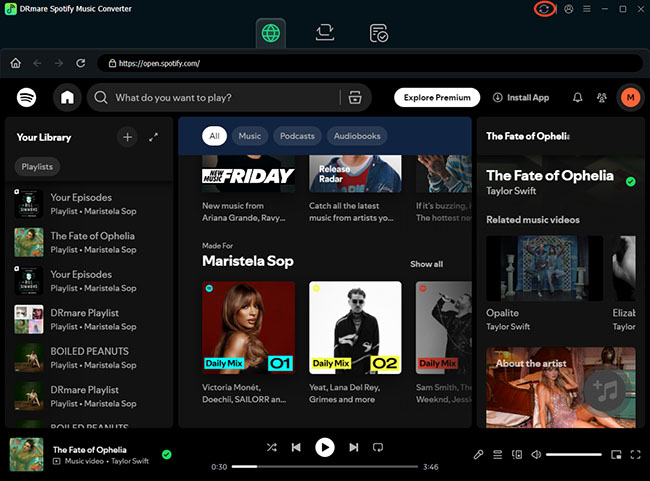
Launch DRmare Spotify Music Converter and log in to your Spotify account. Locate and click the new Music Library Backup & Restore icon positioned in the top-right corner of the main dashboard interface.
- Step 2Start Spotify Library Backup
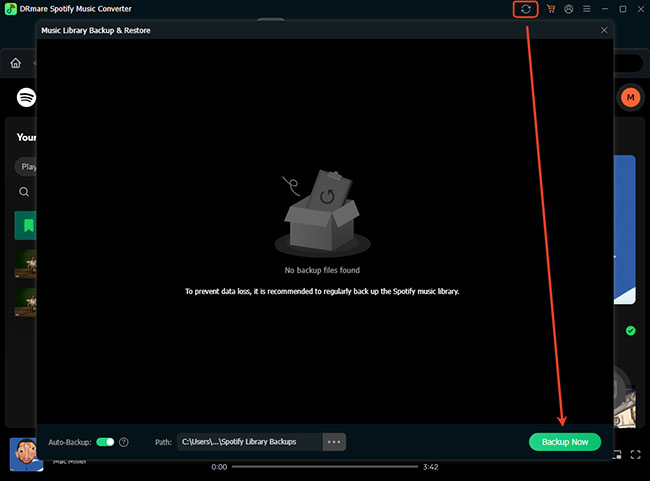
Inside the backup module, click the prominent Backup Now button. The software will securely parse your account data without requiring you to manually copy any playlist links or export individual files and create a backup list containing your playlist structure and related library information.
- Step 3Wait for the Backup Process to Finish
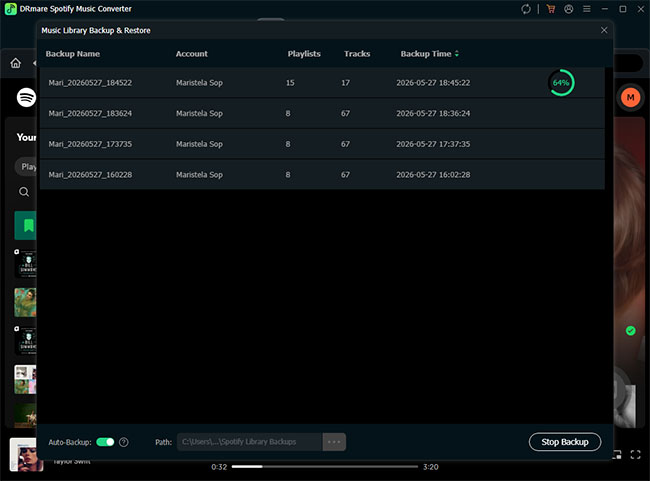
Wait for the software to generate your local backup image. A processing bar will appear on the screen to track the progress of your structural archive.
- Step 4Check Backup History
Verify your backup history by reviewing the newly created snapshot within the dashboard. You can manage multiple historical versions here to keep an ongoing record of your library over time.
Part 4. How to Restore Spotify Playlists and Library
When you eventually encounter an account reset, a missing folder, or an accidental deletion, recovering your music is a straightforward process. The software uses your previously saved snapshots to rebuild your collection exactly as it was.
- Step 1Open Backup History
Return to the backup utility screen within the main interface by clicking the Music Library Backup & Restore icon.
- Step 2Select a Spotify Backup Account
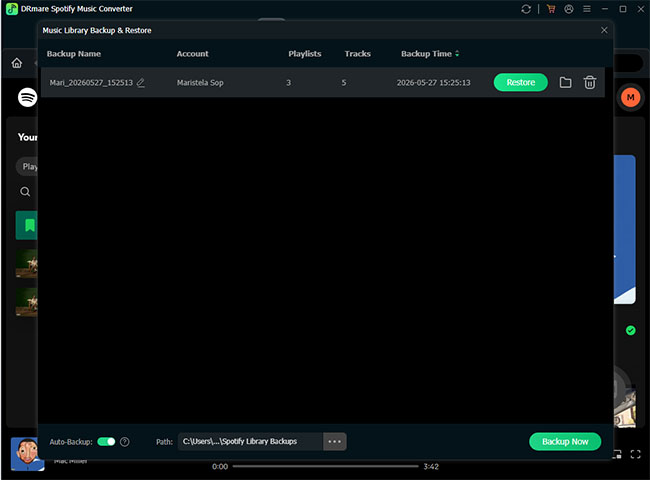
Find the relevant historical list tied to your specific profile identity. Choose the version of your library that you wish to revert to. Click the Restore button next to your chosen snapshot.
- Step 3Confirm the Restore Process
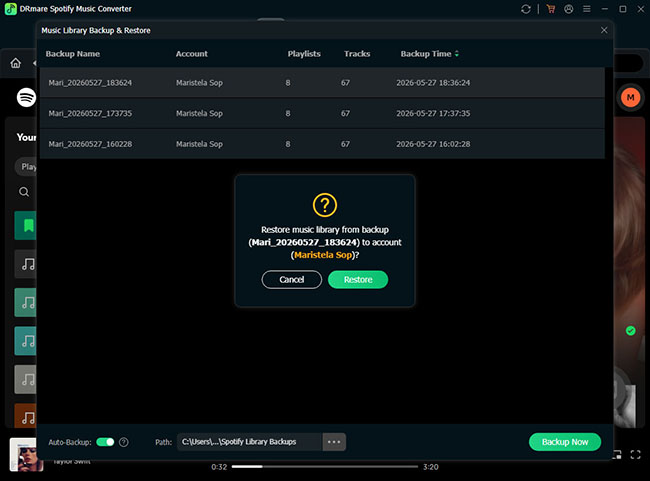
You must then confirm the action by clicking the secondary Restore prompt that appears on your screen.
- Step 4Control the Restore Process
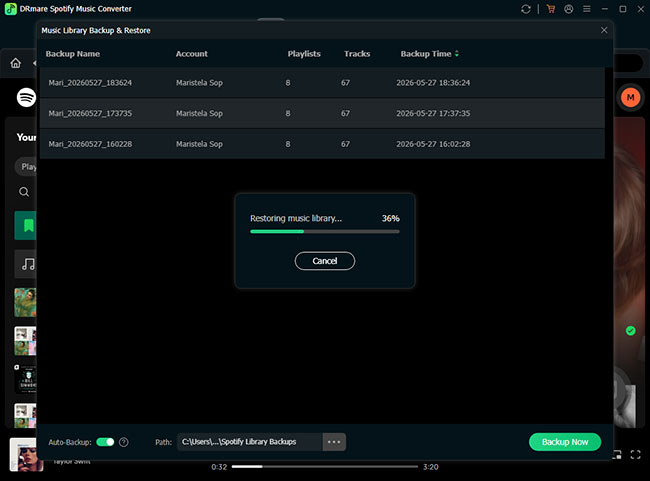
The software will display a live processing bar tracking the restoration progress.
- Step 5Verify Your Spotify Library Recovery
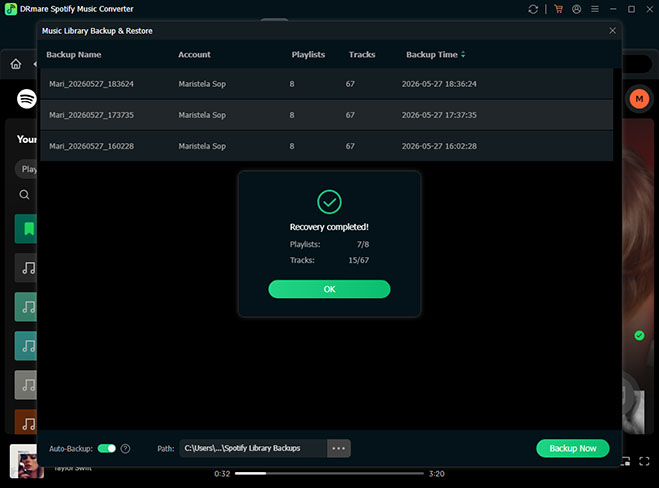
Once completed, refresh or launch your official Spotify interface to verify that your entire catalog of tracks, structural custom folders, and playlists have safely reappeared exactly as they were.
Part 5. When Should You Use Spotify Library Backup?
Creating Spotify library backups regularly can help prevent unexpected playlist loss in many situations. Here are some common scenarios where backup snapshots become especially useful.
Before:
- Reinstalling Spotify
- Upgrading your computer
- Factory resetting devices
- Switching Spotify accounts
- Organizing large playlist collections
After:
- Playlist deletion
- Missing Spotify libraries
- Syncing problems
- Spotify account recovery
- Device migration issues
Backing up your library before making major account or system changes is always a safer option.
Tips for Keeping Spotify Playlists Safe
Maintaining the integrity of your music collection is an ongoing process. Establishing good digital habits ensures your carefully organized folders remain secure year after year.
- Execute a complete library backup on a regular schedule, such as once a month.
- Keep multiple historical snapshots available so you can revert to different versions of your library if needed.
- Store a copy of your local backup images on an external hard drive for maximum security.
Part 6. FAQs About Spotify Library Backup and Restore
Can Spotify playlists be backed up?
Yes, you can secure your playlists by using DRmare Music Library Backup & Restore feature that parses and archives your library's structural data into a secure local file on your computer.
Can I restore deleted Spotify playlists?
While the official platform offers a basic 90-day recovery window for simple deletions, using DRmare allows you to completely restore missing tracks and folders at any time, regardless of when they were lost if you previously created a backup snapshot.
Does DRmare save playlist structure?
Absolutely. The software is specifically engineered to archive your exact playlist architecture, ensuring that your custom folders and specific track orders remain perfectly intact upon recovery.
Is Spotify cloud sync the same as a backup?
Not exactly. Spotify cloud sync mainly keeps your library connected to your account, while local backup snapshots provide an additional recovery layer if problems occur.
Where are Spotify backups stored?
When using the DRmare, the backup files are stored locally on your computer's hard drive, keeping your structural data completely private and secure.
Can I create multiple Spotify library backups?
Yes, the software supports comprehensive backup history management. You can generate and store numerous historical snapshots, allowing you to choose exactly which version of your library you wish to recover.
Part 7. Conclusion
Spotify playlists often represent years of music discovery and personal organization. Losing them unexpectedly can be frustrating and time-consuming to fix manually. With the new Music Library Backup & Restore feature in DRmare Spotify Music Converter, you can easily create secure Spotify library backups and restore playlists whenever needed. Whether you are switching devices, reinstalling Spotify, or simply preparing for unexpected issues, keeping regular backup snapshots is one of the easiest ways to protect your music collection.


 Home
Home





User Comments
Leave a Comment