





As 2025 gradually wraps up, music fans are getting ready to relive the year through their favorite tunes. And YouTube Music Recap has become one of the most anticipated versions of this tradition. Similar to "Wrapped" on other platforms, YouTube Music Recap turns your year of streaming into a personalized story, highlighting the tracks, artists, moods, and moments that defined your 2025, showing how your music shaped your everyday life. In this guide, you'll find out how to see your YouTube Music Recap on both mobile and computer and solve common issues when your recap is not showing.
Part 1. Does YouTube Music Have Wrapped
You may be familiar with Spotify Wrapped and wondering does YouTube Music has a Wrapped. The answer is Yes. YouTube Music does offer an annual recap, called YouTube Music Wrapped or Recap, which highlights your top songs, favorite artists, most-played playlists, and podcasts from the year. It helps you celebrate your favorite tracks while spotting trends in your listening habits.
When Does YouTube Music Recap Come Out
Historically, YouTube Music releases its yearly recap shortly before the year ends. It is usually between the last week of November and the first week of December. For 2025, the YouTube Music recap was released on December 2. YouTube often rolls out its Recap gradually, so you may receive it a little later than others. If you don't see your recap yet, it likely hasn't reached your account.
New Features about YouTube Music Recap 2025
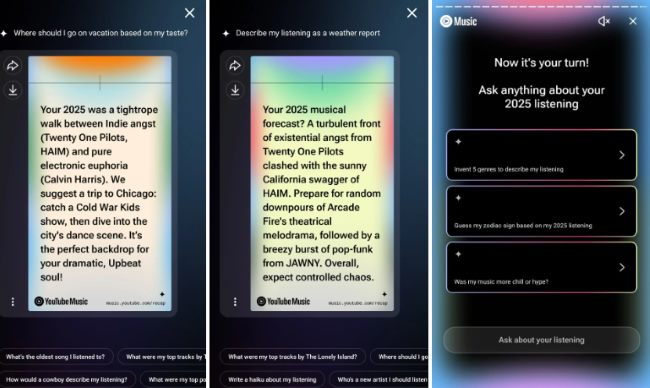
For 2025, YouTube Music Recap has added a fun new feature with an AI-powered chat that lets you dive into your listening habits. Using YouTube's "Ask Music" feature, you can ask questions like "How did my listening change over the year?" "What animal matches my music taste?", and get colorful, shareable graphics in response. You can explore your top songs, favorite genres, or see if you spent the year exploring new tracks or sticking to old favorites. This AI chat turns your 2025 YouTube Music Wrapped into an interactive experience, making it easy and fun to reflect on your music journey and share your insights with friends.
Part 2. How to See Your YouTube Music Recap
Now that you've got a clear picture of when the Recap rolls out and what new features it brings this year, you might be eager to see what your own YouTube Music Recap looks like. Whether you prefer using on the YouTube website or on the YouTube Music app, your recap for YouTube Music will be available as long as you're signed in and running the latest version of the app.
Get YouTube Music Recap via Mobile
If you meet the requirements above and have the latest version of the YouTube Music app installed, you can view your YouTube Music Recap directly from your phone. The app highlights your yearly and seasonal stats in an easy-to-access card format, so you can quickly revisit your top songs, artists, genres, and podcast insights anytime.
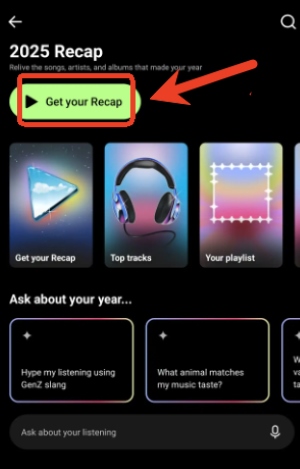
Step 1. Open the YouTube Music app and sign in to your account. Choose your profile photo and click on "Your Recap". Then press "Get your Recap" to see the YouTube Music wrapped.
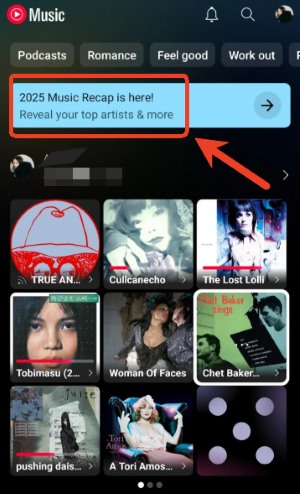
Step 2. You can also look for the Recap banner at the top of the interface, where your yearly recap will appear.
Get YouTube Music Wrapped via Desktop
If you prefer checking your stats on a larger screen, YouTube Music also makes it easy to view your yearly Recap on desktop. Once your Recap has been activated for your account, you can access it directly through the official YouTube Recap. This takes you straight to your personalized cards and playlists without needing to navigate through the main interface.
How to Share YouTube Music Recap
YouTube Music Recap is designed to be shared easily through visual, graphic-style cards, and you can share your recap in just a few clicks.
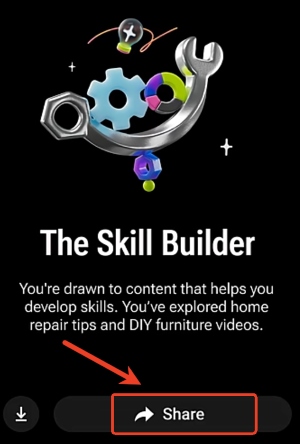
Step 1. Tap the "Share" button at the bottom of any Recap card.
Step 2. Choose a platform (Instagram, X, Facebook, etc.) to share your YouTube Music Wrapped. And you can also tap the left "Download" button to save it to your device.
Part 3. How to Fix YouTube Music Recap Not Showing
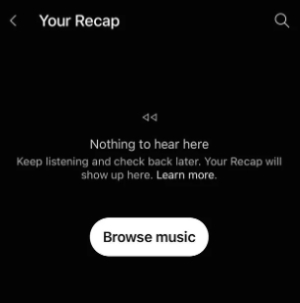
Even though YouTube Music Recap is accessible on both mobile and desktop, you may encounter situations where the recap doesn't appear as expected. Various factors can affect whether your Recap loads properly, from app version and listening history to regional rollouts. If you find that your YouTube Music Wrapped isn't showing, don't worry, here are the most common reasons and how to fix them.
1. Outdated App Version
If you're using an older version of the YouTube Music app, your YouTube Music Recap may not load correctly because earlier builds don't fully support Recap features. Updating the app from the Google Play Store or Apple App Store usually fixes this instantly, ensuring all Recap cards and stats can generate normally.
2. Not Enough Listening Hours
Your recap won't show if you haven't listened to enough music throughout the year. YouTube Music typically needs at least 10 hours of listening between January 1 and November 10, plus a minimum number of repeated songs, to create a meaningful summary. The only fix is to build more consistent playtime so the platform can generate a complete YouTube Music Wrapped.
3. History Paused or Auto-Delete Enabled
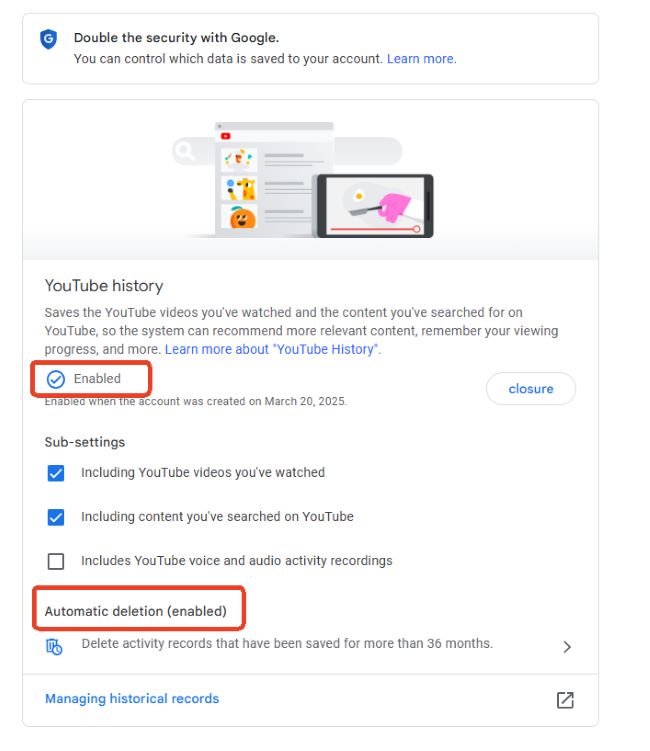
Your listening history must be fully recorded for YouTube Music to generate a recap. If your watch history is paused, cleared, or being auto-deleted every 3 months, YouTube won't have enough data to recognize your top songs or artists. So please make sure your history is turned on, and auto-delete is disabled. You can go to myactivity.google.com and click the "YouTube History" section.
4. Listening on Multiple Accounts
If you switch between several Google accounts, your listening data gets split. Thus, YouTube Music can't tell which one should receive the recap, and the system may show an incomplete recap or none at all. To avoid this, make sure you're signed into the account where you normally listen. Keeping all your activity on one account ensures your recap reflects your actual music habits.
5. Offline Listening Not Synced
If your device stays disconnected for long periods, your play history might not sync back to YouTube servers, and then it can't generate your recap stats. So you need to stay connected periodically so your offline listening can sync properly. Recap accuracy improves significantly when both online and offline activity are recorded without gaps.
6. Regional Rollout Delays
YouTube Music Recap doesn't launch in every region at the same time. Some experience delays or limited availability due to licensing rules. If people around you have the recap but yours isn't showing yet, it may simply not have rolled out to your region. In this case, you can wait or try accessing the feature from a region where Recap is already live.
7. Animation Settings Error
Some users report that their Recap slideshow flashes quickly or skips straight to the "Ask about your year" page. This usually happens when system animations are turned off, such as when "Reduce animations" is enabled or animation scales are disabled in Developer Options. You can turn animations back on to fix the issue instantly and restore the full Recap slideshow experience.
Part 4. How to Download YouTube Music Wrapped
After viewing your YouTube Music Recap, you may want to keep your recap playlists or save favorite tracks so you can revisit them anytime. To do that, you'll need a reliable way to download music directly from YouTube Music as a local file, and this is where DRmare Streaming Audio Recorder comes in handy.
It’s a versatile desktop tool designed to save music from YouTube Music and other major streaming platforms with consistently high-quality results. Supporting lossless YouTube Music downloads, the software lets you export tracks in popular formats such as MP3, FLAC, and WAV. Complete ID3 metadata is preserved as well, making it easy to organize and revisit your YouTube Music Recap playlists or favorite songs offline, even without an active YouTube Music subscription.
- Step 1Choose the Format for YouTube Music
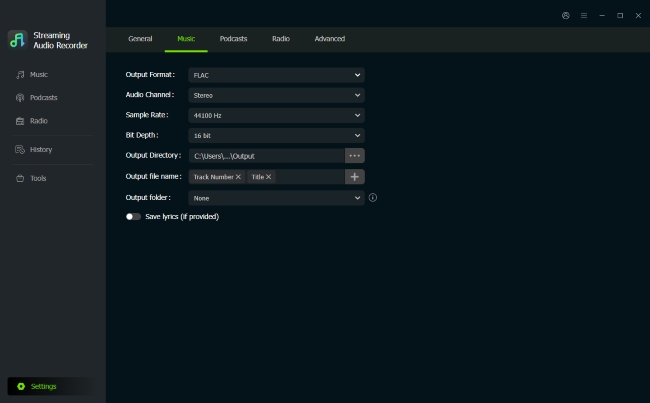
Open DRmare Streaming Audio Recorder. Under "Settings" > "Music", decide which audio format you want to use, and adjust details like bitrate or channel output. Setting this up first makes sure your YouTube Music Recap playlists sound great on your device.
- Step 2Log in to YouTube Music through DRmare
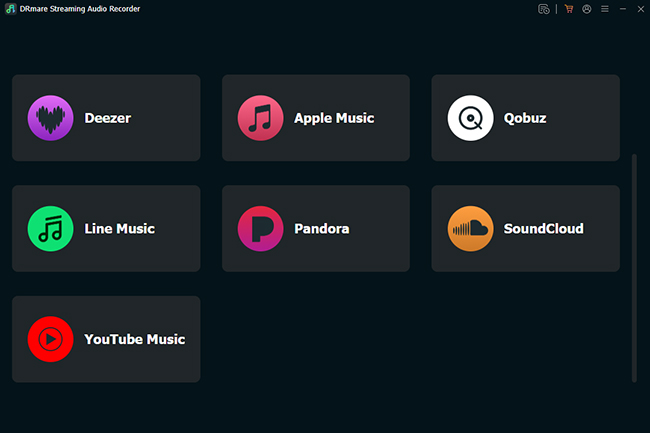
Back on the main screen, select YouTube Music from the list of supported services. Sign in to your account to load your full library, including Recap playlists, liked tracks, and albums, directly inside DRmare.
- Step 3Add YouTube Music Recap Playlists for Download
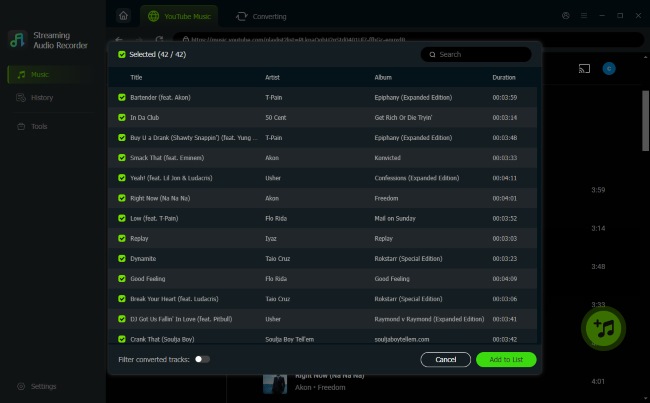
Navigate through your YouTube Music library and find the Recap playlists or songs you want to keep. Click "+" button in the right-lower corner, then tap "Add to list" to send them to the download list. You can queue single tracks or entire playlists at once, which is ideal for saving your yearly music highlights.
- Step 4Export YouTube Music for Offline Listening
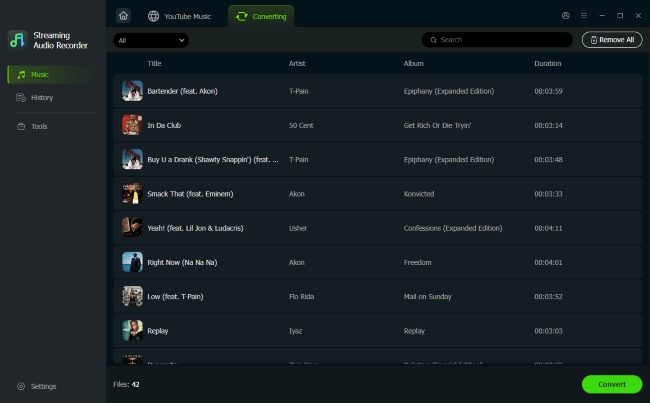
Under the converting tab and start the process with "Convert". DRmare will save your selected YouTube Music content as local audio files. Once finished, your Recap playlists are stored on your computer, which can be found on the "History" section.and ready to play offline, even without a YouTube Music subscription.
Part 5. Summary
Your 2025 YouTube Music Recap lets you relive the songs, artists, and podcasts that defined your year. With solutions for recap not showing, exploring and showing off your musical journey is easy and fun on mobile or desktop. And you can download your recap playlists and tracks with DRmare for offline enjoyment.

 Home
Home





User Comments
Leave a Comment