





Apple TV offers a vast library of movies, shows, and exclusive originals, but watching it on a Chromecast may be tricky due to the technological differences. Luckily, there are practical ways to enjoy Apple TV shows on your Chromecast, whether you're streaming Apple TV on Chromecast directly or casting from your device. In this guide, we'll walk you through all three 3 effective methods for casting Apple TV on Chromecast, from Chromecast with Google TV to casting with a browser and third-party apps, as well as a solution for playing Apple TV on any device.
Part 1. Can I Play Apple TV on Chromecast
Yes, you can watch Apple TV on a Chromecast, though not through the native Apple TV app on iPhone or iPad. Apple TV relies on built-in AirPlay technology for streaming, while standard Chromecast devices use Google Cast. Since these two systems work differently, you can't cast Apple TV directly to a standard Chromecast. However, there are still several easy ways to Chromecast Apple TV. Using Chromecast with Google TV, you can stream directly through the Apple TV app. If you use older Chromecast devices, you can cast Apple TV from the website using Chrome or mirror your screen with a third-party app. With these workarounds, you can still enjoy Apple TV shows and movies smoothly on any device, even without native Chromecast support.
How to Fix Apple TV Not Working on Chromecast
If the Apple TV app isn't working on your Chromecast, start with the basics. Make sure your Chromecast and your phone or tablet are on the same Wi-Fi network, then give your device a quick reset — restart your Chromecast, router, and your phone or tablet. Moreover, it also helps to check for any updates for the Apple TV app, Chrome browser, and your Chromecast system to ensure the smoothest casting experience. If you're using Chromecast with Google TV, you can try clearing the app's cache or data, relogging in with your Apple ID, or reinstalling the Apple TV app altogether. In most cases, these steps can fix the Apple TV not working on Chromecast.
Part 2. Use Apple TV on Chromecast with Google TV (via Direct App)
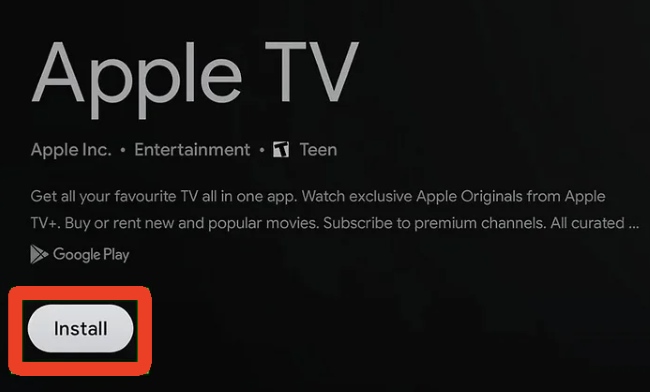
Unlike the original Chromecast, which relies on another device to stream content, Chromecast with Google TV can run apps and stream video directly. This means you can watch Apple TV content directly on your TV without casting from another device. The Chromecast with Google TV lets you install the Apple TV app, giving you full access to shows and movies. Besides, streaming Apple TV shows directly on Chromecast also reduces buffering and preserves video quality.
Step 1. Launch your Chromecast with Google TV, and install the Apple TV app on the Google Play Store.
Step 2. Once installed, enter the Apple TV app and sign in with your account. You can now browse Apple TV content and watch your favorite shows and movies directly on your TV.
Part 3. Cast Apple TV to Chromecast from Mac/Windows (via Chrome Browser)
If you don't have a Chromecast with Google TV, you can still cast Apple TV content using a regular Chromecast with your computer. By casting directly from a Mac or Windows through the Chrome browser, you can stream Apple TV shows and movies on your Chromecast device. This method is a convenient alternative for those who want to watch Apple TV on a bigger screen using the devices they already own.
Step 1. Launch the Chrome browser and go to Apple TV. Then click "Sign In" and log in to your Apple TV account.
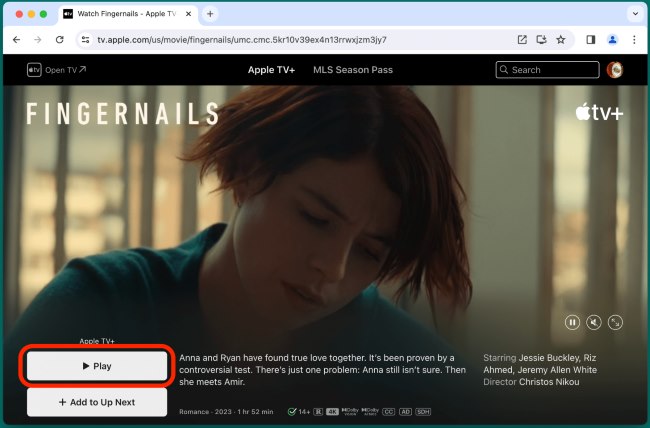
Step 2. Browse your library or the Apple TV catalog, pick something you want to watch, and hit "Play".
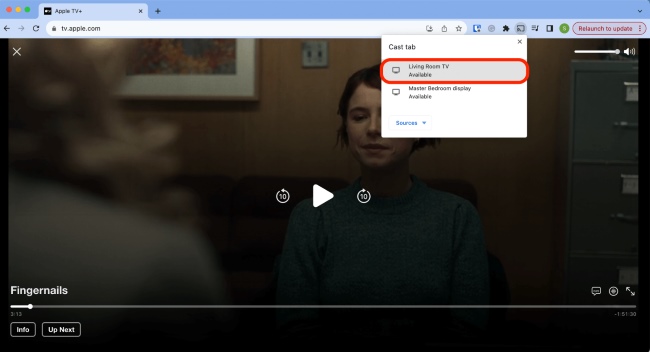
Step 3. Tap the menu icon in the upper-right corner of Chrome. Then choose "Cast" from the dropdown toolbar.
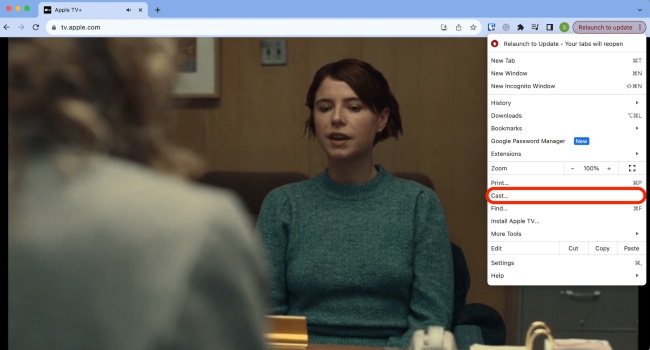
Step 4.Look for available devices on "Casting tab". Once your Chromecast shows up, click it to connect and your Apple TV content will be played on your Chromecast.
Part 4. Chromecast Apple TV from iPhone/iPad/Android (via Third-party App)
You can't Chromecast Apple TV directly from an iPhone or iPad because AirPlay and Chromecast are two different technologies. Fortunately, there are third-party apps that bridge the gap, such as PigeonCast, TV Cast, or DoCast. These apps let you mirror or cast Apple TV content from your iPhone or Android to Chromecast, providing a workaround for devices that don't natively support AirPlay.
Next, we'll use PigeonCast as an example to help you understand how to cast Apple TV to Chromecast using third-party software.
Step 1. Download and install PigeonCast on your iPhone.
Step 2. Open PigeonCast and select your Chromecast or Chromecast-enabled TV from the list of available devices.
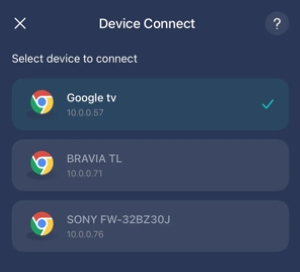
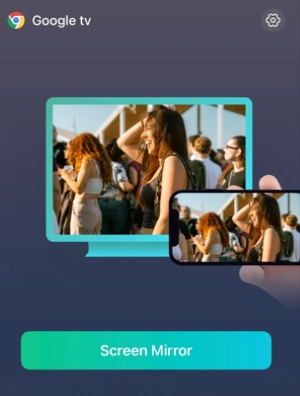
Step 3. After connecting, choose the Screen Mirroring option to project Apple TV from your iPhone onto the TV. Then open the Apple TV app on your iPhone, and you can enjoy your movie or show on the big screen.
Part 5. How to Cast Apple TV on Any Device
If the casting methods above can't fully meet your needs when you want to watch Apple TV content on devices that don't support the Apple TV app or casting at all, there's an alternative and ultimate solution — an Apple TV DRM removal tool like DRmare Apple TV Downloader. In general, Apple TV movies and shows are downloaded in the M4V format with DRM protection, which limits playback on non-Apple platforms. To cast Apple TV on any device or play your purchased content freely, it's best to download and convert these videos to a more universal format like MP4 with an Apple TV downloader.
A reliable tool like DRmare Apple TV Downloader can make this process simple. It converts Apple TV movies and TV shows into universal MP4 or MKV files that play smoothly on any device, while keeping the original video quality, subtitles, and multiple audio tracks intact. With a 5X faster conversion speed and full DRM removal, it allows you to enjoy your Apple TV content offline and without subscription limits, offering you a more flexible and accessible viewing experience overall.
- Step 1Sign In to Your Apple TV Account
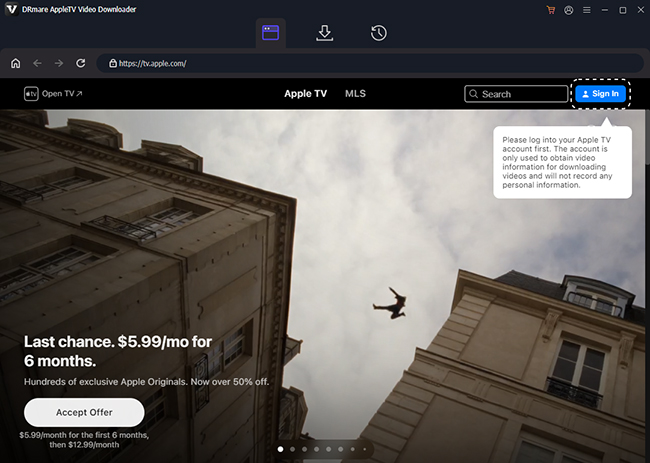
Download and launch the DRmare Apple TV Downloader on your computer. Click "Sign In" in the built-in Apple TV web player and log in to your account. then your full Apple TV library will be accessible for download.
- Step 2Customize Output Settings For Apple TV
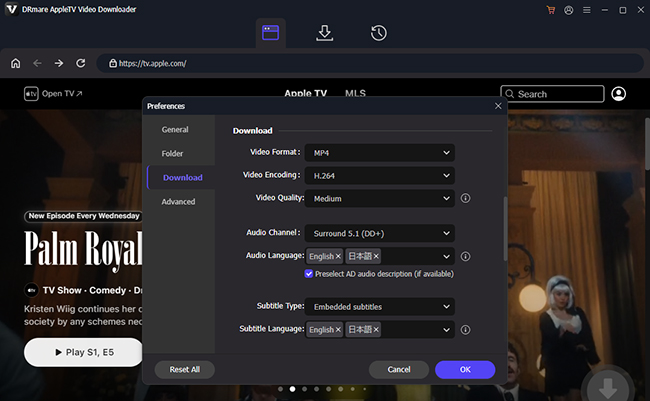
Before downloading, you need to set your preferred output format for your Apple TV. Click the menu icon in the right-upper, and then tap "Preferences" > "Download". You're recommended to choose MP4 as the output format for maximum device compatibility. Here, you can also adjust resolution, video quality, audio tracks, and subtitles to fit your casting or playback needs.
- Step 3Add Apple TV Movies or Shows
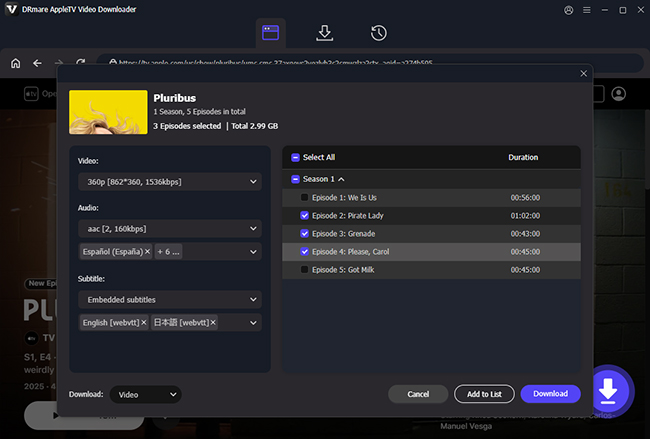
With all settings done, you can open the Apple TV movie or episode you want to save and click "Download" to load it. You can also select "Add to List" to queue multiple videos for batch downloading.
- Step 4Download and Convert Apple TV Videos
Once finished, you'll find all completed downloads in the "History" section or your chosen output folder. Then you are able to watch offline or cast Apple TV content on any device without restrictions.


 Home
Home




5X download Apple TV streaming movies and all episodes on show to MP4 or MKV with zero video quality loss and watch them offline on all devices without an Apple TV subscription.