





If you have recently switched to Chrome OS and want to enjoy Apple TV content during your break, you might be asking: "Can I watch Apple TV on a Chromebook?" The answer is yes. Since there is no official native Apple TV app for Chromebook, getting Apple TV on Chromebook requires the right workarounds. Whether you want to stream Apple TV online or watch movies offline, this guide covers two methods to get your Apple TV library running smoothly on Chromebook.
Part 1. Can You Watch Apple TV on Chromebook
Yes, you can watch Apple TV on a Chromebook, but there is no Apple TV app for Chromebook available to download directly. While you might see an Apple TV app available for Android phones or Google TV devices, the version in the Play Store is frequently listed as "incompatible" with Chrome OS laptops. This means you cannot simply install the Apple TV app on Chromebook to watch your shows.
However, you have two reliable workarounds for enjoying Apple TV shows on your Chromebook: Visit the Apple TV web portal for online streaming or use a USB drive with converted files for offline viewing.
Part 2. How to Get Apple TV on Chromebook via Chrome Browser
The most direct way to watch Apple TV on Chromebook is through the web browser. This method requires no installation and works universally on any Chromebook at school.
Note:
The Chromebook web player works well for streaming Apple TV content, but doesn't support your previously purchased iTunes movies. Additionally, streaming resolution is often capped at 720p on Chromebook browsers due to DRM restrictions, meaning 1080p or 4K content is unavailable.
How to Access Apple TV on Chromebook by Browser
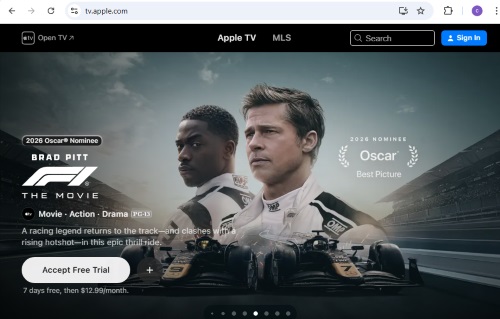
Step 1. Open Google Chrome on your Chromebook and navigate to the Apple TV website.
Step 2. Click "Sign In" at the top right corner and log in with your Apple Account. Once authenticated, simply select your show and begin streaming Apple TV directly in the Chromebook browser.
Create a Apple TV Desktop Shortcut on Chromebook
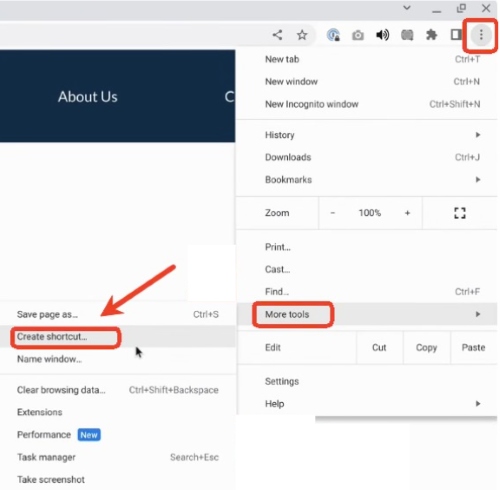
To make Apple TV feel like a native app on your Chromebook for school, you can set the website as a shortcut: Click the "Menu" icon in the top-right corner of Chrome. Select "More Tools > Create Shortcut", then name it and check the box "Open as window," and click "Create".
Now, clicking the Apple icon on your taskbar will launch a clean, borderless window, giving you an app-like experience without the browser address bar.
Part 3. How to Watch Apple TV on Chromebook by USB Drive
One major limitation of watching Apple TV through a web browser is the lack of offline downloads. If you're in a place without reliable internet access, the Apple TV web player won't be practical. To watch Apple TV on a Chromebook offline, the most effective approach is to save videos locally. However, Apple TV videos are DRM-protected M4V files, which prevent them from playing on most non-Apple devices, including Chromebooks.
In this case, tools like DRmare Apple TV Downloader become a powerful solution. Removing DRM and converting Apple TV videos into real MP4 files, it enables smooth offline playback on a school Chromebook. The converted videos retain 1080p HD quality and original multilingual subtitles, while supporting batch downloads, making it efficient to stream Apple TV on Chromebook anytime.
How to Download Apple TV Content for Chromebook with DRmare
- Step 1Optimize Output Settings for Chromebook
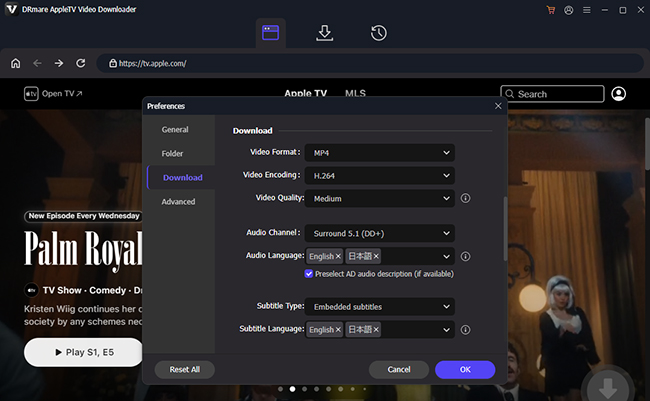
Since DRmare Apple TV Downloader is designed for Windows or macOS, it cannot be directly installed on Chrome OS, so you need to use your PC or Mac. Launch DRmare and log in with your Apple Account. First, adjust your output settings to ensure compatibility with Chromebook. Select "Preferences" and "Download" under the menu list. Change the output format to MP4. You can also lock in your preferred audio tracks, subtitles, and video resolution here.
- Step 2Select Apple TV to Convert for Chromebook
Browse the built-in library within DRmare to find the movies or shows you want to watch on your Chromebook offline. When you open a series page, use the "Add">"Add to List" buttons to batch-select entire seasons at once.
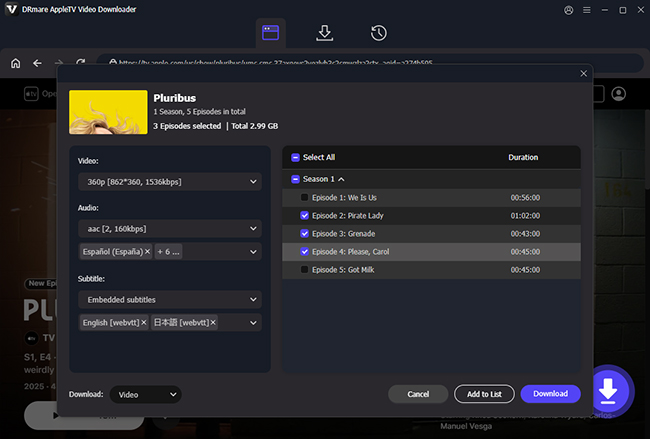
- Step 3Download Apple TV for Chromebook
Click the "Download" button at the top-right to start converting the files at high speed. Once the process is complete, click the "History" icon to locate the unprotected MP4 files in your output folder on your computer.
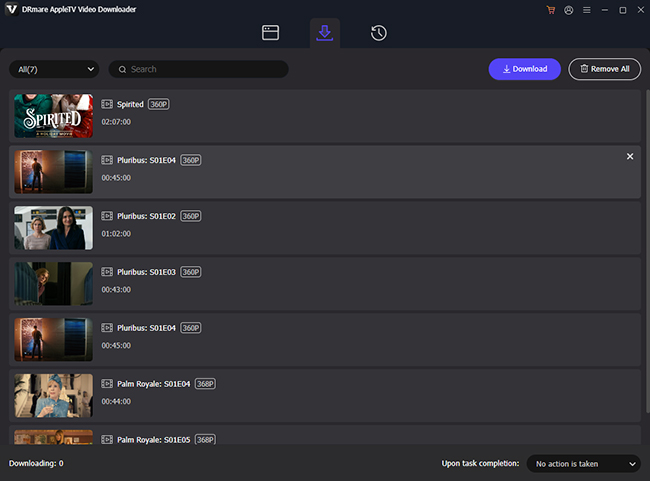
- Step 4Transfer and Get Apple TV on the School Chromebook by USB
After downloading your Apple TV movies and shows into local files, insert a USB drive into your computer and copy the MP4 files onto it. Safely eject the drive and plug it into your Chromebook. Open the Files app, select your USB drive from the sidebar, and double-click any movie file to start watching Apple TV on Chromebook offline immediately.
Part 4. Fix Apple TV Not Working on Chromebook
When you watch Apple TV on your Chromebook through the Chrome browser, problems can pop up that disturb your viewing experience. You may run into a black screen, endless buffering, or find yourself completely unable to sign in. The good news is that most of these issues are browser-related and can be fixed with a few simple checks.
1. Update Your Device and Check Internet
Before diving into anything complicated, make sure your Chromebook and Chrome browser are up to date. Outdated versions can cause Apple TV videos to fail or not load at all. Also, stay in a stable internet connection, especially if playback keeps buffering or stuttering.
2. Clear Cache and Cookies
If Apple TV loads but won't play or gets stuck on a black screen, corrupted browser data is often the culprit. Clearing cached files and cookies gives the web player on Chromebook a clean slate. In most cases, this alone fixed login loops and playback errors.
3. Delete Apple TV Local Data
If you're completely unable to sign in, try cleaning your Apple TV data for a more targeted fix.
Open Chrome Developer tools> Application tab, then go to Storage>Cookies. Under the list, right-click tv.apple.com to clear the data. After refreshing the page, logging in usually works normally again.
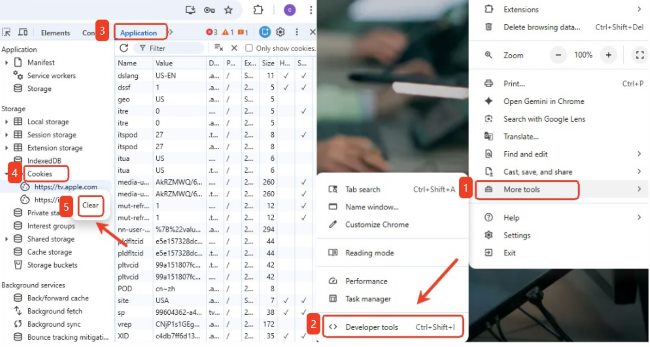
4. Disable Browser Extensions
Ad blockers and privacy extensions can accidentally block Apple TV's streaming or login scripts. A quick way to test this is by opening tv.apple.com in an Incognito window. If Apple TV works there, one of your extensions is likely the problem. Then you need to disable extensions one by one until you find the one causing the issue.
Part 5. Summary
Although there is no native Apple TV app on Chromebook, you can still enjoy Apple TV content with the right approach. For everyday viewing, streaming Apple TV through the Chrome browser is the easiest option. If you need offline access, using a DRmare Apple TV Downloader for saving local Apple TV files provides a practical alternative. With these solutions in place, you can bridge the gap between ecosystems and enjoy your favorite Apple TV on Chromebook at school or anywhere.

 Home
Home




Download Apple TV movies and episodes to MP4 or MKV with original video quality and watch them offline on all devices without an Apple TV subscription.