





 I'm an Apple TV subscriber and will be on a long flight where the Wi-Fi connection is expected to be unreliable. I want to watch some of my favorite TV shows and movies during the flight without having to worry about internet issues. Can I download TV shows and movies on Apple TV for offline viewing directly onto my Mac or my iPhone? If so, how can I do this, and are there any specific steps or tips to ensure everything is set up before my trip?
-- From discussion.apple.com
You can browse and watch videos on the Apple TV app, from movies and TV shows to exclusive Apple Originals. Whether you subscribe to Apple TV, or buy and rent movies and TV shows on the Apple TV app, it provides an easy way to download videos for offline viewing. Here's a comprehensive guide on how to download Apple TV movies and shows.
Part 1. Can You Download Movies and Shows on Apple TV for Offline Viewing?
Can You Download Purchased or Rented Movies/TV Shows on Apple TV?
Yes, you can download purchased and rented movies and TV shows on Apple TV on various devices, including iPhone, iPad, Mac, and Windows PC. However, you should keep in mind that your Apple TV rental lasts for 30 days, and once you start watching, you have 48 hours to finish it.
Can You Download Movies and Shows on Apple TV with a Subscription?
Apple TV app includes the Apple's premium subscription streaming service that offers a curated collection of original TV shows, movies, documentaries, and more. As long as your subscription remains active, you can also download movies and TV shows from Apple TV for offline watching.
Note:
On certain devices, such as the Apple TV set-top box, smart TVs, streaming devices, and through the web on tv.apple.com, you cannot download content. These platforms only allow streaming, so you need an active internet connection to watch movies, shows, and other content on these devices or get help from DRmare Apple TV Downloader.
Part 2. How to Download Apple TV Movies and Shows for Subscribers
Whether you're planning to watch content offline or ensure your favorite shows are ready for a long flight, downloading movies and shows on Apple TV is simple. Ensure your Apple TV is running the latest software version and your subscription is valid, then you can refer to the following steps to do it:
Requirements for Downloading Apple TV Shows and Movies
| Prerequisite | Requirements & Details |
|---|---|
| Apple Account | An active Apple Account to subscribe, buy, or rent content. |
| Content Access | A valid Apple TV subscription, or a purchased or rented video. |
| Compatible Device | An iOS, iPadOS, macOS, or Windows device supporting the Apple TV app. |
| Storage Space | Enough available device storage to save the downloaded video files. |
| Internet Connection | A stable Wi-Fi or cellular network connection during the download. |
Download Movies and Shows from Apple TV on iPhone/iPad/Mac/PC
Step 1. Open the Apple TV app and sign in with your Apple ID. Browse or search for movie you want to download. You can find movies either in the "Watch Now" section or by searching directly.
Step 2. Select the movie you want to download to view detailed information. A download button will appear to the right of the movie name.
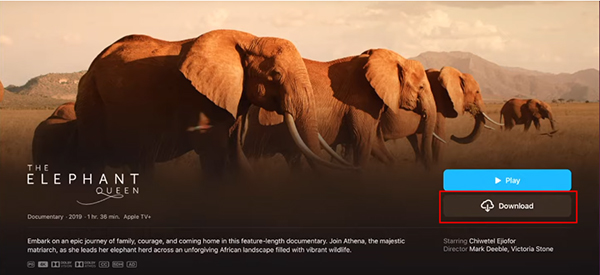
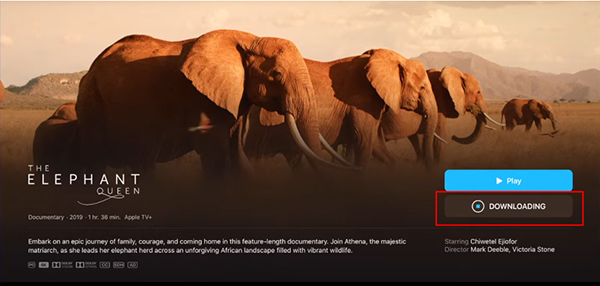
Step 3. Tap on "download" icon next to the title, the download will start immediately. Once the download is complete, you can access your downloaded movies directly from the "Library" > "Downloaded" section of the Apple TV app.
Tips:
If you're tired of one by one click to download Apple TV shows, you can use DRmare Apple TV Downloader to download all episodes in a show at once by a single click.
Part 3. How to Download Purchased and Rented Movies and TV Shows on Apple TV
The Apple TV app has a built-in Store section that lets you buy or rent a wide variety of the world's best movies and TV shows. All Apple TV purchases and rentals can be downloaded for unlimited Internet access and to save on data usage. Without further ado, let's look at how to easily download rentals and purchases from Apple TV, ensuring you can watch your favorite entertainment anytime, anywhere.
Download Movies and TV Shows You Purchase or Rent on Apple TV
Step 1. First, buy or rent the movie through the Apple TV app on your iPhone, iPad, Mac, or PC. You can use the "Search" feature in the Store section to find the target movies or shows, tap the "Buy" or "Rent" option.
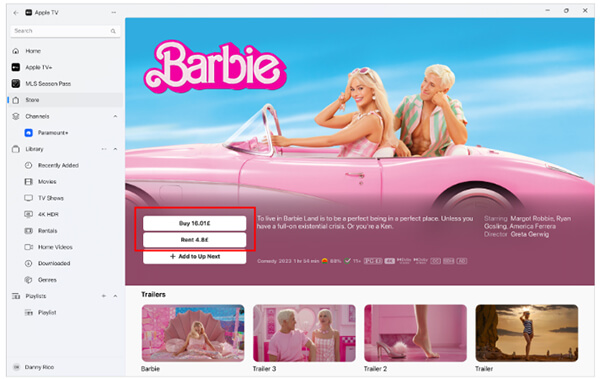
Step 2. Sign in with your Apple ID to confirm your purchase or rental. In your Library, choose "Movies' or "TV Shows" to find them. Now, you can place the mouse on the target content, and it will show the "download' icon. Tap it to download the rented or purchased video from Apple TV app to your device.
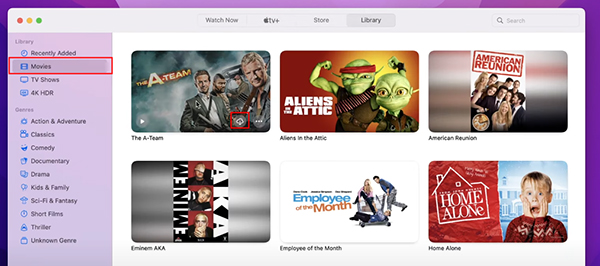
Limitations of the Official Apple TV Download Method:
While the Apple TV app lets you download movies and shows for offline viewing, the downloaded content is protected by DRM and is subject to expiration dates, device limitations, and playback restrictions.
- Downloads expire 30 days after saving or 48 hours after you start watching.
- DRM protection prevents you from moving files to non-Apple devices.
- All downloaded content becomes inaccessible if your Apple TV subscription ends.
Part 4. How to Download Apple TV Shows and Movies to MP4
Apple TV content, including movies and TV shows, is downloaded in M4V format with DRM protection. While this format is optimized for Apple devices, it may not be compatible with other devices or platforms. If you'd like to play them on non-Apple devices, it's better to download and convert Apple TV movies and TV shows to MP4 format.
One effective tool for achieving this is the DRmare Apple TV Downloader. It can convert your Apple TV content into MP4 or MKV files that can be played on portable devices offline. It runs at 5X faster conversion speed while preserving 100% original video quality and subtitles. If necessary, you can choose to export Apple TV videos in multiple audio tracks and subtitles in different languages. It will provide a more versatile and accessible viewing experience for videos.
How to Download Videos from Apple TV to MP4
- Step 1Sign In to Apple TV Account Within DRmare
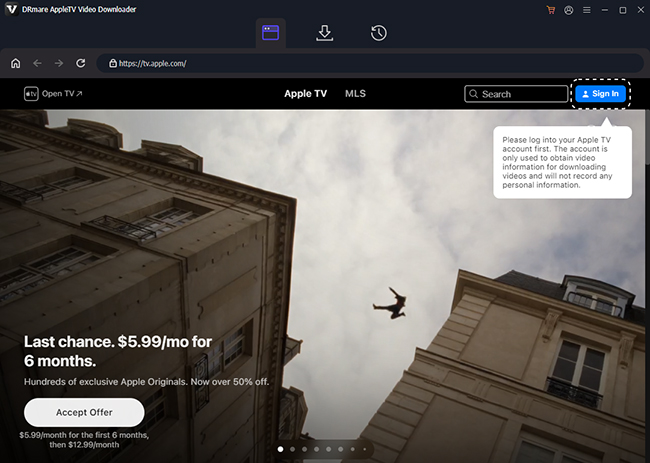
- Download and launch the DRmare Apple TV Downloader from your computer and click the "Sign In" button from the built-in Apple TV web player to authorize your account. It will allows you to quickly access your Apple TV library.
- Step 2Customize output download settings of Apple TV shows and movies
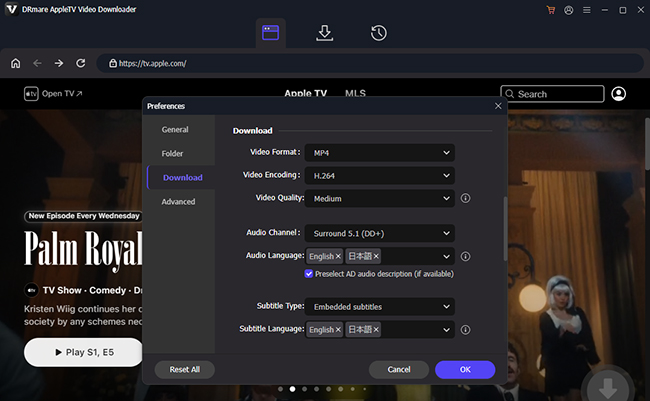
- MP4 is a widely supported format that ensures compatibility with various devices. You can select MP4 as the output format by clicking the "menu" icon at the top-right corner and choose the "Preferences" > "Download" option. In the settings window, you can also customize additional settings, such as video quality, resolution, and audio tracks.
- Step 3Add Apple TV Movies/Shows to Download
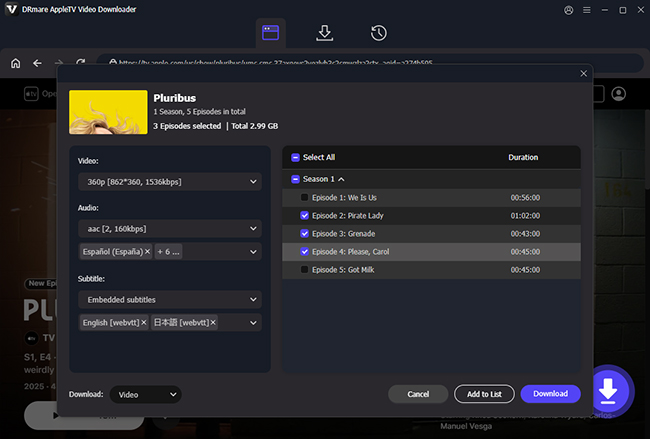
- Browse your Apple TV library to find your favorite movies or TV shows to download. Tap it to open the detailed page and click the "Download" button to load it. You can click the "Add to List" button to import them to Download List queue and add more videos to download.
- Step 4Download and Convert Apple TV Movies/Shows to MP4

- Click the "Download" button to start converting your selected Apple TV content to MP4 format. The conversion time will vary depending on the length and number of files being processed. The software will display the conversion progress, allowing you to track the status of your files. After conversion, you can find all unprotected videos in the output folder specified in the DRmare Apple TV Downloader settings.
Note:
DRmare Apple TV Downloader is not compatible with iTunes video purchases and rentals. To download these videos, you need to use another DRmare Software, namely DRmare M4V Converter.
Part 5. FAQs about Apple TV Shows and Movies Downloading
Can you download Apple TV shows on an Android phone or tablet?
Yes. Apple now offers an official Apple TV app for Android devices. You can download the "Apple TV" app from the Google Play Store. Once you sign in with your Apple Account, you can navigate to a movie or TV show page and tap the Download icon to save it. You can access all your saved content for offline viewing by tapping the Downloads tab at the bottom of the screen.
What is the maximum resolution for official downloads? Can I download in 4K?
No. While Apple TV supports up to 4K HDR for online streaming on compatible smart TVs, offline downloads via the official app are typically capped at 1080p or 720p HD. This limitation is designed to protect copyright and save storage space on your mobile devices or computers.
Can I transfer downloaded Apple TV movies to a USB drive?
No. Movies and shows downloaded through the Apple TV app are encrypted with DRM and stored in a protected format. They can't be copied to a USB drive or external hard disk for playback. If you want portable video files that can be transferred and backed up, you'll need to convert them to a standard format such as MP4 using DRmare.
Part 6. In Conclusion
Downloading movies and shows from Apple TV is a convenient way to ensure you have access to your favorite content, even without an internet connection. By following these ways, you can download rented or purchased movies and TV shows from Apple TV and all content from Apple TV streaming music service.
Besides, you can also use DRmare Apple TV Downloader to download all Apple TV videos to common files. It allows you to transfer these files to any device for playback without restrictions. Whether you're preparing for a trip or simply want to watch without buffering, you can make it possible now!

 Home
Home





5X download Apple TV streaming movies and all episodes on show to MP4 or MKV with zero video quality loss and watch them offline on all devices without an Apple TV subscription.