





 I use a Galaxy Tab S11 series for travel but I'm struggling with storage. While Netflix and Prime allow SD card downloads, I can't find a way to do this with Apple TV videos, and my 16GB internal storage is full. Is there a way to download Apple TV movies, including purchased iTunes movies to use the SD card?
— From Reddit
Managing your growing digital library can quickly become a headache when your device's internal storage starts to fill up. High-definition movies and entire seasons of television shows require massive amounts of hard drive space. Moving your collection to SD card is a highly practical solution to keep your favorite entertainment accessible without slowing down your machine. This guide will walk you through exactly how to download iTunes and Apple TV movies to an SD card via two professional methods.
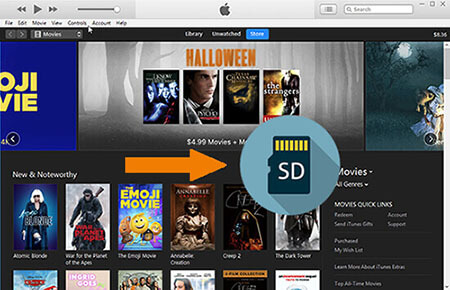
Part 1. Why Move Your Apple Movies to an SD Card?
Most modern laptops and mobile devices come with limited built-in solid-state storage that prioritizes speed over sheer capacity. When you start downloading massive iTunes or Apple TV 4K video files for offline viewing, that premium storage vanishes almost instantly. Offloading this bulky data to portable storage allows your device's operating system to breathe and function optimally. It is also the smartest way to build a massive offline media library for travel.
Essential Prerequisites: Choosing and Formatting Your SD Card
Before changing your download pathways, you need to ensure your portable storage is properly configured. If the card uses the wrong file system, your device might struggle to read it or fail to transfer large iTunes video files entirely. Choosing the correct format is the foundation of a smooth media migration.
- Choose the exFAT file system if you plan to plug this drive into both Windows PCs and Mac computers.
- Select the APFS format if you are strictly operating within the Apple ecosystem and only use macOS.
Note:
You can redirect your Apple TV and iTunes movie downloads to an external SD card or hard drive, but this feature is primarily supported on Mac or PC.
Part 2. How to Change iTunes/Apple TV Download Location to Your SD Card (Mac/Windows PC)
Now that your SD card is properly formatted and ready to handle large files, it is time to connect it to your media software. By default, both macOS and Windows automatically route all of your purchased or rented Apple movies directly to your primary internal hard drive. You can manually redirect this pathway so that all future iTunes and Apple TV downloads straight to your SD card.
How to Route Apple TV Downloads to Your SD Card on Mac
Apple has streamlined its media management on modern Mac computers by separating videos into the dedicated Apple TV application. Rerouting your future downloads requires a quick adjustment within the app's internal preferences.
Step 1. Launch the Apple TV app on your Mac, click on "TV" in the upper menu bar, and open "Settings".
Step 2. Click over to the "Files" tab at the top of the window to reveal your current media folder location.
Step 3. Click the "Change" button, browse your finder window to locate your connected SD card, and select it as the new destination.
How to Route iTunes Downloads to Your SD Card on Windows
For Windows users, the legacy iTunes application remains the command center for purchasing and downloading digital entertainment. You will need to dive into the advanced system settings to modify exactly where your files live.
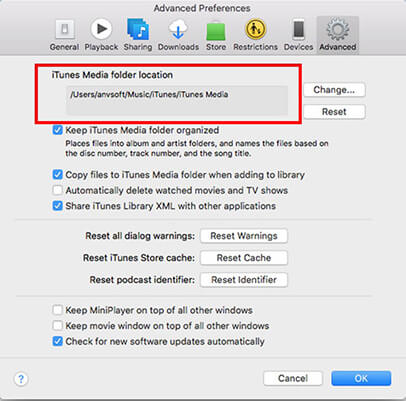
Step 1. Open the application on your Windows PC, select "Edit" from the top menu, and click on "Preferences".
Step 2. Navigate to the "Advanced" tab to access your detailed file organization options.
Step 3. Click the "Change" button in the media folder location box, locate your SD card in the file explorer, and confirm your selection.
Tips:
Keeping the "Keep iTunes Media folder organized" option checked will ensure your movies remain neatly categorized by title and creator on the SD card.
Part 3. How to Download iTunes/Apple TV Movies to SD Cards for Unlimited Playback
Once your Apple files are successfully downloading to your SD card by changing the download location, it is incredibly important to understand playback limitations. Apple secures all of its commercial video content using FairPlay Digital Rights Management (DRM) technology. This means the movie files you download are heavily encrypted and locked to your specific user account.
Downloading them to SD card does not magically strip away this encryption. You cannot simply plug this loaded memory card into a generic smart TV, an Android tablet, or an unapproved media player to watch your films. Playback requires an authorized device running the official software, and you must be signed in with the Apple Account used to purchase or rent the content. Therefore, here, we will introduce two professional tools to help you download Apple movies to SD card for offline playback anywhere.
How to Download iTunes Purchases and Rentals on SD Card
If your library consists primarily of purchased or rented M4V movies from the iTunes Store, the DRmare M4V Converter is the specialized tool for the job. Unlike standard screen recorders, this software performs a lossless conversion. It strips the FairPlay DRM while preserving the original video quality, AC3 5.1 surround sound, and multi-language subtitles. Once iTunes video files are converted to a universal format like MP4, you can move them to an SD card and play them on your Galaxy Tab, car headrest, or any offline media player without needing an authorized Apple account.
- Step 1Add iTunes M4V movies to download
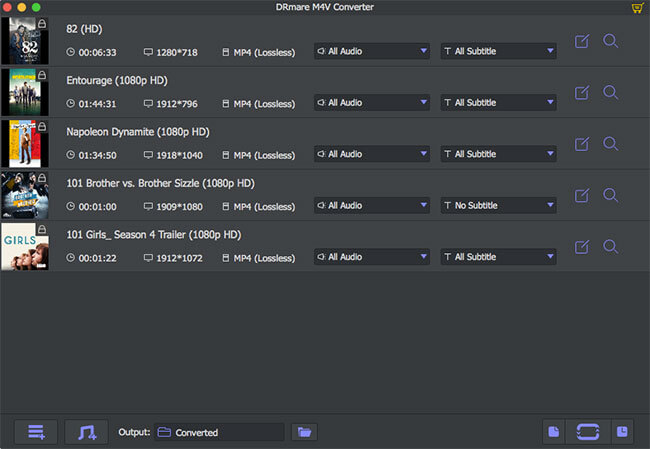
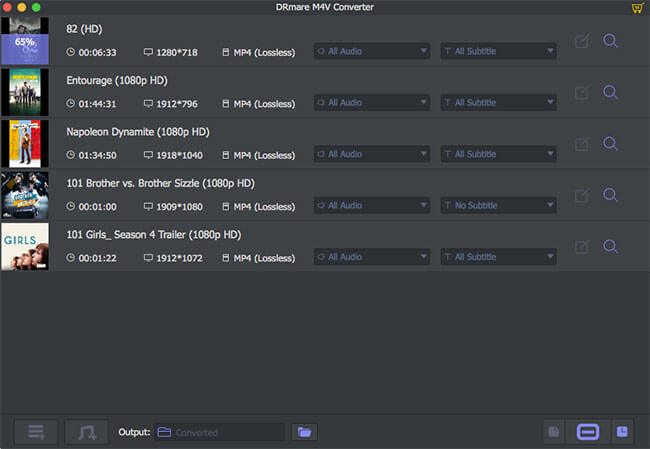
If you have already downloaded and saved the iTunes movie files on iTunes, you just need to click the '+' icon on the DRmare software, it will prompt you a media browser to choose the files to import from iTunes library. It supports bulk conversion quickly, so you don't need to worry about whether it will take a long time to convert your videos.
- Step 2Customize output iTunes video format for SD card
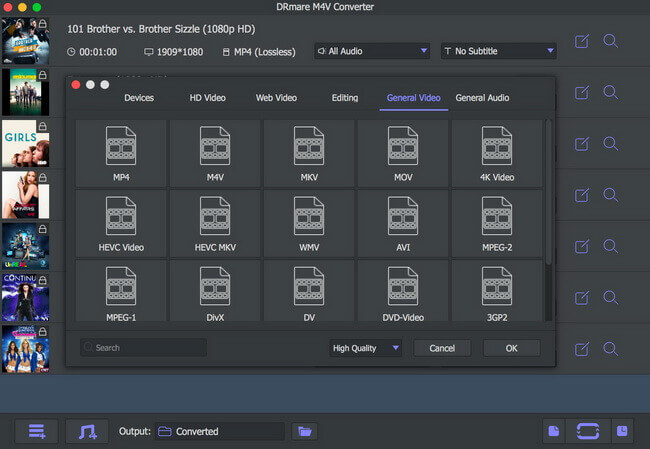
DRmare M4V converter will convert iTunes movies to MP4 (Lossless) by default and keep the subtitles, closed captions and audio tracks and other tab info. MP4 works perfectly for SD card, so you can keep the fault settings. But it is totally OK if you want to do some customization.
- Step 3Convert iTunes movies for moving to SD Card
Once you are satisfied with the settings, you can click the 'Convert' button from the right side to start converting. The DRM protection will be removed completely after that.
- Step 4Move Digital Movies from iTunes to SD Card
When you get the unprotected iTunes movies and TV shows, you can save iTunes movies to your SD card and plug in the SD card onto your mobile devices to watch iTunes videos freely. The transferring process is very easy, just a copy & paste or drag & drop process now.
- Connect your SD card with a card reader. By doing this, you can plug it into the computer and it will be detected as a local drive.
- Open the SD card from your computer. Double click the SD card from the explorer (Windows) or Finder (Mac) on your computer.
- Transfer iTunes videos to SD card. You can start to copy and paste the DRM free iTunes videos to the SD card folder.
- Plugin the SD card to your portable device. It may vary on different devices, but the usual process is to eject the card slot and then plugin the SD card directly.
- Play iTunes videos from SD card. Open a media player and choose a video from the SD card, it will start to play without any errors.
Aside from mobile devices, you can put movies from iTunes to any device with an SD card slot via the SD card.
How to Download Apple TV Streaming Content on SD Card
For those who subscribe to Apple TV and want to save original series (like Ted Lasso or Silo) for permanent offline use, the DRmare Apple TV Downloader is the preferred choice.
Streaming downloads within the official app usually expire or are restricted to specific devices. This downloader allows you to fetch high-quality 1080p video directly from the service. By saving these Apple titles as local MP4 or MKV files directly to your SD card, you bypass the storage limit entirely and ensure your favorite shows are ready for your next flight or road trip.
- Step 1Sign in and add Apple TV movies to download
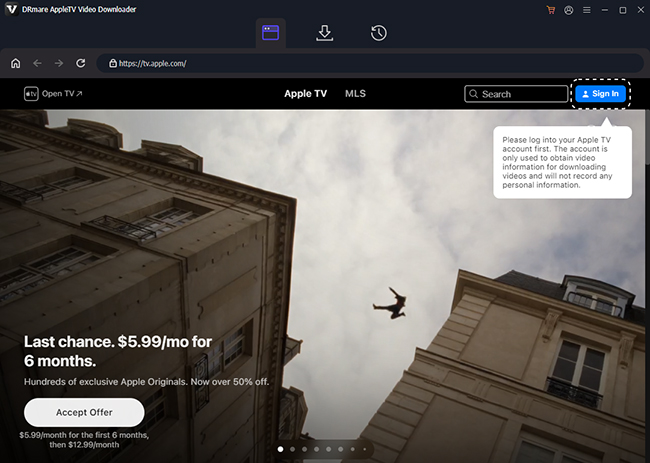
Launch DRmare Apple TV Downloader on your Windows PC or Mac. The software features a built-in browser. Click the 'Sign In' button and enter your Apple Account credentials to access your library and active subscriptions. You can search for favorite movies to download and tap the 'Download' > 'Add to List' to queue them.
- Step 2Configure Apple TV video output settings for SD card
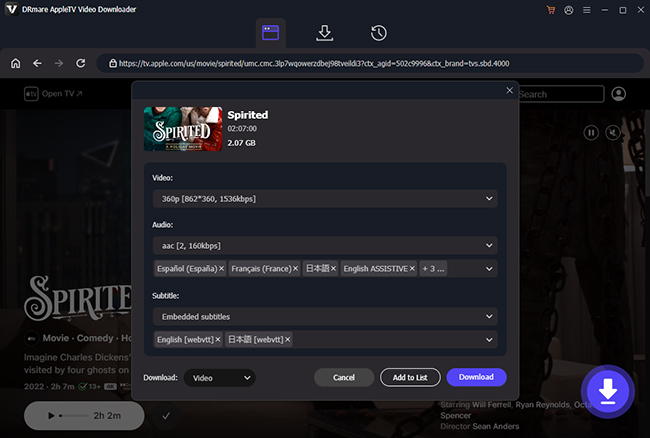
Before downloading, ensure the Apple TV files are optimized for your device. You can click the 'Menu' icon (top-right) and select 'Preferences' to open the settings window. Go to the Download tab and choose MP4 or MKV. In the same window, you can also select your preferred resolution, bitrate, languages and audio tracks you wish to preserve.
- Step 3Download Apple TV to Your Drive
Navigate to the Download List tab and click the 'Download' button in the bottom-right corner. The software will download the Apple TV content at 5X speed. Once finished, you can go to the 'History' tab (clock icon) and click the 'Folder' icon next to any file to open the location on your hard drive. After that, plug your SD card into your computer's card reader and move the converted files from your computer directly onto the SD card.

Part 4. In Conclusion
While Apple's walled garden and FairPlay DRM encryption are designed to keep your purchases and subscriptions locked within specific apps, you now have the tools to take control of your media. By using the methods outlined in this guide, you can:
- Reclaim Internal Storage: Offload massive 4K and HD files to high-capacity SD cards.
- Bypass DRM Restrictions: Use DRmare M4V Converter to turn iTunes purchases into universal MP4s.
- Archive Streaming Content: Use DRmare Apple TV Downloader to keep Apple TV originals permanently, even after they've left the service or your subscription ends.
- Watch Anywhere: Enjoy your favorite films on Android tablets, car headrest players, or any device with an SD slot, no internet or Apple sign-in required.
Whether you are preparing for a long-haul flight or a family road trip, moving your Apple library to an SD card ensures your movies are always ready to play, exactly where you want them.

 Home
Home





5X download Apple TV streaming movies and all episodes on show to WP4 or MKV with zero video quality loss and move them to SD card, USB flash drive and other hard drives.