





Deezer stands out for its vast catalog, personalized recommendations, and seamless listening across desktop and mobile devices. However, on Deezer Free, audio ads between tracks can interrupt playback and disrupt the overall listening experience, leading many users to look for methods to remove Deezer ads. This guide explores 6 practical ways to block Deezer ads, covering official options and free solutions on Windows, Mac, Android, iPhone, and web browsers.
Part 1. Does Deezer Have Ads
Deezer Free is supported by ads, which appear as short audio commercials between tracks, visual banners in the app or web player, and occasional sponsored songs that interrupt the listening experience. While Premium users enjoy uninterrupted listening, Free accounts will regularly encounter these ad interruptions during playback.
Part 2. Listen to Deezer Ads-free with Premium
If you want a smoother and more reliable way to enjoy your music, Deezer Premium is the official option. With a Premium plan, all audio and display ads are removed across supported devices. Listeners also get unlimited skips, offline playback, and access to high-quality audio. If you haven't used it before, you can get a Deezer free trial to see how ad-free playback feels.
Step 1. Start by opening the Deezer app or visiting the Deezer website, then sign in to your account.
Step 2. In your account settings, you'll find the "Manage my subscription" section. If the account is new, you'll see a free-trial option.
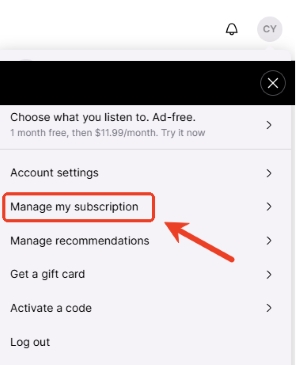
Step 3. From there, select a plan that matches your needs, and complete the upgrade. Once the plan is active, ads are removed automatically, and music plays without interruptions across your devices.
Part 3. Remove Deezer Ads on Windows & Mac
While subscribing to Deezer Premium is one way to remove ads, if you prefer not to pay monthly, keeping music in DRM-free local formats offers a practical alternative. Once tracks are saved locally, you can enjoy Deezer playback with no ads or network limits on any device.
DRmare Streaming Audio Recorder is such a reliable desktop solution for blocking Deezer ads by downloading music for offline use. It features a built-in Deezer music player that lets you get Deezer no ads while simulating real human listening behavior, converting tracks at speeds of up to 46X. Deezer can be stored in MP3 and general formats like FLAC, WAV, AIFF, M4A, and M4B, while original audio quality and ID3 tags are preserved, making it a safe choice for building an ad-free local Deezer music library.
- Step 1Set up the Output Format for Deezer Music
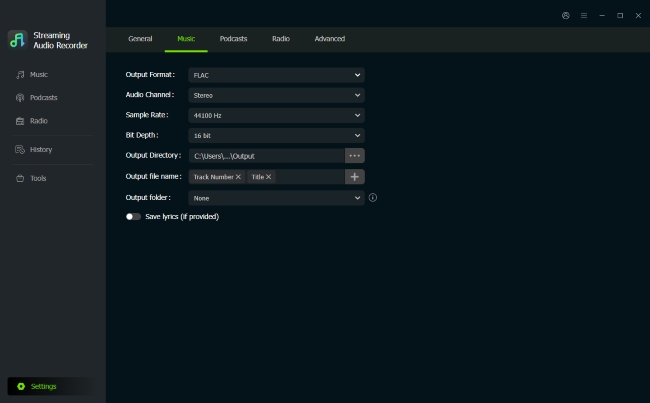
After opening DRmare on your computer, head to the menu area and look for the "Settings" toolbar and choose "Music" from it. Here, you can decide how your Deezer music will be saved and fine-tune details like bit rate and audio channels.
- Step 2Open the Built-in Deezer Player inside DRmare
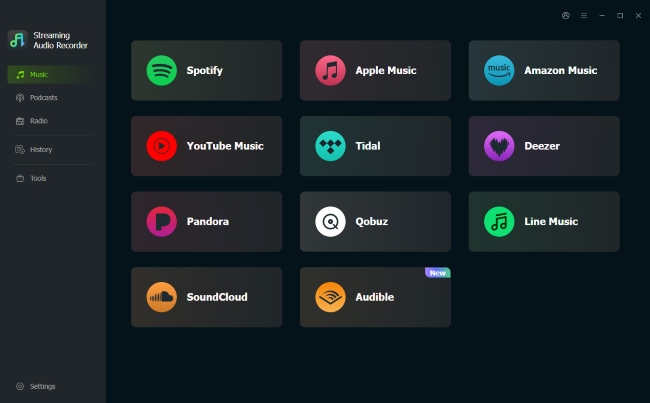
Back on the main screen, select the Deezer icon to access the integrated web player on DRmare. This opens Deezer directly inside the software, where you can log in with your account and browse Deezer as usual.
- Step 3Choose Deezer Songs for Ad-free Download
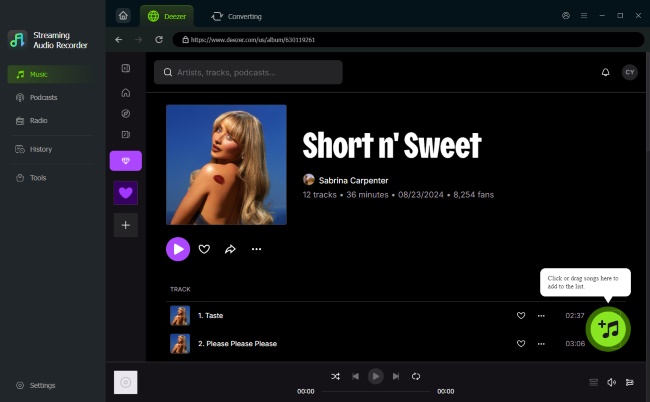
Find the Deezer tracks you want to download. you can add or remove Deezer playlists or albums by clicking the "Add" button, and then tapping "Add to List" to queue them to the conversion list at once.
- Step 4Download Music from Deezer without Ads
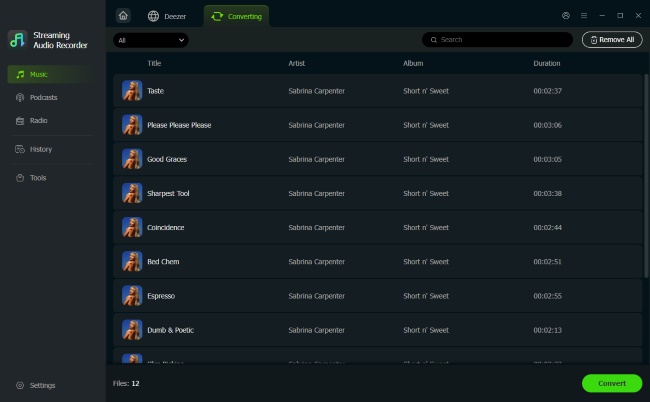
Once everything is ready, press the "Convert" icon and start the downloading process. When finished, the Deezer music files are saved locally with full metadata intact, which can be found on the "History" tab. And then you can enjoy Deezer music without ads or subscription limits offline.
Part 4. Block Deezer Ads on Android & iPhone
If you prefer to listen to Deezer on your mobile device and don't want to subscribe to Premium, there are two approaches to reduce ad interruptions on Deezer: set up Private DNS to block ads at the network level, or use ad-blocking apps tailored for Android and iPhone playback.
Try Ad-Blocking Apps to Remove Deezer Ads on Mobile
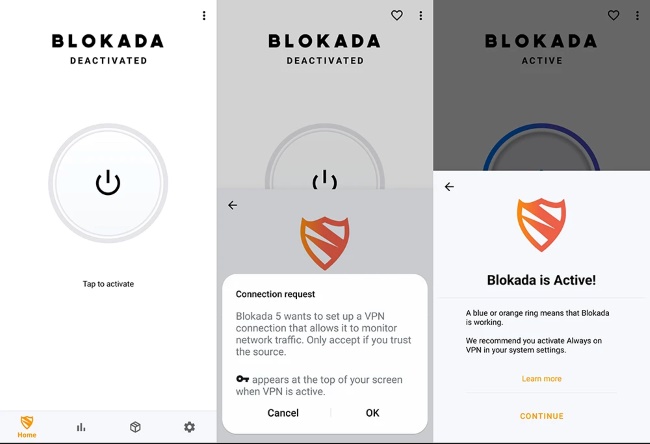
One way to reduce Deezer ads on mobile is by using ad-blocking apps, which filter ads directly on your device without changing system settings. There are two powerful ad-block apps that allow you to get Deezer no ads: AdGuard and Blokada 6.
Step 1. Start by downloading Blokada 6 from the Google Play Store or the Apple App Store.
Step 2. Once installed on your phone, open the app and activate the main switch, which enables its built-in VPN and starts blocking ads across your device, including within Deezer.
Use Private DNS to Reduce Deezer Ads on Android/iOS
Adjusting the device's DNS settings can help filter many Deezer ads before you reach the app on your phone. Below are straightforward ways to set it up on Android and iPhone to block ads on Deezer.
How to Set Up DNS to Block Deezer Ads on Android
Android 9 + includes a Private DNS feature that lets you filter network-level ads, helping minimize Deezer ad interruptions while listening.
Step 1. Open "Settings" and navigate to "Connection", then look for "Private DNS".
Step 2. Choose the option for "Private DNS provider hostname" and enter the code like dns.adguard.com. If it causes the Deezer app to lose internet connectivity, you can try switching to NextDNS or using the official AdGuard app.
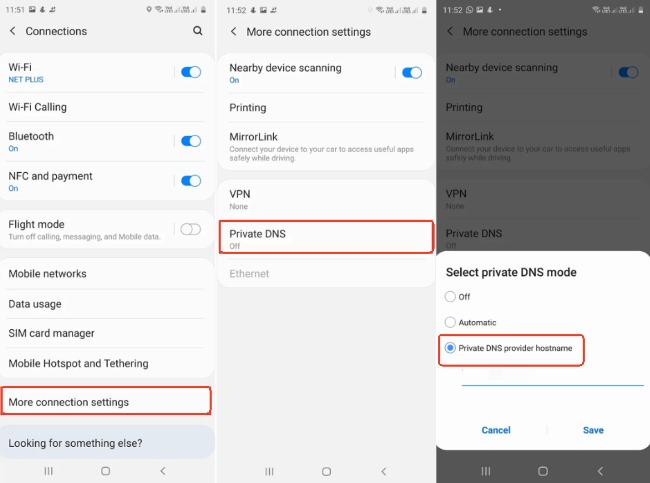
Step 3. Save the changes and restart your phone when needed.
How to Set Up DNS on iPhone to Reduce Deezer Ads
iOS handles DNS differently, but you can still filter ads either system-wide or for specific Wi-Fi networks.
Manual DNS for a Specific Wi-Fi Network
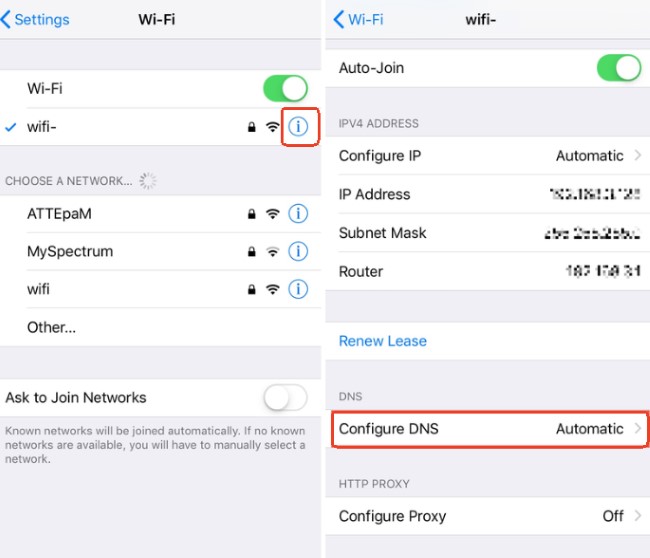
Step 1. Open "Settings > Wi-Fi" and tap the info icon "i" next to your network.
Step 2. From there, scroll down to "Configure DNS" and switch to "Manual". Enter the ad-blocking DNS addresses and save the changes.
Use a Configuration Profile
Step 1. Visit an ad-blocking DNS site like AdGuard DNS using Safari and download the iOS profile.
Step 2. Navigate to "Settings > General" and choose "VPN & Device Management" to install the profile. Make sure DNS protection is active in the profile or the associated app.
Part 5. Get Deezer Ads Removed with Browser Extensions
Ad Block Browser Extensions
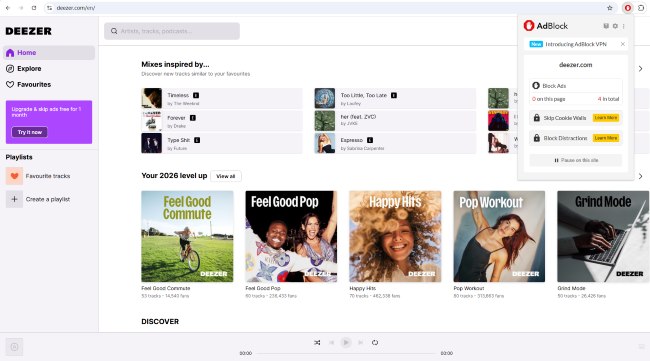
If you mainly enjoy Deezer through its web player, using a browser extension is an easy way to block ads while streaming. These plugins that are available for browsers like Chrome, Firefox, or Safari can prevent both audio and display ads from interrupting your music, helping you enjoy a smoother, more seamless listening experience on Deezer.
Step 1. Install a trusted ad-blocker such as AdBlock, uBlock Origin, Ghostery, or Deezer Fixer from your browser's extension store.
Step 2. Open Deezer in your browser and make sure the ad-blocker is active. It will automatically filter out most ads, letting you get Deezer with no ads for uninterrupted playback.
Audio Mute Browser Extensions
Some browser extensions don't block ads completely but focus on muting audio ads while you listen to Deezer. These tools detect when an ad starts playing on the Deezer web player and automatically silence the tab, restoring the sound once the ad ends. While they don't remove the ad entirely, they effectively prevent audio interruptions, letting your music play smoothly without constant breaks.
Step 1. Install an audio-muting extension such as SpotiShush from your browser's extension store.
Step 2. Open Deezer in your browser and ensure the extension is active. It will monitor playback and automatically mute any audio ads that appear.
Note:
Deezer can easily detect many ad-blocker extensions in 2026. Even some privacy or tracking protection tools may trigger Deezer's detection system. If you see an "Ad-blocker detected" message and playback is blocked, you need to whitelist Deezer and use the safe method described in Part 3 to bypass detection and continue listening to Deezer smoothly.
Part 6. Reduce Deezer Ads Using VPNs with Ad Blocking
Some VPNs offer built-in ad-blocking features that stop many ads and tracking requests before they load. This means no extra browser extensions or complicated setup to reach faster page loading. While VPN ad blocking won't remove all Deezer ads, especially audio ads, it can still serve as a useful extra layer if you use a VPN regularly. There are a few VPNs commonly used for ad blocking, such as Surfshark Clean Web, ExpressVPN, and ProtonVPN. And the following section walks through how to block Deezer ads using ExpressVPN as an example.
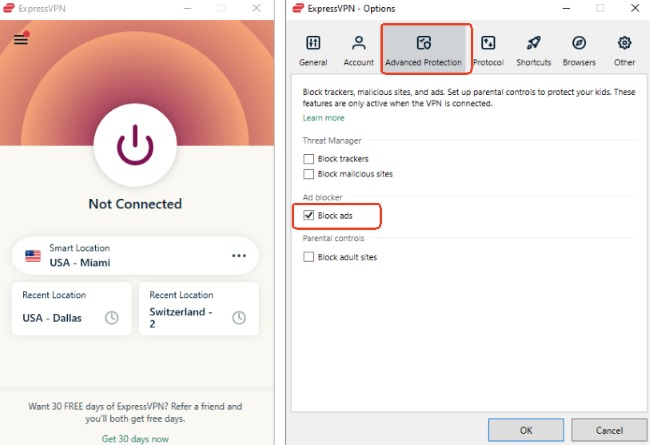
Step 1. After opening the ExpressVPN app, go ahead to the "Options" and navigate to the "Advanced Protection" section. Then click on "block ads". Once enabled, it runs quietly in the background without needing any extra action later.
Step 2. It's worth confirming that the protocol is set to Lightway or Automatic, though ExpressVPN usually handles this automatically. This helps keep the connection stable while the ad-blocking feature is working.
Step 3. With the VPN connected, open Deezer as you normally would, and some visual ads or tracking elements on Deezer may be reduced while browsing or listening.
Note:
VPN-based ad blocking mainly targets visual ads and trackers. Audio ads on Deezer are often served directly by the platform, so full ad-free playback isn't guaranteed, especially on free accounts.
Part 7. Comparison of Methods to Block Deezer Ads
| Method | Devices | Main Function | Advantages | Limitations |
|---|---|---|---|---|
| Premium Subscription | Mobile, Desktop, Web | Completely removes audio and display ads | Ad-free, offline playback, high-quality audio, fully supported | Requires paid subscription |
| Deezer Music Downloader | Desktop | Save Deezer tracks locally in DRM-free formats | No ads during playback, maintain audio quality and metadata, play on any device | Requires software installation on computer |
| Private DNS | Android, iOS | Filter ads at network level | Reduces ads without extra apps | Setup can be tricky, effectiveness varies by network, audio ads may persist |
| Ad Blocking Apps | Android, iOS | Block ads within apps | Works across apps, minimal setup once activated | May use device resources, some ads may still appear |
| Ad-block Browser Extension | Desktop, Web | Block ads in browser-based Deezer | Easy to install, blocks many visual ads | Deezer can detect blockers, audio ads may not be blocked |
| VPN with Ad-blocking | Desktop, Mobile | Block ads and trackers at network level | No extra extensions needed, adds privacy protection | Audio ads may not be fully blocked, requires VPN subscription |
Part 8. FAQs about Deezer Ad Blocking
Is it legal to use the Deezer ad blocker?
In most regions, using an ad blocker itself isn't illegal. However, Deezer's free service is supported by ads, and blocking them may conflict with its terms of use. When ad-blocking tools are detected, Deezer may limit playback, stop music from playing altogether, or display warning messages asking you to disable the blocker or upgrade to Premium.
Can I keep ad-free playback after a subscription ends?
Once a Premium subscription expires, streaming on Deezer Free will include ads again. If you prefer to listen to Deezer music without ads and don't want to subscribe, one option is to use tools like DRmare to save Deezer tracks as DRM-free files locally. Then these tracks can be played ad-free on all your devices.
How to fix "Ad-blocker Detected" on Deezer?
Taking a moment to check all active privacy or security apps and temporarily disabling their ad-blocking features often helps fix this error. In most cases, a small adjustment is enough, and you don't need to disable every privacy or ad-blocking feature for Deezer playback.
- Updating filter lists helps the blocker adapt to Deezer's latest detection changes and reduces false warnings.
- System-wide blockers like VPNs, DNS filters, or privacy apps can interfere with Deezer's initial connection. Allowing Deezer's main site and media domains in those tools often lets the player start normally, even if some ads still appear. This is where DRmare becomes essential to handle the audio interruptions.
- Deezer may apply stricter checks in certain browsers. Switching to another browser or profile can sometimes avoid unnecessary detection and restore playback on Deezer.

 Home
Home





User Comments
Leave a Comment