





Spotify lets you enjoy all your favorite songs and podcasts across devices, yet a new update can sometimes make the app feel unfamiliar. You might find that features you relied on are gone, the interface feels confusing, or the latest Spotify version is not working on your devices. In such cases, downgrading Spotify can help you restore the options you miss and enjoy smoother performance, bringing the app back to the way you prefer to use it.
In this guide, you'll learn how to downgrade Spotify on Windows, Mac, Android, and iPhone with safe and workable methods. It also covers how to keep your Spotify playlist in case of any data loss after downgrading Spotify to an older version.
Part 1. Will I Lose Playlists After Downgrading Spotify to an Older Version
No, you won't lose your Spotify library. All your playlists, saved songs, followed artists, and albums will stay linked to your Spotify account. However, any music or playlists you had downloaded for offline listening may need to be downloaded again, since older versions of Spotify might not support the latest offline formats. Once you revert back to an older version of Spotify, such as version 1.2.55, you also can't access new features or performance improvements introduced in recent updates.
Part 2. How to Downgrade Spotify Version on PC/Mac
Downgrading Spotify on a computer is a practical way to regain control over the app's features and performance. Whether you prefer the older layout, want to avoid new bugs, or just want a smoother experience, downloading Spotify to a previous version can help you get back the setup you like.
Downgrade Spotify for Windows 10/11
On Windows, you need to take a few extra steps to prevent automatic updates, which ensures the older version stays in place and runs as expected.
Step 1. Uninstall Spotify: Open the Settings menu on your computer, find Spotify in the list of installed apps, and click "Uninstall".
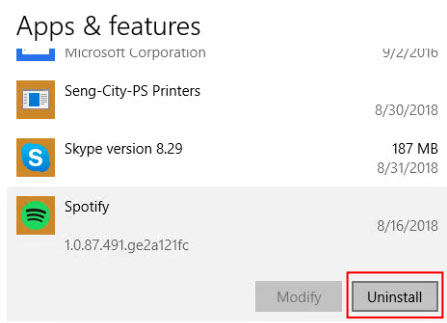
Step 2. Install an Older Version of Spotify: Once Spotify has been removed, download the older version from Uptodown Windows Versions. Then install and add it to your computer.
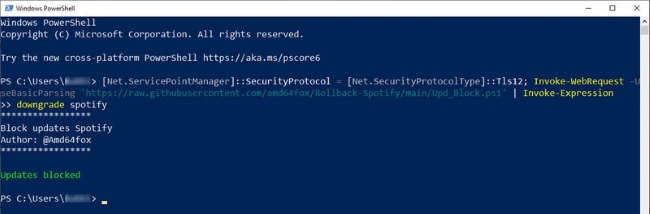
Step 3. Disable Spotify Auto-Updating: To stop Spotify from updating automatically, you need to disable its automatic update features before launching the app. Just open PowerShell with administrator privileges. Once it's open, copy and paste the following command and press "Enter", then it will work for Spotify:
[Net.ServicePointManager]::SecurityProtocol = [Net.SecurityProtocolType]::Tls12; Invoke-WebRequest -UseBasicParsing 'https://raw.githubusercontent.com/amd64fox/Rollback-Spotify/main/Upd_Block.ps1' | Invoke-Expression downgrade spotify
Download the Old Version of Spotify for Mac
Now, we'll go through the steps to downgrade the Spotify App on your Mac, helping you bring back the features and get the app running just the way you like.
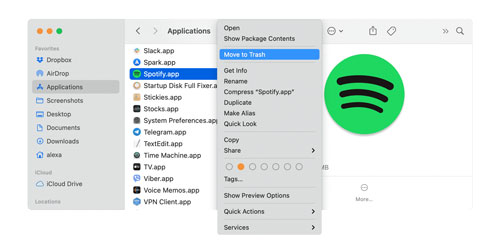
Step 1. Remove Spotify: Start by opening a Finder window and going to the "Applications" folder on your Mac. Find the Spotify app, then uninstall it by clicking "Move to Trash" or by dragging it to the Trash.
Step 2. Download and Install the Previous Version of Spotify: After uninstalling, visit Uptodown Mac Versions to download the older version of Spotify for Mac, including version 1.2.55. Follow the on-screen instructions to finish the process, and Spotify will be restored to the old version on your Mac.
Part 3. How to Downgrade Spotify Version on Mobile
If you're using Spotify on a smartphone, the process is slightly different from computers, but it's still easy to operate. Whether you're on Android or iPhone, you can revert to an older version to restore your favorite features on Spotify as you follow the steps carefully.
Download an Older Spotify Version on Android
On Android, the key is downloading the APK of the version you want and disabling Spotify auto-updates in the Google Play Store. This lets you enjoy the older Spotify experience without worrying about its version updates.
Step 1. Uninstall Spotify: Open "Settings" on your phone, go to "Apps" and navigate to Spotify. Tap "Uninstall" and confirm to remove Spotify from your mobile.
Step 2. Download an Older Version: Once Spotify is uninstalled, download the older version from Uptodown Android Versions. Ensure the "Unknown Sources" option is enabled on your device so you can install the APK.
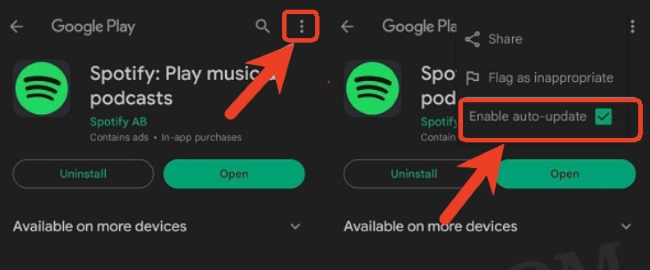
Step 3. Install and Stop Spotify from Auto-Updating: Open the Google Play Store and search for Spotify. Then tap the menu icon and uncheck "Enable auto-update" to prevent it from updating automatically.
Downgrade the Spotify App on iPhone
The Apple App Store only offers the latest app versions supported by the current iOS system, which means you can't roll back to a previous version officially. As a result, downgrading Spotify on iOS can be challenging. But there is still a workaround worth trying. A third-party tool called Muffin Store makes it possible to revert to older versions of iOS apps directly on an iPhone.
There are two common ways to install Muffin Store on the iPhone, depending on the iOS version. For devices running iOS 14 to iOS 17.0, Muffin Store can be installed by importing its IPA file into TrollStore. If TrollStore isn't supported on your device, Sideloadly is another option that works on all iOS versions and requires a PC or Mac. Once Muffin Store is installed, let's move on to the steps below to downgrade Spotify to an older version with Muffin Store.
Step 1. Open Muffin Store and Sign In: Open Muffin Store on your iPhone, and log in with an Apple ID to authorize app installation.
Step 2. Get the Spotify App Link: Head to the App Store and search for Spotify. Tap the "Share" icon on the Spotify app page and copy its link. Return to the Muffin Store, tap the "Download" button, and paste the copied link of Spotify from the App Store.
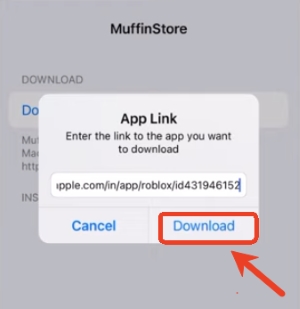
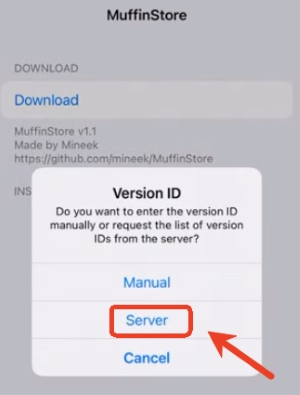
Step 3. Choose an Older App Version: then select the "Server" option to view all available versions.
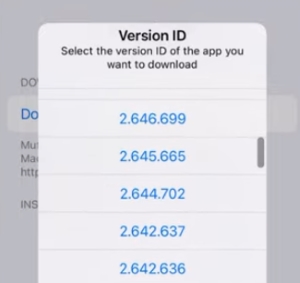
Step 4. Install the Old Version of Spotify: Pick the version you want and start installing. Once completed, the Spotify app will be successfully downgraded to the chosen older version.
Note:
Keep in mind that this method doesn't work the same for everyone. Results can vary depending on the app and the iOS version. In some cases, older app versions may not open properly or may have limited features.
Part 4. Save Your Playlists before Spotify Downgrade
Before downgrading Spotify to an older version, it's a smart move to back up your Spotify playlists first. Although your account data is safe, older Spotify versions may require you to re-download offline music and may not work in some cases. By saving your Spotify music locally in advance, you can keep your favorite tracks accessible and avoid being affected by future app changes or version limits.
Instead of relying solely on the Spotify app, DRmare Spotify Music Converter offers a reliable way to protect your music library. It allows you to download Spotify songs and playlists directly to your computer--even without a Premium account. You can convert the music into various formats like MP3, FLAC, or WAV while preserving the original audio quality and ID3 tags. Once stored locally, your music remains available for offline listening, free from ads and unaffected by Spotify downgrades or updates.
- Step 1Customize Spotify Output Settings
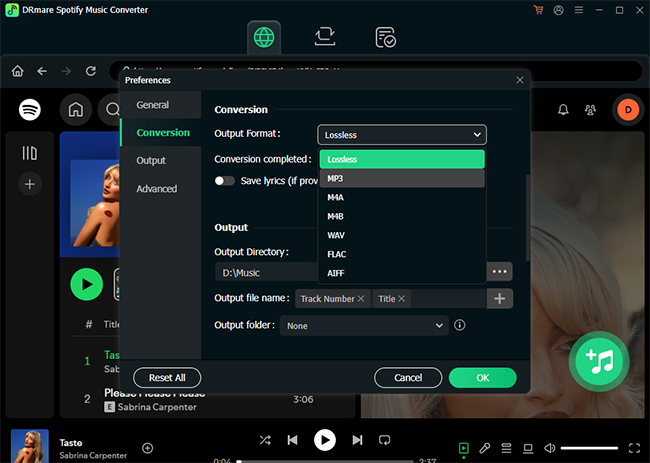
After installing and launching DRmare, sign in to your Spotify account on the main interface. Then open the "Menu" option, head to "Preferences", and switch to the "Conversion" tab.
Here, you can choose the output format you prefer and adjust options like bitrate and sample rate. These settings help ensure your downloaded music works smoothly on any device, even after downgrading Spotify.
- Step 2Import Spotify Playlists or Tracks
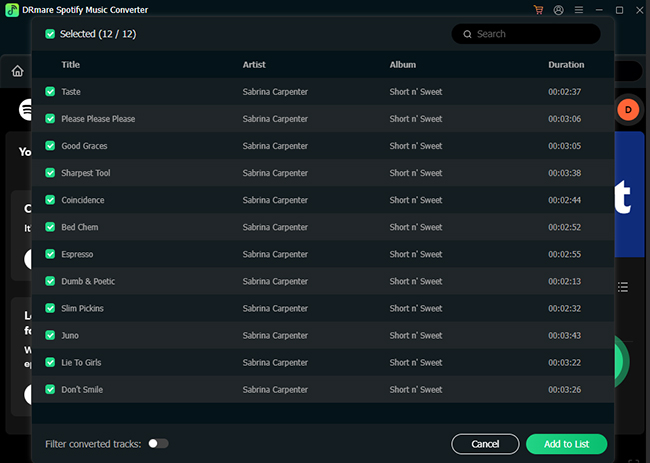
Next, add the Spotify content you want to keep before downgrading your Spotify app. You can simply drag playlists or albums onto the green "+" button, then confirm by clicking "Add to List". This approach makes it easy to back up your entire Spotify library at once, so you don't need to worry about losing access when switching to an older Spotify version.
- Step 3Download Spotify Music for Offline Use
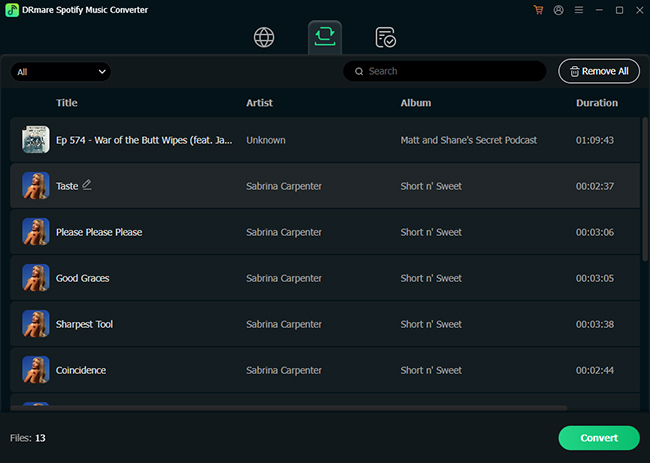
Once everything is ready, click "Convert" to begin downloading your Spotify music. DRmare supports fast conversion speeds—up to 15X, so even large playlists won't take long. After the process finishes, all converted songs and playlists can be found in the "Converted" section. These files can be played offline anytime, regardless of Spotify app updates or downgrades.

 Home
Home





User Comments
Leave a Comment