





Spotify Premium offers a range of perks, from ad-free listening and offline playback to superior audio quality. However, as your listening habits evolve, you may find that your current subscription no longer fits your needs, and want to adjust your Spotify subscription to better match your preferences. But how? This guide will show you how to change your Spotify plan with two methods, manage your plan effectively, and even retain your Spotify music after switching your subscription.
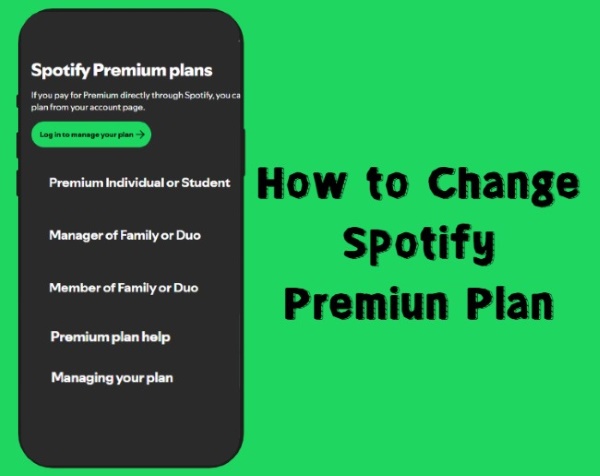
Part 1. What to Know Before Changing Your Spotify Plan
Before changing your Spotify plan, it helps to understand how the switch may affect your account. Your playlists, saved songs, and settings remain intact whether you downgrade to the Spotify Free plan or switch between Premium plans. However, moving to Free brings back ads and removes offline listening, while upgrading or switching plans may adjust your billing date and charges based on price differences. Now let's take a moment to understand the available Spotify subscription options to help you choose the plan that best matches your listening habits.
| Plan | Price | Account | Core Features |
|---|---|---|---|
| Spotify Premium Individual | $12.99/mo | 1 | Ad-free music, offline downloads, higher audio quality |
| Spotify Premium Student | $5.99/mo | 1 | Same Premium features at a discounted student rate (verification required) |
| Spotify Premium Duo | $16.99/mo | 2 | Two separate Premium accounts for people at the same address |
| Spotify Premium Family | $19.99/mo | 6 | Up to six Premium accounts for household members |
Tips:
Plan changes are managed through your Spotify account page on the web, and if your subscription is billed through a third-party partner such as a mobile carrier, you'll need to make the change through that provider.
Part 2. How to Change Spotify Plan (Web/Mobile)
Changing your Spotify plan depends on how you pay for your subscription, whether through Spotify directly or via Google Play, as each platform has its own rules and limitations. These differences determine how you can switch between plans. Here are the two ways to change your plan on Spotify.
Switch Plan on Spotify via Browser (Direct Spotify Payment)
If you subscribe to Spotify Premium directly, you can manage and change your plan using a web browser. On iPhone or iPad, however, you aren't allowed to switch plan on the Spotify app due to Apple's restrictions, so all subscription changes must be done through a browser.
Step 1. Open a web browser on your phone or computer, such as Chrome or Safari, and navigate to Spotify account page.
Step 2. Click "View Account" and choose "Manage your subscription" to view your plan on Spotify.
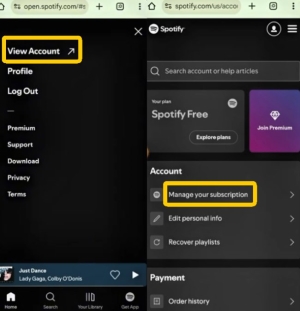
Step 3. Log in to your Spotify account and scroll down to the "Your plan" section, then click "Change Plan". Here you can choose to upgrade or downgrade your Premium subscription according to your needs.
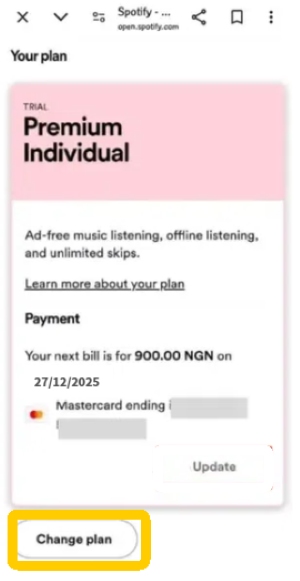
Step 4. Follow the prompts to select your preferred plan (Individual, Duo, Family, Student) and confirm your choice.
Change Spotify Subscription via the Spotify App (Google Play Billing)
If your Premium subscription is billed through Google Play, you can only change your plan using the Spotify app on your phone.
Step 1. Launch the Spotify app on your phone and ensure you are signed in to the correct account.
Step 2. Tap your profile picture, go to "Settings & Privacy", then tap "Account".
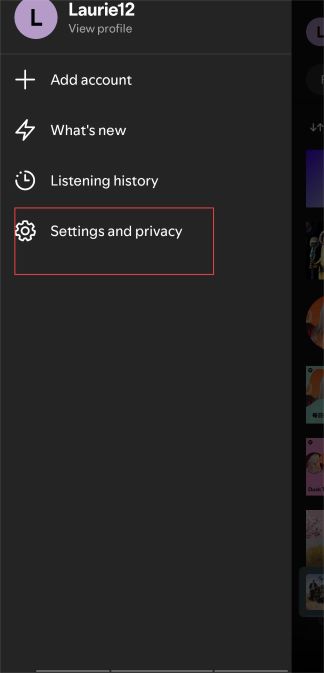
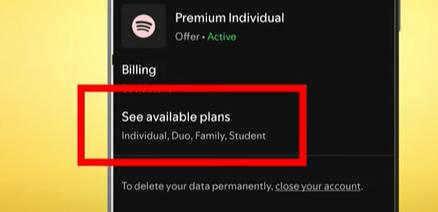
Step 3. Under "Your plan", tap "See available plans", choose the plan you want to switch to, and follow the prompts to complete the change.
Part 3. How to Change Plan Manager on Spotify
When using a Spotify Premium Family or Duo plan, there is a Plan Manager who controls the account and handles the payments. If you want to change the manager, it's important to know that this cannot be done directly. To assign a new manager, you need to cancel the current Spotify plan first so that a different household member can set up a new plan as the manager.
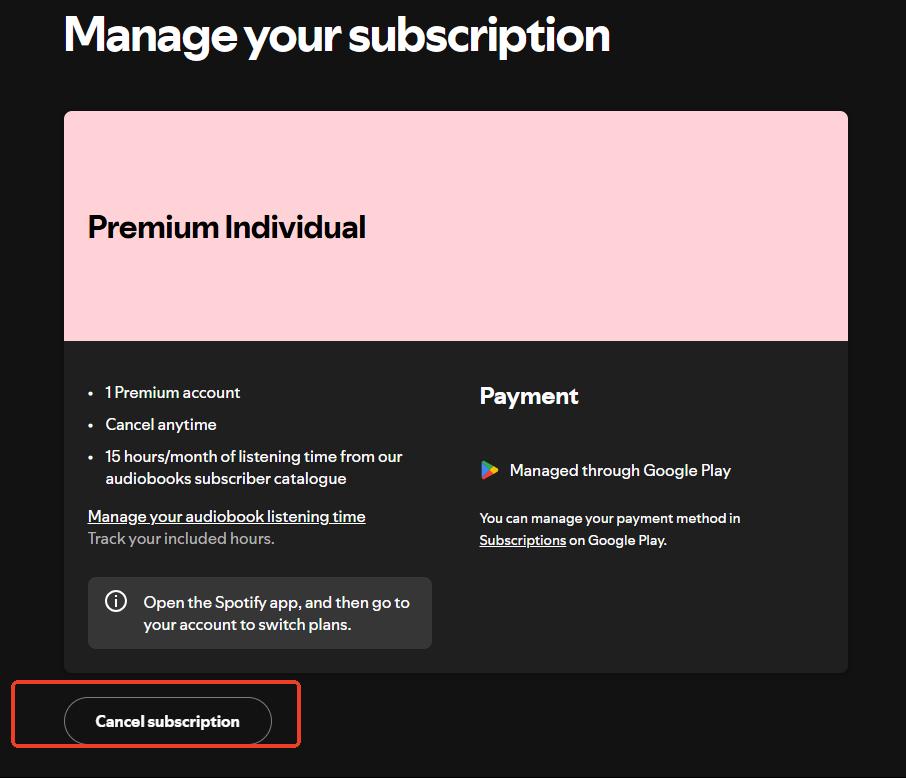
Step 1. If you are the current plan manager, you need to log in to your Spotify account first. Then, go to "Manage Your Plan" and select "Cancel Plan". At the next billing date, the plan will revert to Free for all members.
Step 2. A different household member logs into your Spotify account and sets up a new Premium Family or Duo plan as the manager.
Step 3. The new manager invites the other household members to join the new plan. Each member must accept the invitation from their own Spotify account.
Note:
All members need to live at the same address as the new manager, and Family or Duo plan switches can only be done once every 12 months. In most cases, your playlists, saved music, and liked songs will transfer automatically to the new plan. However, sometimes you may need to log out and log back in, or switch from a Google or Facebook login to an email login, to access all their content.
Part 4. Bonus Tip: Keep Spotify Music After You Change Subscription
When you decide to change plan on Spotify, you may worry about losing Premium features like offline playback and ad-free listening. Even if you downgrade to the Free plan, you can still enjoy these benefits for your favorite songs by using DRmare Spotify Music Converter. This tool allows you to download individual tracks or entire playlists from Spotify directly to your computer—even without a Premium account. It can also convert them into popular audio formats such as MP3, FLAC, or WAV while preserving the original sound quality and ID3 tags. With DRmare, you can continue listening to your favorite Spotify music offline and without ads, all outside of the Spotify app, regardless of your subscription level.
- Step 1Add Spotify Playlists to DRmare
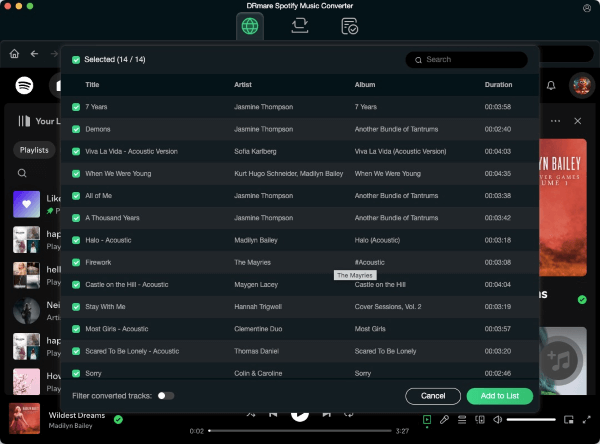
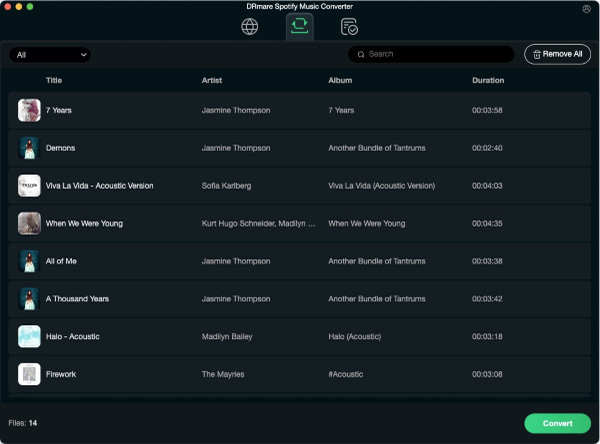
After installing DRmare on your computer, you can log in to your Spotify account via the built-in web player on DRmare's main screen. Drag your playlists, saved songs, or podcasts to the green "Add" button, and then click "Add to List". This makes it easy to convert and save your entire library offline, without manually creating new playlists.
- Step 2Set Output Preferences for Spotify
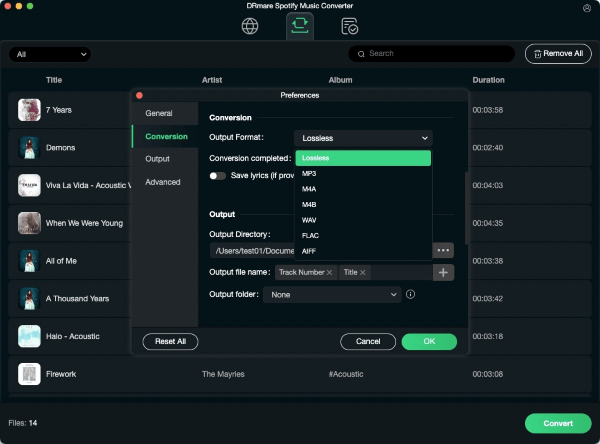
Click the Menu option, then go to "Preferences" > "Conversion". Here, select your preferred audio format (MP3, FLAC, WAV, etc.) and adjust settings like bitrate to ensure smooth playback on any device.
- Step 3Convert and Download Spotify Music Locally
Click "Convert" to start the download. DRmare can process tracks at speeds up to 15X. After conversion, all your playlists, saved songs, and podcasts can be accessed in the "Converted" section and played offline anywhere, even after changing your Spotify plan.

 Home
Home




User Comments
Leave a Comment