





Are you tired of the bland, default Spotify interface? Want to jazz it up with some stunning themes and customizations? Look no further than Spicetify! This powerful customization tool lets you overhaul Spotify with cool themes, ad-blocking capabilities, lyric displays with an elegant user interface, and more.
I've personally walked through the entire Spicetify setup, and it's incredibly straightforward. This Spicetify tutorial will guide you step-by-step through downloading, installing, and using Spicetify for Spotify. Let's get started!
Quick Summary:
Spicetify is the premier open-source tool for customizing the Spotify desktop client on Windows, Mac, and Linux. It allows for custom themes, ad-blocking, and advanced extensions (like Lyrics Plus). The most stable installation method in 2026 is via PowerShell, Shell, or winget.

Part 1. What Is Spicetify?
YouTube Video: How to Customize Your Spotify Client with Spicetify
Spicetify is a powerful command-line tool that injects custom CSS and JavaScript into the official Spotify desktop client. It's available on Windows, macOS, and Linux. Whether you want to change the theme, add new functionalities, or even some tweaks to bypass limitations set on Spotify free users, Spicetify has you covered. To help you better understand how it works, let's take a brief look at the main components of Spicetify.
Key Features of Spicetify
- Dynamic Themes: Make Spotify truly yours with personalized and colorful schemes, from "Catppuccin" pastels to "Windows 11 Fluent" designs.
- Extensions: Generally some simple scripts to add extra small features and improve functionality, like ad-blocking (Adblockify) and advanced playback controls.
- Custom Apps: Relatively big changes, adding a completely new feature to your Spotify Client, such as the Lyrics Plus tab or a New Releases dashboard.
Tips:
Spicetify is an open-source project hosted on GitHub; you can find the source code at the official Spicetify repository on GitHub. For step-by-step setup instructions, refer to Spicetify's official installation guide.
Is Spicetify Safe in 2026?
Yes. Since it is open-source (hosted on GitHub) and runs locally without needing your login credentials, the risk to your account is extremely low. However, because it modifies client files, you must use the official desktop version from Spotify's website - the Microsoft Store version is sandboxed and will block all customizations.
Part 2. How to Download and Install Spicetify on Mac/Windows 11/Linux
Although Spicetify is a cross-platform tool, in the following part, I'll mainly demonstrate how to download and install it on Windows. The process should be similar on macOS and Linux. If you encounter any problems while installing Spicetify on these two platforms, feel free to comment below, and I'll try to help you with that.
How to Install Spicetify Spotify (Tested on Windows 11)
If your network connection is good, the process of installing and configuring Spicetify will be very easy.
Step 1. Go to Spicetify's dedicated installation page mentioned above and copy the Powershell command line used to install Spicetify on the top. Below is:

Note:
Shell Script for Linux: curl -fsSL https://raw.githubusercontent.com/spicetify/cli/main/install.sh | sh
Shell Script for Mac: curl -fsSL https://raw.githubusercontent.com/spicetify/cli/main/install.sh | sh
Step 2. Press 'Windows' and 'R' key simultaneously to bring up Run dialogue. Then type in 'powershell' to open powershell window. Paste the powershell command you just copied and hit 'Enter' to execute it.

Note:
When it ask you if you want to install marketplace, remember to type 'Yes' to confirm installation. this will make the subsequent installation of extensions much easier.

At this point, you have successfully installed Spicetify. When you open Spotify, you will see a shopping cart icon on the left sidebar, which is the Spicetify marketplace you just installed.

How to Set Up Spicetify
Thanks to Spicetify marketplace's GUI interface, setting up various themes, extensions and apps is also a straightforward process.
Step 1. Click on the shopping cart icon on the left sidebar.
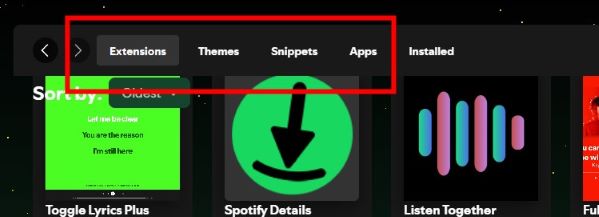
Step 2. Then you can see three tabs on the top, 'Extensions', 'Themes', 'Snippets' and 'Apps'.
Note:
I didn't mention 'Snippets' earlier, it's a exclusive feature in Spicetify marketplace, and usually make even smaller changes to your Spotify client compared to 'Extensions'.
Step 3. If you want to install the specific functionalities, just click 'Install' on the bottom right corner of their preview cards.
And Spicetify apps' installation is a little different from that of other Spicetify functionalities. If you have trouble installing Spicetify apps, you can refer to the video below.
YouTube Video: How to Use Spicetify Deep Dive
Note:
Since Spicetify modifies the original client files, Spotify may cease to function after an update, requiring you to run 'spicetify backup apply' to re-apply the changes.
Part 3. How to Install Spicetify to Customize Spotify If Network Is Poor
I noticed that most online tutorials suggest using PowerShell to install Spicetify. However, when I first tried using the PowerShell command, it didn't work, and I kept encountering this "InvokeWebRequestCommand" error.
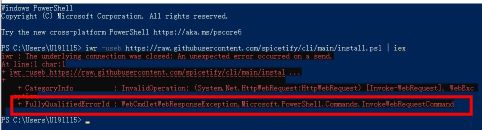
I later discovered that the VPN I was using was causing this issue because switching to a different VPN resolved the error. So, what if you don't have a working VPN, or other factors are causing your network connection to be poor? Don't worry, there's still a way!
How to Install Spicetify Spotify on Windows Under Poor Network
Spicetify's official installation page lists four ways to install Spicetify on Windows, including powershell command line, chocolatey, scoop, and winget.
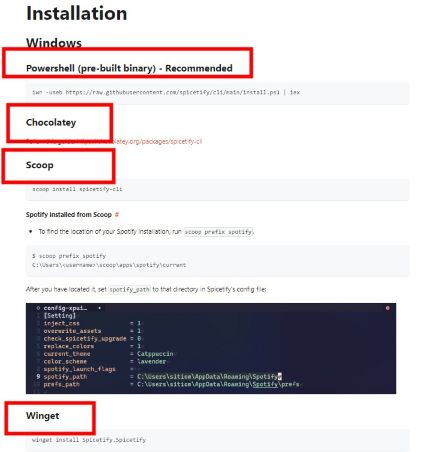
After some testing, I find that installing Spicetify through winget works perfect even with my original malfunctional VPN. Here's a step by step guide to download and install Spicetify with winget:
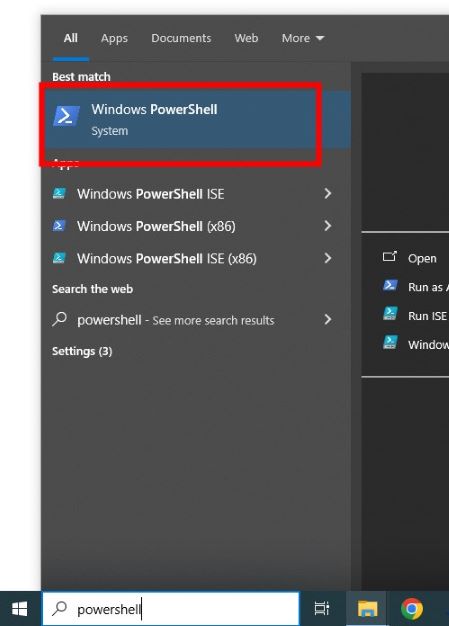
Step 1. In the search bar located on the left side of the taskbar in Windows, type 'PowerShell' and click on the first result to open the PowerShell window.
Step 2. Go to the official installation page of Spicetify, scroll down to winget section, hover over the right part of the command line, and click on the 'copy' button to copy it. Alternatively, paste the following official command:
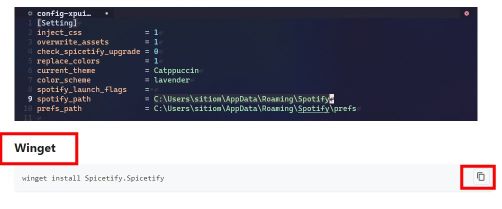
Step 3. Go back to the opened powershell window, paste the copied winget command line and hit 'Enter' key to execute it.

Maybe your result isn't the same as mine, don't worry, it's because I've installed Spicetify before, as long as it shows installation is complete at the end of your results, you are good to go.
How to Set Up Spicetify Spotify without Spicetify Marketplace
Before we start installing those themes and tweaks without Spicetify marketplace, we need to find where Spicetify is installed on your desktop. To do this, type the following command and press Enter key. This will automatically generate a config file and open the folder where Spicetify is located.
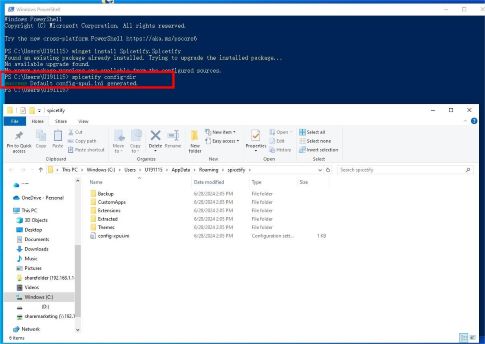
Don't close this folder, we need to use it later.
Tips:
You can simply run command 'spicetify' in powershell to see all the available commands.
How to Install Spicetify Themes for Spotify
Spicetify also has a dedicated page for their themes, just visit its official installation page and select 'Themes' tab, here lists all the available sources of Spicetify themes. I will demonstrate how to install themes with Spicetify's official GitHub project for themes.
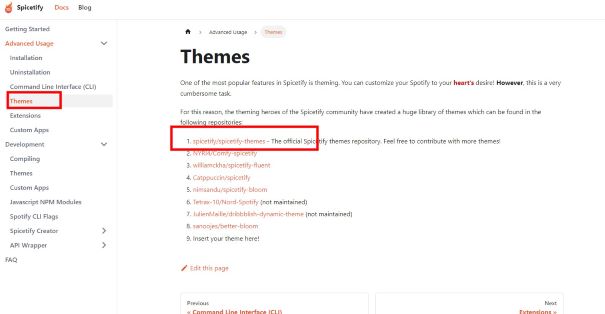
Step 1. Hit on the Spicetify's official GitHub project for themes which is the first option, this would direct you to the GitHub project, then go to 'Code', and 'Download ZIP'
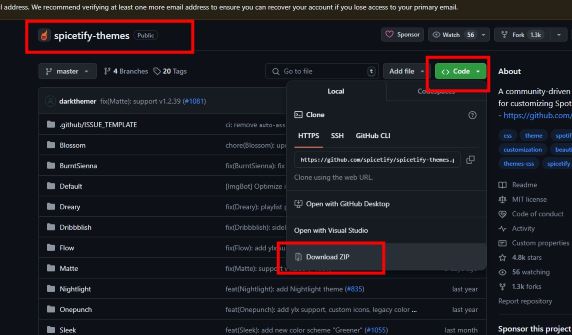
Step 2. After downloading, extract the zip file. In the folder, you can see a lot of folders for various themes. Begin from 'Blossom' to' Ziro'.
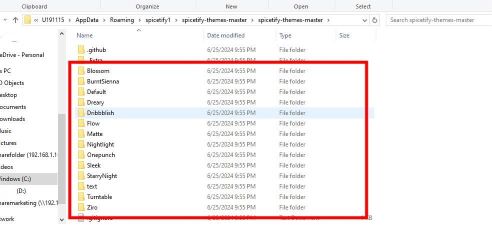
Step 3. Before installing, you can click into each one of them, and go to 'screenshots' folder to have a preview of each theme. For convenience, just select and copy all the theme folders from 'Blossom' to' Ziro'.
Remember the folder where Spicetify is located which I told you not to close? Go back to it, paste all the copied folders into 'Themes' folder.
Note:
If you closed it accidentally, just execute the command 'spicetify config-dir' in powershell to reopen it.
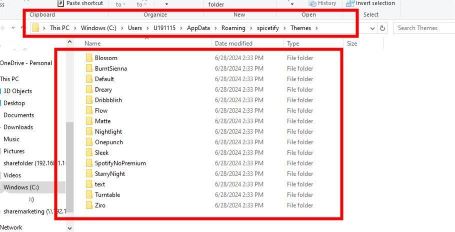
Next. execute command below in powershell to tell the program which theme you'd like to install first:
Please replace '<theme name>' with the name of your targeted theme. For example, if I want to install the theme 'Nightlight', I need to execute this command:
Then type the command below to backup Spotify because you may want to restore Spotify to original state later. This command would also begin to find and apply the theme you specified to your Spotify client.
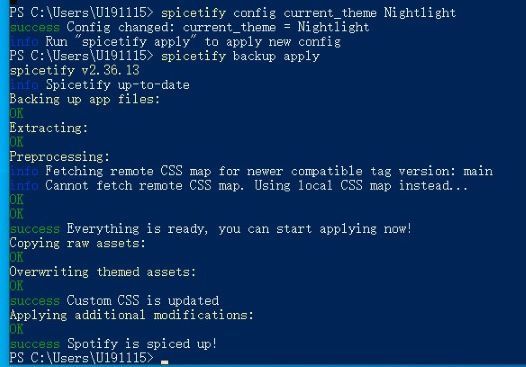
After it's done, your Spotify client would launch automatically, and its theme has already been changed into this nice Nightlight theme.
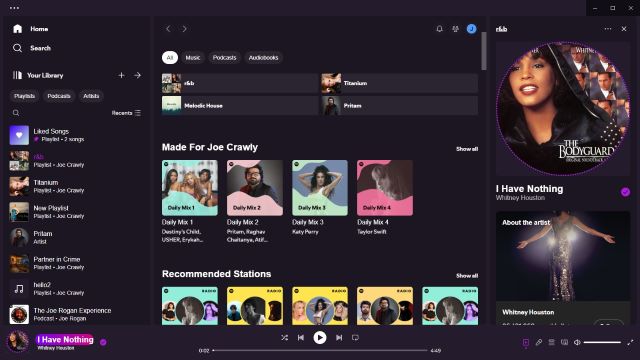
You can install other themes with the same process mentioned above.
How to Install Spicetify Extensions for Spotify
The process of installing Spicetify extensions is essentially the same as that with Spicetify themes. Let's see how to do it.
Step 1. First, you can find all the sources of Spicetify extensions in Spicetify's official installation page. Just go to 'Extensions' tab and scroll down to see what function does each extension serve for.
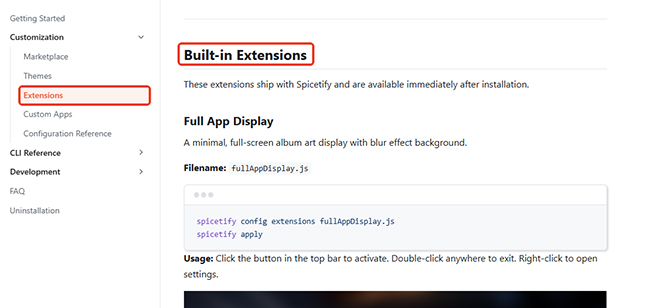
| Extension Name | Core Functionality | Best For... |
|---|---|---|
| Full App Display | Immersive full-screen album art with blur effects. | Visual setups & TV displays. |
| Shuffle+ | Uses the Fisher-Yates algorithm for zero-bias true shuffling. | Users tired of Spotify's "smart" shuffle. |
| Trash Bin | Automatically skips specified songs or blocked artists. | Curating a "never-play" blacklist. |
| Pop-up Lyrics | Displays lyrics in a floating, resizable window. | Multitasking while singing along. |
| Keyboard Shortcut | Adds Vim-like navigation (J/K to scroll, G for top). | Power users & mouse-free navigation. |
| Bookmark | Saves specific timestamps or pages for quick access. | Podcasts & long-form audio. |
| Loopy Loop | Loops a specific segment of any track. | Music practice or studying specific bars. |
| Auto Skip Videos | Skips region-locked video content to prevent pauses. | Smooth playback in restricted regions. |
| Christian Spotify | Automatically filters and skips all explicit tracks. | Family-friendly or clean listening. |
| Web Now Playing | Syncs metadata with Rainmeter or desktop widgets. | Desktop customization enthusiasts. |
Step 2. Go to the Spicetify Extensions' official GitHub page: https://github.com/spicetify/cli/tree/main/Extensions, you can download the wanted extension released by them. To do it, go to the green button 'Code', then 'Download ZIP', extract the zip file and go into 'Extensions' folder, here you can see their extensions.
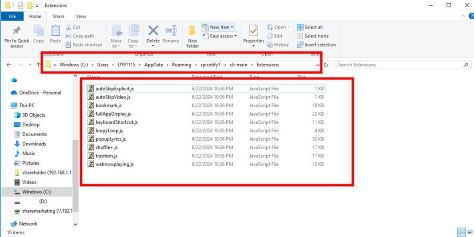
Step 3. Copy them and go to Spicetify folder, paste them into the 'Extensions' folder.
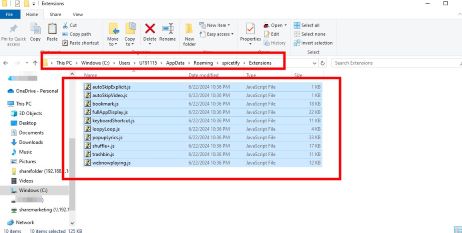
Step 4. Now we need to config extensions. In powershell, type following command to tell Spicetify which extension you want:
Replace '<extensions name>' with the extension in question. For example, if I want the fullAppDisplay extension, just type:
And then run this command to apply it:
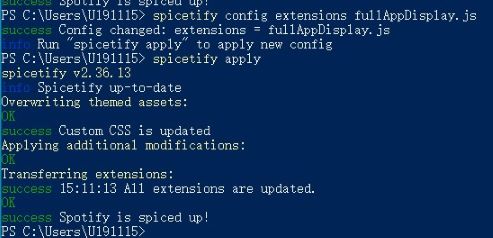
After the process is done, you can find this icon for the extension on the top.
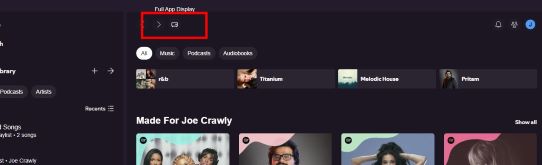
And when I click on it, it will enter this full display mode which has a beautiful blur effect background.

There are many other interesting extensions, you can try them out and find which suits your taste.
How to Install Spicetify Apps for Spotify
The process of installing Spicetify is relatively easy. Spicetify now supports three apps, including Reddit, New Releases, and Lyrics Plus.
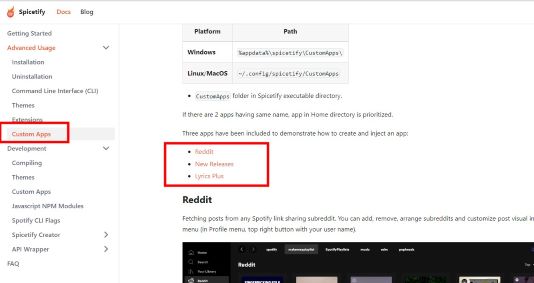
Personally, I find Lyrics Plus to be the most practical. First, Free users can use it to view Spotify lyrics while listening. Additionally, it doesn't rely on Spotify's official lyrics source, it can provide lyrics for songs that don't originally have them on Spotify. With Lyrics Plus, you can view lyrics for almost every song on Spotify. Moreover, it allows you to switch between sync, unsync, and karaoke modes while listening.
To install the Lyrics Plus app for Spicetify, execute the following command:
spicetify apply
After it's done, Spotify would automatically launch, and you will find a new 'Lyrics' tab on the left sidebar. When you are listening to a song, click on this tab, the lyrics of that song would appear in the center of your Spotify client.
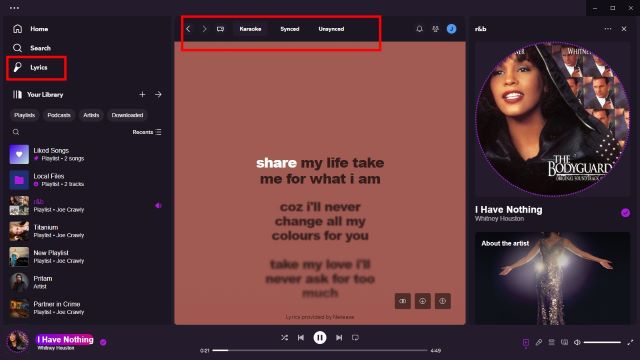
You can choose from 'Karaoke', 'Synced', 'Unsynced' mode to view lyrics in the top bar.
To install other apps, check the respective needed commands on Spicetify's official app installation page: https://spicetify.app/docs/advanced-usage/custom-apps.
Part 4. How to Use Spicetify to Block Ads on Spotify
How to Use Spicetify Adblockify Extension to Block Spotify Ads
While the Adblockify extension is the go-to solution for blocking ads on Spotify via Spicetify, it is currently excluded from the built-in Marketplace due to compatibility issues with recent Spotify versions. However, you can still perform a manual installation using the command-line interface. Here is how to:
Step 1. Go to the GitHub page of RXRI's Spicetify extensions.
Step 2. Download this GitHub repo.
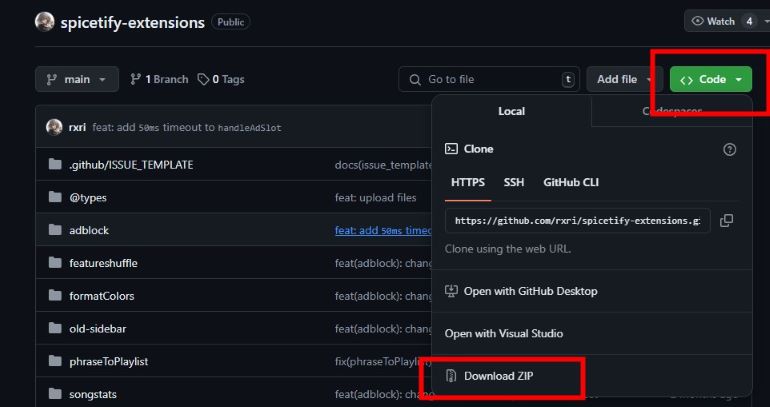
Step 3. Extract the file, open and locate the 'adblock.js' in the 'adblock' folder.
Step 4. Press 'Windows' and 'R' key to bring up Run dialogue, then type in 'powershell' and hit Enter to open powershell window.
Step 5. Type in following command and the spicetify folder will automatically open.
Step 6. Then copy the 'adblock.js' file we just mentioned into the 'Extension' folder.
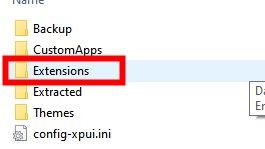
Step 7. In powershell window, type in following command to install this extension.
spicetify backup apply
After all the steps above are finished, the ads blocking feature will be added to your Spotify.
Another Option to Block Ads on Spotify through Spicetify
Spicetify has an extension to block ads on Spotify, we can find the js file for this extension in the folder for 'SpotifyNoPremium' theme downloaded when we try to install Spicetify themes for Spotify. If you haven't downloaded it, you may need to download it with the steps mentioned above first.
After downloading, follow these steps to block ads with Spicetify:
Step 1. Go to 'Themes' folder under the 'spicetify' folder on your computer
Step 2. Go to the folder named 'SpotifyNoPremium'.
Step 3. Copy the file 'adblock.js'.
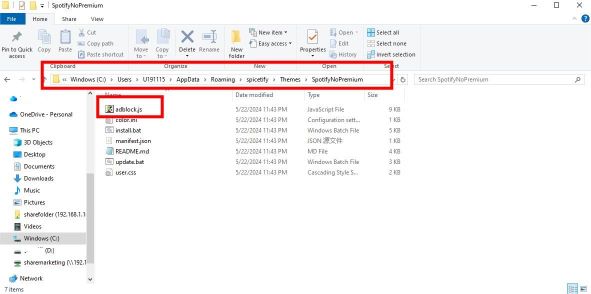
Step 4. Paste it into the 'Extensions' folder under spicetify folder.
Step 5. Execute the following command in powershell.
spicetify apply
After the installation is done, most of the ads on your Spotify client won't appear.
Tips:
To clear ads on your Spotify client completely, you can install SpotX Spotify.
Safety Notice:
1. Since Spicetify injects custom CSS and JS into the Spotify client, it is essential to download it only from the official GitHub repository or the spicetify.app domain to avoid malicious third-party scripts.
2. Using ad-blockers may violate Spotify's Terms of Service. Use this feature at your own discretion.
Part 5. Spicetify Companion to Make Spotify Listening Experience Better
While Spicetify enhances the Spotify client, it doesn't change the fact that your music is still rented. If you cancel your subscription or travel to a place with no internet, your modded Spotify client won't help. DRmare Spotify Music Converter is the perfect companion to Spicetify. While Spicetify fixes the look, DRmare secures the files.
Why Use DRmare Alongside Spicetify
- Stability: Spicetify can break when Spotify updates. Spotify downloads by DRmare Software are permanent MP3/FLAC files that never expire.
- Lyrics Compatibility: Spicetify's "Lyrics Plus" app can read the ID3 tags from DRmare's local files, giving you a Premium-like experience with your own local library.
- True Portability: Move your ad-free Spotify music to any device, like a Tesla, a Garmin watch, or a vintage iPod for offline playback.

 Security verified. 6, 285,718 people have downloaded it.
 - Download Spotify playlists and songs and listen to them anywhere, anytime
- Convert Spotify music to MP3, FLAC, WAV, etc. at 15X speed
- Save Spotify music locally with lossless quality
- Friendly and easy-to-navigate interface
Next, let's see how to download and convert Spotify music into common audio formats to save locally with DRmare Spotify Music Converter.
- Step 1 Add Spotify Songs/Playlists to DRmare
- Step 2 Set Spotify Output Format and Other Parameters
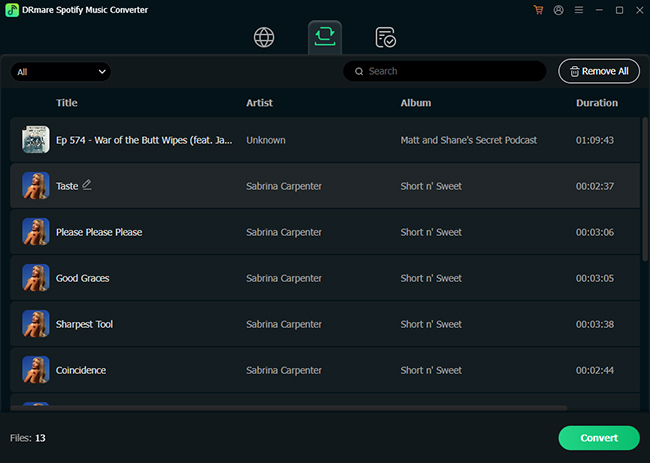
- Step 3 Download Spotify Music Tracks as Local Files
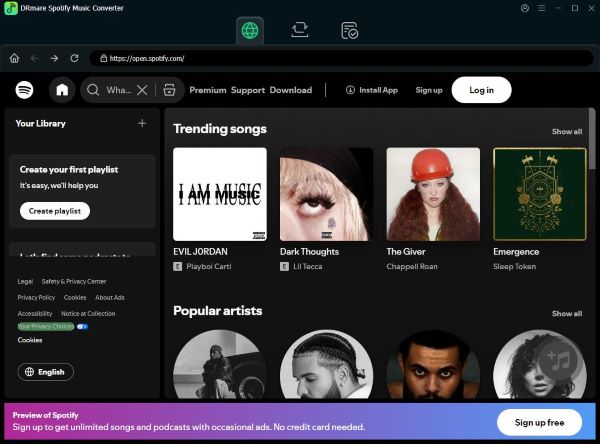
There are two ways to add Spotify music for download. First, you can browse your music library within DRmare and click the "Add" > "Add to List" button to load them into the DRmare conversion window. Alternatively, you can copy and paste the URL link of a Spotify playlist into the DRmare search bar and click the "Download" button to confirm.
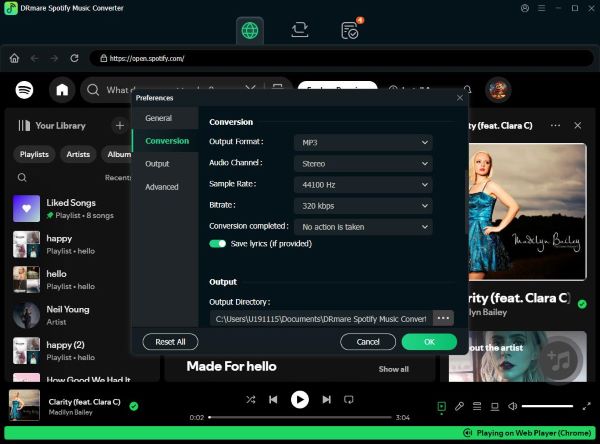
Navigate to the menu bar of DRmare and select "Preference" to open a new window. In the popup window, you can customize the output formats and audio quality you want.
Click the "Convert" button to start the converting process. The DRmare Spotify Music Downloader will download the Spotify tracks as DRM-free audio files on your computer. After conversion, you can find the converted music in the specified folder.
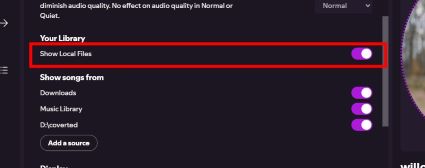
To play downloaded local Spotify music in Spotify client, go to Spotify settings and turn on 'Show local files' option. Then, when you listen to these local Spotify music from your Spotify client, you can enjoy ads-free, lyrics, high-quality music as Spotify Premium users without paying for its subscription!
Part 6. More FAQs about Spicetify Download and Installation
How to uninstall the Spicetify extensions and apps I installed?
You need to run command in powershell in this format:
Replace '<extensions/app name>' with the one in question and remember to add a '-' in the end.
Q2: How to uninstall Spicetify?
Simply run these commands in powershell:
rmdir -r -fo $env:APPDATA\\spicetify
rmdir -r -fo $env:LOCALAPPDATA\\spicetify
How to restore my Spotify to original state?
You can uninstall Spicetify or execute command below to simply restore:
Can I use Spot and Spicetify together?
It's not recommended, but from my test, they work well with each other after I downloaded them both on my computer. But note that you need to download SpotX first, or you will be prompted to uninstall Spicetify when installing SpotX.
Will I get banned while using Spicetify?
There have been no confirmed bans for using Spicetify, as it does not interfere with Spotify's API servers - only your local display.
Part 7. In Conclusion
Spicetify is a powerful, community-driven tool that empowers users to take full control of their Spotify experience, whether through advanced customization, ad blocking, or enhancing usability even under poor network conditions. This guide has walked you through every major step, from installation to setup.
By combining the Spicetify Marketplace with the high-fidelity downloads of DRmare Spotify Music Converter, you can build a music setup that is both aesthetically stunning and completely under your control.

 Home
Home





User Comments
Leave a Comment