If you have searched for a Spotify music downloader 320kbps on GitHub, you music come across Onthespot. It's an open-source, graphical user interface (GUI) application on GitHub designed to download music directly from Spotify as local files for unlimited playback on all devices.
However, the process of using the Onthespot Spotify downloader is competitive for new users. Therefore, in this article, we will walk you through how to download and use Onthespot step by step. You can then easily download Spotify songs in 320kbps MP3 quality without paying a cent.

Part 1. What Is Onthespot Spotify Downloader?
Onthespot by casualsnek is a free, open-source Spotify downloader available on GitHub that lets you download Spotify music to your local device. Primarily written in Python, it provides a user-friendly way to search for and save tracks, albums, playlists, and more for offline listening, which is compatible with Windows, macOS, and Linux.
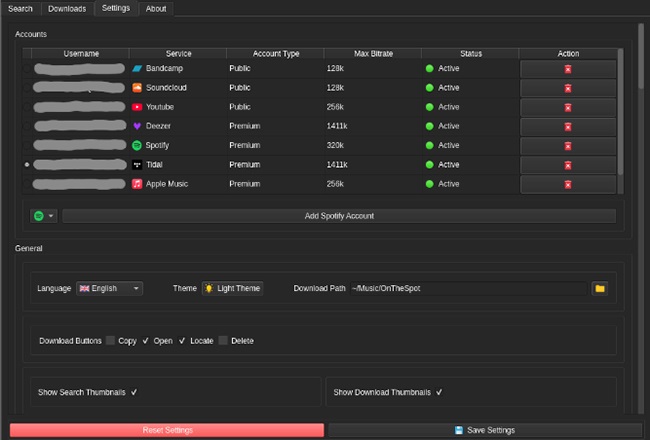
Currently, this project requires a Spotify Premium account to function. However, it allows you to download Spotify songs in your preferred audio format, including MP3, FLAC, and M4B, rather than the official and protected Ogg Vorbis format. Moreover, it can download entire playlists, albums, artist discographies, podcasts, and audiobooks, essentially all Spotify streaming content. Finally, its conversion speed is relatively fast compared to other tools, and it supports automatic downloading of currently playing songs on the Spotify desktop app.

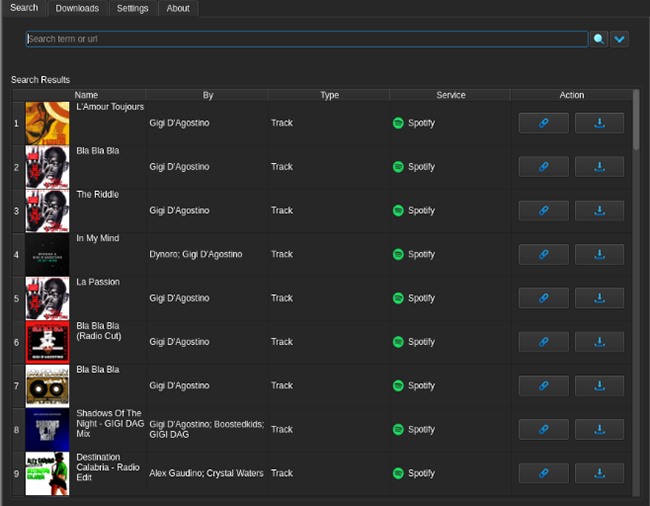
- Download Spotify Songs by URL: You can copy and paste a Spotify URL for a track, album, or playlist in Onthespot and download it in bulk.
- Text File Support: You can provide a path to a text file containing multiple Spotify URLs to queue all of them for download.
- Support Multiple Accounts: It allows you to add multiple Spotify Premium accounts and enable parallel (multi-threaded) downloads, speeding up the process.
- Custom Naming Formatter: Get granular control over your file names. You can set a custom naming scheme for both tracks and album directories using variables like {artist}, {album}, {name}, {rel_year}, {track_number}, {playlist_name}, and more.
- Support Multiple Output Formats: You can customize the output audio format to export Spotify tracks to your device or download the raw Ogg Vorbis files without any conversion.
- Desktop App Integration (For Linux/Windows): It provides an option to automatically download songs as you play them on your Spotify desktop application.
Part 2. Environment Setup Before Onthespot Download on GitHub
In fact, Onthespot might seem primarily geared towards developers due to its reliance on programming-related tools for downloading and installation. But don't worry! Installing these tools isn't as daunting as it might seem, and I'll provide detailed steps for each one below. Just follow along, and even if you're not a developer, you'll be able to download and use Onthespot with ease! If you encounter any issues during installation, feel free to leave a comment below, and I'll do my best to help you troubleshoot.
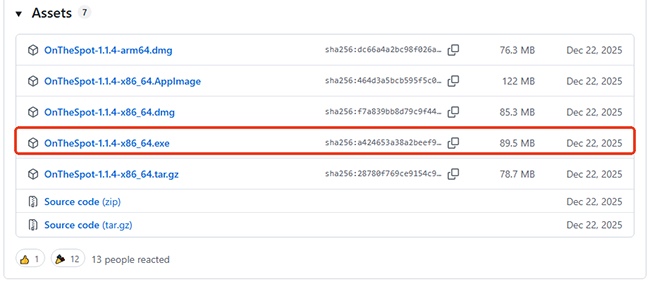
The official Onthespot GitHub page provides various installation methods tailored to different platforms. In this guide, I'll focus on demonstrating how to download and install Onthespot on Windows. The process for other platforms should be similar, so you can adapt these instructions accordingly.
Prerequisites to Use Onthespot
Before you begin, you'll need to install a few essential components on your system:
- FFmpeg
- Python
- Git
- Microsoft C++ build tools
If you already have these tools installed on your computer, you can skip to the next part to download Onthespot directly on your computer.
How to Download FFmpeg Before Installing Onthespot
Step 1. Head to the official website of FFmpeg: https://ffmpeg.org/.
Step 2. Click on the "Download" button on the right.

Step 3. Click on the Windows icon on the left, followed by the first link below it.

Step 4. Then you will be redirect to a new page. On this page, select the link named "ffmpeg-git-full.7z" to download he latest version of FFmpeg.

Note:
The name of the package may change as it updates.
Step 5. Extract the FFmpeg file to a location you want to save it on your computer. Then navigate to the "bin" folder and copy its path, for example, mine here is:
D:\ffmpeg\ffmpeg\bin
Step 6. Then we need to add it to the system path for Onthespot to use it. Right click on the "My PC" icon on your computer. Select "Properties" in the drop down menu.
Step 7. On the opened system settings page, click on "Advanced system settings" on the right.

Step 8. Then click on "Environment variables" at the bottom.
Step 9. On the newly opened windows, navigate to "System variables", find and select "Path", then click on "Edit" to modify system variables.

Step 10. In the system variable window, click on "New" on the right to add new system variable, then paste the path of FFmpeg "bin" file into the input bar at the bottom. At last, click on "OK" to finish.

Step 11. Click all the "OK" to close opened windows and save this change. Now FFmpeg should have been added to your system path.
How to Download Python Before Installing Onthespot
Python is the main language used to build Onthespot, so you need to install it on your computer too.
Step 1. Head to the official website of Python: https://python.org/.
Step 2. Click on the "Downloads" tab on the top.
Step 3. Then click the big yellow "Download Python X.X.X" to download the latest version of Python.

Step 4. Double click on the downloaded exe file. When you install python, do remember to check "Add Python X.X.X" box below on the opening page, this will add python to the system path on your computer.

Step 5. Then you can follow the instructions all the way to finish installation. I think it's quite simple, so I'm not gonna list it here, you can comment below if you encounter any problems.
How to Download Git Before Downloading Onthespot
Step 1. Go to the download page of Git: https://git-scm.com/downloads.
Step 2. Select Windows version of Git to download.

Step 3. Then on the newly opened page, select "64-bit Git for Windows Setup", this will download the exe file to your computer.

Step 4. Double click on the downloaded Git exe file, hit on "Install", after a while, it will install Git to your computer.
Note:
I already have Git installed, so this time it seems like to be just an upgrade. If you're installing Git for the first time, remember that the installer might ask you a bunch of questions. Just keep clicking "OK" or something similar to accept the default settings for everything.
How to Download Microsoft C ++ Build Tools Before Downloading Onthespot
Step 1. Go to the official website of Microsoft C ++ Build Tools: https://visualstudio.microsoft.com/visual-cpp-build-tools/
Step 2. Click on the download button on the left to download Microsoft C ++ Build Tools.

Step 3. Double click on the downloaded exe file. It will open a page like this:

Check the box of "Desktop development with C ++" on the left. Then on the right, select "MSVC v143 -VS 2022 C ++ x86/x64 build tools" and "Windows 10 SDK", keep others in default. Finally, click on "Install" below to begin installation.
Note:
If you are using Windows 11, you should instead check the box of "Windows 11 SDK".
Step 4. After installation, please restart your computer to make sure Microsoft C++ Build Tools can work.
Part 3. How to Download Onthespot Spotify Music Downloader on GitHub
With all the necessary prerequisites now successfully installed, we move to the core step: acquiring and installing the Onthespot application directly from its GitHub repository.
- Step 1Download the Package
Open you file explorer and select a folder you want to save Onthespot, copy its path. After this, open your terminal or command prompt by pressing "Windows" + "R" key on your keyboard.
Type in following command to let the terminal navigate to the folder you just selected, remember to replace "(your folder path)" with your actual path:
If you chose a drive other than C drive, please use this command:
Then type the following command and press Enter to download Onthespot package with Git:
If it succeeds, it will output like this:

- Step 2Navigate to the Onthespot Folder
Next, change your current directory to the newly created "onthespot" folder by following command:
- Step 3Install Necessary Components
Then use pip to install the required packages listed in the "requirements.txt" file:
Once the download is complete, you should see output similar to this:

- Step 3Navigate to the Source Code Folder
Move into the "src" directory where the main application code is located by executing this command:
cd src
- Step 4Run Onthespot
Finally, launch the Onthespot application:
python -m onthespot
After you execute this command, the Onthespot GUI will launch automatically.

Then you need to log in your Spotify Premium account in the "Configuration" tab, then type in your Spotify email and password to log in.

Under normal circumstances, you should be able to log in without any issues at this point. However, a recent bug has surfaced that prevents successful login even after entering your email and password.

Don't fret! I'll provide a detailed walkthrough on how to fix this bug and get you logged in. If this bug has already been resolved by the time you download Onthespot, feel free to skip ahead to the next section on how to use it.
How to Fix Onthespot Login Problem
Step 1. Onthespot initially looks for available accounts in the "C:\Users\USERNAME.config\casualonthespot\config.json" file and utilizes the cached session. If the accounts field within this file is empty, modify it as follows:
"accounts": [
[
"EMAIL",
true,
1,
"a"
]
],
Tips:
You can open the "config.json" file with either IDE tools or simply notepad to modify accounts settings.
Step 2. Copy the following code and save it as a .py file (e.g., script.py)
import time
import logging
import pathlib
zs = ZeroconfServer.Builder().create()
logging.warning("Transfer playback from desktop client to librespot-python via Spotify Connect in order to store session")
while True:
if zs._ZeroconfServer__session:
logging.warning(f"Grabbed {zs._ZeroconfServer__session} for {zs._ZeroconfServer__session.username()}")
if pathlib.Path("credentials.json").exists():
logging.warning("Session stored in credentials.json. Now you can Ctrl+C")
break
Step 3. Open your terminal or command prompt and navigate to the directory where you saved the script.
Step 4. Execute the script by typing "python script.py" and pressing Enter, then keep the terminal open, don't close it, regardless of the errors it throws.
Step 5. Open the Spotify app, log into your Spotify Premium account and click on the "Connected Devices" icon in the bottom right corner.
Step 6. From the list of available devices, select "Librespot-python"

Note:
If your Spotify account is not a Premium account, the "Librespot-python" will not be clickable, like this:

And if you are using Spicetify, please execute "spicetify restore" to restore Spotify to its default look temporarily, otherwise the available devices may be not be visible.
After this, the terminal will output like this:

This means the script has generated a "credentials.json" file, you can find it in the same folder where your "script.py" locates.
Step 7. Then copy this file and go to the path below to place it:
Finally, rename this "creadentials.json" to "ots_login_a.json".

Now, navigate to where your Onthespot locates and reopen Onthespot with the this same command to see if it works:
python -m onthespot
It will appear like this:

And you can find your account has successfully logged in in configuration tab.

Part 4. How to Use Onthespot Music Downloader to Download 320kbps Spotify Songs
Installation is finished! It's now time to use On the spot Spotify downloader to configure your output settings and download Spotify songs and playlists at 320kbps.
How to Download Spotify Music with Onthespot
Step 1. Copy the link of Spotify playlists/songs/albums/podcasts/audiobooks into the search on the top of Onthespot GUI.

Step 2. Then click on "Search" button on the right, Then all the found music will be automatically downloaded, you can view the downgliding process under the "Progress" tab. And when it's done, you can click on the "Locate" button to locate them.

How to Output Different Audio Formats of Spotify Music with Onthespot
You can go to the "Configuration" tab, then click on the "Show/Hide Advanced options" button. This will show a new "Advanced configuration" tab on the top. Click on it, then you can designate preferred output format by changing the content within input bar of "Media format".

I've tried "flac", "m4b", "m4a" and Onthespot successfully transformed Spotify music to all these formats, you can also try other formats.
Note:
Output formats like "m4a", "wav" will not retain original ID3 tags of Spotify music, use with caution.
How to Change the Name Structure of The Outputted Spotify Music
You can change the name structure of the outputted tracks, playlists, and albums under the "Advanced configuration" tab mentioned above in Onthespot as well. And the Onthespot official has given all the available options on Onthespot GitHub page, feel free to customize these settings according to your preferences.
Part 5. Best Alternative to Onthespot Spotify Downloader (320kbps)
Onthespot is amazing, it allows Spotify Premium account users to download Spotify music at highest quality for offline listening for free. This way, they can keep their preferred Spotify music forever without the burden of recurring monthly subscription fees.
However, it does come with some short backs. For example, it is mainly geared toward developers, The installation of Onthespot also involves installation a lot of programming-related tools, which may not be friendly to most users.
So, I want to introduce DRmare Spotify Music Converter to you. It also allows you to download 320kbps Spotify music with your Spotify Premium account. What's more, you can use it to download Spotify music into common formats even with a Spotify free account. And compared to Onthespot, it is geared toward all users, whether they are developers or not, it has a user-friendly interface which almost everyone can learn to use it in one minute or two.
- Convert Spotify songs to MP3, FLAC, and other formats effortlessly
- Keep 100% original audio quality without any ads
- Manage and organize your downloaded tracks with ease
- Fast 15x conversion speed saves you time
How to Use DRmare Spotify Music Converter to Download 320kbps Spotify Music.
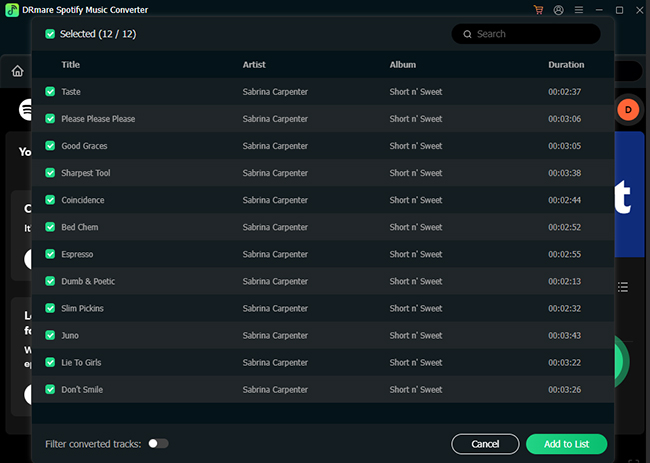
- Step 1Add Spotify Music to Download
First, please download and install DRmare Spotify Music Converter on your computer with the button above. The copy the link of your Spotify music, paste it into the search bar of DRmare Spotify Music Converter. Tap the "Download" button to load them.
- Step 2Customize the Spotify Music Output Settings
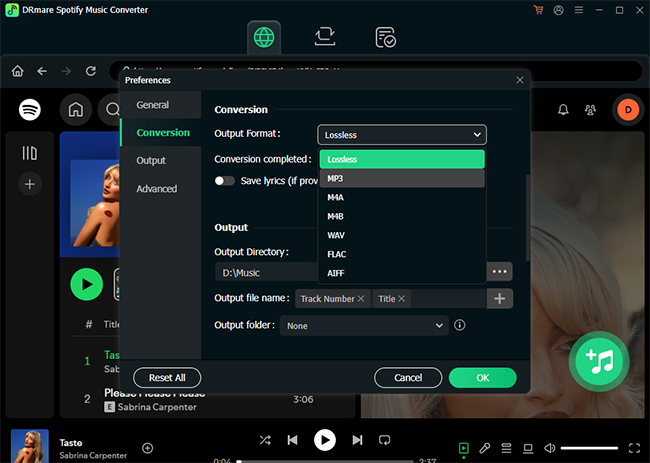
You can designate the Spotify output settings by click on the "menu" button on the top right, followed by "Preferences" > "Conversion", and then you can set preferred audio format, sample rate and more here.
- Step 3Download Spotify Music at 320kbps
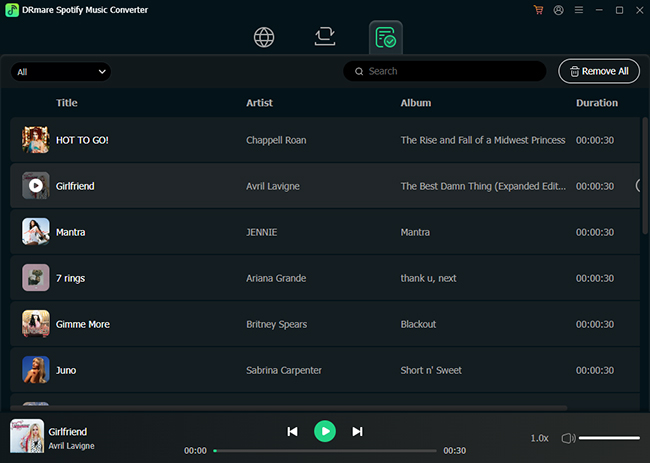
At last, simply click on the "Convert" button at the bottom to begin conversion. DRmare Spotify Music Converter will run at 15X faster conversion speed to download Spotify songs to your local computer with a free account. After conversion, you can find your Spotify music downloads in the designated folder.
Comparison Between Onthespot and DRmare Spotify Music Converter
Here is a detailed comparison between Onthespot and DRmare Spotify Music Converter to help you determine which of these two popular Spotify downloading solutions is the right choice for your local music library.
| DRmare Spotify Music Converter | Onthespot | |
|---|---|---|
| Highest audio quality | 320kbps | 320kbps |
| Batch downloading | ✔ | ✔ |
| Supported format | MP3/WAV/FLAC/AIFF/M4A/M4B | MP3/WAV/FLAC |
| Keep ID3 tags | ✔ | ✔ |
| Support different output structure | ✔ | ❌ |
| Spotify Premium needed | ❌ | ✔ |
| Easy to install | ✔ | ❌ |
| Customize Bitrate | ✔ | ❌ |
Part 6. In Conclusion
If you've been exploring GitHub for a reliable Spotify music downloader 320kbps, Onthespot undoubtedly stands out as a powerful open-source option. It saves Spotify songs, albums, and playlists in 320kbps MP3, FLAC, or M4B formats.
While Onthespot offers great flexibility and performance, its setup process, involving Python, Git, and other tools, can be complex for beginners. If you want a simpler solution, DRmare Spotify Music Converter provides an easier, faster way to download Spotify songs without Premium in high quality without technical steps.
User Comments
Leave a Comment