





Whether you're editing a presentation or a video, the right background music can make your Canva project stand out. If you've found the perfect soundtrack on YouTube Music, you may want to use it in your Canva design. Although there's no direct integration, it's still easy to add Music to Canva from YouTube with the right method. This guide walks you through uploading compatible YouTube audio files to Canva and avoiding common upload issues.
Part 1. Can You Add Music to Canva from YouTube?
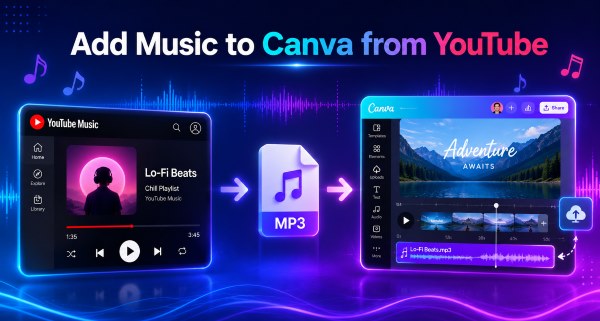
You may want to enhance your Canva videos or presentations with songs from YouTube Music. However, Canva doesn't connect with YouTube or YouTube Music. You cannot import playlists directly into your media library. Canva only accepts uploaded audio files, meaning you must bridge the gap manually. If you want to use a specific track from YouTube on Canva, you have to bypass the streaming player and bring the downloaded YouTube audio file into your local library.
Canva Audio Upload Requirements
Before you try importing your files, it helps to know what the platform can handle. Canva is quite generous with audio, but there are strict limitations on sizing and project lengths.
| Requirement | Details |
|---|---|
| Supported Formats | MP3, WAV, M4A, OGG, WEBM |
| Maximum File Size | 250 MB per individual file |
| Track Limits | Up to 50-layered audio tracks for video projects; max 10-minute limit for presentations |
| Account Storage | Free accounts share a 5GB total media limit; Pro accounts get 1TB |
Part 2. How to Download YouTube Music for Canva
Before you can add YouTube Music to Canva, you'll first need to save the music as a local audio file. While YouTube Music allows offline downloads for subscribers, those downloads are encrypted and can't be uploaded to Canva. Since Canva only supports standard audio formats such as MP3, M4A, and WAV, you'll need a third-party tool to convert YouTube Music into compatible files.
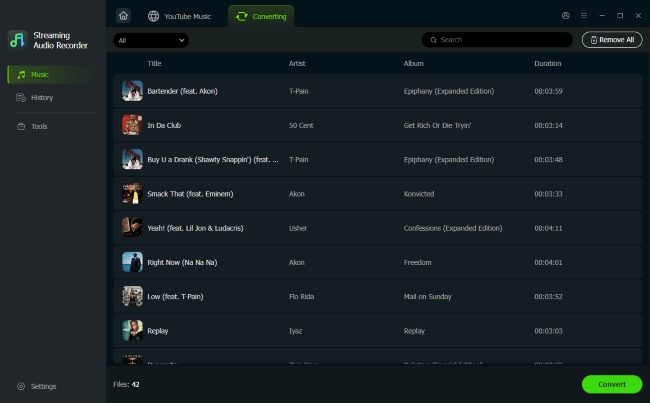
One reliable option is DRmare Streaming Audio Recorder. It lets you download and convert YouTube Music tracks to WAV, MP3, FLAC, M4A, AIFF, and M4B while preserving the original audio quality and ID3 tags. With up to 30× faster conversion speed, you can quickly build a local music library that's ready to add to Canva for videos, presentations, and other creative projects.
- Step 1Customize the Output Settings for Canva
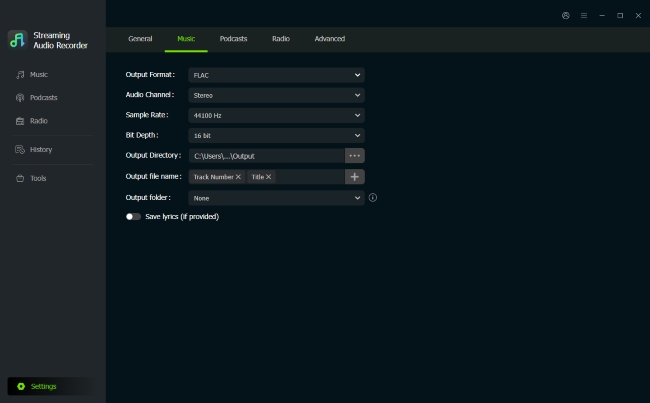
Before downloading any music, click the "Settings" icon in DRmare and scroll to "Music" section. Here, you can choose the output format that works best with Canva and convert YouTube Music to MP3, WAV, or M4A. You can also adjust advanced settings such as the sample rate, bit depth, audio codec, and channel to match your editing workflow.
- Step 2Open YouTube Music in DRmare
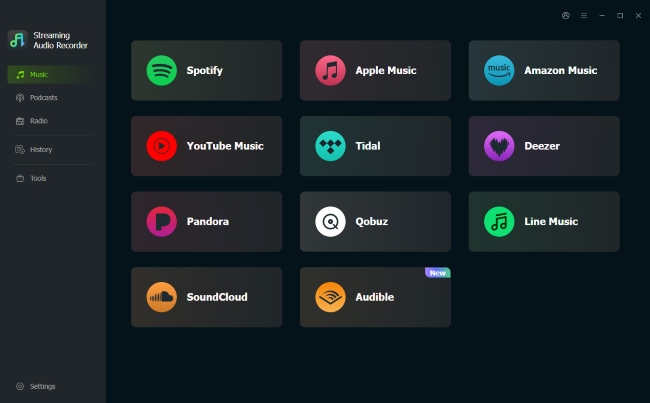
Return to the main interface and click the "YouTube Music" icon. DRmare features a built-in browser, so you can access your YouTube Music library without switching between different apps or browsers. Then sign in to your account and browse your favorite albums and playlists.
- Step 3Add the YouTube Music Tracks You Want
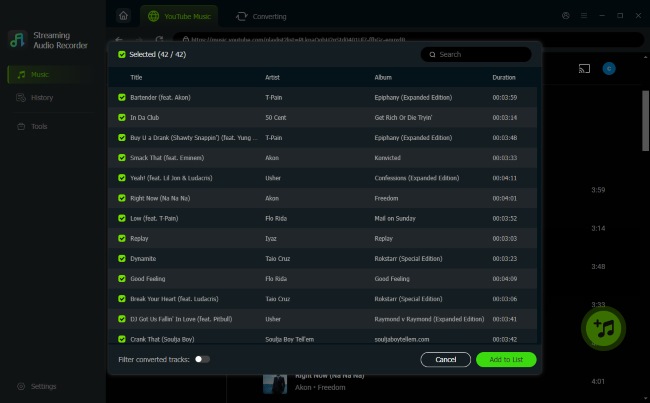
Find the songs or playlists you'd like to use in Canva, then click the "Add" button. Choose the music you want and click "Add to List" to create your download queue. If you're importing multiple playlists, the software automatically organizes everything for convenient batch conversion.
Import Music with a YouTube Music Link:
Instead of browsing manually, you can copy the URL of a YouTube Music song or playlist and paste it into DRmare's search box. After clicking the "Add" button, the program will detect the available tracks, making it even faster to prepare your YouTube Music to Canva workflow.
- Step 4Convert and Upload YouTube Music to Canva
Click the "Convert" button to download your selected YouTube Music tracks at up to 30× faster speed while preserving the original audio quality and ID3 tags. After the conversion is complete, open the "History" tab to locate your downloaded files. Now it is ready to add the converted YouTube audio for your Canva design.
Part 3. How to Add YouTube Music to Canva
With the track saved securely on your device, getting it onto your timeline is the easiest part of the process. Canva handles audio files exactly like your images or video clips. The steps to add music to a Canva presentation from YouTube are similar whether you are on a desktop or a phone.
Upload Music to Canva from YouTube on Desktop
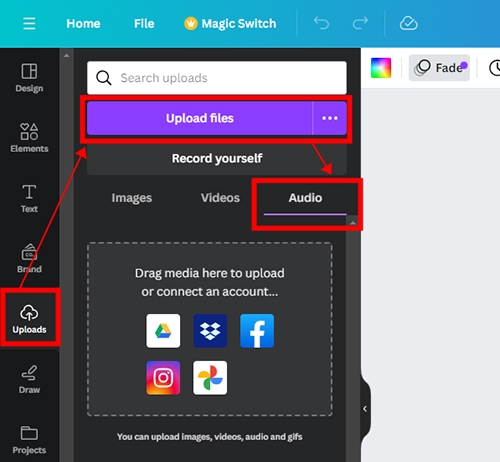
Step 1. Open your specific Canva design on your computer and locate the main left-hand navigation panel. You will want to look for the "Uploads" icon, which typically resembles a cloud with an upward arrow. Click on the "Uploads" tab to open your media library.
Step 2. Filter your view by selecting the "Audio" category at the top of that section. Click the purple "Upload files" button to browse the downloaded YouTube Music files in your computer's folder. Or you can simply drag and drop your downloaded YouTube audio file into the sidebar.
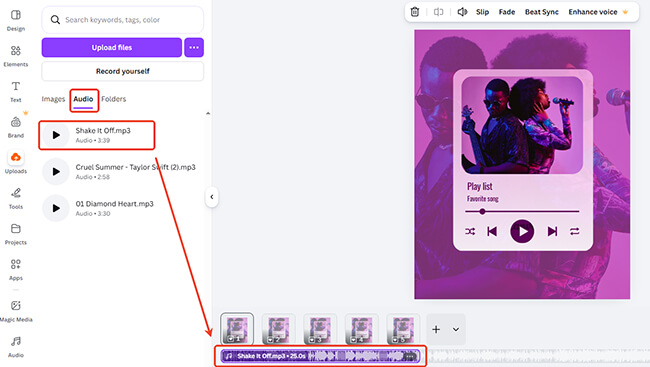
Step 3. Wait a moment for the upload progress bar to finish. Once it completes, click the newly added YouTube audio track or drag it down onto your editing timeline to trim it and sync it perfectly with your visuals.
Add YouTube Music to Canva on Mobile
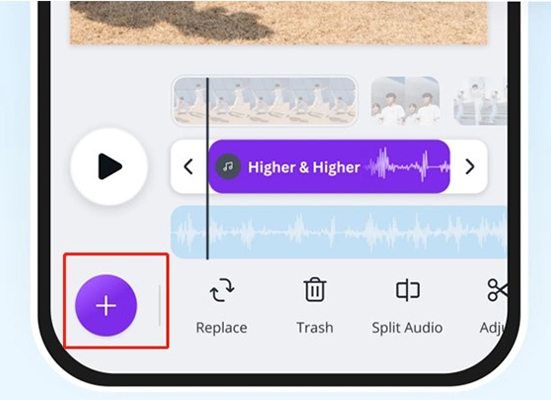
Step 1. Launch the Canva mobile app, open your working project, and tap the purple "+" icon situated at the bottom corner of your screen. Swipe through the bottom navigation menu until you find the "Uploads" option. Tap it, and then navigate over to the dedicated "Audio" tab.
Step 2. Tap "Upload media" to open your phone's native file manager. Locate and select the MP3 you saved earlier, ensuring you give the app permission to access your local files if prompted.
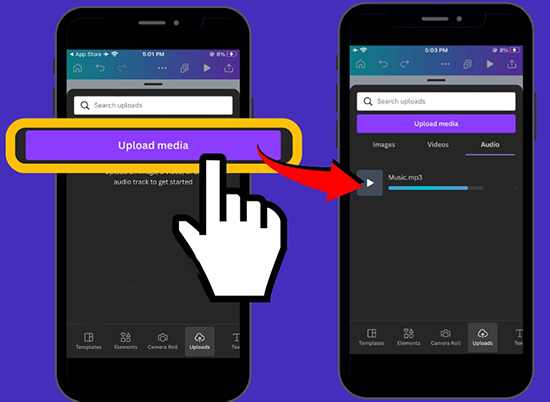
Step 3. After the file successfully uploads to your Canva library, simply tap the track to drop it into your mobile design timeline where you can adjust the volume and placement.
Can You Add a YouTube Music Link on Canva?
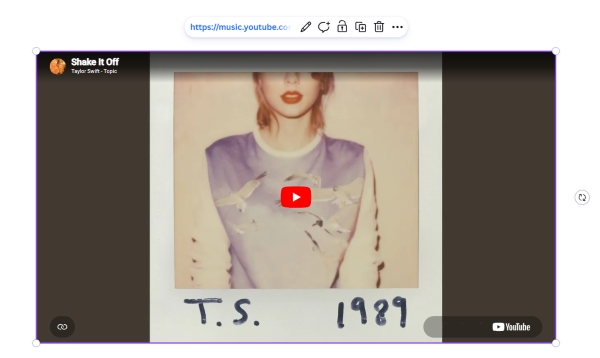
Yes. Pasting a YouTube link into Canva will embed a playable video widget, but it will not extract the background audio for your editing timeline. You need follow the file upload method to add YouTube audio to Canva.
Part 4. FAQs About Using YouTube Music in Canva
How can I find music similar to my favorite YouTube Music tracks in Canva?
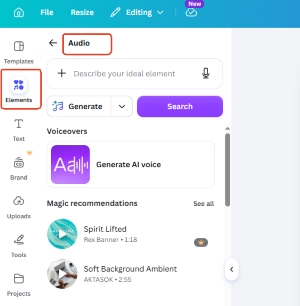
YouTube Music and Canva don't sync their music libraries or recommendations, so you'll need to search Canva's built-in audio library manually. Open the "Audio" tab and search using keywords that describe your favorite track, such as its genre, mood, instrument, or style (for example, lo-fi, upbeat pop, or cinematic). You can then refine the results with filters like tempo, vocals, and mood to quickly find music that matches the vibe of your YouTube Music favorites.
Why can't I upload music to Canva?
Upload failures are usually caused by unsupported file formats, browser issues, unstable internet connections, or damaged audio files. In most cases, the problem is easy to fix.
- Make sure the file is in a supported format, such as MP3, WAV, M4A, or OGG.
- Rename the file and remove special characters, emojis, or unusually long filenames.
- Clear your browser cache or switch to another browser, such as Chrome, Edge, or Safari.
- Check that your internet connection is stable, especially when uploading large audio files.
How do I avoid copyright claims when using YouTube Music in Canva?
The safest way is to use music you have the legal right to include in your videos. Downloading a song from YouTube Music doesn't give you permission to publish it in content shared on YouTube, TikTok, or other platforms. To avoid copyright claims, use royalty-free music, tracks you've licensed, music you've created yourself, or audio from Canva's licensed library. Always verify the licensing terms before publishing commercial or public projects.
Part 5. Conclusion
Now that you know how to add YouTube Music to Canva using tools like DRmare, you no longer have to settle for basic stock audio. By downloading your favorite YouTube Music tracks, you can bring high-fidelity YouTube audio to your next Canva slideshow or video without any format headaches.

 Home
Home





User Comments
Leave a Comment