





Adding music can make a Google Slides presentation feel more polished, set the mood for a photo slideshow, or provide a useful audio cue during a lesson. There are two practical ways to add music to Google Slides from YouTube. You can paste a YouTube video URL and embed the video directly, or upload an MP3 file to your Google Drive, and insert it as audio.

Part 1. Can You Add Music to Google Slides from YouTube?
Yes. You can add YouTube music to Google Slides in two ways: embed the YouTube video with its URL, or insert an MP3 or WAV file from Google Drive. The video method is faster and works best when you want to show visuals. The audio method is better for background music, looping, and playback across multiple slides.
| Method | Best For | Background Playback | Main Limitation |
|---|---|---|---|
| Embed a YouTube video | Quick insertion and music videos | Suited to the slide containing the video | Requires YouTube access |
| Insert audio via Google Drive | Audio-only background music | Suited to continuous background music | Requires an audio file |
What Audio Formats Does Google Slides Support?
Google Slides currently supports MP3 and WAV audio files stored in Google Drive. You cannot select an audio file directly from your computer in the Slides audio picker; it must first be uploaded to Drive.
Part 2. How to Add Music to Google Slides from YouTube Using a Video URL
The quickest way to add music from YouTube to Google Slides is to embed the YouTube video. Google Slides lets you find a video by searching YouTube, pasting its URL, or choosing a video stored in Google Drive. This method requires no downloading or file conversion, although the video player remains part of the slide.
Step 1. Copy the URL of the YouTube music video you want to use. Open the target slide, select "Insert > Video", paste the link, and click it to insert it. Or you can search in the top box to find your desired YouTube music.
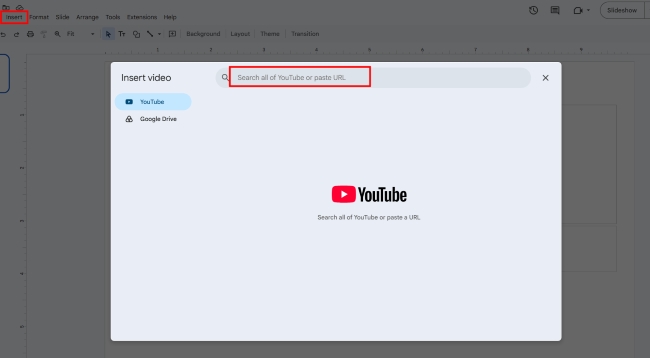
Step 2. Resize the embedded video and place it in the right location. Then select the video, open "Format options > Video playback", and choose one of the available playback modes:
- Play on click: Starts when you advance the presentation.
- Play automatically: Starts without an additional click.
- Play manually: Starts when you click the embedded player.
Step 3. Run the presentation in Slideshow mode and confirm that the video loads, the YouTube music begins at the intended moment, and the volume is suitable.
Part 3. How to Add YouTube Music to Google Slides via Google Drive
Embedding a YouTube video is the fastest way to add music to Google Slides, but it leaves the video player visible and usually limits playback to one slide. If you want audio-only background music, looping, or playback across multiple slides, a separate audio file is more suitable.
DRmare Streaming Audio Recorder can prepare authorized YouTube Music tracks as MP3 or WAV files supported by Google Slides. After conversion, upload the music to Google Drive. The following steps cover the complete process, from choosing the output settings to configuring playback in your presentation.
- Step 1Customize the Output Settings for Google Slides
Before converting the music, click the "Settings" icon and scroll to the "Music" section. Select MP3 or WAV, as these formats can be inserted into Google Slides through Google Drive. You can also adjust the sample rate, bit depth, audio codec, and channel settings. For most presentations, converting YouTube to MP3 strikes a good balance between audio quality and file size.
- Step 2Add the YouTube Music Tracks
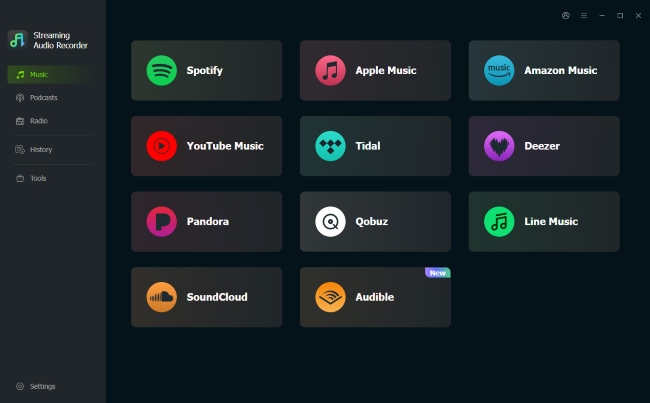
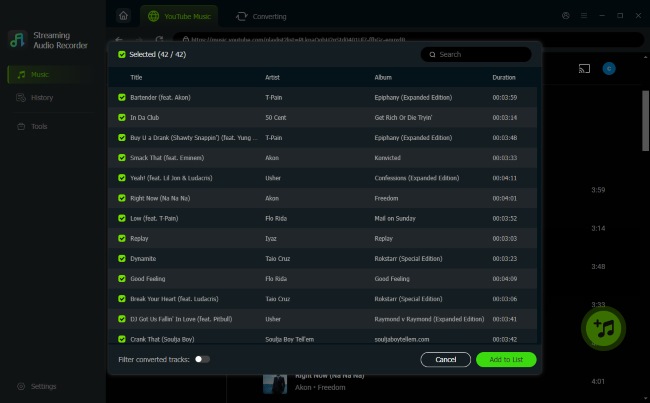
Return to the main interface and select the YouTube Music icon. Sign in to your account, open the song or playlist you want, and click the "Add" button. Select the tracks you need, then click "Add to List" to place them in the conversion queue. You can add multiple tracks at once, but it is usually better to convert only the music you plan to use in Google Slides.
- Step 3Convert YouTube Music to MP3 or WAV
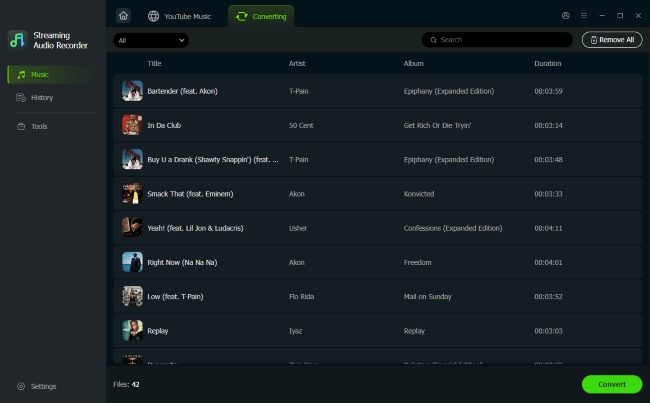
Click the "Convert" button to start processing the selected tracks. After the conversion finishes, open the "History" section to find the converted files and locate their folder on your computer.
- Step 4Upload the Converted Music to Google Drive
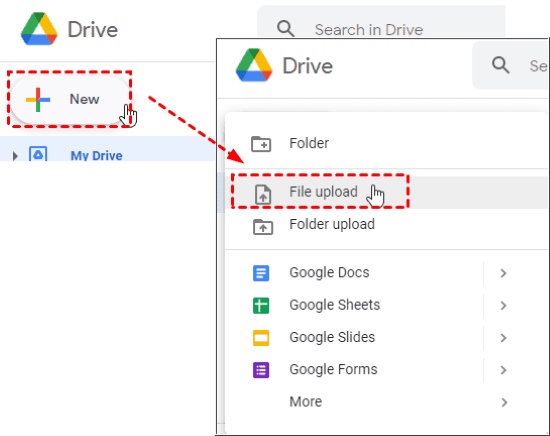
Open Google Drive and sign in with the same Google account you use for Google Slides. Click "New > File upload", then select the converted MP3 or WAV file from YouTube. Wait for the upload to finish before returning to your presentation. You may also rename the file so it is easier to identify later.
- Step 5Insert the Audio into Google Slides
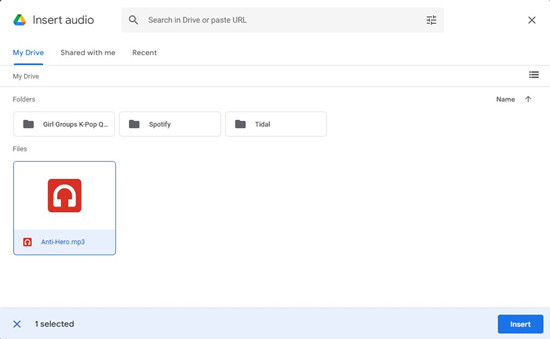
Open your Google Slides presentation and select the slide where the music should begin. Choose "Insert > Audio", select the uploaded file from Google Drive, and click "Insert". After the audio icon appears, open "Format options" to adjust the playback settings. You can set the music to start automatically, loop the track, or continue playing when you move to the next slide by turning off "Stop on slide change".
Part 4. FAQs About Adding Music to Google Slides from YouTube
How Do I Make YouTube Music Play Automatically in Google Slides?
Insert the YouTube video, select it, and open "Format options > Video playback". Choose "Play automatically", then test the slide in Slideshow mode to make sure the music starts as expected.
How Do I Add Background Music to All Slides in Google Slides?
Upload an MP3 or WAV file to Google Drive, then add it through "Insert > Audio". Set it to play automatically, turn off "Stop on slide change", and enable looping if the track is shorter than the presentation.
Can Music Continue Playing Across Multiple Google Slides?
Yes. Audio inserted from Google Drive can continue playing when you move between slides, as long as "Stop on slide change" is disabled. An embedded YouTube video is usually tied to one slide, so it is less suitable for continuous background music.
Can You Add Music Directly from YouTube to Google Slides?
Yes, but only as an embedded YouTube video. Google Slides cannot turn a YouTube URL into a separate audio file. For audio-only playback, you need to upload an MP3 or WAV file to Google Drive and insert it.

 Home
Home





User Comments
Leave a Comment