





If you love streaming your favorite tracks but are tired of constant commercial interruptions, finding a reliable way to block ads on YouTube Music is essential. Fortunately, you have plenty of options to reclaim your listening experience. In this comprehensive guide, we'll explore 8 effective methods to help you get YouTube Music without ads across both your mobile devices and desktop.
Part 1. Does YouTube Music Have Ads
Yes, the free version of YouTube Music does include ads. Similar to its video counterpart, Google uses these audio and video advertisements to fund the free streaming tier for millions of listeners worldwide. Consequently, you will frequently encounter unskippable commercial breaks between your favorite tracks, completely breaking the flow of your listening experience on YouTube Music.
Part 2. How to Get YouTube Music Without Ads with Premium
The most straightforward and officially supported way to remove ads from YouTube Music is by upgrading to a Premium subscription. With a Premium subscription, you can instantly enjoy **ad-free YouTube Music across all your logged-in devices. It not only helps you stop YouTube Music ads, but also unlocks extra features like background playback and offline listening, making it the best option if you want to play YouTube Music without ads seamlessly.
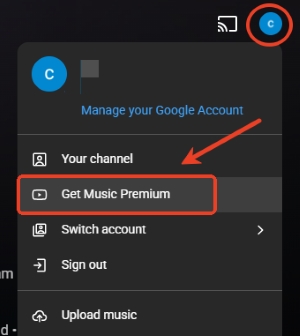
Step 1. Open the YouTube Music app or website, tap your profile picture in the top-right corner, and select "Get Music Premium".
Step 2. Follow the on-screen instructions to choose a plan (Individual, Family, or Student), then complete the payment process.
Part 3. How to Block Ads on YouTube Music (Desktop/Web)
If you prefer playing tracks through your computer's web browser, there are generally two highly effective options to stop YouTube Music ads. To seamlessly remove ads from YouTube Music on your PC or Mac, you can either install ad blocker extensions into your browser or switch to a privacy-focused option like the Brave browser, which features powerful ad-blocking capabilities built right in.
Add YouTube Music Ad Blocker Extensions
Using a dedicated YouTube Music ad blocker extension is one of the easiest ways to enjoy uninterrupted playback on a desktop. These small browser add-ons run in the background, identifying and blocking ad scripts before they can load into your web player.
JadSkip: Adblock for YouTube and Youtube Music
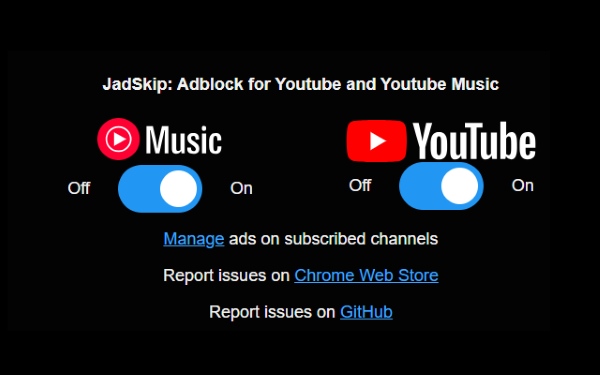
JadSkip is specifically designed to automatically intercept ads on both YouTube and YouTube Music directly from your desktop browser. It runs quietly in the background, ensuring your favorite playlists continue without any frustrating pauses. It instantly blocks incoming audio and video commercials entirely, or automatically clicks the "Skip Ads" button when it becomes available. It gives you the flexibility to manage your ad preferences by specific channels.
Step 1. Navigate to the Chrome Web Store and search for "JadSkip". Click "Add to Chrome" and confirm the installation.
Step 2. Refresh your YouTube Music tab, and the extension will automatically begin blocking interruptions.
MuteAds for YT Music
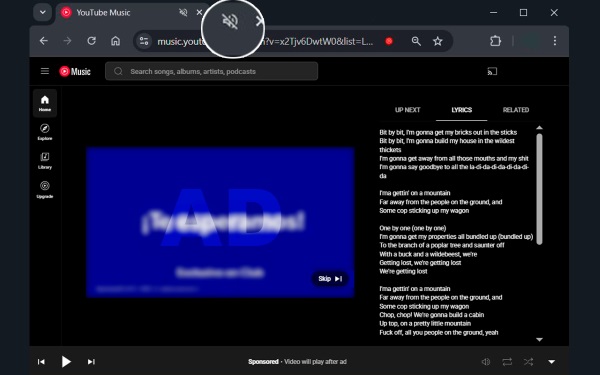
Blocking ad extensions can sometimes trigger the platform's strict anti-adblock warnings. MuteAds takes a different approach. When you are streaming your favorite playlists, this YouTube Music extension allows the ads to load but instantly silences the audio when it detects an interruption. By doing so, it effectively stops ads on YouTube Music from ruining your vibe. This ensures your music session remains peaceful and automatically resumes without requiring any manual intervention.
Switch to Brave Browser for Ad-Free YouTube Music
If you want to know how to block ads on YouTube Music without installing third-party extensions, switching your browser is a fantastic solution. Brave Browser comes with a powerful, built-in shield that blocks trackers and advertisements natively. Because the ad-blocking is integrated directly into the browser's core, it is highly efficient and rarely detected by YouTube's anti-adblock scripts. You can simply navigate to the YouTube Music web player in Brave, log in, and immediately play YouTube Music without ads.
Step 1. Launch Brave Browser on your desktop and navigate directly to the YouTube Music web player. Once the page fully loads, look for the Brave Shields icon located at the right end of your address bar, or access "Shields" through your main "Settings" list.
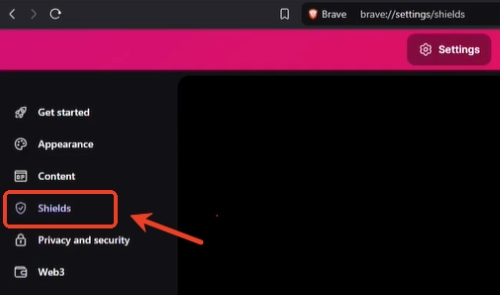
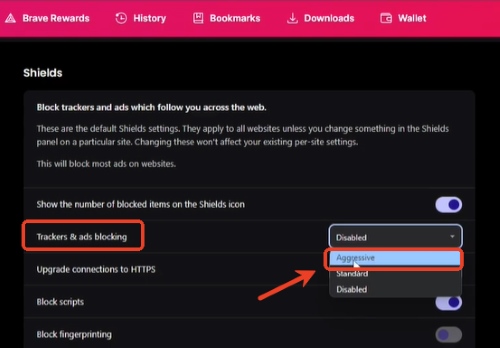
Step 2. Inside the Shields dropdown menu, locate the "Trackers & ads blocking" option, which is typically set to "Standard" by default. Click to expand this menu and change your setting to "Aggressive". This crucial adjustment enforces much stricter network filtering rules, allowing the browser to catch and block the stubborn audio and video commercials that frequently slip through standard ad blockers.
Note:
If you still encounter the occasional interruption after configuring your shields, try clearing your cache and cookies specifically for YouTube, then log back in. Alternatively, test the web player in a Private Window. If the music plays without ads here, a conflicting extension or lingering cache in your main browser is the likely culprit.
Part 4. How to Block Ads on YouTube Music App (Mobile)
Blocking ads from YouTube Music on mobile devices requires a slightly different method than on a desktop. Since you cannot install standard browser extensions into the official mobile app, you need to rely on modified apps or system-wide blocker tools to get YouTube Music without ads.
Try Modified YouTube Music Apps Without Ads
For Android users, installing a modified version of the official app is a popular method to get rid of ads on YouTube Music. The community-developed app ReVanced YouTube Music tweaks the original YouTube Music software to unlock premium features for free. It is offering a robust YouTube Music ad blocker for Android. It patches the official app to remove all audio and visual ads, while also enabling background playback.
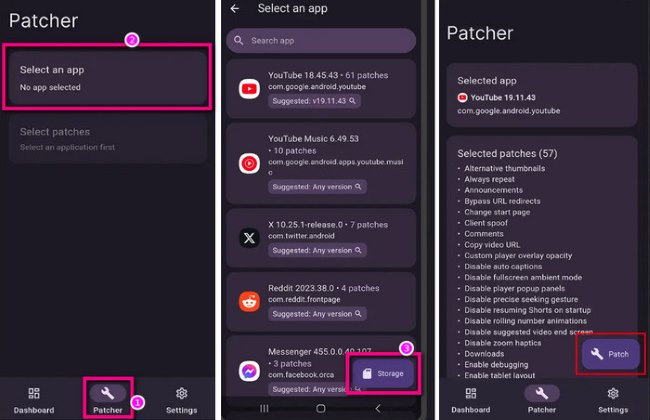
Step 1. Secure the official patching framework. Download the latest ReVanced Manager directly from their verified GitHub repository or official website. Alongside the manager, you must also download and install GmsCore.
Step 2. Next, obtain the unmodified base application. Open the ReVanced Manager, navigate to the "Patcher" tab, and note the specific suggested version of YouTube Music required. Head to a safe repository like APKMirror to download that exact APK file.
Step 3. Now, compile and patch your custom app. Launch ReVanced Manager, open the "Patcher" tool, and tap "Storage" to select the YouTube Music APK you just downloaded. To successfully block ads on YouTube Music, ensure the ad-blocking patches and the crucial "GmsCore support" patch are checked to prevent the app from crashing.
Step 4. Tap the "Patch" button at the bottom of your screen to build your new app. Once the compilation process finishes, press "Install". You can now open ReVanced YouTube Music and instantly stream your favorite playlists without any ad interruptions.
Install YouTube Music Ad Blocker Apps
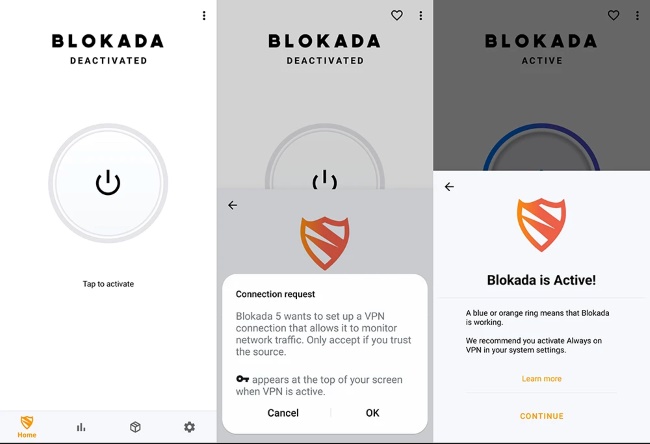
The process of downloading modified applications feels too complicated, and iOS users cannot easily sideload patched apps. In such cases, using the system-wide ad blocker app is an excellent alternative. These tools act as a protective shield for your entire phone. They actively block unwanted ad traffic at the network level, making them the perfect plug-and-play solution to block ads on YouTube Music for both iPhone and Android users. Blokada 6 stands out as a user-friendly YouTube Music ad blocker for both Android and iOS users. While AdGuard is highly effective in Safari, blocking in-app ads for YouTube Music on iOS can be more challenging.
Step 1. Download the official Blokada 6 application directly from the Google Play Store or the Apple App Store, depending on your mobile operating system.
Step 2. Open the app and simply tap the central power button to activate the main switch. This action immediately enables the app's built-in VPN, which automatically starts intercepting ads across your entire device, including those frustrating commercial breaks within YouTube Music.
Activate VPNs for YouTube Music Ad Blocking
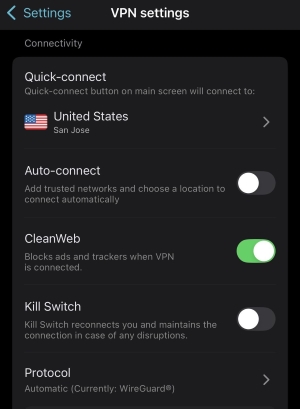
Virtual Private Networks (VPNs) are traditionally used for privacy, but many modern VPN services now include robust ad-blocking features. Surfshark includes a proprietary feature called CleanWeb, which blocks ads, trackers, and malicious links at the DNS level. By routing your mobile traffic through their servers with CleanWeb enabled, you can significantly reduce the number of ads you encounter.
Step 1. Download the official Surfshark app from the Google Play Store or Apple App Store, depending on your device. Once installed, open the application and log in to your active premium account.
Step 2. Tap on the "Settings" gear icon located in the app's navigation menu, then select "VPN Settings". Locate the feature labeled "CleanWeb" and toggle the switch to the "On" position to activate the ad blocker.
Step 3. Return to the app's main dashboard and press the "Quick-connect" button to securely link your phone to the available VPN server. Launch your YouTube Music app, and you will immediately enjoy a much cleaner listening experience, successfully get rid of the YouTube Music ads.
Part 5. How to Listen to Ad-Free YouTube Music Without Premium
Beyond using extensions and ad blockers mentioned above, downloading your YouTube Music tracks is a way to block ads on YouTube Music. If you're looking for how to listen to YouTube Music without ads, DRmare Streaming Audio Recorder offers a more permanent solution. You can completely remove ads from YouTube Music and enjoy uninterrupted playback without Premium. This powerful YouTube Music ads blocker alternative lets you save your favorite playlists as high-quality MP3, FLAC, or WAV files with ID3 tags preserved, making it easy to play your ad-free YouTube Music offline anytime.
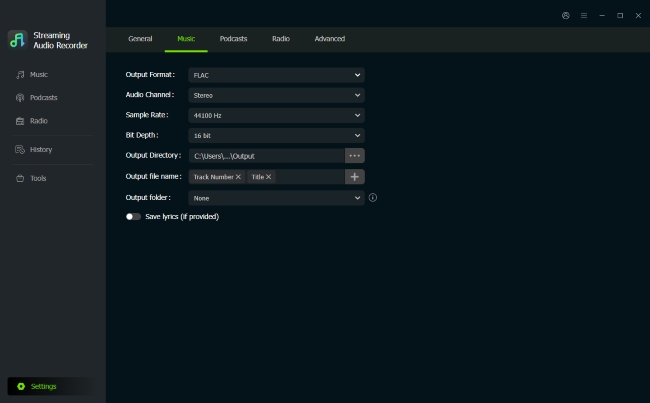
Step 1. Launch the DRmare application on your computer, navigate to "Settings", followed by the "Music" tab to customize your audio output. This desktop software guarantees high-fidelity sound. Simply choose a standard format and maximize the bitrate for a lossless listening experience.
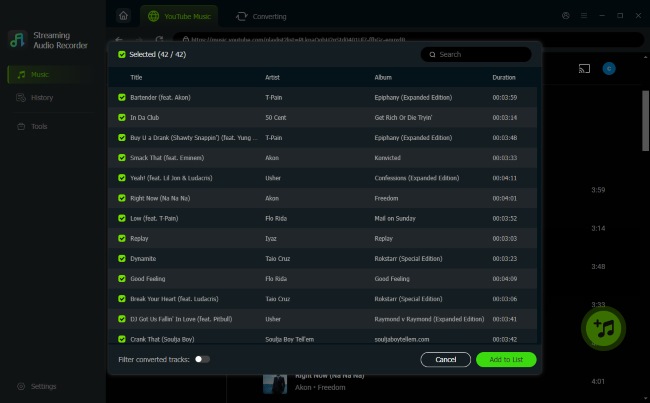
Step 2. Click the YouTube Music icon directly from the main interface to open the integrated web player and access your account. Search for the specific albums or playlists you want to enjoy without interruptions. Once located, click "Add" and then "Add to List" to seamlessly queue up the songs for downloading.
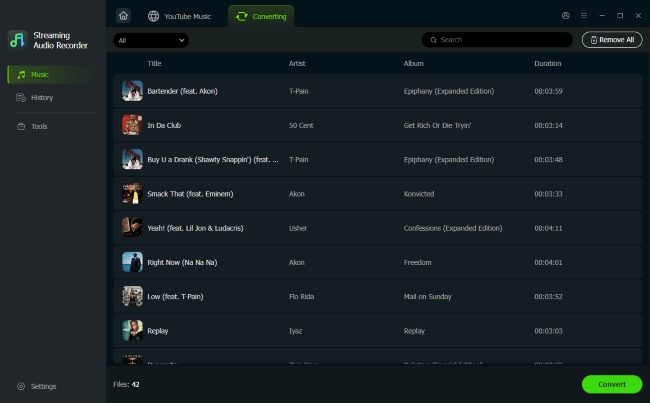
Step 3. Press the "Convert" button to start saving your tracks. Then your YouTube music files will be safely stored on your computer, completely bypassing YouTube Music's ads. You can view them in the "History" tab and easily transfer them to your iPhone, Android, or car stereo to successfully get uninterrupted YouTube Music playback.
Part 6. Comparing the Top 8 YouTube Music Ad Blocker Solutions
| Solution | Platform Support | Primary Method | Offline Playback | Cost | Setup Difficulty |
|---|---|---|---|---|---|
| YouTube Premium | All Devices | Official Subscription | Yes | Paid | Easy |
| JadSkip Extension | Desktop / Web | Blocks Ads | No | Free | Easy |
| MuteAds Extension | Desktop / Web | Mutes Audio During Ads | No | Free | Easy |
| Brave Browser | Desktop / Web | Built-in Browser Shield | No | Free | Easy |
| ReVanced App | Android | Modified APK | No | Free | Hard |
| Blokada 6 | Android / iOS | System-Wide VPN | No | Free | Easy |
| Surfshark VPN | All Devices | VPN DNS Filtering | No | Paid | Easy |
| DRmare Recorder | PC / Mac | Download Ad-free Music | Yes | Paid | Easy |
Part 7. Conclusion
Ultimately, the official subscription remains the easiest way to block ads on YouTube Music across every device. For ad-free YouTube Music without Premium, you can easily rely on ad blocker extensions and apps to remove the interruptions. If you want a permanent YouTube Music library without ads, DRmare Streaming Audio Recorder serves as a highly practical workaround, guaranteeing an uninterrupted listening experience completely offline.

 Home
Home




User Comments
Leave a Comment