





Many users want to listen to Pandora on a Samsung Smart TV without relying on phones or external devices. Although the Pandora app is supported on most Samsung TVs, installation or playback issues can sometimes prevent it from working properly. This guide explains how to get and play Pandora on Samsung TV, along with practical solutions for fixing Pandora not working on Samsung TV.
Part 1. How to Get Pandora on Samsung TV
Pandora is available on Samsung Smart TVs, allowing you to stream personalized radio stations and playlists directly on the big screen. If you are using a compatible model, you can install the Pandora app from the Samsung App Store and start listening within minutes. Follow the steps below to get Pandora on your Samsung TV.
- Step 1Launch the Samsung App Store
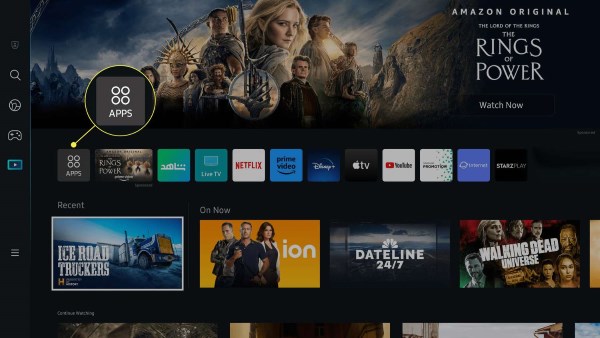
Make sure your Samsung Smart TV is connected to a stable internet connection. Using your remote control, go to the TV's home screen and open the "Apps" section to access the Samsung App Store.
- Step 2Download and Install Pandora
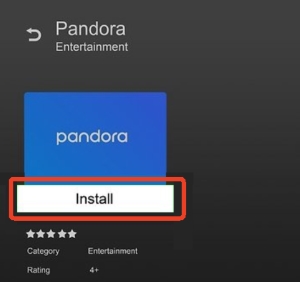
Search for Pandora in the Samsung App Store and select the official Pandora app from the results. Click the "Install" button to add Pandora to your Samsung Smart TV. After installation, you can open the app directly from the Apps section.
- Step 3Log In to Your Pandora Account
Open the Pandora app from your installed apps list. Select "Log In" and enter your Pandora account credentials. After signing in, a unique activation code will appear on your TV screen, which you will need to complete the activation process.
- Step 4Activate Pandora on Samsung TV
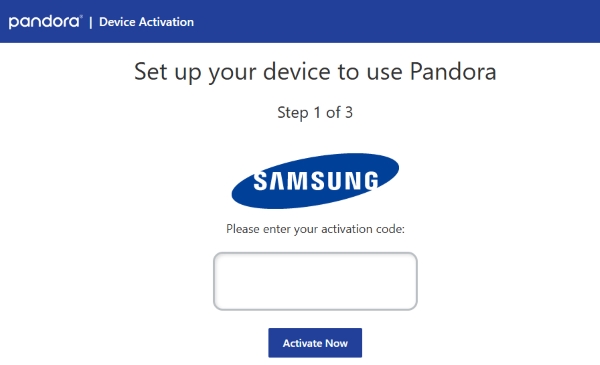
Leave the activation code visible on your TV and visit the activation page on a computer or phone web browser to enter it. Alternatively, you can open your Pandora mobile app, navigate to "Settings", and choose "Device Activation" to input the code and finalize the setup.
- Step 5Play Pandora on Samsung Smart TV
Once activation is successful, your TV screen will automatically refresh to display your account. Grab your remote to browse your personalized stations, select a track, and start listening to Pandora on Samsung TV immediately.
Part 2. How to Download Pandora Music on Samsung Smart TV
You might wonder whether it is possible to play Pandora music on your Samsung TV offline. Unfortunately, the native Smart TV app strictly relies on an active internet connection. It only supports live streaming and lacks any offline mode or local storage capability. To permanently bypass the limits, a highly effective solution is DRmare Streaming Audio Recorder.
DRmare operates efficiently in the background to download your favorite radios from Pandora at a 100X speed. You do not even need a premium subscription, as it works perfectly with a free Pandora account to save your content locally. By converting the audio into formats like MP3, AIFF, WAV, FLAC, M4A, and M4B, it guarantees your music will play on your Samsung TV without any compatibility errors with a flawless offline listening experience.
- Step 1Set Your Audio Output Settings
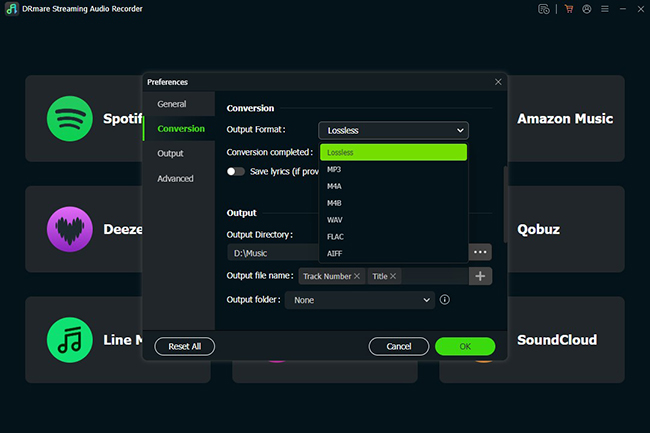
Open DRmare Streaming Audio Recorder and navigate to the Menu to customize your file type. Click "Preferences" and "Conversion", selecting a highly compatible format like MP3 from the list ensures your downloaded Pandora tracks will play flawlessly on your Samsung Smart TV.
- Step 2Queue up Your Pandora Playlists
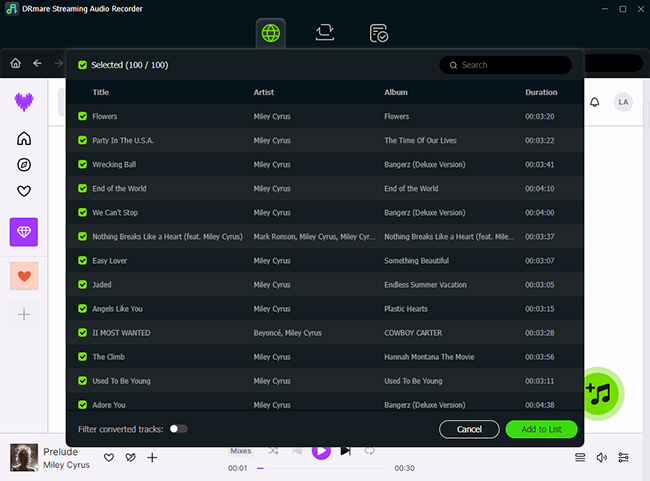
Choose Pandora from the main interface and access the built-in web player to log into your account. Once you find a station you want to keep, click it and then hit the "Add" button, then use the "Add to List" button to load the songs for conversion.
- Step 3Save the Tracks to Your Computer
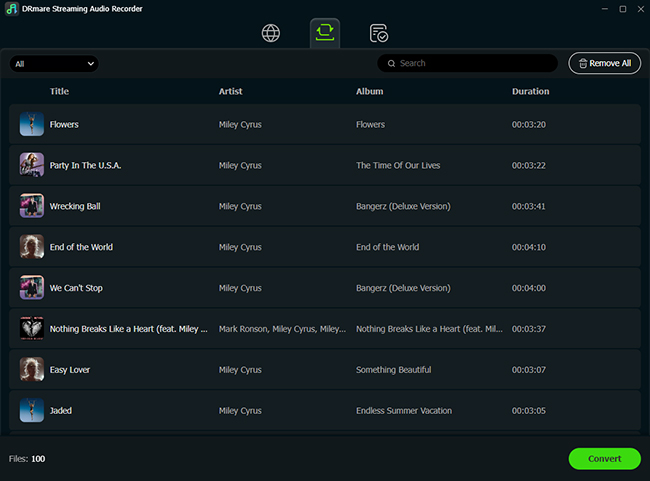
Click "Convert" to initiate the download. The software works silently in the background, permanently storing the lossless music within a designated local folder, and you can also check the downloaded tracks in the "Converted" tab.
- Step 4Play Pandora Music on a Samsung TV
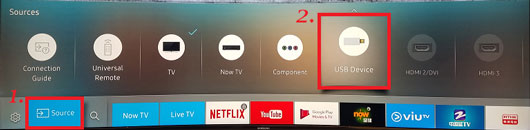
Insert the loaded USB drive into your Samsung Smart TV. Press the "Home" remote button, navigate to the "Source" menu, and select your connected USB device. Pick your saved Pandora tracks and hit "Enter" to control the offline Pandora playback directly from your screen.
Part 3. How to Fix Pandora Not Working on Samsung TV
Even the most reliable apps experience glitches from time to time. If the Pandora app is not playing on your Samsung TV, the culprit is usually network connectivity, outdated software, or a temporary cache issue. You can easily fix these problems by trying the following solutions step by step.
Common Fixes on Pandora App on Samsung TV Not Working
Before diving into specific errors, try these universal troubleshooting methods that resolve most Samsung Smart TV app issues.
- Reset Samsung TV: Perform a quick soft reset by holding down the power button on your Samsung remote for about five seconds until the television turns off and reboots with the Samsung logo.
- Update TV App: Ensure your system software is current, as outdated versions cause compatibility glitches. Check for TV firmware updates by navigating to Settings, selecting Support, and clicking on Software Update.
- Reinstall the Pandora App: If the application continues to crash or freeze during use, completely delete it from your television. Reinstall a fresh version from the App Store to clear any corrupted background data.
- Check Internet Connection: Since weak Wi-Fi signals frequently lead to aggressive audio buffering, verify your overall network stability first. For a much more reliable streaming experience, plug a wired Ethernet cable directly into your TV.
Pandora No Sound on Samsung TV
If you are experiencing no sound or constant audio buffering while using Pandora on your Samsung TV, the cause is typically incorrect audio routing. You can resolve these issues by following a logical troubleshooting path.
- Method 1Verify your Television's Audio Output
The lack of sound happens because your television is mistakenly routing audio to a disconnected Bluetooth headset or an inactive soundbar. You need to ensure the audio signal is physically being sent to the correct place.
Navigate to your TV's "Settings" menu, head over to "Sound", and then select "Sound Output". Ensure that "TV Speakers" is explicitly chosen as the active device to see if the track's audio returns. Also, it is always worth double-checking that your master volume is actually turned up and not accidentally muted.
- Method 2Disable IPv6 in Your Network Settings
Some smart TV applications struggle to communicate with the updated standard. This protocol mismatch can easily cause aggressive buffering or completely drop the audio stream from Pandora's servers.
To resolve this handshake issue, head into your television's "Settings" and select "General". Next, choose "Network", open up "Expert Settings", and toggle the IPv6 option to "Off". Restart the Pandora app afterward to see if your audio connection stabilizes.
- Method 3Reset the Samsung Smart Hub
If the app is still dropping audio or stuck in an endless buffering loop, your television's core cache might be deeply corrupted. Keep in mind that performing this reset acts as a factory refresh for your app ecosystem. You will need to link your Pandora account again using a fresh activation code once the television reboots.
Go to your "Settings", open the "Support" tab, and select "Device Care". From there, choose "Self Diagnosis", and finally click "Reset Smart Hub".
Pandora Not Connecting to Samsung TV
When the app fails to connect to the server entirely, it usually points to a communication error between your router and the television.
Step 1. Restart your home router by physically unplugging the power cord from the wall for at least 30 seconds to clear out temporary network glitches.
Step 2. While the router reboots, navigate to your TV's network settings and disconnect it from the Wi-Fi to sever the existing connection entirely. Once the router is fully back online, reconnect the TV to your network and re-enter your Wi-Fi password to establish a fresh, stable connection.
Pandora App Not Activating on Samsung Smart TV
When the activation code expires or the website fails to recognize your input, try this sequence to reset the prompt:
Step 1. If your screen remains stuck on the activation page, close the Pandora application completely on your television to reset the stalled authentication process.
Step 2. Reopen the application on your TV to force the system's servers to generate and display a brand-new activation code for your account.
Note:
Ensure you are not running a VPN on your computer or phone during this step, as location mismatches frequently block the authentication process.
Part 4. Wrap up
Enjoying your customized music stations on the big screen should always be a relaxing, seamless experience. By installing and activating the Pandora app on your Samsung TV, you can easily access your favorite live streams. Furthermore, keeping your television updated and maintaining a stable network connection will prevent Pandora from not working in most cases. If you want to eliminate those playback errors and reach offline playback, saving your Pandora music locally is the smartest workaround.

 Home
Home





User Comments
Leave a Comment