





Pandora is a popular choice for discovering music and enjoying personalized radio stations, but access is often restricted on school networks and other controlled Wi-Fi environments. You might be frustrated to find that Pandora won't load, the app is blocked, or there's a login issue. In this guide, you'll learn how to get Pandora unblocked at school and anywhere else using 7 proven methods, so you can choose the solution that best fits your device and listening needs.

Part 1. Compare the Best Ways to Get Pandora Unblocked
| Method | Extra Software Needed | Compatible Devices | Advantages | Disadvantages |
|---|---|---|---|---|
| Switch to Mobile Data / Personal Hotspot | No | Phone | Quick; bypasses school network directly; no installation needed | Uses mobile data; may not be suitable for long sessions |
| Access Pandora Web Player | No | Phone, Desktop | Easy access; no app installation; works when app is blocked | Website may be blocked; some app features unavailable |
| Use Proxy Server | Optional (some paid proxies) | Phone, Desktop | Can hide IP and bypass basic network restrictions | Most free proxies blocked by Pandora; unstable performance |
| Change DNS Settings | No | Phone, Desktop | Simple; can bypass basic DNS-level blocks | Advanced firewalls/DPI may still block access; requires reconfiguration on new networks |
| Use a VPN | Yes | Phone, Desktop | Stable access; bypasses most network restrictions; supports multiple devices | Paid VPN recommended for good speed; free VPNs may be slow |
| Download Pandora Music with Plus / Premium | Yes | Phone, Desktop | Official offline downloads; works without network; safe | Limited to in-app playback; Plus restricted to 3 stations; lost if subscription expires |
| Download Pandora Music with Pandora Donwloader | Yes | Desktop | Save Pandora music anywhere; high-quality downloads; works without subscription; ad-free; supports multiple formats | Requires software installation; initial setup needed; only works on PC/Mac |
Part 2. Access Unblocked Pandora at School Without Extra Software
Before moving on to advanced solutions, it's a good idea to try a few simple methods that don't require installing any extra apps. These approaches rely on changing your network connection or using built-in browser features, making them quick to try on school devices. While they may not work on every restricted network, they are often effective for light or moderate blocks and are ideal for temporary access to your Pandora music.
Switch to Mobile Data or Personal Hotspot
One of the easiest ways to access Pandora at school is to avoid the school Wi-Fi altogether. By using mobile data or a personal hotspot, your connection no longer passes through the school's network filters, allowing Pandora to load normally in most cases. If you have enough mobile data, you can stream Pandora music directly on your phone or use your device as a hotspot to get Pandora unblocked on a Chromebook or laptop.
Step 1. Navigate to "Settings" and enable the "Personal Hotspot" on your phone.
Step 2. Connect your laptop, Chromebook, or another device to the hotspot network.
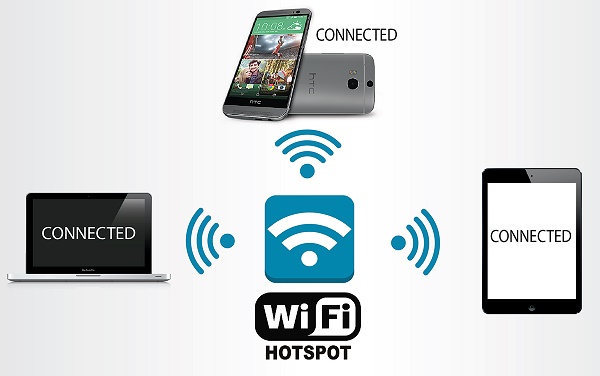
Step 3. Launch the Pandora app or web player and enjoy Pandora radio unblocked without restrictions.
Tips:
Before using a personal hotspot, make sure your school allows you to carry and use mobile phones on campus. Otherwise, it could lead to your device being confiscated or other disciplinary actions.
Use Pandora Web Player Instead of the App
Sometimes, Pandora apps are blocked while its music websites remain accessible. So using the Pandora Web Player in a browser can help you to bypass the app-level restrictions for Pandora at school.
Step 1. Open your browser and navigate to the unblocked Pandora web player, then log in to your Pandora account.
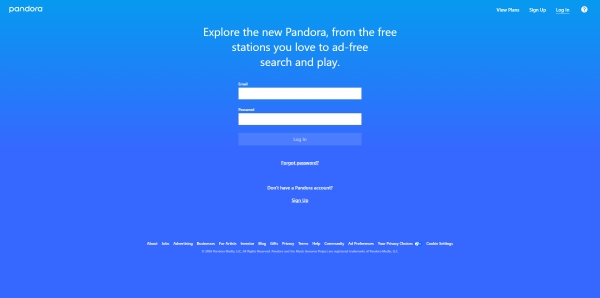
Step 2. Browse your playlists or radio stations and start streaming Pandora music unblocked directly from the website.
Tips:
You can try a privacy-focused browser like Tor to unblock Pandora on restricted networks. Tor routes your connection through multiple relays to bypass local blocks, but it is slow, can cause buffering, and is not ideal for frequent streaming. Besides, many schools block Tor entirely, and it may violate your school's Acceptable Use Policy even if accessible.
Access Pandora via a Proxy Server
A proxy server acts as an intermediary between your device and Pandora, helping you reach the website through a different route. Using a proxy can get around basic restrictions, though results may vary in terms of connection quality and stability.
Step 1. Go to a free proxy website, such as CroxyProxy, or a paid proxy like ProxyRack.
Step 2. Enter Pandora.com in the URL bar, then log in to your account. Click the "Go" button to continue.
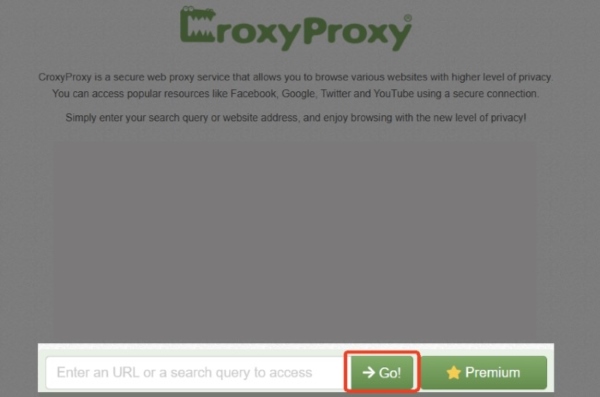
Step 3. The proxy will load Pandora within its own interface, letting you browse stations, playlists, and stream Pandora music unblocked.
Note:
Most free web proxies struggle to get Pandora unblocked because they use data center IPs, which Pandora actively blocks. In 2026, school and workplace firewalls have become more sophisticated. As a result, many proxies that previously worked to access Pandora radio unblocked are now likely to be detected and blocked.
Change DNS Settings to Reach Pandora
Since school networks may block Pandora at the DNS level rather than fully restricting traffic, you can change your DNS settings to help restore access by resolving Pandora's domain through a public DNS instead of the school's default one.
Change DNS Settings to Access Pandora on PC/Mac
on Windows
Step 1. Start by opening Settings, then head to "Network & Internet" and select "Advanced network" settings.
Step 2. From there, click "More network adapters" to view all connections. Right-click the network you're currently using and choose "Properties".
Step 3. Locate "Internet Protocol Version 4 (TCP/IPv4)", select it, and click "Properties". Choose the option to manually enter DNS server addresses and type in the two DNS values you selected earlier.
Cloudflare DNS--IP addresses: 1.1.1.1 and 1.0.0.1
Google Public DNS--IP addresses: 8.8.8.8 and 8.8.4.4
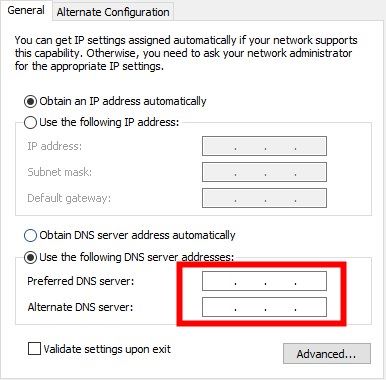
Step 4. Save your changes, reopen your browser, and check whether Pandora music is unblocked.
on Mac
Step 1. Open "System Settings" and go to "Network" and Select "Wi-Fi".
Step 2. Switch to the "DNS" tab in the sidebar. Use the "+" button to add your preferred DNS servers one by one.
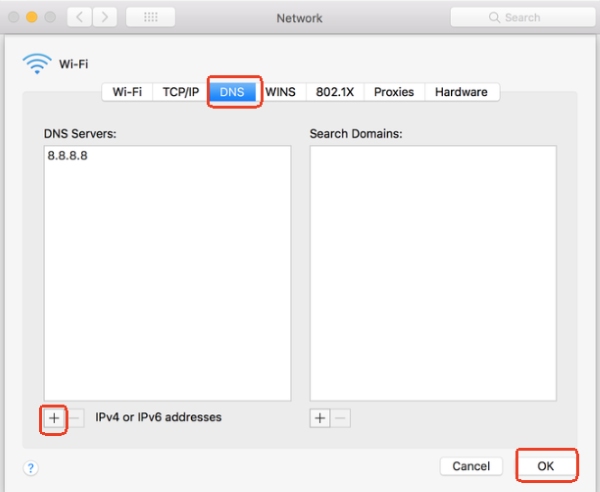
Step 3. Click "OK" to apply the changes, then reconnect to the network. And visit Pandora again to see if Pandora radio unblocked works.
Change DNS to Get Pandora Unblocked on Android/iOS
on Android
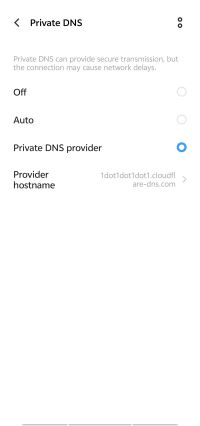
Step 1. Open Settings and navigate to "Network & Internet". Look for "Private DNS", and you may find it under an "Advanced" menu.
Step 2. Select the Private DNS provider hostname. Enter one of the following hostnames:
Cloudflare: one.one.one.one/ Google: dns.google
If your device doesn't support DNS hostnames, you can still manually enter DNS IP addresses instead.
on iPhone
Step 1. Open "Settings" and tap "Wi-Fi". Click the "i" icon beside your network.
Step 2. Find the "Configure DNS" option and turn it to "Manual". Remove any existing DNS entries, then add the new DNS server addresses you chose.
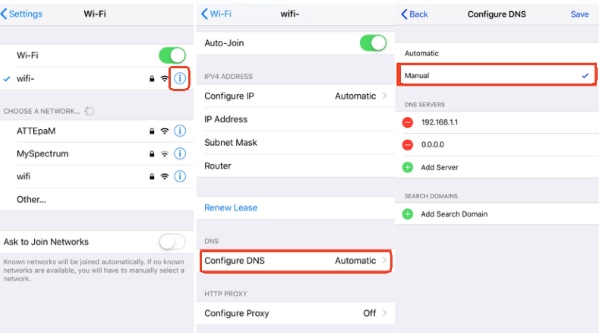
Step 3. Save your changes and reopen the Pandora app or web player. Keep in mind that if you connect to a different Wi-Fi network later, you'll need to repeat these steps.
Note:
Many schools and workplaces now use advanced firewalls or Deep Packet Inspection (DPI), which DNS changes alone may not bypass. If Pandora is still unavailable, a VPN or offline listening option may offer a more consistent experience.
Part 3. Get Pandora Unblocked at School with a VPN
While the methods above are convenient, they may not work on more tightly restricted school networks. If Pandora remains inaccessible, using a VPN provides a more reliable solution. By encrypting your internet traffic and bypassing network filters, a VPN allows you to access Pandora consistently, even on Wi-Fi networks heavily controlled at school or work.
Step 1. Choose a trusted VPN provider to ensure fast and secure access to Pandora, such as NordVPN, Surfshark, or IPVanish. Then download and install it on your device.
Step 2. Open the VPN app and select a server in a country where Pandora is supported, such as the US.
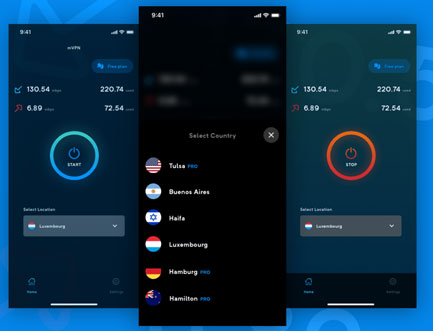
Step 3. With the VPN active, launch the Pandora app or visit the web player. You can now stream Pandora music unblocked and enjoy your favorite Pandora radio and playlists.
Part 4. Download Pandora Music Unblocked for Long-Term Use
Listening to Pandora at school can be tricky, and sometimes even web-based solutions or VPNs aren't convenient for daily listening. For long-term use, downloading Pandora music for offline playback ensures you can enjoy your favorite songs anytime, without worrying about network restrictions or connectivity issues.
Get Pandora Offline with a Subscription
If you have a Pandora Plus or Premium subscription, you can officially download songs and playlists for offline listening, allowing access to Pandora music unblocked even when Wi-Fi is restricted. However, Plus users can download up to three stations, while Premium offers more flexibility, but all downloads are limited to in-app playback only and cannot be transferred to other devices or music apps, and you will lose access to them if your subscription expires.
Download Pandora Music/Station with Premium/Plus
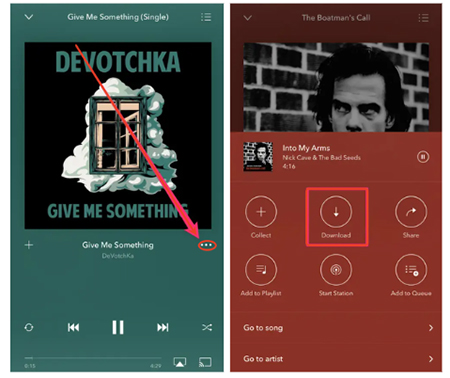
Step 1. Open the Pandora app and search for the song, album, playlist, or station you want offline.
Step 2. Tap the three-dot "Menu" next to the item and select the "Download" icon. The content will be saved to your device, giving you unrestricted access to your favorite music and radio stations offline.
Get Pandora Music Unblocked Anywhere
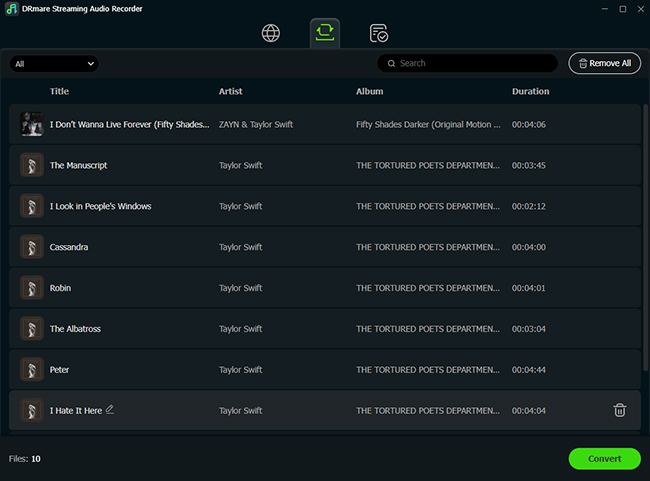
If you want to get Pandora unblocked on school or work Wi-Fi, without relying on the official app or an internet connection, DRmare Streaming Audio Recorder provides a reliable solution. It lets you download songs and playlists from Pandora in MP3 and formats like FLAC, WAV, and AIFF, even with a free account. The tool also preserves ID3 tags to keep your library organized and supports 100X batch downloads, allowing you to build a personal Pandora collection without ads for seamless listening.
- Step 1Set Up Output Settings for Pandora Music
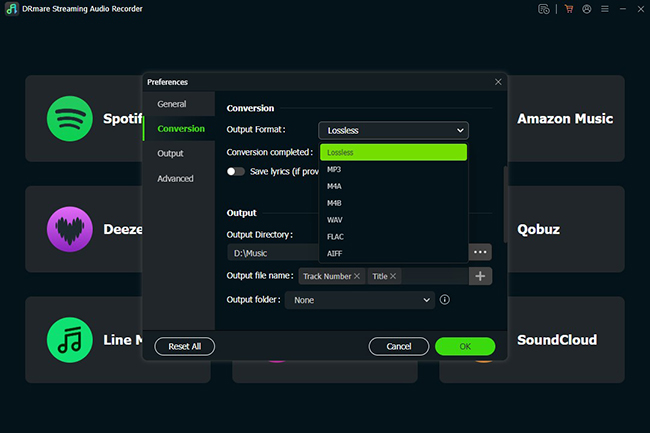
After launching DRmare, open "Preferences" from the app menu on Windows or from the macOS menu bar to access the output settings.
Here, you can decide which audio format to use for your Pandora downloads as well as other lossless options. You're also free to fine-tune details to ensure your offline Pandora tracks play smoothly on any device, even when Pandora is blocked.
- Step 2Choose Pandora and Sign In
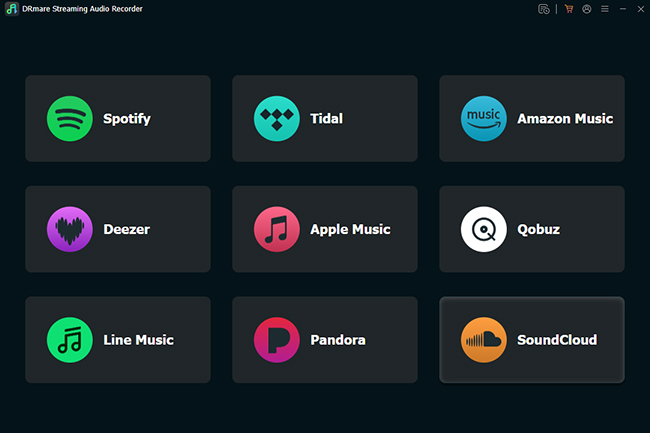
On the main screen of DRmare, select the Pandora icon from the list of supported platforms. Then sign in to your Pandora account directly within the built-in web player, which allows the program to access your stations and playlists, preparing them for Pandora music unblocked playback.
- Step 3Add Pandora Tracks or Radio Stations
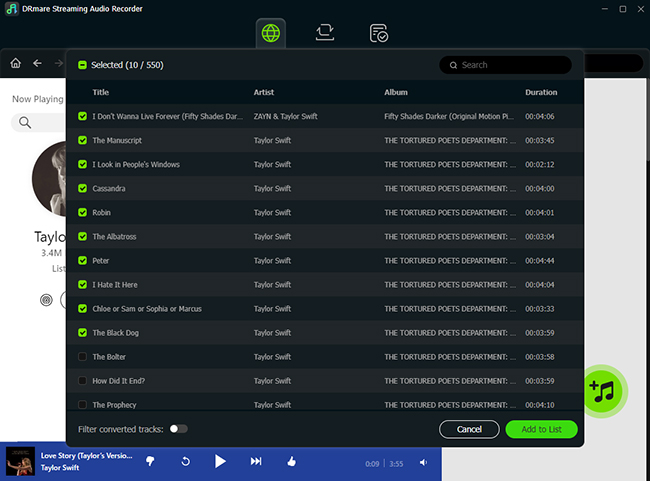
When you find a station, playlist, album, or song you want to keep, click the "Add" button to select it. You can add multiple items at once and review them in the download list before proceeding. Then press "Add to List" to put them on the conversion list.
- Step 4Download and Save Pandora Music Locally
Once everything is ready, head to the "Converting" section and start the process by clicking "Convert". DRmare will download and convert your selected Pandora tracks in the background, then store them in a local folder on your computer.
You can also find them on the "Converted" tab. With these offline files, you can enjoy Pandora unblocked anywhere, whether at school, at work, or on restricted networks.
Part 5. FAQs about Getting Pandora Unblocked
Why is Pandora blocked at school or at work?
Pandora is often blocked at schools and workplaces to help manage network resources and maintain focus. Music streaming services generally use a significant amount of bandwidth, which can slow down the network and affect essential learning or work-related activities. In addition, schools and employers may restrict entertainment platforms to reduce distractions and improve productivity.
Why can't I log in to Pandora even after using a VPN?
Sometimes, even with a VPN, Pandora may still block login attempts because it can detect and restrict access from commonly used VPN server IP addresses. To avoid this, try enabling the "Obfuscation" or "Stealth" mode in your VPN, which hides the fact that you're using a VPN and makes it harder for Pandora to block your connection. Another reliable approach is to use DRmare to download your favorite Pandora songs and radio stations in advance.
How do I troubleshoot Pandora login unblocked issues?
Sometimes, even after unblocking Pandora, you might encounter login problems or have trouble accessing your account. These issues can stem from browser settings, network restrictions, or temporary conflicts. Here are 5 practical steps to help you get back to streaming Pandora music unblocked smoothly:
- Old data can sometimes cause conflicts. Clearing cache and cookies gives you a fresh start and may resolve login issues.
- Some VPNs or proxies can interfere with Pandora's login process. Try turning them off to see if access improves.
- Make sure you're using the latest version of your browser or the Pandora app, as outdated software can create compatibility problems.
- Ad-blockers or other extensions can block certain site functions. Either disable them temporarily or add pandora.com to the allowlist.
- Trying Pandora on a different device or switching to mobile data can help determine whether the issue is device- or network-specific.
Does using a VPN to unblock Pandora affect streaming quality or account?
Using a VPN usually doesn't affect your Pandora account itself. However, streaming quality and speed can vary depending on the VPN server. Free or overloaded VPNs may cause slower speeds or buffering when listening to Pandora music. For a more stable and high-quality experience, using DRmare allows you to save Pandora music to your device in lossless quality, so you can listen anytime without worrying about network speed or subscription restrictions.

 Home
Home





User Comments
Leave a Comment