






Spotify's free tier is a fantastic way to explore new music, but the frequent interruptions from ads can quickly dampen the listening experience. Fortunately, there are several methods to reclaim your ad-free listening experience on Spotify. This guide delves into the popular open-source solution, BlockTheSpot, providing a step-by-step instructions about how to block ads on Spotify on Windows with BlockTheSpot. We'll also explore BlockTheSpot alternatives for a clean Spotify experience on Mac, Android, and iOS devices.
Part 1. What Is BlockTheSpot?
Basic Info:
- BlockTheSpot on GitHub: https://github.com/mrpond/BlockTheSpot
- BlockTheSpot on GitHub: https://github.com/Nuzair46/BlockTheSpot-Installer
- BlockTheSport Website: https://blockthespot.org/
- Supported OS: Windows Only
- Fork: 788
- Star: 12.6k
BlockTheSpot is a lightweight, open-source utility designed to bypass advertisements on the Windows desktop client of Spotify. By modifying the application's internal communication, it allows users to experience the core features of a Premium subscription entirely for free.
- The Mechanism: It modifies the
chrome_elf.dllfile within the Spotify directory to intercept and drop ad-server requests before they reach the UI. - The Result: You get a distraction-free interface, ad-free playback, and unlocked "Unlimited Skips" without a Premium subscription.
What Happened to BlockTheSpot?
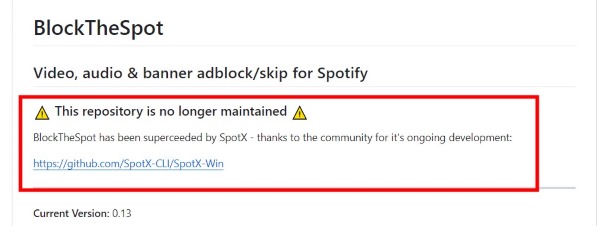
The master131/BlockTheSpot repository on GitHub has been officially deprecated. A notice on the project's homepage confirms that development has ceased, and the developer now recommends SpotX by Nuzair46 as the primary successor for Windows users seeking to modify the Spotify desktop client.
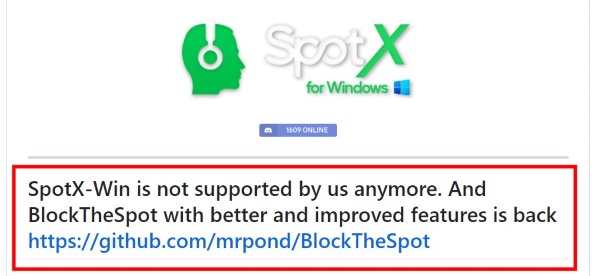
Although the project previously transitioned to SpotX, the SpotX-Win version is no longer supported. Consequently, BlockTheSpot has returned under a new maintainer (mrpond) with improved features, available at: github.com/mrpond/BlockTheSpot.
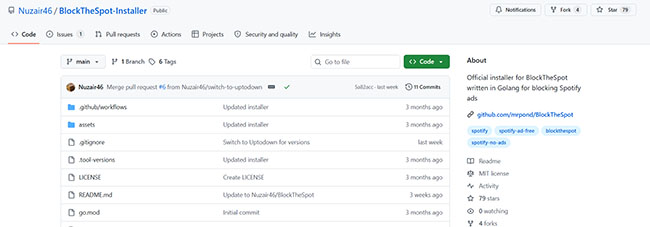
As of February 14, 2026, the mrpond/BlockTheSpot repository has been archived by its owner and is now read-only. For the most current version, users are directed to the rewritten Nuzair46/BlockTheSpot-Installer or the official BlockTheSpot website to complete the installation.
Part 2. Current Status of BlockTheSpot and SpotX
Both BlockTheSpot and SpotX have overlapping histories and cross-project recommendations. When I checked these two projects, both seemed to be under maintenance. However, my real testing confirms they can still effectively eliminate audio ads and unlock unlimited skips.
The functional similarities suggest a shared technical foundation, yet they cater to different user preferences. Below, we explore the subtle distinctions that set these two tools apart.
| Features | BlockTheSpot | SpotX |
|---|---|---|
| Primary Method | DLL Injection | PowerShell-based patching & Scripts |
| Supported Platforms | Windows | Windows |
| Ads Blocked | Banner/Video/Audio/Upgrade | Banner/Video/Audio/Upgrade/Merch |
| Developer Mode | ✔ | ❌ |
| Animated Cover Art | ❌ | ✔ |
| Update Frequency | Regularly | Sometimes |
| Free to Use | ✔ | ✔ |
Editor's Verdict:
Choose BlockTheSpot if you want a stock Spotify feel with zero ads. Choose SpotX if you want to remove additional UI clutter like the "Merch" and "Live Events" sections. Besides, I recommend trying both and choosing the one that best suits your needs, or you can use them together, as I've tested and found no conflicts.
For more information about SpotX, you can refer to the following article:
Part 3. How to Install BlockTheSpot to Block Ads on Spotify
Installing BlockTheSpot is a breeze. In this section, I'll walk you through how to install BlockTheSpot and set it up on Windows.
Note:
You need to ensure that your Spotify client on windows is downloaded directly from Spotify, the Microsoft Store version of Spotify will not work.
Step 1. Go to the official GitHub homepage or the official website of BlockTheSpot.
Step 2. Scroll down to the installation part, hit on the highlighted "BlockTheSpot.bat" file to download it.
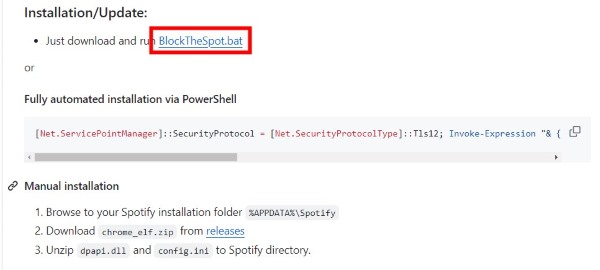
Step 3. Double-click on the downloaded BlockTheSpot bat file, a command prompt will open automatically.
Step 4. When you are prompted to uninstall Spotify Windows Sore edition, type "Yes" to confirm. Then the program would start to patch your Spotify.
Step 5. When it finishes downloading, you can press any key to close the window.
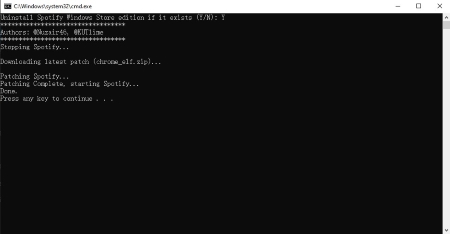
Step 6. Restart your Spotify, if you're using a Spotify free account, you will find that the upgrade button on the top has disappeared, and you can skip as many songs as you like without hearing any audio ads.
Safety Tips:
Always scan the .bat file from new forks with VirusTotal. Since BlockTheSpot modifies system files, ensuring the source is from the verified GitHub link provided is crucial for device safety.
Part 4. How to Use Developer Mode in Spotify with BlockTheSpot
In addition to blocking ads on Spotify, BlockTheSpot offers a unique feature not found in other Spotify modification tools: Developer Mode. After installing BlockTheSpot, you'll notice a new "Develop" option when you click the three dots in the top left corner of your Spotify Client.
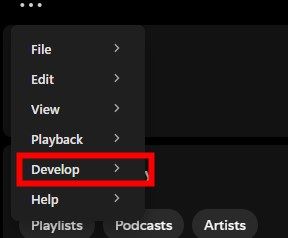
When you hover your mouse over this option, more sub-options will appear.
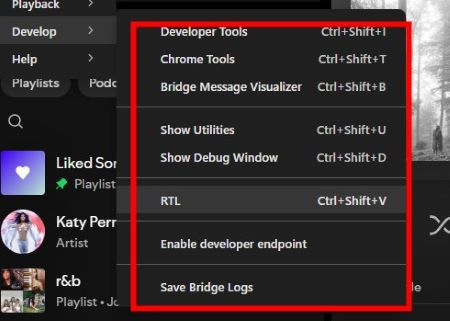
I experimented with these options, and while most seem geared towards developers, there are still one or two options that ordinary users can tinker with.
Show Debug Window in Develop Mode of Spotify
First, let's take a look at the "Show Debug Window" option. When you click on this option, a Debug window will pop up, where you can see the detailed status of your Spotify Client. You can poke around and see if there's anything interesting.
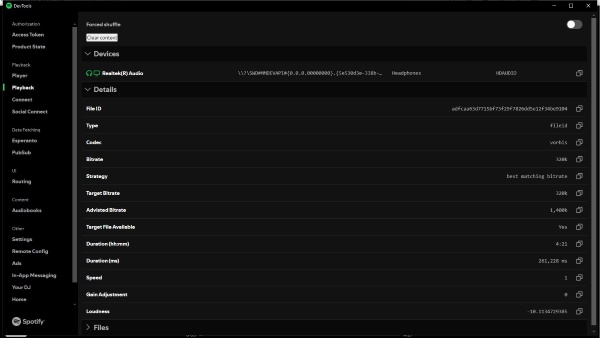
Develop Tools in Develop Mode of Spotify
Another option that most people can tinker with is "Developer Tools". I'll show you one interesting way to utilize it.
Step 1. Click the three dots in the top left corner of Spotify, then click "Develop" -> "Developer Tools". This will open a Spotify Dev Window.
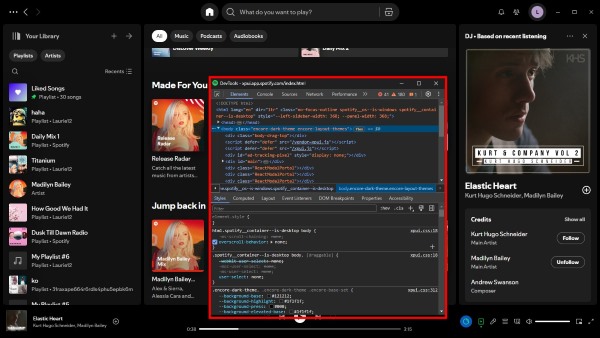
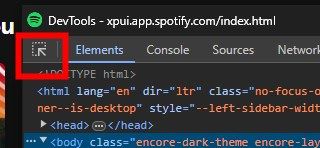
Step 2. In the top left corner of this window, there's an icon that allows you to quickly pinpoint the location of any Spotify Client element within the page's code. Click on it.
Step 3. If you then click on "Your Library", the Spotify Dev Window will automatically navigate to the "Your Library" element under the "Elements" tab, highlighting its position within the entire HTML structure.
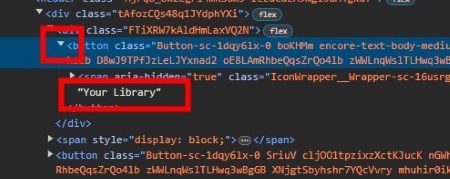
Step 4. Click the downward-pointing triangle to the left of the "button" element to expand its details. Here, you'll see the display name for the "Your Library" button, as shown in the image above.
Step 5. Double-click on the text "Your Library" to edit it. For example, I've changed it to "My Home":
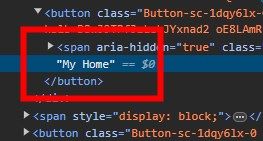
Step 6. Now, when you return to your Spotify client, you'll notice that "Your Library" has been replaced with "My Home":
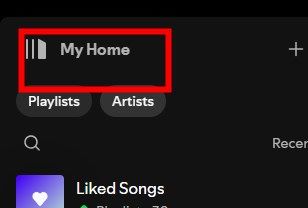
Pretty cool, right? You can use this same method to change other text within the Spotify client, such as artist names, song titles, and more. Perhaps you can even discover advanced uses beyond simple renaming!
Note:
These changes will revert to their defaults the next time you restart the Spotify client. However, this feature can be quite fun for personalization and entertainment in specific scenarios.
Part 5. Best Alternative to BlockTheSpot for Mac
BlockTheSpot is powerful but restricted to Windows, leaving Mac and Linux users in the lurch. If you're looking for an ad-free Spotify experience across all your devices without a Premium subscription, DRmare Spotify Music Converter is the perfect solution. It's fully compatible with Windows and macOS computers.
Instead of patching the app, DRmare downloads and converts Spotify music directly to popular formats like MP3, WAV, and FLAC, all while preserving the original audio quality and ID3 tags. Since Spotify doesn't insert ads into locally stored music, you can enjoy uninterrupted listening with these downloaded files. What's better, you can transfer these files to any device, like iPhone, Android, Apple Watch, etc. for playback within an internet connection.

 Security verified. 6, 285,718 people have downloaded it.
- Convert Spotify music to MP3, WAV, FLAC, and more formats without Spotify Premium.
- Enjoy uninterrupted playback on any device, free from ads.
- Preserve original audio quality and ID3 tags for organized music.
- Easy conversion process with a user-friendly interface.
DRmare Spotify Music Converter has a intuitive interface that is easy to use, here's how to use it.
Step 1. Download and launch DRmare Spotify Music Converter on your computer.
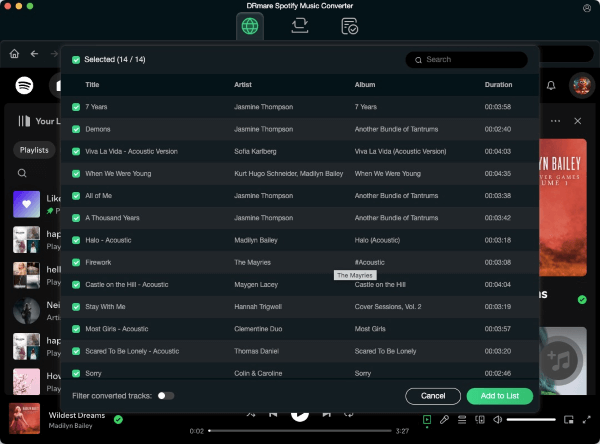
Step 2. Browse your Spotify music library within the main interface and tap the "Add" > "Add to List" button to select them.
Step 3. (Optional) Click on the menu button on the top right, followed by "Preferences" > "Conversion". you can customize the output of your Spotify music files here.
Step 4. Hit "Convert" button at the bottom right of the main window to start converting selected Spotify music into local files. After converting, you can find them in the designated folder.
Part 6. FAQs about Using BlockTheSpot
Is BlockTheSpot available for Mac, Android, and iOS?
No. BlockTheSpot is exclusively available for Windows. It is a specialized tool that modifies the internal .dll files of the Windows Spotify desktop client. Because macOS and mobile operating systems (Android/iOS) use entirely different architectures and security models (like sandboxing), BlockTheSpot cannot run on them.
How to Fix BlockTheSpot Not Working?
If you find BlockTheSpot can't block ads on your Spotify Client, you can reinstall your Spotify Client and BlockTheSpot. If it still doesn't fix the problem. You can try SpotX, which can remove more ads on Spotify than BlockTheSpot. Or you can use DRmare Spotify Music Converter to download Spotify music locally and listen to these local music files directly.
How to uninstall BlockTheSpot?
You can download the uninstall bat file from the GitHub Page of BlockTheSpot to uninstall BlockTheSpot. If you find it doesn't work, you may need to reinstall your Spotify Client to uninstall it.
How to Disable Spotify Automatic Update?
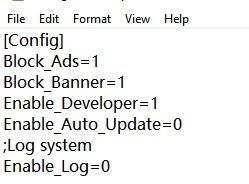
Step 1. Navigate to the directory: "%APPDATA%\Spotify".
Step 2. Open the "config.ini" file.
Step 3. Set "Enable_Auto_Update" to "0" under the "Config" section and save the changes.
Part 7. In Conclusion
For Windows users seeking a quick, free fix, BlockTheSpot remains the gold standard for ad-blocking. However, for those who value long-term stability and cross-platform flexibility, DRmare Spotify Music Converter provides a more robust, once-and-for-all solution to Spotify's ad interruptions.

 Home
Home




SpotX is an amazing tweak that can block all the ads on Spotify, in this article, we will dicuss how to install and set up it in detail.