





Spotify remains a top choice for music lovers worldwide thanks to its vast library and smart personalized recommendations. However, frequent audio, video, and banner ads can ruin the listening experience, especially for free-tier users. This has driven constant demand for reliable Spotify ad blockers.
For years, EZBlocker was one of the most popular open-source ad blockers for the Spotify desktop client on Windows. But does EZBlocker still work today? In this comprehensive review, we examine EZBlocker's current working status with newer Spotify desktop versions based on real-world user feedback, explore free open-source alternatives to EZBlocker Spotify ad blocker, and introduce an ultimate solution for permanent, ad-free offline playback.
Quick Verdict (TL;DR):
EZBlocker (v1.8.1.0) is currently outdated and no longer fully functional. Because it hasn't been updated since late 2021, it frequently throws "Spotify Not Found" errors on Windows 11 and fails to block modern ad formats (such as pop-up AI video ads) on Spotify client versions v1.2.90+.
- Best Active Free Alternatives: SpotX or BlockTheSpot (Client-patching scripts actively maintained on GitHub).
- Best Overall Permanent Solution: DRmare Spotify Music Converter (Downloads tracks to local MP3s, making your music 100% immune to Spotify client updates and ad changes).
Part 1. What Is EZBlocker & How Does It Work?
EZBlocker is a free, lightweight, open-source Spotify ad blocker designed specifically for the Spotify desktop application on Windows (7, 8, 10, and 11).
Unlike advanced client patchers that modify Spotify's internal code, EZBlocker functions primarily as an automated muting utility. When an audio or video ad begins playing on Spotify, EZBlocker detects the ad title in the system memory or window title and instantly mutes the Spotify audio stream until the song resumes.
- Simple Setup: Standalone executable file with no complex installation required.
- Pure Muting Logic: Mutes Spotify specifically without affecting audio from other applications or web browsers.
- Built-in Controls: Offers shortcuts to open the Windows Volume Mixer and toggle basic settings like launching on system startup.
- Open-Source & Free: Transparent codebase hosted on GitHub.
Part 2. Is EZBlocker Still Working? (Real User Feedback & Compatibility Analysis)
The short answer is no. EZBlocker is no longer reliable on modern Spotify versions. While the official GitHub repository has not been explicitly archived, EZBlocker's last official release (Version 1.8.1.0) dates back to late 2021. Meanwhile, Spotify updates its desktop client multiple times per month. This multi-year gap has caused severe compatibility issues on modern systems.
Top Issues Reported by Users Running Spotify v1.2.90+
Recent community reports on EZBlocker and telemetry data reveal widespread breakdown in EZBlocker's core functionality:
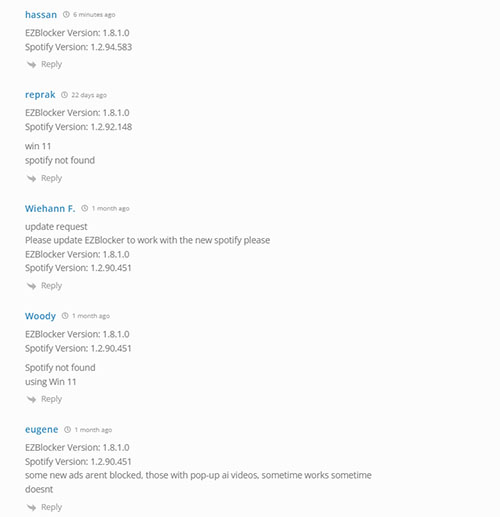
"Spotify Not Found" Errors on Windows 11: Users running recent Spotify builds (e.g., v1.2.92.148 or v1.2.94.583) on Windows 11 routinely report that EZBlocker fails to recognize that Spotify is running at all.
Bypassed by New Ad Formats: Spotify's newer interactive banner ads and pop-up AI video ads completely bypass EZBlocker's legacy detection triggers.
Permanent Muting Bugs: Due to unexpected changes in Spotify's audio engine, EZBlocker frequently gets stuck in a muted state, requiring users to manually adjust the Windows Volume Mixer to bring back music.
Conclusion on EZBlocker:
If you are running an updated Spotify desktop client, EZBlocker will likely fail to mute ads or throw a "Spotify Not Found" error. You are strongly advised to use actively maintained alternatives.
Part 3. How to Install and Use EZBlocker Spotify Ad Blocker (Legacy Reference)
If you are running a legacy build of Spotify on an older Windows version, you can still test EZBlocker with these steps:
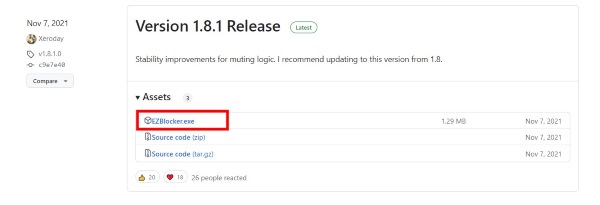
Step 1. Go to the EZBlocker GitHub Release Page.
Step 2. Click the dropdown arrow next to 'Assets', and you will see a "EZBlocker.exe" in the dropdown menu. You can click on this exe file and select a path to save it, then EZBlocker.exe will be downloaded to the path you designated.
Step 3. After it has been downloaded to your computer, right click on this exe file, and select “Run as administrator”.
Step 4. The program will open a small UI which looks like this:
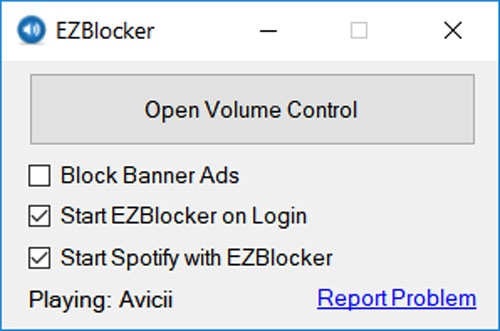
As you can see from the UI, it comes with a handy feature that allows you to quickly open the volume control on Windows. In addition, it has three checkboxes with the following functions:
- Block Banner Ads: Blocks banner advertisements on Spotify
- Start EZBlocker on Login: Automatically starts EZBlocker when you log in to your computer
- Start Spotify with EZBlocker: Launches Spotify along with EZBlocker
The UI also displays the currently playing song and provides a "Report Problem" button for troubleshooting.
Part 4. Best Free Working Alternatives to EZBlocker
Because EZBlocker is largely unmaintained, open-source developers have created dynamic patching tools that interact directly with the Spotify desktop application.
BlockTheSpot
BlockTheSpot is another open-source and free GitHub project that can block ads on Spotify. Even better, instead of just muting ads on Spotify, it shields ads on Spotify completely, automatically skip all the audio and video ads on your Spotify client. And it also removes the banner ads, upgrade button on your Spotify client.
Installation Steps of BlockTheSpot:
Step 1. Go to the official GitHub page of BlockTheSpot.
Step 2. Scroll down and find the installation part, then click on "BlockTheSpot.bat" to download it.
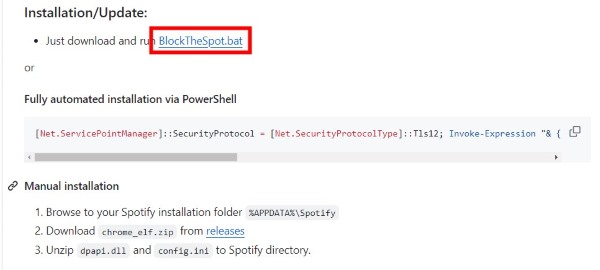
Step 3. Click on the downloaded bat file, it will open a terminal and execute automatically. After it finishes. Open Spotify on your computer and you will find all ads are gone.
SpotX
SpotX, another open-source and free solution, offers comprehensive ad blocking on Spotify, similar to BlockTheSpot. In addition to blocking audio, video, and banner ads across all Spotify desktop versions, SpotX offers advanced customization options, such as hiding unwanted UI elements, disabling automatic updates, and unlocking features from older Spotify layouts.
Installation Steps of SpotX:
Step 1. Go to the official GitHub page of SpotX.
Step 2. Scroll down to the installation part, click on the dropdown arrow of “Full Installation”, and then click on the "Install.bat" file to download it.
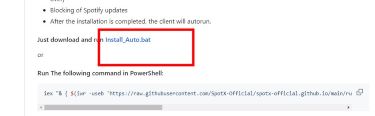
Step 3. After it's downloaded, click on this bat file and the program will install SpotX on your computer automatically.
Step 4. Finally, open Spotify and you will find all ads are gone.
For more detailed information about SpotX, you can refer to this article:
SpotX is an amazing tweak that can block all the ads on Spotify, in this article, we will dicuss how to install and set up it in detail.
Part 5. Ultimate Alternative to EZBlocker: Beyond Client Patching
While open-source tools like SpotX and BlockTheSpot are effective today, they rely on client-patching. Every time Spotify pushes a major desktop client update, these tools can temporarily break until developers release a new patch. Furthermore, client-patching tools do not work on mobile devices, smart speakers, or offline players.
If you want a 100% permanent solution that eliminates ads once and for all without worrying about client updates, consider DRmare Spotify Music Converter. This software empowers both free and Premium users to download Spotify tracks, albums, playlists, and podcasts directly into widely compatible audio formats like MP3, FLAC, WAV, and M4A. During the download process, all audio, video, and banner ads are completely stripped out, leaving pure, lossless audio files on your local drive.
- Step 1Import Spotify playlist to Get No Ads
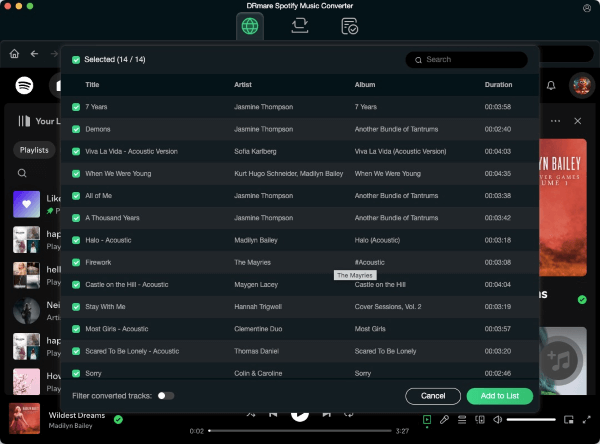
After installing and launching the converter, use the built-in Spotify web player to find your music. Simply open any song or playlist and tap the "Add" button to import it directly into the tool. This integrated workflow eliminates the need to drag-and-drop from external apps or copy-paste URLs.
- Step 2Set output format (optional)
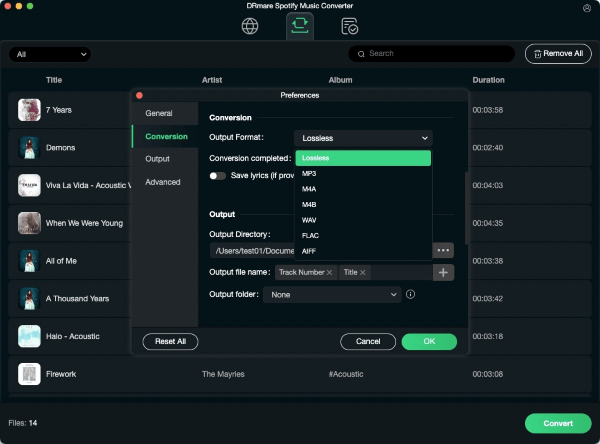
Navigate to the "Preferences" > "Conversion" section, you can select your preferred output format (MP3 is recommended for maximum compatibility). You can also adjust parameters like sample rate, bit rate (up to 320 kbps), and channel configuration.
- Step 3Convert and export Spotify music without ads
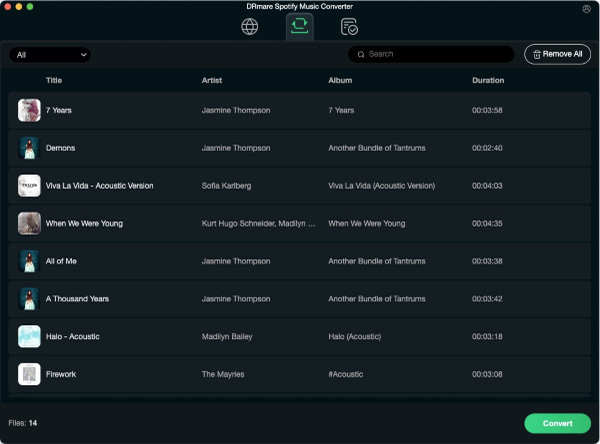
Click the "Convert" button to initiate the conversion process. Your Spotify playlists will be transformed into locally stored files, free from any ads. Once the conversion is complete, you'll find your music neatly organized in the designated output folder, ready for offline enjoyment.
Part 6. Feature Comparison: EZBlocker vs. Its Alternatives
| Feature / Metric | EZBlocker | BlockTheSpot | SpotX | DRmare Spotify Music Converter |
|---|---|---|---|---|
| Method | Mutes System Volume | Patches Client Code | Patches Client Code | Local File Conversion |
| Audio & Video Ads | ⚠️ Unreliable / Muted | ✅ Auto-Skipped | ✅ Auto-Skipped | ✅ Completely Removed |
| Banner Ads | ❌ Broken | ✅ Blocked | ✅ Blocked | ✅ Completely Removed |
| Active Development | 🛑 Discontinued (2021) | 🟢 Active | 🟢 Highly Active | 🟢 Officially Supported |
| Spotify v1.2.90+ Support | ❌ Broken ("Not Found") | ✅ Supported | ✅ Supported | ✅ Supported |
| Offline Playback | ❌ Requires Connection | ❌ Requires Connection | ❌ Requires Connection | ✅ 100% Offline |
| Price | Free | Free | Free | Paid (Free Trial) |
For users who want a free solution, BlockTheSpot and SpotX provide more complete ad-blocking features on Windows.
For users who prefer a more stable way to enjoy Spotify music without interruptions, DRmare Spotify Music Converter offers a different approach by saving Spotify music locally for offline playback.
Part 7. FAQs about EZBlocker Spotify Ad Blocker
Can I use EZBlocker Spotify on Mac, iOS, or Android?
No. EZBlocker is compiled exclusively as a Windows executable for the desktop Spotify app. It is not supported on macOS, iOS, or Android devices.
Is EZBlocker safe?
Yes, it is totally safe. I haven't come across any reports of users having their accounts banned due to using EZBlocker.
Why EZBlocker mutes my Spotify completely?
It's likely a bug with EZBlocker. To fix this problem, you can open volume control on your computer. This should trigger the music to start playing again.
Why does EZBlocker say "Spotify not found"?
This error occurs because EZBlocker hasn't been updated since 2021 and cannot detect the internal process name or window hook of modern Spotify clients (v1.2.90 and above), especially on Windows 11. To fix this, you should switch to an actively updated alternative like SpotX or DRmare.
Part 8. Final Verdict
EZBlocker remains an interesting lightweight Spotify ad blocker, but it is no longer the most reliable option for modern Spotify users. Its biggest advantage is simplicity: it is free, lightweight, and easy to use. However, Spotify updates have reduced its reliability. Some users still report success with newer Spotify versions.
Therefore, EZBlocker is still worth trying if you already have a compatible setup and an old Spotify version, but users looking for long-term reliability should consider newer alternatives.

 Home
Home





Learn how to block Spotify ads using BlockTheSpot and find the best way to enjoy uninterrupted music on Spotify.