





Many users find the Spotify client to be less than perfect, with too many intrusive ads and unnecessary layout elements. Fortunately, Spotify has inspired many developers to create programs that enhance its client out of a labor of love. SpotX GitHub, or SpotX Spotify is one of these remarkable tools to make Spotify better.
SpotX is a perfect patcher for Spotify Desktop Client for Windows, macOS, and Linux that can block banners, audio and video ads. Additionally, it allows you to do some customizations to your Spotify client to make it better suit your preferences. This guide provides the most current installation methods for the official SpotX repository and evaluates why a professional alternative might be necessary for high-fidelity offline listening. Let's get started to download, install, and use SpotX now!
Part 1. What Is SpotX GitHub?
SpotX is a community-built tweak that modifies the official Spotify desktop client. Unlike standalone cracked apps, SpotX injects code into the official client to block ad requests and unlock hidden experimental features. Here's a relatively detailed introduction from SpotX official about what it can do:
1. Blocks All Ads: SpotX blocks all banners, video, and audio ads in the Spotify client. No more annoying interruptions while you enjoy your favorite tunes.
2. Unlocks Skip Function: You can skip any track, even if you're not a premium user. This feature gives you more control over your listening experience.
3. Hides Unwanted Content: Optionally hide podcasts, episodes, and audiobooks from the homepage, creating a cleaner and more personalized interface.
4. Prevents Automatic Updates: Optionally block Spotify's automatic updates, giving you control over when and if you update the app.
5. Clears Audio Cache Automatically: Optionally clear your audio cache automatically, helping save space and keeping the app running smoothly.
6. Activates Experimental Features: Gain access to more experimental features that aren't yet available to regular users, allowing you to try out new functionalities.
7. Disables Sentry: Prevent Sentry from sending console logs, errors, and warnings to Spotify developers, enhancing your privacy.
8. Disables Logging: Stop various elements from logging your user interactions, further protecting your privacy and improving performance.
9. Removes RTL Rules: Remove all right-to-left CSS rules to simplify the CSS files, which can help with performance and customization.
10. Minifies Code: Minify the code to improve performance and reduce the overall size of the SpotX package.
Expert Note:
SpotX is a client-side patch. While it blocks ads, it cannot provide 320kbps audio to Free users (server-side limitation) or enable offline downloads. For high-fidelity archiving and offline listening, you can use its best alternative to make it possible in Part 4.
After I've tested it, I found SpotX Spotify includes some of its own tweaks to break the limitations set on Spotify Free users.
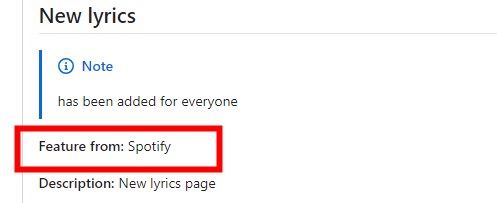
In addition, it contains many Spotify features that have been deleted in the new version of the app. If users find they prefer these older features, SpotX Spotify provides options for users to turn on them easily. You can follow the guide in Part 3 to do it.
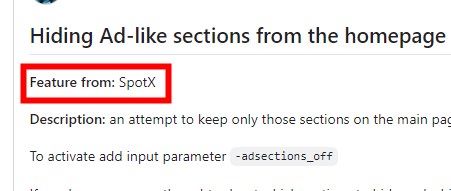
Tips:
You can find all features provided by SpotX here: https://github.com/SpotX-Official/SpotX/discussions/50
Altogether, the main function of SpotX is to block the ads on Spotify, including banners, audio and video ads, even the only ads in podcast for Spotify Premium users.

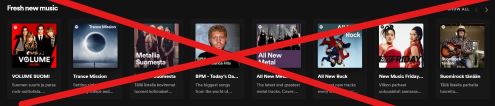
Personally, I fancy the new themes of lyrics feature comes from SpotX, it makes lyrics on Spotify more interesting.
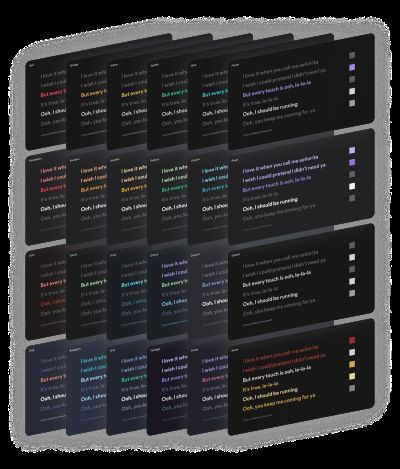
Tips:
You can find all supported lyrics themes here: https://github.com/SpotX-Official/SpotX/discussions/50#discussioncomment-4096066
There are many other interesting features on SpotX, you can go to their official list of experimental features mentioned above to check which feature fits your taste and set them up for your Spotify with following guide.
Part 2. SpotX Tutorial: How to Download, Install and Use SpotX GitHub
Compatibility Note:
SpotX is a cross-platform modification tool. The PowerShell version supports Windows 7, 8, 10, and 11 (official client only), while the SpotX-Bash version provides support for macOS (10.11+) and various Linux distributions.
The SpotX installation has been streamlined into different paths based on your operating system. Important: You must use the official desktop version from the Spotify website, not the Microsoft Store or Snap version.
SpotX Windows Installation (PowerShell)
There are two ways to install SpotX on a Windows computer, one is through bat script, and the other is to use command line. Both of the two methods are straightforward. First, go to the https://github.com/SpotX-Official/SpotX and scroll down to "Installation/Update" section, there lists four ways to install SpotX.
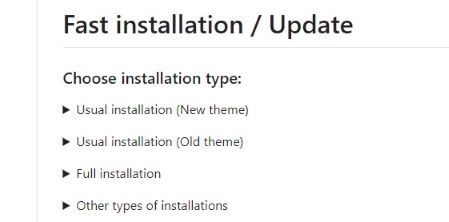
Here we will demonstrate with "Full installation" option, and if you prefer other installation methods, the process is essentially the same, you can follow the pattern to install SpotX Spotify with your preferred installation options.
How to Install SpotX GitHUb through Bat Script
Step 1. Navigate to "Installation/Update" section on the official GitHub page.
Step 2. Click on the triangle icon on the left side of "Full installation" to expand detailed information.
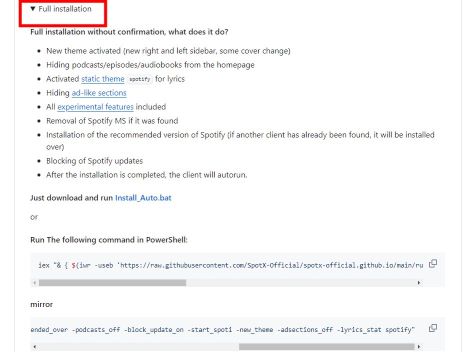
Step 3. Click on highlighted "Install_Auto.bat" to install the bat script.
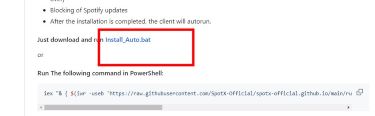
Step 4. After the installation is done, double click on the downloaded script, and it will execute automatically, allow any permissions if asked.
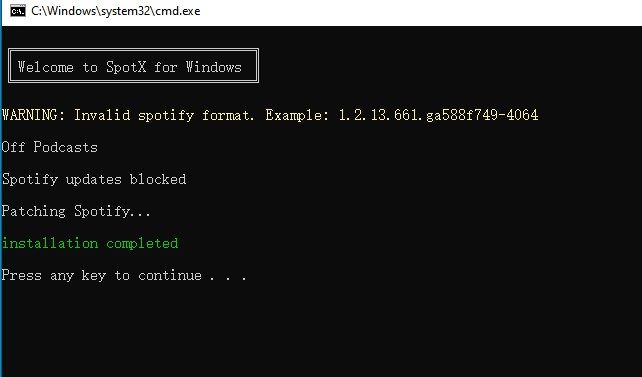
And it's done! Super easy, isn't it?
How to Install SpotX GitHUb through Command Line
Step 1. Go back to the detailed information view under "Full installation" option.
Step 2. Locate the two PowerShell command lines below, you can choose either of them to install SpotX, they serve the same function. But during my test, the first one is invalid now, only the second one works, you can click on the copy button on the right of the second PowerShell command line to copy it.
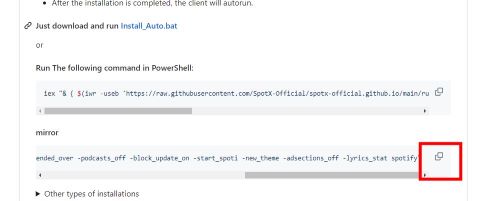
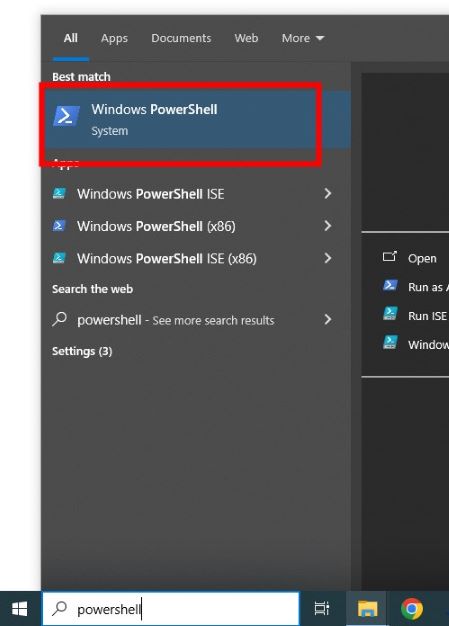
Step 3. Next, in the search bar of task bar on your windows, type "powershell", then click on the first result to open PowerShell window.
Step 4. Finally, in the opened powershell window, paste the powershell command you just copied and hit Enter key on your keyboard to execute it. After it finishes, you can see a "installation completed" prompt in the end.
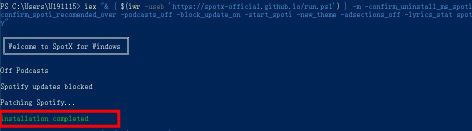
Now, after installation, your Spotify will fire up automatically, and you will find all those annoying ads are gone!
SpotX macOS/Linux Installation (SpotX-Bash)
For users on macOS and Linux, the command-line approach is not just a preference; it's the most stable way to bypass Spotify's frequent server-side updates. The SpotX-Bash script automatically detects your system architecture (Intel, Apple Silicon, or x86_64 Linux) and applies the appropriate binary patches.
- Step 1Open Your Terminal
- On Mac: Press Command + Space, type Terminal, and hit Enter.
- On Linux: Press Ctrl + Alt + T or open your preferred terminal emulator from the application menu.
- Step 2Run the Universal Installation Command
Copy and paste the following one-line command into your terminal:

or
- Step 3Handle macOS Security Requirements
If you are running macOS 15 (Sequoia) or the latest macOS 26 (Tahoe), Apple's Gatekeeper and code-signing requirements have become significantly stricter.
- Xcode Command Line Tools: If the script pauses or throws an error about missing tools, run:
- Bypassing Auto-Updates: Since the macOS client is aggressive about updating (which would overwrite your patch), it is highly recommended to add the block-update flag:
- Step 4Linux Distro Specifics
- Flatpak Users: SpotX-Bash now fully supports the Flatpak version of Spotify. The script will detect the Flatpak container and apply patches internally.
- Snap Users: The Snap version of Spotify remains incompatible with SpotX due to Snap's "Strict" sandboxing. If you use Linux, please install Spotify via Apt, Pacman (AUR), or Flatpak for a successful patch.
Part 3. How to Use SpotX Spotify for Personalization
SpotX allows users to do some customizations via parameters added in the powershell command line. The parameters are composed of a "-" and commands after it, For example, the parameter used to block ads on Spotify home page is "-adsections_off".
Let's take a look at this official command line to better understand how it works:
iex "& { $(iwr -useb "https://spotx-official.github.io/run.ps1") } -m -confirm_uninstall_ms_spoti -confirm_spoti_recomended_over -podcasts_off -block_update_on -start_spoti -new_theme -adsections_off -lyrics_stat spotify"
You don't need to pay attention to the daunting initial part of the command line, just focus on the latter part, let me explain each parameter's function for you:
1. confirm_uninstall_ms_spoti: Automatically uninstall Spotify MS if detected
2. confirm_spoti_recomended_over: Automatically install the recommended version if an outdated or unsupported Spotify version is found
3. podcasts_off: Remove podcasts from the homepage
4. block_update_on: Block automatic Spotify updates
5. start_spoti: Automatically launch Spotify after installation
6. new_theme: Activate a new theme (new right and left sidebar, some cover changes)
7. adsections_off: Hide ad-like sections from the homepage
8. lyrics_stat: Enable static themes for lyrics, e.g., activate the blueberry theme with _lyrics_stat_blueberry
You can simply add or delete parameters like these ones in the command line and execute it to turn on the corresponding features you want in your Spotify client.
Tips:
You can check the full supported parameters here: https://github.com/SpotX-Official/SpotX/discussions/60
Customize SpotX Spotify Installation through Bat Script
If you prefer installing SpotX with bat script, you can follow steps below to customize certain features during SpotX installation:
Step 1. Right click on the downloaded bat script and select “Edit”
Step 2. In the opened notepad, add or delete targeted parameters in the highlighted part in this picture.
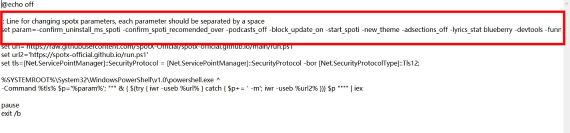
Step 3. Then save and close the notepad program.
Step 4. Double click on the bat script to execute it.
Step 5. After it finishes, you should find desired feature applied.
Customize SpotX Spotify Installation through Command Line
Step 1. Add or delete the targeted parameter in your command line to install SpotX.
Step 2. Open powershell and hit Enter key to execute it.
Step 3. After installation, the desired feature should be applied in your Spotify Client.
Part 4. FAQs about SpotX GitHub for Spotify
Is there SpotX Spotify on GitHub for Android?
No, there is no official SpotX for Android on GitHub. While SpotX (maintained by amd64fox and the SpotX-Official team) is the definitive ad-blocking and customization tool for Windows, macOS, and Linux, it does not produce an Android app.
Why doesn't the -devtool parameter work?
You need to specify the Spotify version in the parameter used to install Spotify SpotX as mentioned above. For example: "-version 1.2.13.661.ga588f749-4064", you can check the Spotify version information from its official page.
Is SpotX safe?
SpotX is safe from malware since its open-source code is transparent, though antivirus software often triggers false positives because the script modifies system files. While your device remains secure, using the tool violates Spotify’s Terms of Service, which carries a small but permanent risk of account suspension. For the best security, always download it from the official GitHub repository and consider using a secondary account to protect your primary library.
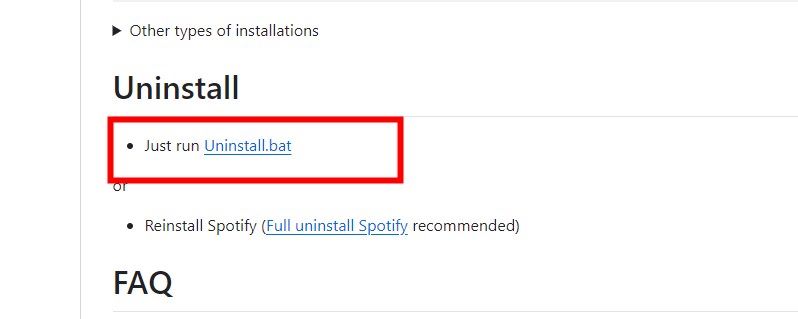
How to uninstall SpotX?
Click on the uninstall bat script provided on SpotX GitHub official page to download it, then double click on it to execute.
How to block the ads in podcast with SpotX GitHub if I am a Spotify Premium user?
You can add the parameter "-premium" in the command line used to download Spotify SpotX as mentioned above and execute it, then the ads won't appear while you are listening to podcast with you Spotify Premium account.
Part 5. Best SpotX Alternative - DRmare Spotify Music Converter
SpotX Spotify is an amazing tool to remove ads on Spotify and ensure us a smooth listening experience on Spotify. However, free users is still limited to the audio quality of up to 160 kbps. Don't worry, here is a perfect alternative, namely DRmare Spotify Music Converter!
It allows you to download and convert Spotify music into common audio formats with original quality without Spotify Premium, up to 320 kbps and 24bit/44.1kHz, which is the highest quality supported by Spotify. After conversion, you can upload them on your Spotify, and listen to them with Spotify still. This way, you can not just enjoy ads-free listening experience, but also high-quality playback even after your Spotify Premium expires or you don't have one at all.

 Security verified. 6, 285,718 people have downloaded it.
 - Enjoy lossless music other than ads-free listening experience
- Listen anywhere, anytime with converted Spotify Music
- Convert Spotify Music in batch at 15X faster speed
- Intuitive and friend interface
How to Use Best SpotX Alternative to Download Spotify Music
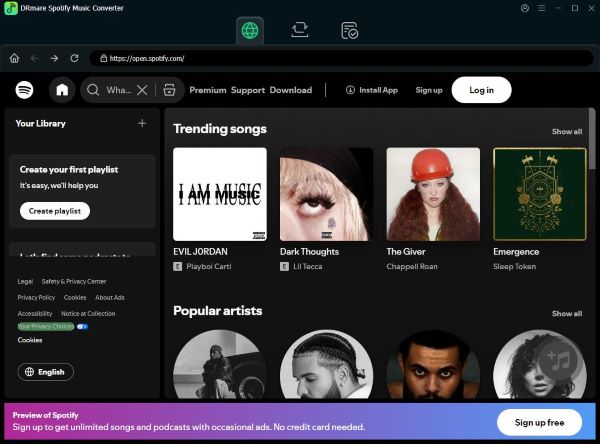
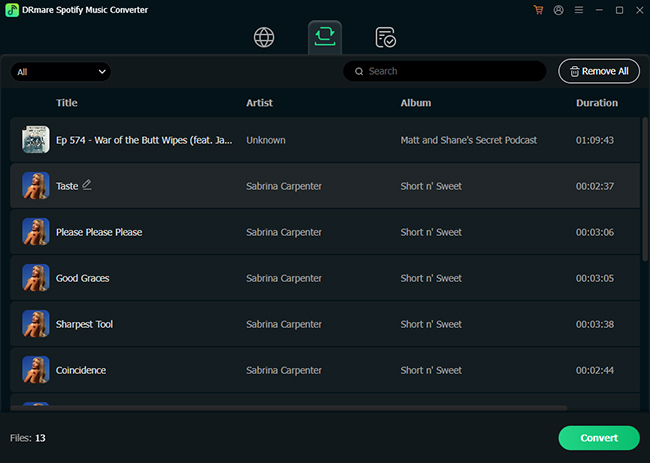
Step 1. First, download and install DRmare Spotify Music Converter and launch it. Browse your Spotify library and click the "Add" > "Add to List" button to load favorite songs.
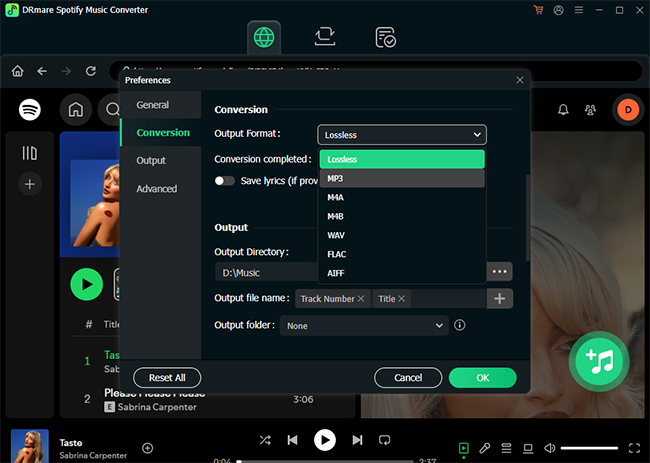
Step 2. Hit on the "menu" icon on the top right corner, then select "Preference" and navigate to "Conversion" tab, You can specify the desired output formats and sample rate, bit rate. If you want music with original quality, just select 320 kbps for bit rate and 48khz for sample rate. Remember to save your changes and close the window.
Step 3. Finally, click on the "Convert" button on bottom right to start convert procession. After conversion, you can find the converted songs in the specified folder. Then turn on "Show local files" feature in your Spotify setting and enjoy both ads-free listening and high quality music!
SpotX vs DRmare Spotify Music Converter
| Feature | SpotX (GitHub Patch) | DRmare Spotify Music Converter |
|---|---|---|
| Price | Free (Open Source) | Free Trial / Paid |
| Audio Quality | Up to 160kbps (Free) | Lossless (Up to 24bit/44.1kHz) |
| Offline Files | ❌ No (Streaming Only) | ✅ Yes (MP3, FLAC, WAV, etc.) |
| Account Safety | ⚠️ Moderate (Modded Client) | ✅ 100% Safe (Direct Download) |
| Mobile Use | ❌ No | ✅ Yes (Transfer to any device) |
Part 6. In Conclusion
SpotX is an incredible achievement by the open-source community, providing a sleek, ad-free desktop experience for Windows, Mac, and Linux. It is the best choice for casual listeners who primarily use their computers. However, if you are a music collector who needs the highest audio fidelity and the ability to listen anywhere—offline and on mobile, DRmare Spotify Music Converter remains the undisputed choice. Whether you tweak Spotify with SpotX or go ad-free and high-quality with DRmare, your ideal Spotify experience is just a few steps away.

 Home
Home





User Comments
Leave a Comment