





Is the Spotify app on your Facebook Portal acting up? You are not alone. If you have recently tried to launch Spotify on your Facebook Portal, you've likely encountered a frustrating wall: a black screen, a lack of search functionality, failure to play entirely, a spinning wheel, or a "Something went wrong" or "Spotify is leaving Portal soon" error notification.
Following the removal of voice assistants like "Hey Portal" and Amazon Alexa in early 2025, Meta has discontinued the Portal hardware line. It officially began sunsetting major third-party applications, including Spotify. However, your device is far from obsolete. The speakers on the Portal, Portal TV, and Portal Mini are still excellent, and there are stable ways to bypass the buggy native app entirely. You can still enjoy your favorite Spotify playlists using simple Bluetooth pairing or the built-in Portal browser. Here is the definitive guide to playing Spotify on Facebook Portal in the current landscape.
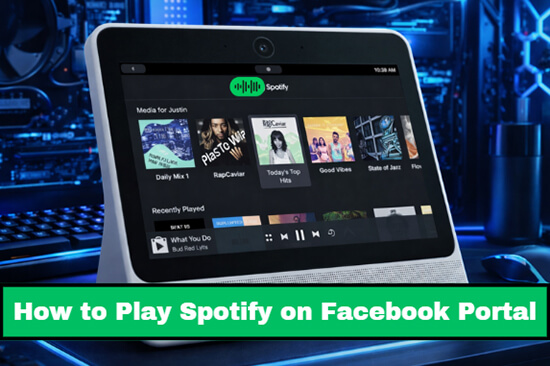
Part 1. Why Is Facebook Portal Spotify Not Working Anymore?
To fix the problem, it helps to understand what is happening behind the screen. The native Spotify app found in the Portal's app store relies on specific software updates from Meta to function correctly. As Meta has shifted focus away from these devices, those updates have stopped coming, turning the native app into "zombie" software for many users.
While you might be tempted to uninstall and reinstall the app repeatedly, this often yields the same error. The most effective strategy in 2026 is to stop using the Portal's on-screen interface and instead rely on the device's other strongest remaining features: Bluetooth.
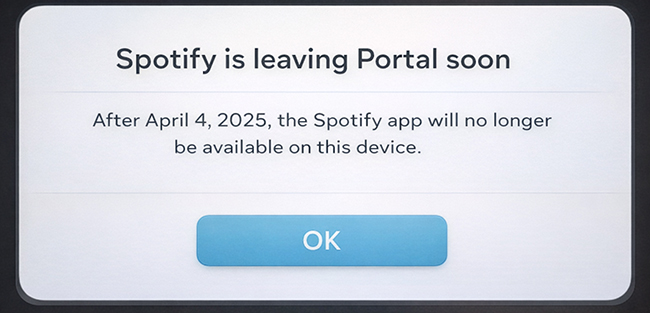
What NO LONGER Works (Don't Waste Your Time)
To save you hours of frustration, here is a list of methods that are confirmed dead as of 2026:
- Alexa, Play Spotify: Amazon Alexa has been completely removed from the operating system. The device will not respond to this wake word.
- Hey Portal: Meta's own voice assistant has been disabled.
- The Native Spotify App: Even if the icon remains on your home screen, the app can no longer connect to Spotify's servers or log in.
- Spotify Connect (Casting): In most cases, tapping the "Cast" icon on your phone will no longer show the Portal as an option, because the "receiver" software inside the Portal has been removed.
Part 2. How to Play Spotify on Facebook Portal via Bluetooth
With voice assistants and the native Spotify for Facebook Portal app gone, Bluetooth is now the primary way to use your Portal. This method effectively turns your Portal into a dumb wireless speaker. It won't show album art or lyrics on the screen, but it guarantees high-quality audio playback without relying on Meta's broken software servers.
Step 1. Unlock your smartphone and go to your own Bluetooth settings and turn it on.
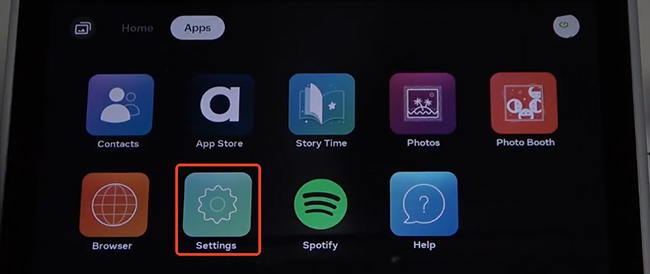
Step 2. On your Facebook Portal device, locate the Settings app. You may need to swipe through your apps grid to find the gear icon.
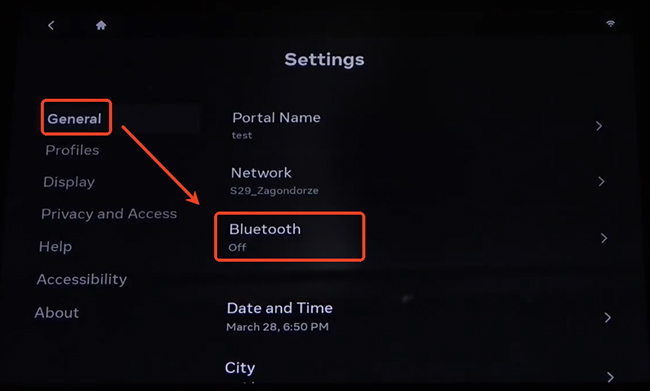
Step 3. Tap on "Bluetooth" under the General section. Ensure the toggle switch is turned to the "ON" position.
Step 4. Select the option labeled "Pair Device". This makes your Portal discoverable to other electronics.
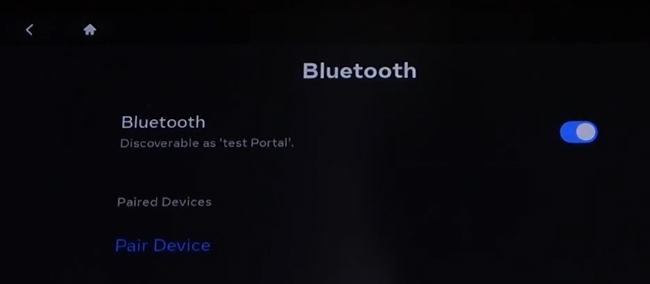
Step 5. Look for "Your Phone" or the custom name you gave your device in the list of available connections. Tap it to connect. You will hear a confirmation chime.
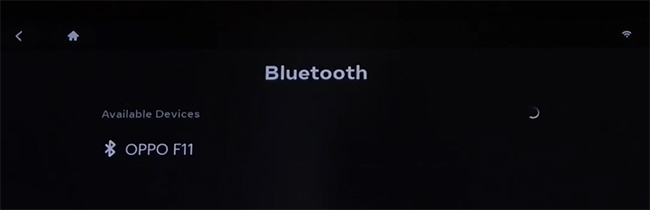
Step 6. Open the Spotify app on your phone and press play; the Spotify audio will now stream directly through the Portal's speakers.
Part 3. How to Play Spotify on Facebook Portal via Built-in Portal Browser
If you absolutely must have on-screen controls, for example, to select playlists without picking up your phone, you can try to force Spotify to run through the Portal's built-in web browser. It can avoid unstable Bluetooth connections and save your phone's battery. Here are two methods to listen to Spotify directly from the cloud on Facebook Portal.
3.1 Use Spotify Web Player
While navigating to Spotify Web Player on the Portal's built-in browser triggers an "Unsupported Browser" message. You can bypass this error by opening the browser menu and checking the "Desktop site" box. This loads the full desktop interface, which currently remains functional for playback.
Step 1. Open the Browser app on your Portal and navigate to open.spotify.com.
Step 2. If you see an error message saying your browser is not supported, look for the browser's "Menu" button.
Step 3. Select the "Request Desktop Site" option. This forces Spotify to load the full PC version of the web player, which often bypasses the compatibility check.
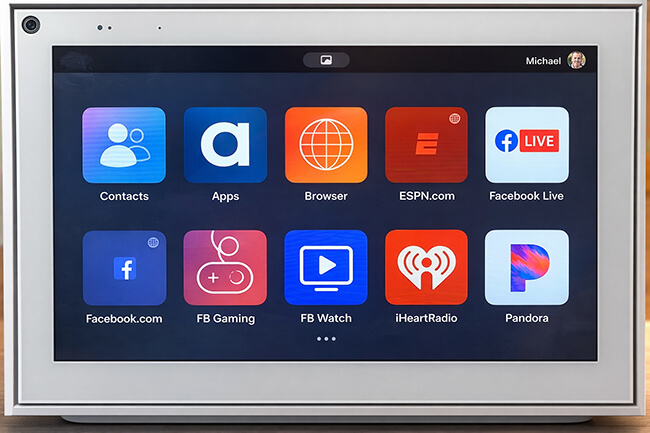
Step 4. Log in to your Spotify free or premium account and stream Spotify songs and playlists on your Portal device.
Note:
The desktop site is not designed for a touchscreen. The buttons will be tiny, and the Portal's screen may try to go to sleep while music is playing because it doesn't recognize the browser activity as media playback. You can try to change the 'Sleep' settings in Portal General Settings to 'Never' while using the browser method to keep the player active.
3.2 Use Web-based Storage Services
Currently, the built-in Portal browser still allows you to access web-based storage services (like Google Drive or Dropbox). You can play local files directly from these services through the browser interface without any problem. However, you cannot simply copy your Spotify downloads to these services because Spotify tracks are encrypted cache files that only the Spotify app can read.
To make this method work, you must first download and convert your Spotify playlist into common local audio files (like MP3s). To bridge the gap, you can use DRmare Spotify Music Converter, which is an intelligent tool designed for both free and premium Spotify users. It can download Spotify songs, playlists, albums, podcasts, and audiobooks to plain MP3, FLAC, WAV, M4A, M4B, and AIFF files without touching the original audio quality. With a 15X faster conversion speed, you can get local Spotify tracks in minutes with ID3 tags and meta info preserved. After that, you can easily sync them to your cloud service for playback on Facebook Portal.
Step 1. Download and launch DRmare Spotify Music Converter on your computer and tap the "Log In" button to log in to your premium or free Spotify account.
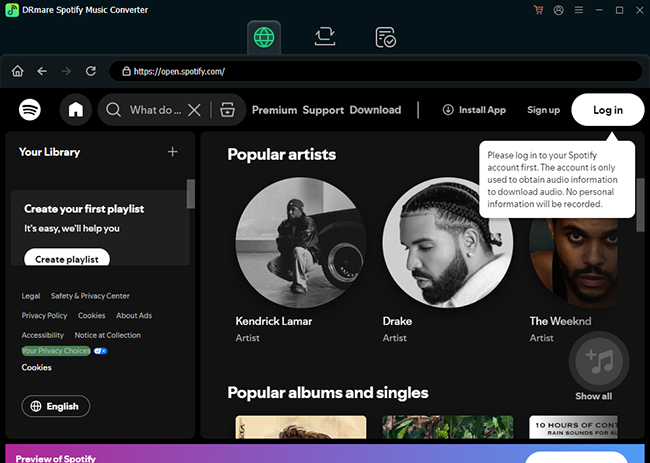
Step 2. Browse your Spotify music library, and drag and drop your desired Spotify songs or playlists into the "+" button in the DRmare window. After that, you can tap the "Add to List" button to load them to the conversion list.
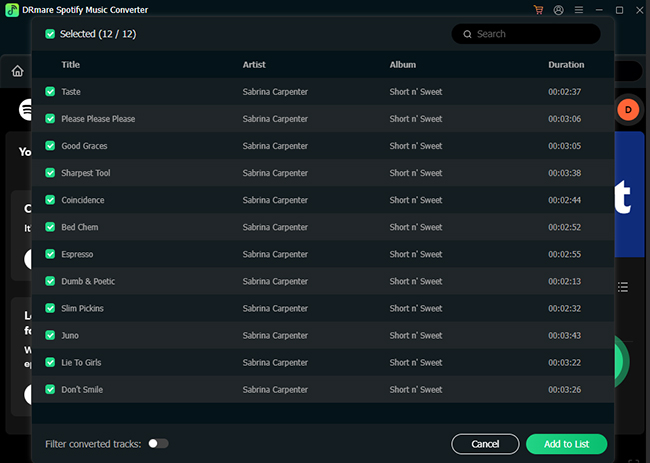
Step 3. Tap the "Convert" button to start the download process. It will run at 15X faster conversion speed to download Spotify songs to your computer.
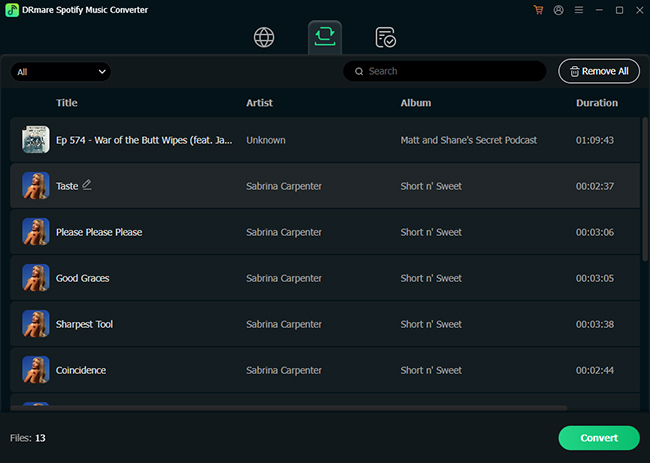
Step 4. Once the conversion is complete, locate the folder on your computer where the new MP3 files were saved by clicking the "Converted" > "Folder" icon. Now, you can refer to the following steps to upload and play Spotify on Facebook Portal.
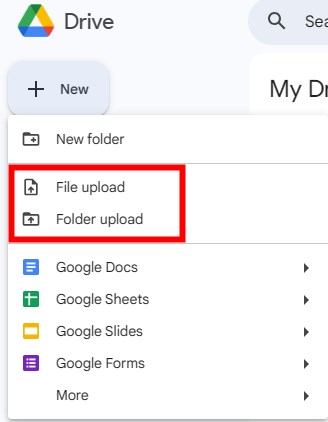
- Open your preferred cloud storage service (e.g., Dropbox or Google Drive) in your computer's web browser.
- Create a new folder named "Portal Music" and upload your converted Spotify MP3 files into this folder.
- Move over to your Facebook Portal device and open the Browser app from the Portal's main menu. Navigate to the website of your cloud service and log in. You can locate your "Portal Music" folder and tap on any song to start playback.
Part 4. In Conclusion
Although Meta has officially discontinued Facebook Portal and the native Spotify app no longer works, your device doesn't have to become a silent screen. By understanding why Spotify fails on Portal and shifting away from the outdated built-in app, you can still enjoy reliable music playback using proven alternatives. By switching to Bluetooth playback or using the built-in browser, you can still enjoy Spotify through Portal's high-quality speakers.

 Home
Home





User Comments
Leave a Comment