





Sharing music should be as instant as the beat of a drum. Spotify Codes, those sleek, soundwave-style graphics, provide an innovative and convenient way to share your favorite songs, playlists, and even personal profiles with others. By scanning a unique Spotify code, users can instantly access music content without having to search manually.
Whether you've spotted a unique "wavelength" code on a concert poster or a friend just sent you a screenshot of their latest obsession, knowing how to scan a code on Spotify is the fastest way to dive into new audio. In this guide, we'll walk you through how to scan a Spotify code for songs, playlists, and profiles, generate your own, and troubleshoot common issues.
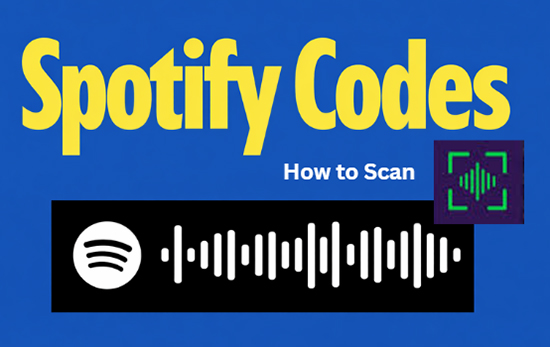
Part 1. What Is a Spotify Code and How Does It Work?
A Spotify Code is a proprietary visual identifier that works like a QR code but is optimized for the Spotify ecosystem. It's well-designed to share or access a piece of content within Spotify quickly. Each code consists of the Spotify logo followed by a series of vertical bars of varying heights, representing a unique Uniform Resource Identifier (URI).
When your camera sees this specific arrangement of bars, the app instantly translates the visual data into a direct link to a song, album, artist, or playlist. This eliminates the need for manual searching and ensures you land on the exact version of the track your friend intended to share.
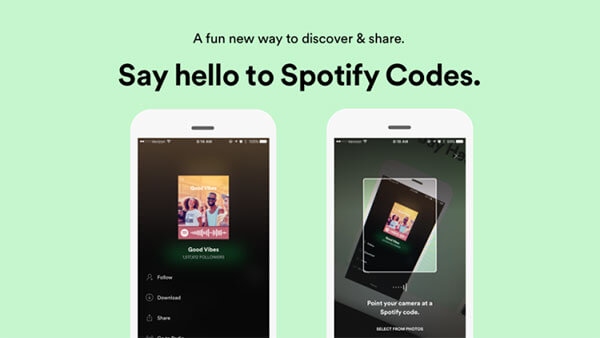
Part 2. How to Scan Code on Spotify within the Spotify App Directly
The most common way to access shared content is by using the official in-app Spotify code scanner on your iPhone or Android phone. This tool is specifically designed to recognize Spotify Codes. While the interface is similar across platforms, here is the specific breakdown.
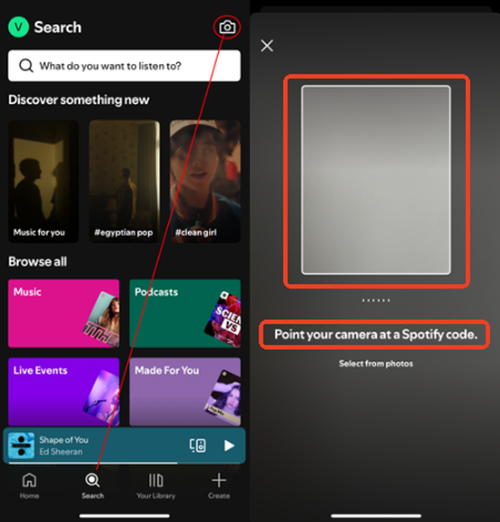
Step 1. Open the Spotify app on your mobile device and log in to your Spotify Premium account. Tap the Search tab located at the bottom center of the navigation bar.
Step 2. Tap the Search Bar at the top of the screen. You will notice a small Camera Icon appear on the right-hand side of the input field.
Step 3. Tap that camera icon. If this is your first time using the feature, the app will ask for permission to access your camera; tap Allow to proceed.
Step 4. Point your camera at a Spotify Code. The app will automatically recognize the pattern, bypass the search results, and take you directly to the song, album, or artist profile.
Video Tutorail: How to Use Scan Spotify Codes on Andriod and iPhone
Part 3. How to Scan Spotify Code with Phone from Your Photos
A frequent point of frustration for users is receiving a Spotify Code via text or social media and not knowing how to scan it, since you can't point your camera at your own screen. Fortunately, the Spotify app now includes a native feature to handle this directly. The Spotify app has an integrated "Select from photos" button within its scanner interface.
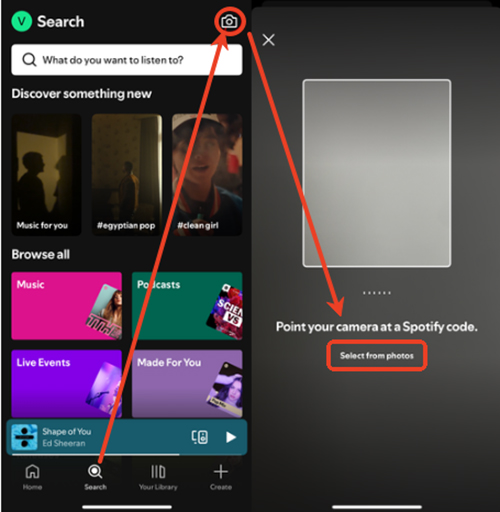
Step 1. Open the Spotify app and tap Search. And then, you can tap the Camera icon in the search bar.
Step 2. On the scanning screen, tap Select from photos (usually located at the bottom or top right).
Step 3. Choose the image or screenshot containing the Spotify Code from your gallery, and the app will instantly redirect you to the content.
Tips:
While Spotify Scan Codes are a great way to share playlists, albums, and music with friends, many users also want to take their music offline or convert it into a more universal format. This is where DRmare Spotify Music Converter comes in handy. It lets you convert Spotify music into popular file formats like MP3, making it easier to listen to your favorite songs even when you're not connected to the internet or on a different device.
Part 4. Troubleshooting: Why Can't I Scan My Spotify Code?
Sometimes the connection between your camera and the code fails. If you are struggling to get a scan to register, check these common issues:
The Camera Icon is Missing. If you don't see the camera icon in the search bar, ensure your app is updated to the latest version (v9.1 or higher). If it's still missing, try a "Clean Reinstall": delete the app, restart your phone, and download it again from the App Store or Play Store.
Poor Lighting or Reflection. Spotify Codes rely on the contrast between the bars and the background. If you are in a dark room or scanning a glossy screen with a heavy glare, the scanner may struggle. Try moving to a better-lit area or adjusting the angle to reduce reflections.
Missing Logo Component. For a Spotify wavelength code to work, the "Spotify Circle Logo" on the far left of the bars must be visible. If the code has been cropped or damaged, the app will not recognize it as a valid link.
Poor Resolution: If a code has been resized too many times and appears "fuzzy" or pixelated, the app may fail to read the specific height of the bars.
No Camera Permissions: Ensure your phone settings haven't revoked Spotify's access to your camera. You can check this in Settings > Spotify > Permissions.
Part 5. How to Generate Spotify Listen Codes for Songs/Playlists/Profiles
Scanning is only half the fun; making your own Spotify Scan Codes allows you to share your musical taste with the world. You can generate a Spotify code for almost anything within the app. Here's how:
Generate Spotify Song/Playlist Code on iPhone/Android
Step 1. Navigate to the song, playlist, or album you want to generate a code for.
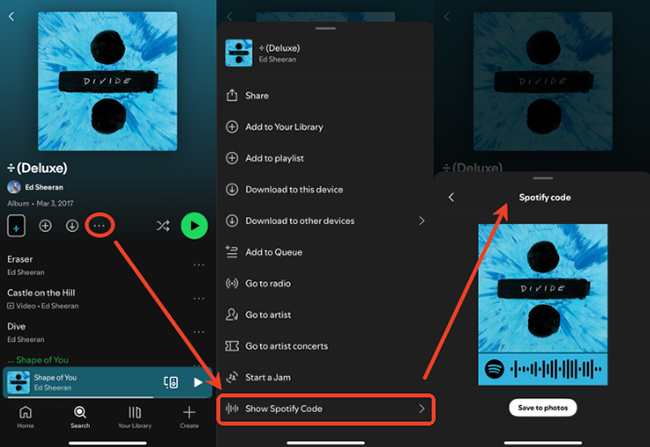
Step 2. Tap the three dots (...) (the "More" menu) located near the Play button or at the top of the screen.
Step 3. Scroll down to find the Show Spotify Code option. Tap it, and the Spotify Code will automatically appear at the bottom of the cover art on the resulting menu screen.
Show Spotify song codes:
Show Spotify Playlist codes:
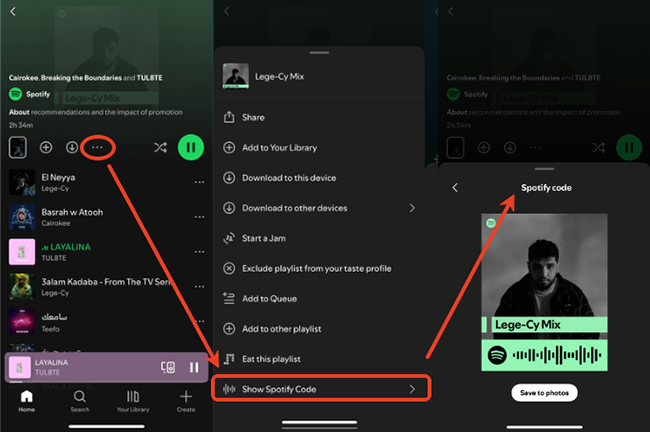
Step 4. You can show this screen to a friend for them to scan immediately, or you can click the Save to photos to save it to your gallery for later use.
Generate Spotify Profile Code on iPhone/Android
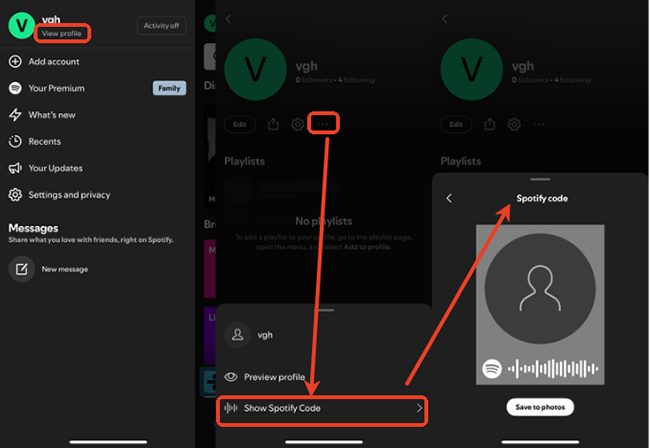
Step 1. Open your Spotify app on your mobile device and tap the Profile icon to choose the View Profile button.
Step 2. In the upper-right corner of the screen, tap the three dots to open the options menu.
Step 3. Click the Show Spotify Code button, and it will automatically make the Spotify code at the bottom of the screen. You can save this to your photos or show it directly to a friend to scan!
Generate Spotify Song/Playlist Code on Computer
Step 1. Open the content, like a song, playlist, album, or profile, you want to share.
Step 2. Click the three dots to show more options. In the menu that appears, select Share, and then choose Copy Link.
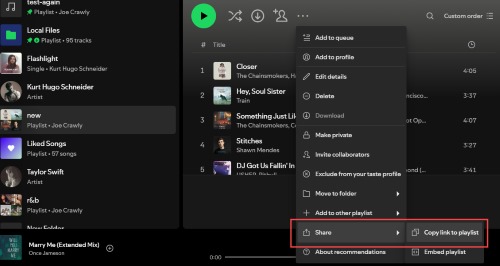
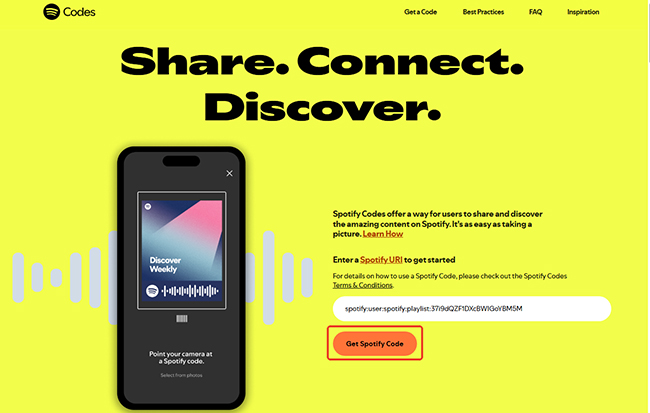
Step 3. Go to the official Spotify codes generator website and paste the copied link into the generator tool. Tap the Get Spotify Code > Continue button to get a code on Spotify.
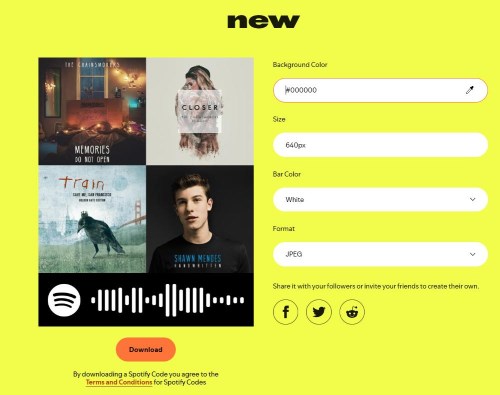
Step 4. You will be able to download your custom Spotify Scan Code as an image to share by clicking the Download button.
Part 6. FAQs about How to Use Spotify Code
What Are the Use Cases for Spotify Scan Codes?
Spotify Scan Codes make sharing music easy and fun! Here are some common scenarios where you can use this feature:
- Social Gatherings: Instead of everyone passing a phone around to add songs to a queue, a host can print a code for a collaborative playlist and place it on a coffee table.
- Artist Promotions: Independent artists often place codes on posters, business cards, or merchandise, allowing potential fans to hear their music with a single scan while waiting for a bus or browsing a shop.
- Creative Gifting: From "musical" greeting cards to custom-made jewelry engraved with a Spotify Code, people are using these links to create sentimental, personalized gifts that lead to a "special song."
What Are the Differences: Spotify QR Code vs. Spotify Scan Code?
To ensure your scan works every time, it is vital to identify which type of code you are looking at. While they both lead to music, they require different tools.
- Spotify Wavelength Codes: These are proprietary and look like a series of vertical bars of varying heights. These must be scanned using the camera icon inside the Spotify app.
- Standard QR Codes: These are the familiar square, pixelated boxes. These can be scanned by your phone's regular camera app or any third-party QR reader. They usually contain a URL that redirects you to the Spotify web player or app.
How to Access Shared Spotify Content Offline?
If you frequently encounter issues with Spotify's offline mode or want more control over your music files, DRmare Spotify Music Converter can help. It allows you to download your favorite Spotify music in FLAC, MP3, and other formats, enabling you to play your music on any device, anytime, without any limitations.
Part 7. In Conclusion
The Spotify scan feature is a powerful bridge between your physical environment and your digital library. Whether you're at an event, promoting your latest album, or just sharing a Spotify playlist with friends, the Scan Code allows you to instantly access and enjoy Spotify content. By mastering the scan and generation process, you turn every poster, screen, and conversation into a potential gateway for musical discovery.

 Home
Home





User Comments
Leave a Comment