





In the modern digital workspace, Slack is the heartbeat of communication, while Spotify provides the soundtrack to our productivity. Many users search for "Slack Spotify integration" expecting a full-blown remote control inside their chat window. The reality is slightly different but equally powerful if you know how to set it up.
A Spotify Slack integration can transform your team's culture, signal your "deep work" status to colleagues, and turn music discovery into a collaborative office experience. In this guide, we will clarify exactly how to bridge these two platforms to share tracks, sync your status, and even automatically build collaborative playlists for remote work.
Part 1. How to Share and Preview Spotify Tracks on Slack
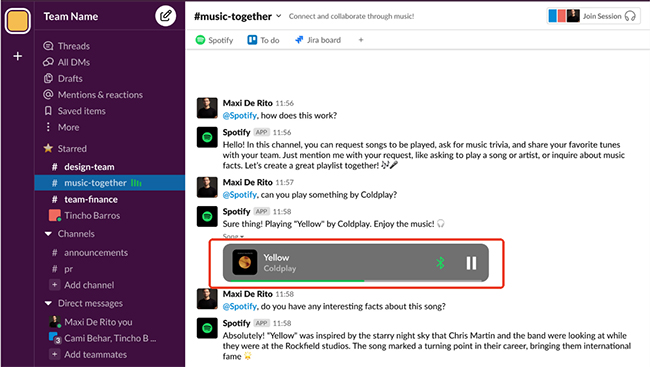
The most fundamental level of Slack and Spotify integration is the native app functionality. This doesn't give you a full player interface, but it enables "Link Unfurling."
When you paste a Spotify link into a channel, instead of a boring text URL, Slack expands it into a rich media card. This rich preview displays the album art, track details, and a "Play" button that allows your colleagues to hear a 30-second preview (or open it directly in their Spotify app). Here is how to set up the official connection:
How to Connect Slack to Spotify for Sharing
Step 1. Navigate to the Slack App Directory (you can find this in the "More" menu or the dedicated 'Tools' tab in the sidebar and search for "Spotify".
Step 2. Click the green "Add to Slack" button. You will be redirected to an authorization page.
Step 3. Review the permissions requested. The app requires permission to view links shared in channels to convert them into previews. Click "Allow".
Step 4. Once installed, paste a link to a song or album in any channel to share Spotify on Slack. Slack may ask you to "Connect to Spotify" one last time to verify your specific account credentials.
Tips:
This integration is context-aware. If you share a track, it shows the song. If you share a Spotify playlist on Slack, it shows the playlist cover and the creator's name.
Part 2. How to Sync Your Spotify Status on Slack
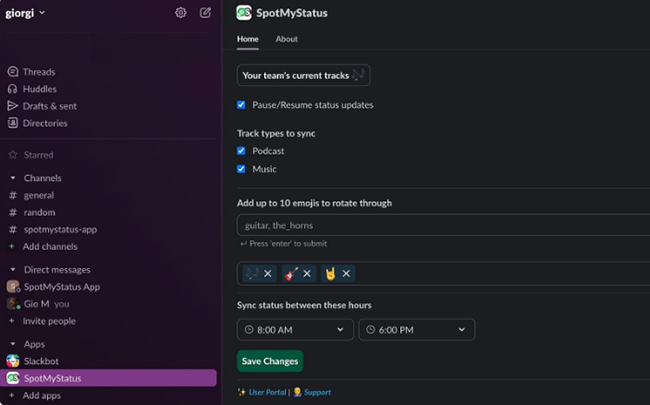
The native Spotify app for Slack does not automatically show your now-playing music as your Slack status very well. For a seamless experience where your status emoji changes to a 🎧 and the text updates to the current song title, you should use a specialized tool called SpotMyStatus.
It syncs your real-time Spotify activity to your Slack profile. This adds a layer of personality to your digital office and prevents colleagues from interrupting you when you are in the zone.
How to Use Slack Spotify Status Syncing via SpotMyStatus
Step 1. Visit the SpotMyStatus website (a trusted third-party integration often recommended by the Slack community).
Step 2. Click the login button to authenticate with your Spotify account first. You need to grant it permission to read your "Currently Playing" state.
Step 3. Next, authenticate with your Slack workspace to permit it to update your status.
Step 4. Configure your preferences. You can choose whether to show the artist name, the song title, or a custom emoji.
Step 5. Toggle the "Pause during meetings" setting. This ensures that if your calendar shows you are in a meeting, the music status won't override your "In a Meeting" status.
Note:
Security Note: When authenticating SpotMyStatus, the app only requests 'read-only' access to your currently playing track, ensuring your private Slack messages remain confidential.
Part 3. How to Create a Collaborative "Office DJ" Spotify Playlist on Slack (Advanced Workflow)
This is where you can provide genuine value to your team. A common pain point in organizations is the #music-recommendations channel. People post great songs, but the links get buried in the chat history, and no one ever listens to them again.
You can solve this by automating the process. Using an automation tool like Zapier or Make, you can bridge Slack and Spotify so that every link shared in a specific channel is automatically added to a shared Spotify playlist. Here is the general logic for setting this up:
How to Automate an 'Office DJ' Workflow with Zapier
Step 1. Create a specific public playlist in Spotify for work (e.g., "Office Tunes 2026") and a dedicated channel in Slack (e.g., #music).
Step 2. In your automation tool (like Zapier), create a new "Zap" or workflow. Set the Trigger to be "New Public Message Posted Anywhere" in Slack and set the Action to be "Add Item to Playlist" in Spotify. Tap the "Integrate for free" to authorize your Slack and Spotify accounts.
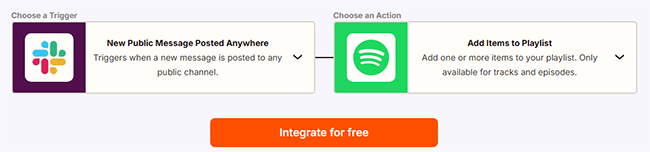
Step 3. Map the data fields so that the automation tool looks for the URL in the Slack message and sends the specific track ID to Spotify, then posts it in your Slack channel. This turns a passive chat channel into an active, collaborative music library that everyone can listen to while they work.
Tips:
You can test the workflow by posting a song link in your Slack channel. Check your Spotify playlist to see if the track appears instantly.
Part 4. Troubleshooting Common Integration Issues
Even with a smooth setup, you might encounter hiccups. Here are the solutions to the most frequent problems users face with Spotify in Slack:
The "Auth Loop"
Sometimes, Slack keeps asking you to log in repeatedly. This is usually a browser cache issue. You can log out of Spotify on your default web browser, clear your cache, and try the authentication step again within Slack.
Link Previews Not Appearing:
If you paste a link and it remains a plain URL, your workspace administrator may have disabled rich media previews for certain domains. You can check with your admin or look at your "Preferences > Messages & Media" settings to ensure "Show images and files from linked websites" is checked.
Playback Limitations:
Users on the Spotify Free tier may not be able to play full tracks via the "Play on Spotify" buttons and might only hear snippets. This is a limitation of the Spotify account type, not the integration itself.
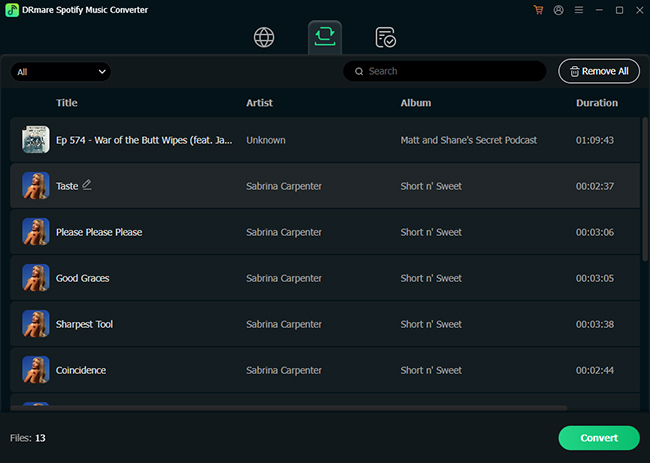
If you want to play the full Spotify playlists on Slack, even without an active internet connection, you can use DRmare Spotify Music Converter to achieve this goal.
It can download and convert Spotify songs, playlists, podcasts, and audiobooks to MP3, WAV, FLAC, and more with ID3 tags and lyrics preserved. It allows you to upload the file directly to a Slack channel for offline sharing and permanent access. It's also helpful for a song that isn't available in all regions.
Part 5. FAQs about Spotify Slack Integration
Can I play full Spotify songs inside Slack?
No. Due to licensing, Slack only plays a 30-second preview. For full playback, you must click the link to open the Spotify app.
Does Slack remove uploaded MP3s?
On free Slack plans, files may be hidden after 90 days. For permanent storage, consider sharing links from a cloud drive.
What are the good Slack Spotify bot or plugin?
Choosing a good bot depends on whether you want to automate your status, collaborate on playlists, or control music within your Slack workspace. Here are the best Slack Spotify bots and plugins available in 2026:
| Bot / Plugin | Primary Use Case | Ease of Use |
|---|---|---|
| SpotMyStatus | Auto-updating your "Listening to..." status | ⭐⭐⭐⭐⭐ (Set and forget) |
| Slackbox | Creating collaborative team playlists | ⭐⭐⭐⭐ (Requires channel setup) |
| SongButler | Cross-platform music sharing | ⭐⭐⭐⭐ (Great for utility) |
| Zapier / Make | Highly specific custom triggers | ⭐⭐ (Requires configuration) |
Part 6. Final Thoughts
A Slack Spotify integration is the perfect bridge between professional focus and personal expression. By setting up seamless link previews, automating your status to reflect your focus mode, and curating shared playlists, you turn music into a shared experience rather than a solitary one. What's better, these tools ensure that music remains a productive part of your workday.

 Home
Home





User Comments
Leave a Comment