





FireStick (also known as Amazon Fire TV or Fire TV Stick) is a popular streaming device that turns any TV with an HDMI port into a smart entertainment hub. With access to apps like Netflix, Prime Video, and Disney+, you may wonder whether you can watch Apple TV on FireStick and how to set it up properly. This guide walks you through two practical ways to get Apple TV on FireStick, as well as fixes common playback issues with Apple TV on FireStick, and explores download tips to help you to view Apple TV content smoothly on multiple devices, not only Fire TV.
Part 1. How to Install Apple TV on Fire Stick
To watch Apple TV on Fire Stick, you'll first need to install the Apple TV app on your Amazon Fire TV. Depending on your device model or region, you can either download the official Apple TV app directly from the Fire TV store or access Apple TV through a web browser. Let's go through both methods so you can stream your favorite Apple TV shows and movies effortlessly to FireStick.
Get Apple TV on Fire Stick via Fire TV
Even if you're new to Fire TV, you can have the app installed and ready to stream in just a few minutes. Below is an easy-to-follow walkthrough to help you get started.
Step 1. From your Fire Stick's Home screen, head to the top menu and select the "Find" icon, then click "Search" to look for Apple TV.
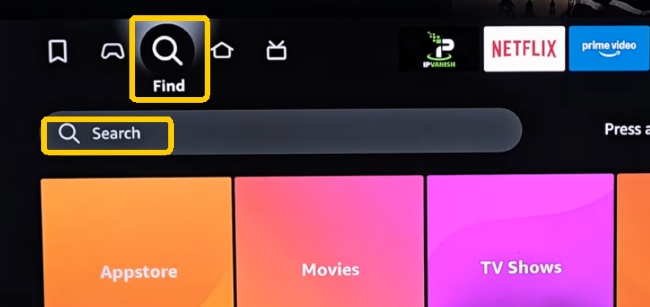
Step 2. Type Apple TV in the search bar, and you will see the Apple TV app in the results.
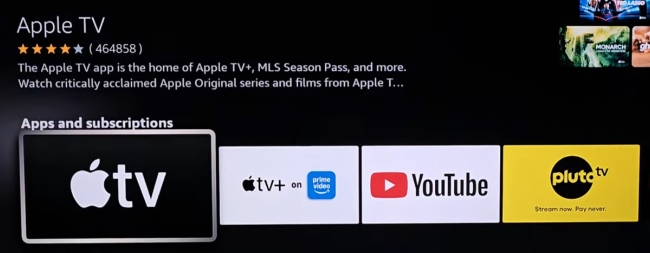
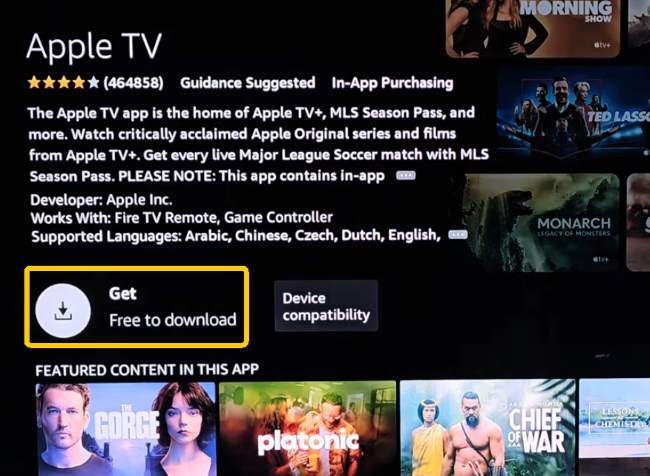
Step 3. Choose it and click "Get" and wait for the download and installation to complete.
Get Apple TV on FireStick via Web Browser
You can also use the Amazon Website to download and install Apple TV on your Fire Stick.
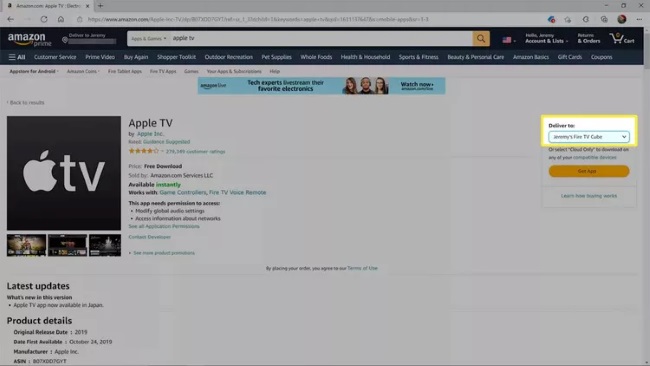
Step 1. To get Apple TV on your FireStick, start by opening a web browser and visiting amazon.com. Then just search for the Apple TV app and go to its page.
Step 2. Click "Deliver for" and choose the FireStick device you want from the list. The app will then appear on your Fire Stick.
Part 2. How to Watch Apple TV on Fire Stick
After the Apple TV app is installed, signing in with your Apple ID unlocks access to Apple TV originals, rentals, and purchased content. The process is quick and doesn’t take more than a minute. Here's how:
Step 1. Open the Apple TV app from the Fire Stick home screen.
Step 2. When the "Sign In or Sign Up" screen appears, choose a sign-in method. Scanning the QR code with an iPhone or entering the code at link.apple.com is usually the fastest option. Alternatively, signing in with the remote is available by visiting activate.apple.com and entering Apple ID details manually.
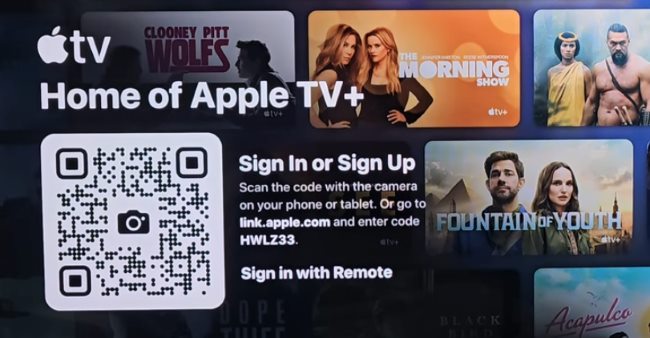
Step 3. Once signed in, all Apple TV originals, purchased movies, and rentals become available right away, with viewing progress and recommendations synced across devices.
Part 3. Resolve Apple TV Not Working on Fire Stick
Apple TV generally runs well on Fire Stick, but issues like loading errors, buffering, or unexpected crashes can occasionally appear. Below are practical solutions that help address these common problems and help restore stable streaming of Apple TV on your Fire Stick.
1. Restart FireStick and Internet Connection
If Apple TV isn't working on your Fire Stick, a quick restart often clears temporary glitches. Disconnect the FireStick from power for about a minute, then reconnect it. Restarting the Wi-Fi router at the same time can also stabilize the connection.
2. Update FireStick System Software
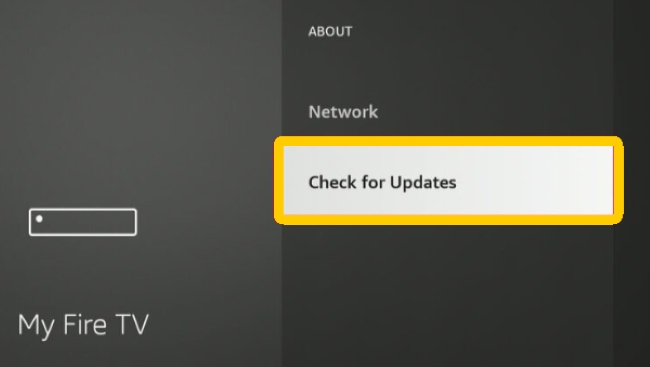
Compatibility problems may occur if Fire OS is outdated. You need to go to "Settings", and navigate to "My Fire TV > About > Check for Updates" and install any available updates. Running the update check more than once may be necessary.
3. Force Stop the Apple TV App
When the app becomes unresponsive, closing it completely can help. Go to "Settings > Applications > Manage Installed Applications", select Apple TV, and choose Force Stop, then reopen the app.
4. Clear Apple TV App Cache and Data
Playback errors can build up over time. Clearing cache and data from the Apple TV app refreshes it completely. Keep in mind that signing in again will be required afterward.
5. Refresh Your Apple ID Session
Sometimes content fails to load due to account sync issues. Signing out of the Apple TV app and signing back in helps renew access permissions and subscriptions.
6. Reinstall the Apple TV App
If problems continue, removing and reinstalling the app can resolve corrupted files. Uninstall Apple TV, restart FireStick, then download it again from the Amazon Appstore.
7. Verify Date and Time Settings
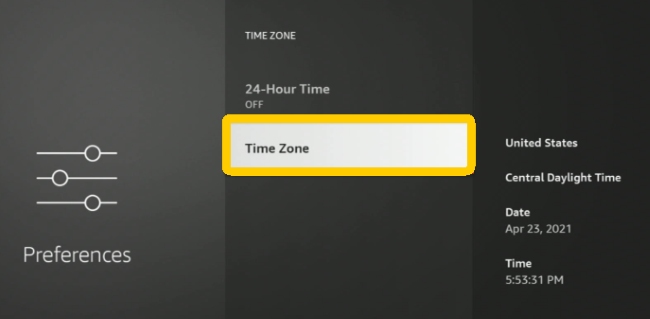
Incorrect system time can interfere with secure streaming connections. Make sure the date, time, and time zone are set correctly in FireStick "Preference" settings.
8. Try an App-Specific Password
If standard Apple ID login fails, an app-specific password generated from Apple’s account page may work better for Fire Stick sign-ins.
9. Factory Reset FireStick
When nothing else works, resetting Fire Stick to factory settings can fix deeper system issues. This removes all apps and settings, so it’s best used only after other solutions fail.
Part 4. Extra Tips to Save Apple TV Videos on FireStick Forever
While Apple TV works well on Fire Stick for streaming, offline viewing is limited by active subscriptions and the lack of permanent download support. Once a subscription ends or content is removed, access is lost. Then you'll need a tool to help you get rid of this restriction. DRmare Apple TV Downloader offers a flexible alternative. It can save Apple TV movies and shows as local files with original quality preserved. These files can be cast to FireStick for long-term playback, making anytime access on Fire TV devices much easier.
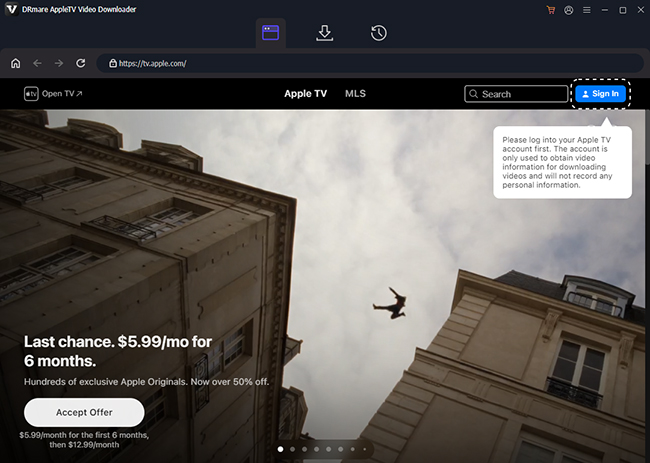
- Step 1Access to Your Apple TV Library
Open DRmare on your computer and click "Sign In" in the built-in web player. Log in using your Apple ID, and the program will automatically load your Apple TV library.
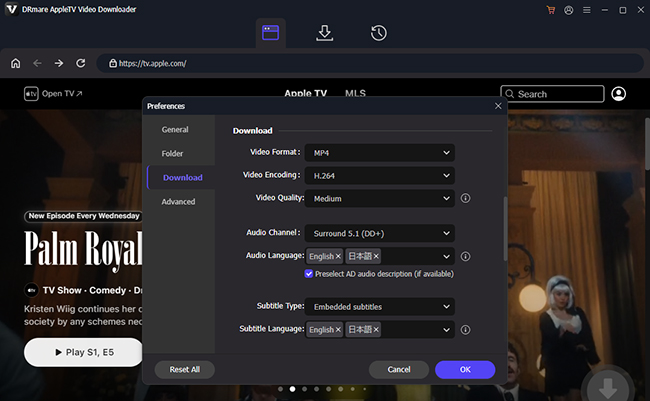
- Step 2Choose the Output Format for FireStick
Before downloading, adjust the output settings to ensure smooth playback on Fire Stick. Open the menu, go to "Preferences", and select the "Download" section. You can customize video quality, resolution, and audio tracks based on your viewing preferences.
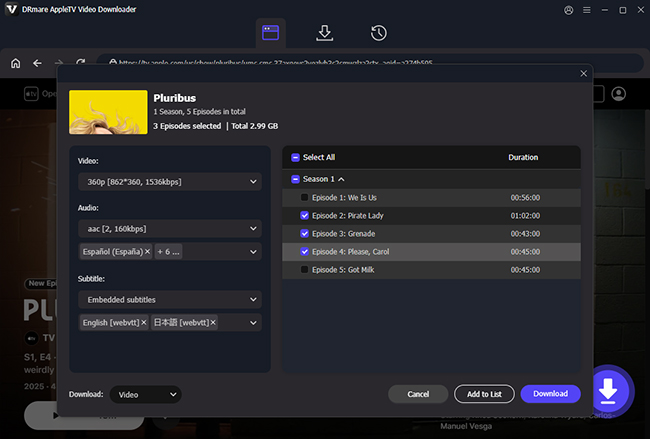
- Step 3Download Apple TV Contents as Local Files
Browse through your Apple TV library and open the movies or shows you want to keep. Click the "Download" button to save locally. Multiple titles can be downloaded at once by clicking "Add to list", making it easy to prepare an entire season or several movies in one session.
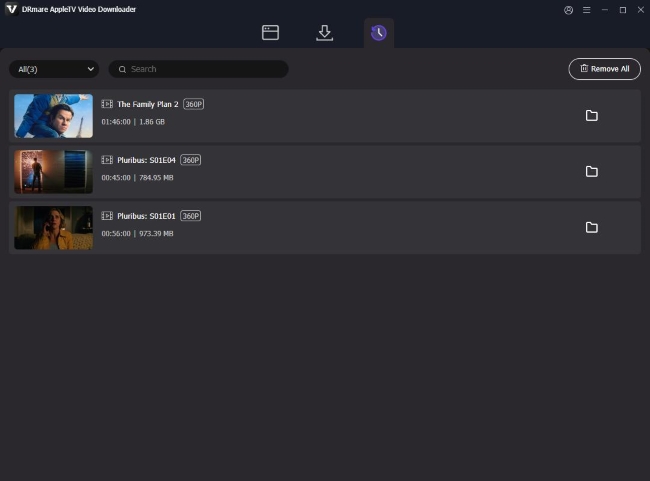
- Step 4Watch Apple TV Content on Fire Stick Anytime
Once the downloads are complete, the Apple TV videos will be stored locally on your computer and accessible from the "History" section or output folder. Since the videos are saved as standard files, you can watch them on Fire TV devices without worrying about subscription expiration.
Part 5. FAQs about Apple TV on FireStick
Is Apple TV free on Fire Stick?
The Apple TV app is free to download on FireStick, but most content isn't free to watch. To stream Apple TV originals or rent and buy movies, an active subscription or purchase is required in order to access Apple TV content on your FireStick.
Which Fire Stick is compatible with Apple TV?
Most modern Fire TV devices support the official Apple TV app. Popular models like Fire TV Stick 4K, Fire TV Stick 4K Max, and recent Fire TV Cubes work smoothly. Many older Fire TV devices and Fire TV Edition smart TVs are also compatible, including 2nd-generation Fire TV Sticks and select Fire TV smart TVs from brands. In general, if your FireStick runs the latest version of Fire OS, Apple TV should be supported.
How to connect an Apple device to Fire Stick?
FireStick doesn't support AirPlay natively, so connecting an iPhone or iPad usually requires a third-party app. Once both devices are on the same Wi-Fi network, you can use your iPhone to mirror the screen to your FireStick through the app. Though some newer Fire TV smart TVs offer built-in AirPlay, Fire TV Sticks typically rely on third-party solutions.
What other streaming devices can I watch Apple TV on?
Apple TV is available on a wide range of devices beyond FireStick. You can watch Apple TV on Roku and enjoy Apple TV on Chromecast. It's also accessible through web browsers and supported gaming consoles, including PS4, PS5, and Xbox. This flexibility makes it easy to stream Apple TV content across different platforms.

 Home
Home




Download Apple TV movies and shows at 5X speed while keeping the original quality, transferring them to your Firestick for long-term viewing anytime.