





With Xbox no longer just a gaming console, you can now use it as an all-in-one entertainment hub for streaming movies, TV shows, and music. If you already play Spotify on Xbox or watch Netflix and Disney+, you might be wondering whether Apple TV is also available and how to set it up properly. In this guide, you'll learn how to get Apple TV on your Xbox and fix common issues if the app doesn't work as expected.
Part 1. Is Apple TV on Xbox?
Yes, Apple TV is available on Xbox. It's supported on all major models, including the Xbox One, as well as the latest Xbox Series S and Series X. This lets you watch Apple TV originals, movies, and purchased content directly on your console, similar to the experience of using Apple TV on Roku or other Apple devices.
Part 2. How to Get the Apple TV App on Xbox
The simplest way to watch Apple TV on Xbox is by downloading the official Apple TV app directly on your console. If your Xbox is already part of your daily streaming routine, whether you're watching Netflix or listening to Apple Music on Xbox, this approach works in the same way and feels easy to get started with.
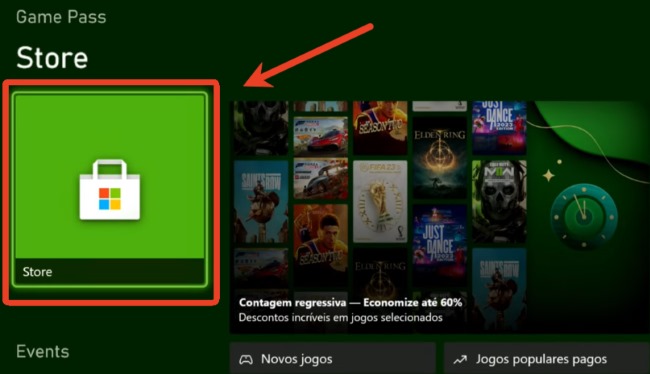
Step 1. On your Xbox console, go to the Xbox "Store" and open the Search tab. Type Apple TV and select the app when it appears in the results. By choosing "Get" to download Apple TV on your Xbox.
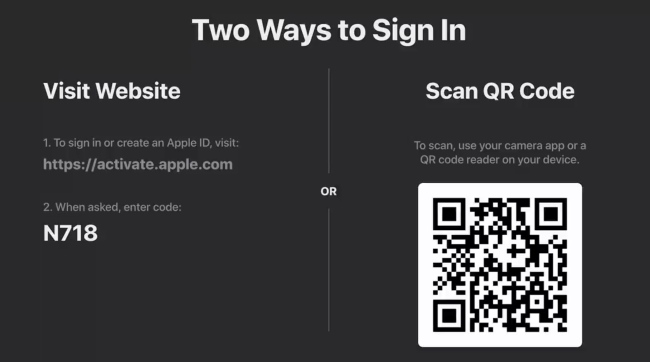
Step 2. After installation, launch the Apple TV app on your Xbox from "My games & apps > Apps". When the app opens, select the "Sign In" option. A unique activation code will appear on your TV screen.
Step 3. On your phone or computer, open a web browser and visit activate.apple.com. Enter the activation code shown on your Xbox screen, then sign in with your Apple ID. Once the login is complete, the Apple TV app will be activated and ready to use on your Xbox.
Tips:
For smooth 4K streaming on Apple TV, a download speed of at least 25 Mbps is recommended, while 50 Mbps or higher delivers an even more stable experience. During testing, Apple TV 4K videos on Xbox Series S loaded quickly with a reliable connection.
Part 3. How to Play Apple TV on Xbox from Phone
If you prefer not to use the Apple TV app on Xbox directly, you can also mirror Apple TV content from your phone to your Xbox. While Xbox doesn't support AirPlay or Google Cast natively, third-party apps like AirServer or AirReceiver can turn Xbox into an AirPlay/Cast receiver. To make this work, your Xbox and phone need to be connected to the same Wi-Fi network. Once set up, Apple TV content can be mirrored from your phone to your Xbox, making it easy to get Apple TV shows on the big screen.
Step 1. On your Xbox, navigate to the "Store" section. Use the search function to look for AirServer, install the app from the results, then choose "Buy" or "Free trial" to open it.
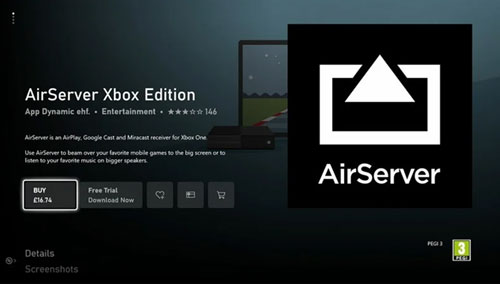
Step 2. Once AirServer is running, press Right on the directional pad, then press "A", and a QR code will appear on your Xbox screen.
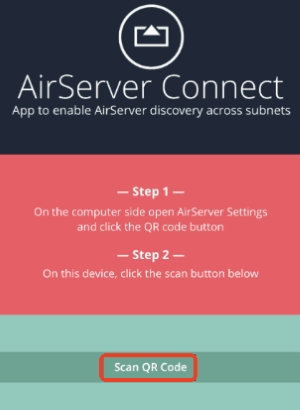
Step 3. From the App Store or Google Store, download and install the AirServer Connect onto your phone.
Step 4. Open the AirServer Connect app on your phone and select "Scan QR Code". Allow the app to access your camera, then point your phone at the QR code displayed on your Xbox screen. Once scanned, your phone will be connected and ready to mirror Apple TV on Xbox.
Note:
When using AirServer, a slight display delay between your phone and the Xbox screen is normal. Under good network conditions, AirPlay latency is typically around 150 ms, and sometimes there may be a 0.5–1 second difference between your phone and the Xbox screen.
Part 4. How to Watch Apple TV on Xbox Offline
If you want to get Apple TV on your Xbox offline, one convenient way is to convert your favorite movies and shows into local files that can be played directly on your console. Since the official Apple TV app on Xbox doesn't offer offline downloads and relies on a stable internet connection for high-quality playback, using a tool like DRmare Apple TV Downloader makes this process simple and more reliable.
It lets you download Apple TV content in MP4 or MKV formats while preserving high video quality and Dolby Digital Plus 5.1 surround sound. You can also select different audio tracks and original multilingual subtitles if needed, giving you the flexibility to get Apple TV on Xbox One, Series S, or Series X anytime and build your own offline Apple TV library.
- Step 1Access Your Apple TV Library
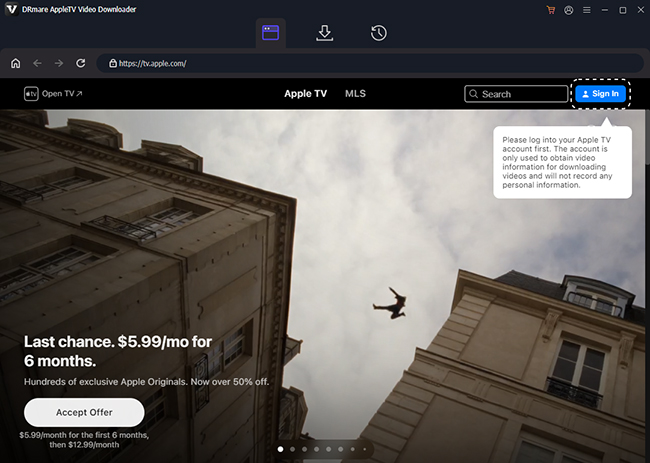
Open DRmare on your computer and click "Sign In" in the built-in web player. Log in with your account, and your Apple TV library will be accessible.
- Step 2Set the Output Format for Xbox Playback
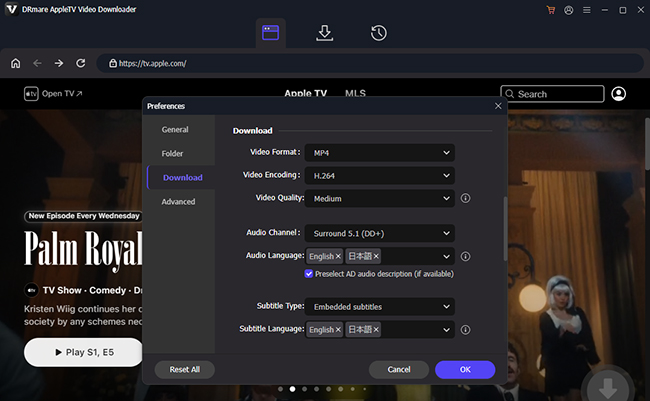
Before downloading, you can adjust the output settings to ensure smooth Apple TV playback on your Xbox. Open the menu, go to "Preferences", and select the "Download" section. Here, you can customize video resolution, quality, and audio tracks according to your viewing preferences, making sure the files are optimized for Xbox.
- Step 3Add Apple TV Movies or Shows to Download
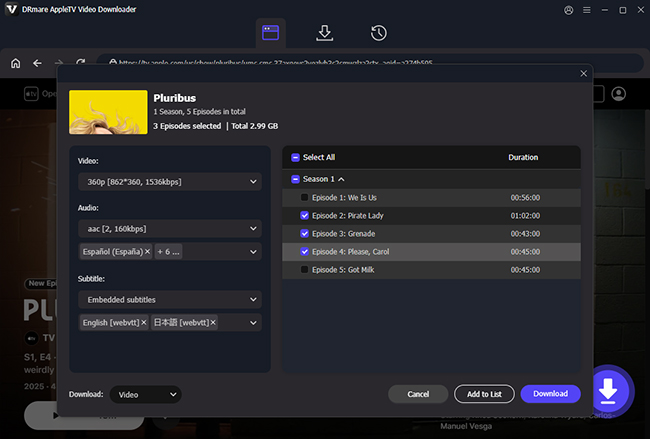
Browse through your Apple TV library to select the movies or shows you want to save. Open the detailed page and click "Download" to start the process. Or you can use "Add to List" to queue multiple titles from Apple TV at once, allowing you to prepare an entire season or movies from Apple TV for offline viewing on Xbox.
Step 4. Transfer and Watch Apple TV Content on Xbox via USB
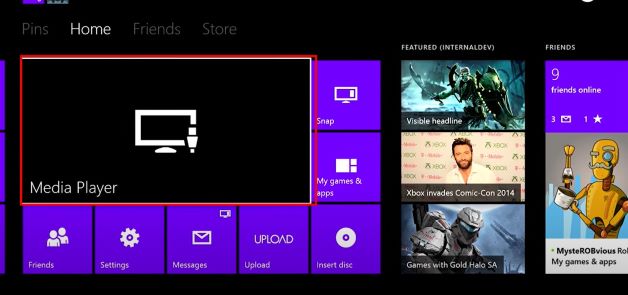
After downloading your Apple TV movies or shows into local files, insert a USB drive into your computer and copy the files onto it. Then plug the USB drive into your Xbox, open the Media Player app, and browse the drive to select and watch the Apple TV content you want. This method allows you to get Apple TV on Xbox One and Series S|X offline.
Tips:
Xbox works with USB drives formatted in FAT32 or NTFS, but NTFS is usually the better choice. It handles larger video files more smoothly and is more reliable for storing media. While FAT32 and exFAT formats can still work in some cases, NTFS tends to offer the most consistent performance on Xbox.
Part 5. Fix Apple TV Not Working on Xbox
If the Apple TV app on your Xbox isn't working, it's often due to temporary glitches, network issues, or account problems. Most issues can be resolved with a few simple steps, and now let's walk through the details.
1. Check Your Internet Connection
Apple TV requires a stable internet connection. Make sure your Xbox is connected to Wi-Fi or a wired network, and try streaming other apps like Netflix or Spotify to confirm the connection is stable.
2. Update the Apple TV App and Xbox System
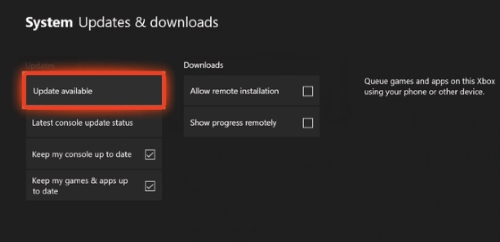
Outdated software can cause crashes or playback issues. Go to the Microsoft Store, check for updates to the Apple TV app, and ensure your Xbox system software is up to date.
3. Restart Your Xbox
Sometimes a simple restart can resolve temporary glitches. Press and hold the Xbox button on your controller, select Restart console, and then relaunch the Apple TV app.
4. Clear Cache or Reinstall the App
If the app still isn't working, try clearing the cache by restarting your console, or uninstall and reinstall the Apple TV app on your Xbox.
5. Check Your Apple ID and Subscription
Make sure you're signed in with the correct Apple ID that has an active Apple TV subscription. If there are issues with your account, log out and log back in to refresh the connection.
6. Check TV Control Settings
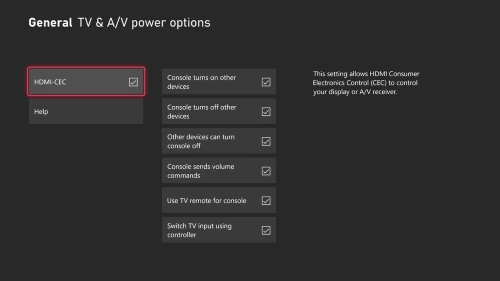
If your Xbox isn't properly controlling your Apple TV, go into the Xbox settings and toggle HDMI-CEC (or similar TV control options) off and on, then restart your console to see if it resolves the issue.
7. Check HDCP 2.2 & HDMI Cables
If you see a black screen while playing content on the Apple TV app, it's usually due to an HDCP 2.2 compatibility issue for content protection. To fix this, ensure you are using a certified High Speed HDMI cable connected directly to a 4K-compatible port on your TV, bypassing any unsupported receivers or splitters.
Part 6. FAQs about Getting Apple TV on Xbox
Is Apple TV free on Xbox?
Yes, you can download the Apple TV app on Xbox for free, but watching exclusive Apple originals and the full content library requires an Apple TV subscription. However, new subscribers or Xbox Game Pass members can often get a free Apple TV trial to explore the service. You can sign in with your Apple ID or create a new one to start your subscription.
How to activate the 3 months free Apple TV on Xbox?
To claim 3 months of free Apple TV on your Xbox, first download the Apple TV app and open it. Then check for a free trial banner or visit the Apple TV section. Sign in with your Apple ID and follow the prompts to get the 3-month free trial. This offer is generally available for new subscribers or eligible returning users and must be activated directly on your console to start streaming immediately.
Does the Apple TV app support 4K on Xbox One?
Yes, the Apple TV app on Xbox supports 4K playback on capable consoles such as Xbox One S, Xbox One X, Xbox Series S, and Xbox Series X. This means you can stream Apple TV originals and 4K movies and shows in Ultra HD when you have a 4K‑capable TV and the content itself is available in 4K resolution. In addition to 4K support, Xbox also offers enhanced picture options like HDR and Dolby Vision for Apple TV content when your TV supports those formats.
Does the Apple TV app support Dolby Vision on Xbox?
Yes, Apple TV delivers Dolby Vision on Xbox One S, Xbox One X, and all Xbox Series X|S consoles, though the original Xbox One does not support it. You can check if a movie or show is in Dolby Vision by spotting the Dolby Vision icon in the Apple TV app or pressing B while it's playing. To use Dolby Vision, turn on "Allow Dolby Vision" in the Settings, and navigate to General > TV & display options > Video Modes on your Xbox.
Part 7. Summary
| Method | How It Works | Key Requirements | Pros | Cons |
|---|---|---|---|---|
| Official Apple TV App | Download Apple TV on Xbox | Apple TV app; stable internet | Easy setup; seamless streaming | Requires active internet connection; subscription needed |
| Screen Mirroring | Mirror Apple TV from phone to Xbox | mirroring app; Xbox and mobile device on the same Wi-Fi | No installation of the Apple TV app on Xbox needed | Slight delay; depends on network quality |
| Offline Playback | Convert Apple TV as local files and transfer to Xbox | DRmare desktop software; USB drive | Watch offline; keep Apple TV content after subscription ends | Requires PC for conversion; initial setup takes time |
It's easy to get Apple TV on your Xbox, both online and offline. From the official app to AirPlay mirroring or using tools like DRmare Apple TV Downloader, you can watch Apple TV on Xbox One, Series S, or Series X in just a few clicks, without worrying about your subscription expiring.

 Home
Home





User Comments
Leave a Comment