





 I tried downloading several videos on Apple TV to my PC for offline playback, but all I see are fragmented FRAG files. Is there any way to convert Apple TV movies to MP4 files, or am I limited to watching them only through Apple TV?
--From discussion.apple.com
Apple TV does support offline downloads on Windows and other supported devices. But those downloads are managed inside the Apple TV app rather than delivered as ordinary MP4 video files that you can drag into VLC, copy to a USB drive, or edit in another program.
This guide explains what those Apple TV download files actually mean, why FRAG files cannot simply be treated as MP4 videos, and two practical ways to download Apple TV movies to MP4 with a a desktop downloader or screen recorder.

Part 1. Can I Download Apple TV Movies to MP4? FRAG vs. MP4
Apple TV allows movies and shows to be downloaded for offline viewing on supported devices, including iPhone, iPad, Mac, and Windows PC. However, when you download a movie or TV show via the Apple TV app, you are not downloading a standalone MP4 video file. Instead, the app downloads fragmented cache files (.frag). These fragments are heavily encrypted and strictly tied to the Apple TV app.
Many users try to manually rename these .frag files to .mp4 or merge them using basic tools. Unfortunately, this does not work. A playable MP4 requires a valid container structure, codec data, and metadata; none of which are present in raw, encrypted fragments. Here is a quick look at the real difference between an official offline download and a standard MP4 file:
| Feature | Apple TV App Download (.frag) | Standard Local Video (.mp4) |
|---|---|---|
| Offline Playback | Yes (within the Apple TV app only) | Yes (on almost any device) |
| Third-Party Players (VLC, etc.) | ❌ Not supported | ✅ Widely supported |
| Transfer to USB / TV | ❌ Restricted | ✅ Easily transferable |
| Long-Term Ownership | Depends on subscription/rental terms | Permanent access to the local file |
Ultimately, to get true offline freedom, you need a dedicated tool that bypasses the fragment caching and processes the stream directly into a standard format.
Part 2. How to Convert Apple TV Movies to MP4 with Desktop Downloader
If the goal is to create a portable video file that works outside the Apple TV app, a dedicated desktop downloader provides a more direct workflow than trying to manipulate FRAG files manually. DRmare Apple TV Downloader is designed to save supported Apple TV movies and shows as common local video files such as MP4 and MKV. It also provides controls for video quality, audio tracks, subtitles, and batch downloading, which can be useful when saving multiple episodes from the same series.
Rather than treating Apple's internal download files as the source, the software handles the movie through its own Apple TV playback and download interface. A successfully exported MP4 can be easier to organize and play with compatible TVs, computers, media servers, USB drives, and third-party players.
- Batch processing: Multiple episodes can be added to a download list rather than handled one at a time.
- Output control: MP4 and other supported container options can be selected together with available video, audio, and subtitle settings.
- Track selection: Available audio languages and subtitles can be selected before the download starts.
How to Download Apple TV to MP4 with DRmare
- Step 1Choose Output Settings as MP4
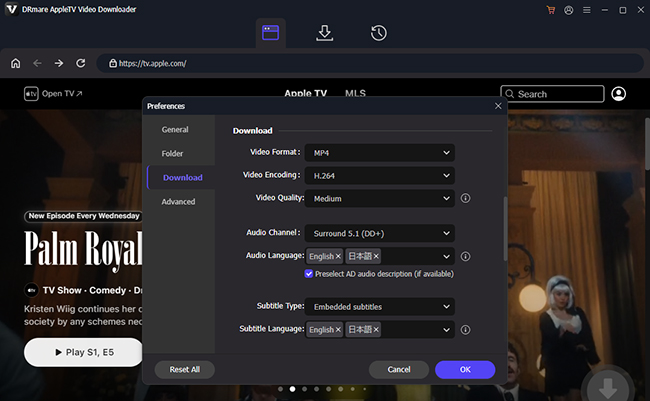
Launch DRmare on your computer and tap "Sign In" in the built-in Apple TV web player. Before starting the download, navigate to "Preferences" from the menu list, then go to "Download" to adjust output settings. Here, you can select MP4 as the output format, as well as change video resolution, audio tracks, and subtitle options. Customizing these settings ensures your downloaded Apple TV movies and shows are optimized for playback on any device.
- Step 2Select Apple TV Movies and Shows to Download
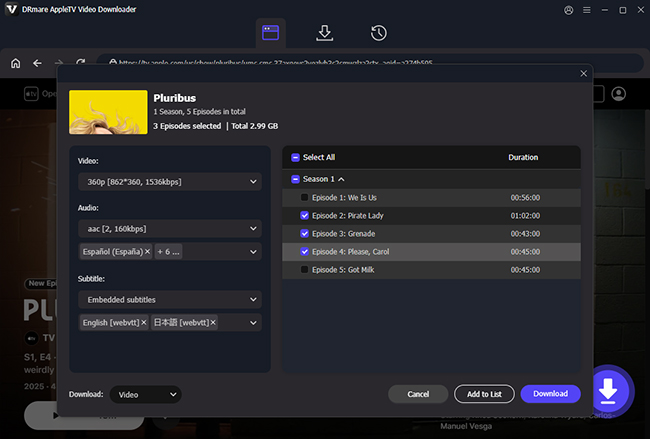
Browse your Apple TV library and find the movies or TV episodes you want to save. Then you can click "Download" on a specific title to add it to the download queue, and then use "Add to List" to batch-select multiple Apple TV episodes, making it easy to prepare a collection of Apple TV content in MP4 format for offline use.
- Step 3Download Apple TV Videos to MP4
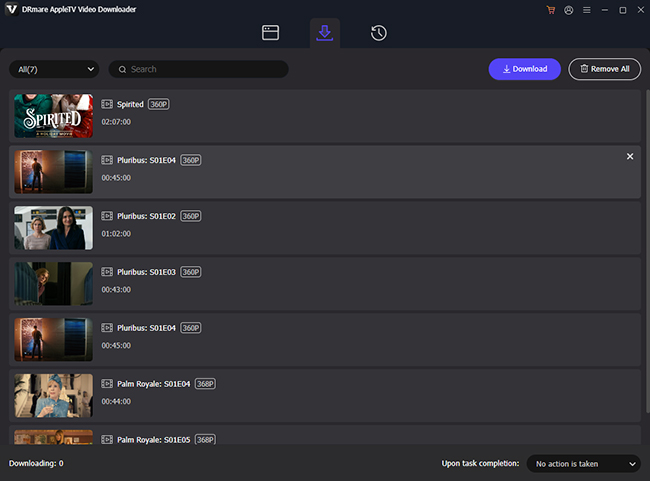
Once your selection is ready, click the "Download" button in the upper-right. DRmare Apple TV MP4 Converter will start converting the Apple TV movies and shows into DRM-free MP4 files, and the conversion time depends on the length and number of movies and shows from Apple TV.
- Step 4Access Your Downloaded Apple TV MP4 Files
Once the downloads are complete, you can check your MP4 files on the "History" tab or on your designated output folder. These DRM-free videos are now stored locally, letting you play and watch Apple TV movies on any device without a subscription.
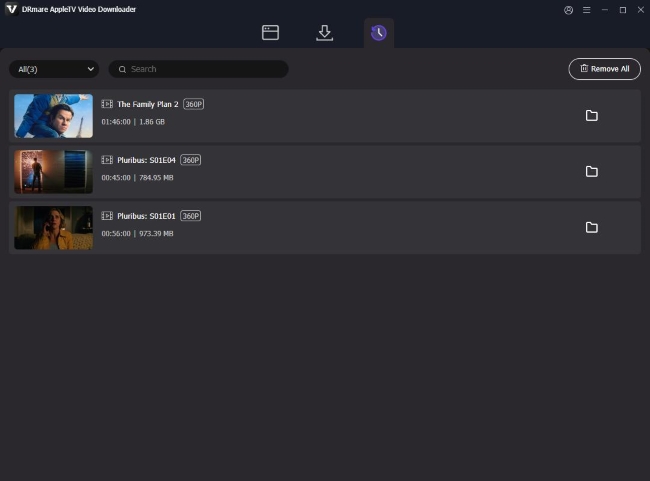
For personal backups, keeping the files organized by show, season, and episode number also makes a larger offline library much easier to manage.
Pro Tips:
Always test your newly downloaded MP4 in a player like VLC to confirm the video resolution, subtitle synchronization, and audio channels before moving it to a USB drive or media server.
Disclaimer:
This method is intended for personal backup and offline viewing only. We strictly prohibit the use of these tools for commercial distribution or copyright infringement.
Part 3. How to Download Apple TV Videos to MP4 via Screen Recording
Screen recording is sometimes suggested as another way to convert Apple TV videos to MP4, but it is less predictable with Apple TV content. Protected video playback can cause some recording programs to capture a black screen, audio only, or an incomplete video. Results can differ depending on the operating system, playback method, graphics path, and the title being viewed.
For Apple TV content that can be captured normally, a screen recorder such as AceMovi Video Editor may still be useful when you only need a short section of video or want editing tools immediately after recording. It lets you record, edit, and save your Apple TV movies in MP4 format.
How to Record Apple TV to MP4 via AceMovie
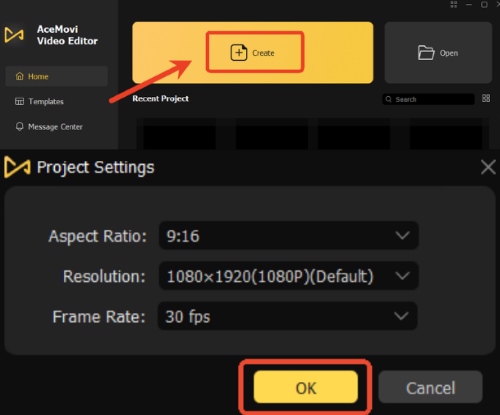
Step 1. After installing, launch AceMovi. On the main interface, click "Create" and select the default project settings by clicking "OK". This sets up a new project ready for recording and editing.
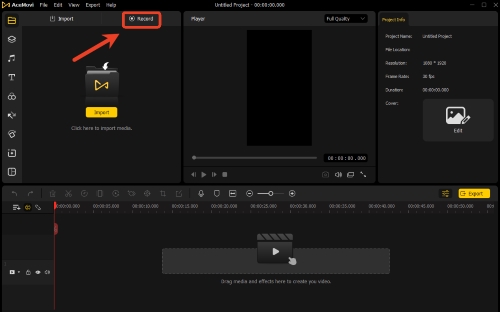
Step 2. Click the "Record" button on the left toolbar. You'll be prompted to select the recording area. Make sure the audio source is correctly set so you can capture both video and sound.
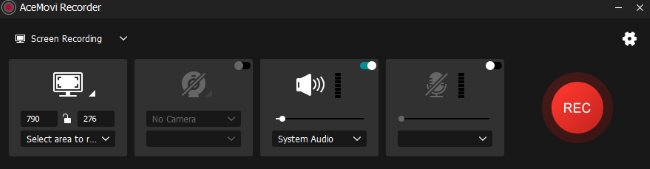
Step 3. Then play the movie or show in the Apple TV app or web player. Once it begins, press the "REC" button to start recording. You can pause and resume if needed, making it easy to capture only the parts you want.
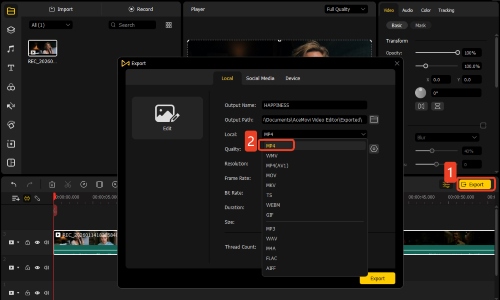
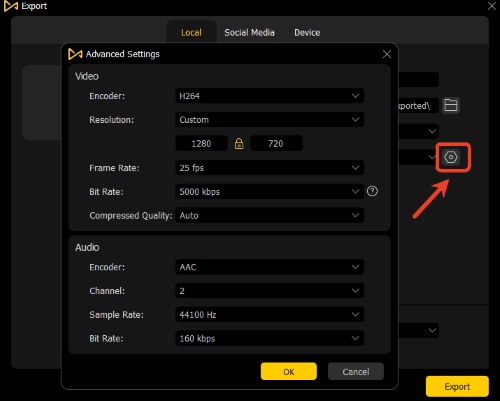
Step 4. When the playback is complete, click "Stop". The recording will appear in AceMovi's media section. Drag it into the editing section and click the "Export" button. Then select MP4 as the output format, and alter more settings like bit rate from the "Advanced Settings" button. Then those Apple TV videos will be saved to your computer as MP4 files.
Note:
The video and audio quality of the recording may not be as high as the original. Since screen recording captures what's playing in real time, an unstable or slow network can result in choppy or interrupted footage, which can be time-consuming.
Part 4. FAQs About Converting Apple TV to MP4
Why are my Apple TV downloads stored as FRAG files?
Apple designs its offline media storage this way to prevent piracy. The .frag files are meant to be read exclusively by the Apple TV application, verifying your active subscription or purchase before allowing playback.
Can I merge Apple TV FRAG files into an MP4?
No. Simply joining them together does not recreate the necessary audio/video synchronization or bypass the encryption.
Is there an online Apple TV to MP4 converter?
Unfortunately, there are no reliable online converters that can directly turn Apple TV movies or shows into MP4 due to the DRM protection. Most online MP4 converters struggle with DRM, being unable to bypass the protections for Apple TV content.
Will I lose my purchased movies if I cancel my Apple TV subscription?
No. Movies you explicitly purchased from the iTunes/Apple TV store remain tied to your Apple Account regardless of your Apple TV subscription status. However, titles you downloaded for free via the Apple TV subscription will become unplayable once the subscription expires.
Does Apple TV support 4K downloads?
No, Apple TV does not support downloading 4K content. The maximum download resolution is 1080p (HD), even on the latest Apple TV devices. 4K, HDR, and Dolby Vision content can only be streamed online due to storage and bandwidth limitations.
How to play MP4 files on Apple TV?
Apple TV supports MP4 files in several ways. Here are a few methods to watch MP4 files on your Apple TV:
-
Using Home Sharing: Open the Apple TV app on your Mac or Windows PC. Go to File > Import and select the MP4 file or folder you want to add. This will place the file under the Home Videos section, making it available for playback on your Apple TV. Alternatively, you can simply drag and drop the MP4 file directly into the Library section of the Apple TV app.
-
Using AirPlay: If your MP4 file is on an iPhone, iPad, or Mac, you can easily stream it to Apple TV using AirPlay. Just play the video on your device and select your Apple TV as the target.
-
Using Third-Party Apps: Install a media player like VLC for Apple TV to stream MP4 files stored on your computer or external drive. The app will allow you to access and play your MP4 files directly from local storage or network servers.
Part 5. Conclusion: Best Apple TV to MP4 Converter
| Feature | DRmare Apple TV Downloader | AceMovi Video Editor |
|---|---|---|
| Implementation | Direct download | Screen recording |
| Output Format | MP4 /MKV | MP4 /MKV /MOV /WKV |
| Speed | 5x Faster (Bulk downloading) | Real-time (Takes as long as the movie) |
| Resolution | Up to 1080p | Variable (Depends on screen resolution) |
| Subtitles | Automatically detects and saves all available tracks (English, Spanish, French, etc.) in one file. | Can only record the one specific audio language being played during recording. |
If you want to build a high-quality offline Apple TV library, save entire TV seasons quickly, and enjoy the original sound on your device, DRmare Apple TV Downloader is the best solution. However, if you only need to save a specific clip or scene for a video project or want to use built-in editing features after recording, then AceMovi Video Editor is a great alternative.

 Home
Home





Looking for more than just Apple TV? Try VidiKeep! It allows you to effortlessly batch-download videos from Apple TV, Netflix, Amazon Prime, and more, in MP4 or MKV format.