





Relying on a constant internet connection for playback isn't always reliable, leading you to build offline libraries. You have likely stumbled upon the name Streamrip, which is a powerful utility for pulling lossless files directly from streaming servers. Its lack of a traditional graphical interface can be intimidating for new users. To help you get started, this guide will walk you through installing Streamrip and downloading your favorite tracks, while also revealing an alternative for a truly effortless experience.
Part 1. What is Streamrip
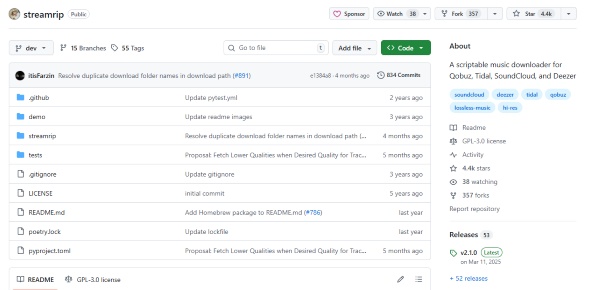
Streamrip operates as a robust, open-source command-line utility tailored for audiophiles who want to curate local, offline music libraries. Hosted primarily on GitHub, this script specializes in extracting high-fidelity audio directly from streaming platforms. It strictly focuses on music extraction, natively supporting services including Qobuz, Tidal, Deezer, and SoundCloud.
You can command the script to download entire libraries systematically while preserving important metadata and album artwork. Furthermore, while Streamrip cannot pull audio directly from Spotify's or Apple Music's servers, its Last.fm integration provides a practical workaround. By importing your playlists to Last.fm, the script can use that data to identify and download the corresponding high-quality tracks from your connected Qobuz, Tidal, or Deezer accounts.
Pros
-
 Versatile downloading for tracks, albums, playlists, discographies
-
Free and open-source
-
Supports Spotify/Apple Music playlist importing via Last.fm
Cons
-
 Strictly command-line operation
-
Requires active Qobuz or Tidal premium accounts
-
Complex setup requires Python and FFmpeg
A Beginner-Friendly Shortcut for Music Downloading:
Streamrip's powerful downloading capabilities come with a fairly steep learning curve. It relies entirely on command-line operations and requires you to manually set up Python and FFmpeg on your computer. If you want to skip the complex setup and prefer the faster and easier way to build your personal offline music library, DRmare Streaming Audio Recorder functions as a visual downloading tool, helping you easily extract lossless music with intuitive clicks.
What Files Can You Download on Streamrip
When it comes to audio formats, Streamrip provides excellent flexibility depending on the maximum quality offered by your chosen source platform. You can natively pull lossless FLAC files, which range from standard CD quality (16-bit/44.1 kHz) up to High-Res audio (24-bit/96 kHz). The tool also supports standard MP3 and AAC formats at both 320 kbps and 128 kbps to save on hard drive space.
Beyond just the raw audio files, Streamrip excels at building a complete, highly organized offline music library. It automatically fetches and embeds essential data into your downloaded files.
- Rich Metadata: The script embeds crisp album artwork, artist tags, and release years directly into the audio files.
- Format Conversion: Thanks to its built-in FFmpeg integration, if your desired format (such as ALAC for Apple devices) isn't natively available from the source, Streamrip can automatically convert the audio on the fly.
- Bulk Archives: You are not limited to single tracks; the script can rip entire discographies, curated playlists, or complete record label catalogs in a single command.
Note:
Keep in mind that the final file quality is strictly dictated by your connected account. A standard SoundCloud link will only yield a basic MP3 or OGG file, whereas an active, premium Qobuz or Tidal HiFi subscription is the prerequisite to unlocking those lossless FLAC downloads.
Part 2. Is Streamrip Safe to Use
It is completely natural to worry about whether Streamrip is safe to install and run on your personal computers. Generally speaking, it is considered highly safe by the developer community.
Software Security
From a purely technical standpoint, the software is considered highly safe by the developer community. Because the core code is entirely open-source and hosted publicly on the official Streamrip GitHub repository, it is constantly under the microscope. Independent developers and tech-savvy users frequently audit the scripts to ensure there is no hidden malware, spyware, or malicious tracking involved.
Account Safety
Streaming actively monitors their networks for unusual data scraping behavior. If you generate massive traffic spikes, these automated security systems will quickly flag your activity as unnatural. Consequently, you face a real risk of having your premium subscription temporarily suspended or even permanently terminated.
Is Streamrip Legit
Generally, downloading tracks strictly for personal, offline listening is rarely prosecuted. But distributing online or using it for commercial purposes crosses the line into direct copyright infringement. Always ensure you are using the tool strictly for building your personal, private offline library.
Part 3. How to Install Streamrip on Your Computer
Now that you understand Streamrip, it is time to get Streamrip running on your device. Because this utility lacks a traditional graphical installer, setting it up requires a little bit of technical maneuvering. The exact setup process differs slightly depending on whether you are using Windows or macOS. Just follow the specific steps to have your download environment set up in no time, and you can also check the Streamrip on GitHub for more information.
Real Test Tips:
Streamrip's Tidal compatibility can vary as the platform changes its authentication or API behavior. During our testing, a 401 Unauthorized error may indicate a compatibility issue rather than a local setup problem. If this occurs, check that you're using the latest Streamrip version and review recent project issues before troubleshooting your account.
On Windows
Step 1. Install Python. Download the latest version from the official Python website. During installation, you must check the box "Add Python to PATH"; otherwise, your computer won't recognize the commands in the next steps.
Step 2. Install FFmpeg. This is essential for converting and saving files. The easiest way is to download the "essentials" build from, extract it, and add its 'bin' folder to your system's Environment Variables.
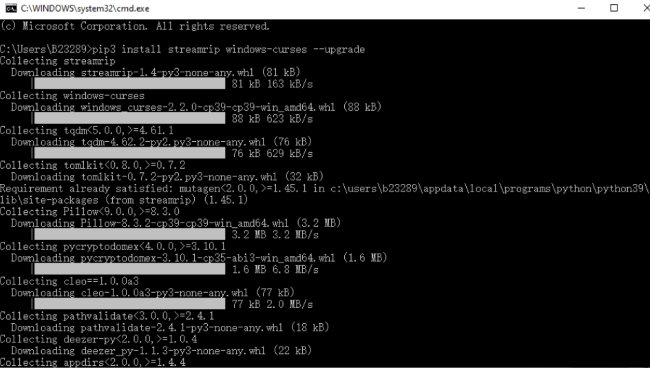
Step 3. Run the Installation Command. Open your Command Prompt (CMD) and enter the following command:

On macOS
Step 1. Setup Homebrew. Open your Terminal. If you haven't installed Homebrew yet, paste the official installation script from brew.sh into your terminal. This makes managing technical tools much simpler.
Step 2. Install Dependencies. Run the following command to install both Python and FFmpeg simultaneously:
Step 3. Install Streamrip. Once the dependencies are ready, execute this command in your Terminal:
Part 4. How to Use Streamrip to Download Music
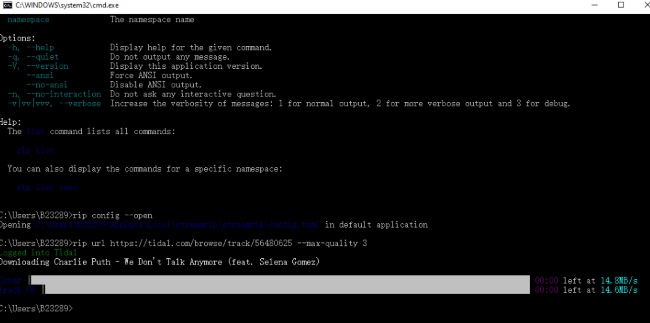
Once installed, Streamrip operates entirely through command-line instructions. You only need to master a handful of commands to download your favorite high-res tracks. The rip url command is the heart of this tool. It is intelligent enough to distinguish between a single song, a complete album, or an artist's entire catalog based on the link you provide.
Download Tracks or Albums:
Grabbing your favorite music is as easy as pasting a link. Once you provide the URL, Streamrip will automatically download the best audio file that your streaming account allows.
If you need the music in a specific format for your phone or MP3 player, Streamrip can instantly convert files while they download with its built-in FFmpeg integration. To automatically convert any track into a standard MP3, use this modified command:
Using Last.fm for Spotify and Apple Music
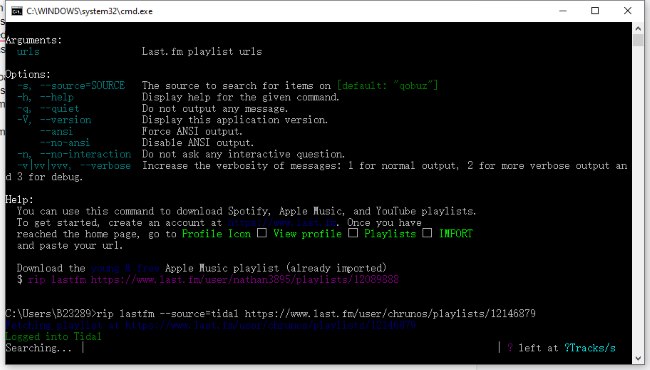
Direct downloads from Spotify and Apple Music are impossible for Streamrip due to their heavy DRM encryption. To solve this, the tool relies on a clever "search and match" tactic. It fetches your playlist data through Last.fm, using those track and artist names to find and download identical high-quality audio files from other supported streaming services.
Step 1. Import your Spotify/Apple Music playlist to your Last.fm account.
Step 2. Run the command: rip lastfm [Your Last.fm Playlist URL].
Step 3. Streamrip will scan the playlist and automatically find the corresponding high-quality files on Qobuz or Tidal to download them for you.
Part 5. A Beginner-Friendly Alternative to Streamrip
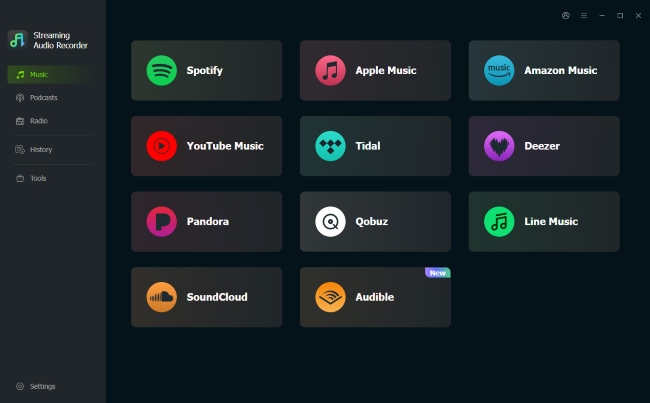
For many music lovers, the constant API updates and the dreaded "authorization failed" errors make maintaining command-line tools exhausting. If you're tired of configuring Python, you need a straightforward desktop solution, and the best alternative is DRmare Streaming Audio Recorder.
- Easy Operation: DRmare provides a clean, intuitive graphical interface, and you just click the "Convert" button to download your favorite tracks without complex commands or third-party dependencies.
- Multi-Platform Support: Instead of the complicated Last.fm workarounds required by Streamrip, DRmare natively supports directly extracting audio from 10 streaming services includes Spotify, Apple Music, YouTube Music, Tidal, Deezer, SoundCloud, Amazon Music, etc.
- Flexible Track Selection: DRmare allows you to handpick exactly which tracks you want to download, and it automatically embeds the correct ID3 tags, including the artist name, album title, and cover art.
- Multiple Output Formats: Whether you need lossless FLAC and WAV files or standard MP3, M4A, and AAC formats, DRmare handles it all natively. You can switch between formats via a simple dropdown menu, eliminating the need to type complex codec commands.
How to Download Music Easily with DRmare
Step 1. Dinstall and launch DRmare on your computer. Before converting tracks, you can control your output settings for better listening. Head straight to the "Settings"and locate the "Music" tab. Select the output format and you can also easily adjust the bit rate and sample rate to perfectly match your hardware capabilities.
Step 2. Click on the icon for your preferred platform, such as Qobuz and Tidal. This action launches an integrated web player where you can safely log in to your account, bypassing the frustrating errors on Streamrip like tidal authorization failed.
Step 3. When you locate the exact files you want to download, simply click the "+" (Add) icon hovering on the screen. A new window will pop up that allows you to review your selection. Then click "Add to list" to queue them up.
Step 4. Click the "Convert" button located at the bottom. DRmare will instantly process your queued tracks at high speeds, converting it into your chosen local format. Once finished, navigate to the "History" tab to find your organized music library for offline playback.
Part 6. Wrap up
| Feature | Streamrip | DRmare Streaming Audio Recorder |
|---|---|---|
| Interface Style | Command-line Tool | Desktop Music Downloader |
| Platform Support | Natively supports Qobuz, Tidal, Deezer | Natively supports 10+ platforms (Spotify, Apple Music, etc.) |
| Ease of Use | Steep learning curve; requires Python & FFmpeg | 100% User-friendly |
| Price | Completely free | Paid with free trial available |
| Output Formats | MP3, FLAC | FLAC, WAV, MP3, AIFF, M4A, M4B |
| Batch Downloading | √ | √ |
| Metadata Preserved | √ | √ |
If you are highly tech-savvy with a premium Qobuz or Tidal HiFi subscription, Streamrip is an incredibly powerful tool for downloading tracks. While if you want to skip the complex setups and avoid the dreaded errors, DRmare is undeniably the superior choice. By offering a stable, visual interface to download lossless music from multiple platforms and play your high-res audio collection.

 Home
Home





User Comments
Leave a Comment