





 "The SoundCloud app keeps crashing, and I have no idea what to do. I've already cleared the cache, my phone is working fine, and the app is fully updated, but it still won't stop crashing."
—From Reddit
It is incredibly frustrating when the SoundCloud app keeps crashing right in the middle of your favorite tracks. This kind of constant disruption completely ruins the listening experience and creates unnecessary frustration. This guide breaks down exactly why SoundCloud keeps crashing and walks you through the most effective solutions to get your audio streaming running smoothly again. Whether you are troubleshooting on a mobile device, a computer, or your Xbox console, this guide has exactly what you need to resolve the issue.
Part 1. Why Does SoundCloud Keep Crashing
When your favorite playlist abruptly stops, your first thought is usually "Why does my SoundCloud keep crashing?" Before jumping into solutions, it's important to understand exactly what is going wrong behind the scenes. App crashes rarely happen without a reason, whether it's outdated software or temporary system conflicts. Identifying the cause will make it much easier to apply the right fix and prevent the issue from happening again.
1. Outdated App or Browser Version
Running an outdated version of the SoundCloud app, your web browser, or even your device's operating system can lead to instability. Older versions may contain unresolved bugs or compatibility issues with newer web technologies. Keeping everything updated is one of the simplest yet most overlooked fixes.
2. Buggy App Updates
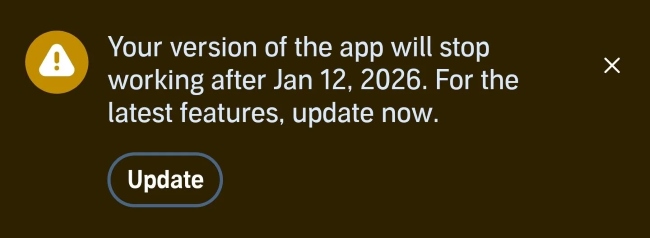
Occasionally, a newly released update may introduce temporary glitches. If crashes started immediately after updating SoundCloud, the issue may be software-related and require a future patch.
3. Corrupted Cache or App Data
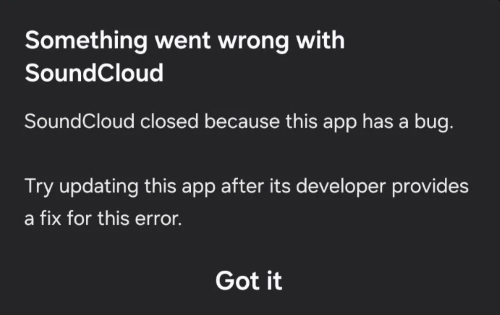
Over time, temporary files stored by the app can become corrupted. Instead of improving performance, damaged cache data can trigger freezing, random shutdowns, or repeated crashes on SoundCloud.
4. Insufficient Storage or Memory
SoundCloud requires available RAM and storage space to function properly. If your device is low on storage or running too many apps simultaneously, it may struggle to keep SoundCloud active. When system resources are stretched too thin, the operating system may force-close apps to maintain performance.
5. Browser Extensions Interference
If you're using SoundCloud in a browser, certain extensions, especially outdated or poorly optimized ones, can interfere with website scripts. Ad blockers, download helpers, or privacy plugins are common culprits behind unexpected SoundCloud crashes.
6. Unstable or Switching Network Connection
A weak or fluctuating internet connection, such as switching between Wi-Fi and mobile data, can interrupt streaming. While this doesn't always cause a full crash, it can make the app freeze or become unresponsive.
Part 2. Fix SoundCloud Keeps Crashing on iPhone/Android
When your SoundCloud music cuts out on a mobile device, the problem usually stems from software updates, cache data, or network instability. Most of these issues can be resolved directly from your phone's settings. Below are the most effective methods to stabilize the SoundCloud app on both iPhone and Android.
Force Close and Restart the Soundcloud App
Sometimes the simplest solution is the most effective. If your music won't play or the interface suddenly freezes, manually shutting down the application can clear minor background errors.
For iPhone:
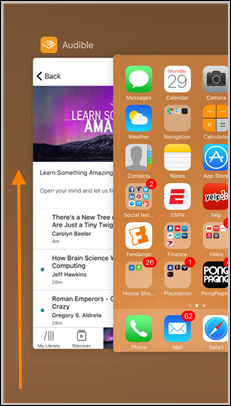
Step 1. Swipe up from the bottom edge of your screen to open the background app switcher.
Step 2. Find the application preview card and swipe it upward and off the screen to close it completely.
For Android:
Step 1. Swipe up from the bottom of your screen and hold for a moment to view your recently used applications.
Step 2. Swipe the application upward, or simply tap the "Clear all" button to terminate all active background processes.
Perform a Hard Device Reboot
If a simple force quit doesn't stop SoundCloud from crashing, a hard reset can clear the temporary system cache and restart the device, which often stops persistent background crashes.
For iPhone:
Step 1. Quickly press and release the Volume Up button, followed immediately by the Volume Down button.
Step 2. Press and hold the side Power button until the screen goes black and the Apple logo appears.
For Android:
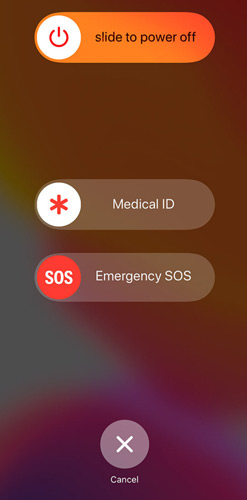
Step 1. Press and hold the physical Power button on the side of your device until the power menu appears.
Step 2. Tap the "Restart" option on your touchscreen to initiate a full system reboot.
Update the SoundCloud App
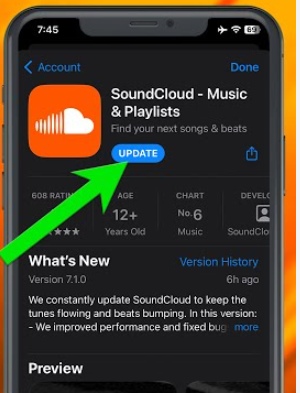
Developers regularly push out patches specifically designed to resolve widespread bugs. Installing the latest SoundCloud release from your app store is usually the fastest way to fix SoundCloud keeps crashing.
For iPhone:
Step 1. Open the App Store on your home screen and tap your profile icon in the top right corner.
Step 2. Scroll down to view pending updates, locate the app, and tap the "Update" button next to it.

For Android:
Step 1. Launch the Google Play Store and tap your circular profile picture at the top right.
Step 2. Navigate to "Manage apps & devices", check for available updates, and install the newest version.
Reinstall the SoundCloud App
If core app files have become deeply corrupted over time, standard software updates might not be enough to override the damage. Reinstalling the SoundCloud app provides a completely clean slate and removes any hidden errors.
Note:
Reinstalling the app will erase locally stored data, and you'll need to re-download any tracks previously saved for offline listening. To avoid losing access to important tracks, it's a good idea to back up your SoundCloud downloads in advance with tools like DRmare Streaming Audio Recorder in Part 5.
For iPhone:
Step 1. Long-press the application icon on your home screen until a menu pops up, then select "Remove App."
Step 2. Tap "Delete App" to confirm the uninstallation, then head back to the App Store to download it fresh.
For Android:
Step 1. Open the Google Play Store, search for the application, and open its store page.
Step 2. Tap "Uninstall" to remove it from your device, wait a moment, and then tap "Install" to bring it back.
Upgrade iOS/Android Operating System
Sometimes the issue isn't the music player itself, but rather an outdated mobile operating system struggling to support newer software frameworks. Keeping your iOS or Android software current ensures maximum compatibility and prevents system-level crashes.
For iPhone:
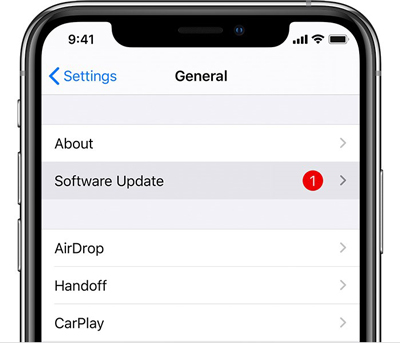
Step 1. Navigate to your device "Settings", then tap the "General" menu option.
Step 2. Select "Software Update" and follow the on-screen prompts to install any available upgrades.
For Android:
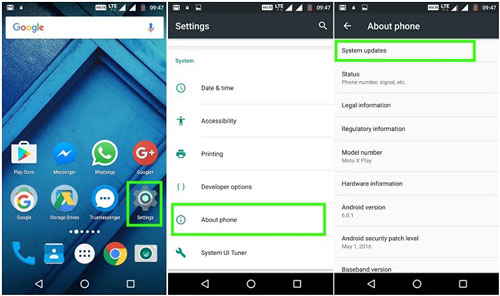
Step 1. Open your device Settings and scroll down until you find the "System" menu.
Step 2. Tap "System Update" to check Google's servers and install the latest software version for your phone.
Clear Accumulated Cache Data
Cached data is meant to speed up loading times by storing temporary images and scripts locally. However, when these temporary files degrade, they cause severe instability on SoundCloud.
For iPhone:
Because iOS lacks a dedicated button to clear app cache, you must completely delete the application from your device. Follow the reinstallation steps detailed earlier to rebuild a fresh, uncorrupted data cache.
For Android:
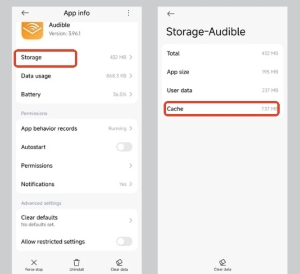
Step 1. Go to your phone Settings, tap "Apps," and select the application from your list.
Step 2. Tap "Storage & cache," then select "Clear cache." Avoid pressing "Clear data" unless you are fully prepared to log back into your account.
Stabilize Your Internet Connection
A weak or constantly fluctuating network can easily cause media streams to hang, creating the illusion of a full SoundCloud crash. When your phone constantly toggles between a weak Wi-Fi router and a cellular tower, the app can freeze while trying to buffer the audio.
For iPhone:
Step 1. Open your Settings and disable Wi-Fi entirely. Switch over to your cellular data, maintaining a steady, uninterrupted stream.
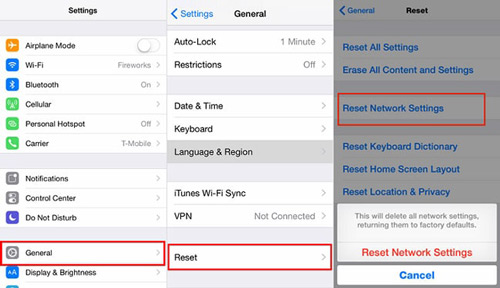
Step 2. If connection issues persist, navigate to Settings, select "General," and scroll down to "Reset," then choose "Reset Network Settings" to wipe away any hidden configuration glitches causing the dropouts.
For Android:
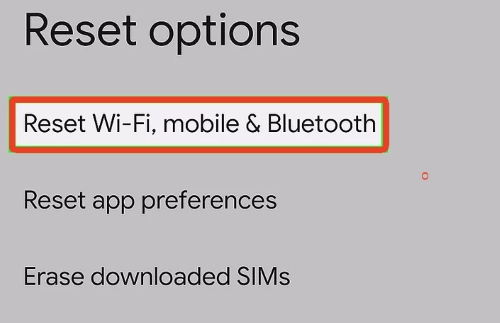
Step 1. Go to your device Settings, navigate to the "System" menu, and tap on "Reset options."
Step 2. Choose "Reset Wi-Fi, mobile & Bluetooth." This will clear out any faulty underlying network configurations that might be interrupting your audio stream.
Fix SoundCloud Keeps Crashing on CarPlay/Android Auto
Vehicle integration systems have their own unique quirks and memory limitations. If your music cuts out specifically when driving, the connection between your phone and the car's dashboard interface likely needs to be refreshed or reconfigured.
For iPhone (CarPlay):
Step 1. Force-quit SoundCloud on your phone, and ensure your iPhone screen remains unlocked when you press play on the dashboard screen.
Step 2. If the SoundCloud app keeps crashing, go to your iPhone's Bluetooth settings, select "Forget This Device" for your car, and re-pair the connection.
For Android (Android Auto):
Step 1. Navigate to "Settings> Apps", select "Android Auto", and clear both the storage and cache data.
Step 2. Check your phone's battery settings and ensure that any strict battery optimization or background limits for your music apps are completely disabled while driving.
Part 3. Fix SoundCloud Crashing on Web Browser
When you are streaming music from a desktop computer, the problem usually lies within the web browser rather than a standalone app. Here are the most effective ways to stabilize your desktop listening experience.
Update to the Latest Browser
Web players rely heavily on modern coding frameworks to stream high-quality audio continuously. If you are running an outdated version of browsers, you are likely missing essential compatibility patches needed to process these streams. Keeping your web browser current is a highly effective way to avoid SoundCloud crashing.
For Chrome and Edge:
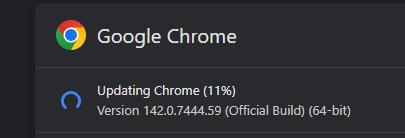
Step 1. Open your browser and click the menu icon located in the top-right corner of the window. Navigate to "Help" or "Help and feedback", then select "About Google Chrome" or "About Microsoft Edge".
Step 2. Allow the application a moment to automatically check for and download any pending files, then click the "Relaunch" or "Restart" button to apply the new version.
For Safari (macOS):
Step 1. Click the Apple logo in the top-left corner of your screen and open "System Settings." Navigate to the "General" tab, then click on "Software Update."
Step 2. Allow your Mac to check Apple's servers, then install the latest macOS version to simultaneously upgrade Safari to its newest release.
Reset Your Browser
A reset of your entire browser application can quickly clear these minor system hiccups. It gives your computer's RAM a moment to breathe and resets the active connection.
Step 1. On a Mac, press "Command-Option-Escape". On a Windows PC, press "Ctrl-Shift-Esc" to open your system's Task Manager.
Step 2. Locate your web browser in the list of active applications and select the option to forcefully close or "End Task." Then open the browser again, load a fresh tab, and try playing your music.
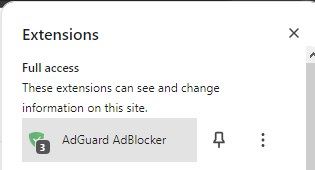
Identify and Disable Conflicting Extensions
Third-party add-ons often misidentify SoundCloud's background audio scripts as intrusive tracking codes and block them entirely, causing the site architecture to fail.
Step 1. Access your browser's extension manager and temporarily toggle all active add-ons to the "off" position, including SoundCloud Ad Blockers.
Step 2. Refresh the music player to see if the crashing stops. If it does, this confirms an extension is to blame.
Step 3. Turn your extensions back on one at a time, testing the audio after each, until you find the culprit. Once identified, add the website to that specific extension's safe list or whitelist.
Delete Browser Cache and Cookies
When the cached files become corrupted or outdated, they can easily cause media-heavy web apps to freeze on launch.
Step 1. In Chrome, click the three-dot menu icon, hover over "More Tools," and select "Clear browsing data." (For Edge or Firefox, locate the "Privacy" or "History" settings menu.)
Step 2. Check the boxes for cookies and cached images, then choose your desired time range and confirm the deletion. This process will likely require you to log back into your accounts.
Turn Off Hardware Acceleration
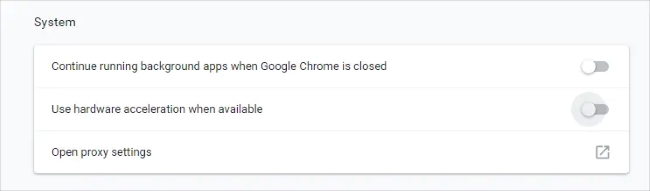
Hardware acceleration usually speeds up page rendering. However, if your device's graphics drivers are slightly outdated or incompatible, this feature can backfire and crash SoundCloud media players. Disabling it forces the browser to rely solely on your CPU, which often stabilizes audio streaming immediately.
Step 1. Open your browser's main settings menu, enter the "System" section to look for "hardware acceleration".
Step 2. Toggle the switch to disable the feature completely. Restart your browser so the system changes can take effect before loading up your playlist again.
Part 4. How to Fix SoundCloud Crashing on Xbox
Gamers frequently report that their background tracks from SoundCloud abruptly cut off mid-game. It is enough to drive you crazy: "Why does my SoundCloud keep crashing on Xbox?" Although the developers haven't rolled out a definitive software update to eliminate these glitches just yet, the gaming community has tested and proven several dependable tricks to keep your SoundCloud on Xbox running smoothly.

Reinstall and Check for System Updates
A completely clean installation combined with a system software patch is your best defense against recurring bugs. Removing the SoundCloud app ensures no deeply corrupted files are left behind.
Step 1. Uninstall the music player from your game library, then go to "Settings", select "System," and click on "Updates" to ensure your console's operating system is entirely current.
Step 2. Once you have verified the system is fully updated, open the Microsoft Store and download a fresh copy of the application.
Execute a Full Power Cycle
Performing a hard reset is the most effective way to clear out a congested system cache on your console. Unlike putting the system into rest mode, a full power cycle completely forces the operating system to boot up cleanly.
Step 1. Press and hold the physical power button on the front of your console for roughly 10 seconds until the machine shuts down entirely.
Step 2. Unplug the power cable from the back of the device and wait for at least three minutes to allow the internal power supply to drain. Then you can plug the console back in, turn it on, and attempt to launch the application again.
Erase Local App Data
If the SoundCloud repeatedly crashes, wiping the local save state gives the software a fresh start without affecting your cloud-based account data or saved playlists.
Step 1. Navigate to the "My Games & Apps" menu from your main Xbox dashboard and highlight the SoundCloud tile.
Step 2. Press the "Menu" button and select "Manage app". Go to the saved data section and delete the reserved space to effectively wipe the local cache.
Modify Audio Output Settings
Sometimes, the SoundCloud crashing stems from a direct conflict between the application's audio processing and the console's high-end surround sound configurations. Process a simpler audio format can drastically improve SoundCloud's stability.
Step 1. Open your main Xbox "Settings" menu and navigate to the "General" tab, then select "Volume & audio output."
Step 2. Change your primary headset or speaker audio format to "Stereo uncompressed". If the app still struggles, try toggling the "Mono output" setting on.
Part 5. Bonus Tips: Prevent SoundCloud from Crashing Again
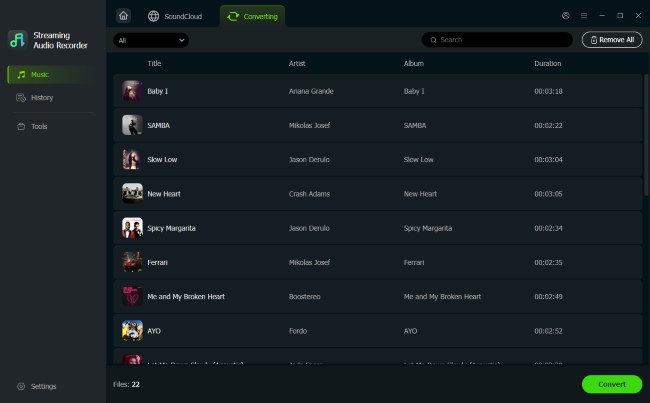
If you are tired of troubleshooting SoundCloud crashing constantly, the most foolproof way is to download the playlists from SoundCloud for uninterrupted playback. Using DRmare Streaming Audio Recorder to keep your favorite tracks and DJ mixes directly to your computer as stable lossless audio files. Furthermore, you can effortlessly transfer your music to your phone or Xbox for flawless offline listening. Building your own local library guarantees that your SoundCloud tracks will play smoothly on any device, completely eliminating the risk of the SoundCloud app crashing.
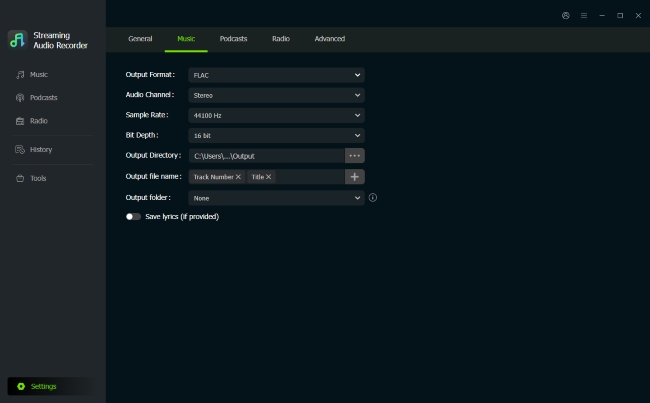
Step 1. Launch the DRmare software on your computer and open the "Settings" > "Music" from the menu to select an output format to convert SoundCloud to FLAC or MP3. This guarantees your music will maintain its high quality when you transfer it to the specific device where your SoundCloud keeps crashing. Once your audio preferences are locked in, click SoundCloud on the main screen and sign in to your account using the software's built-in browser interface.
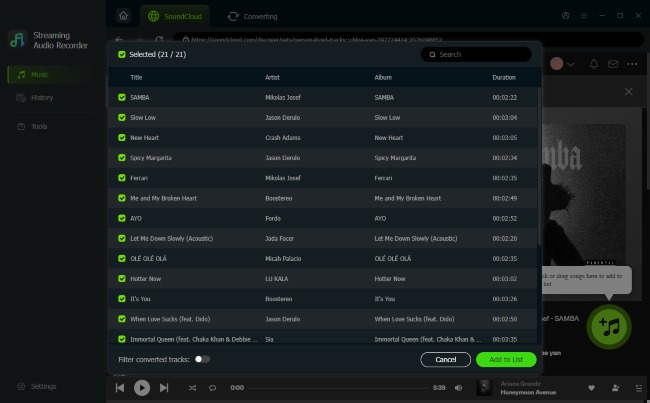
Step 2. Locate the specific DJ sets or favorite tracks that usually get interrupted by random SoundCloud app crashing. Simply click the "Add" and "Add to List" icons to import them into your download queue, effectively bypassing the unstable streaming servers entirely.
Step 3. Click the "Convert" button to securely save the audio tracks directly to your local hard drive. When the process finishes, you will find your files safely stored in the "History" tab, giving you a permanent offline SoundCloud music collection that will never stop playing or force-close on you again.
Part 6. Final Thoughts
Dealing with a SoundCloud app that keeps crashing can easily ruin your vibe, but there is always a reliable fix. Whether it happens on an iPhone, Android, web browser, or Xbox console, the troubleshooting methods outlined above will quickly restore your playback. If you want to bypass the unpredictability entirely, building a local offline library with the DRmare Streaming Audio Recorder is your best long-term solution, which guarantees a seamless listening experience across all of your devices.

 Home
Home





User Comments
Leave a Comment