





Apple Music crashing unexpectedly can be frustrating, especially when the app closes every few seconds, freezes while playing songs, or crashes when opening a playlist. The issue can happen on iPhone, iPad, Mac, Android devices, and Windows PCs, often after a system update, library sync problem, or when accessing a specific playlist.
A common example comes from a Reddit user in r/AppleMusic who reported that Apple Music started crashing immediately after creating a playlist. The app would open for only a few seconds before closing again. The user had already tried restarting the iPhone, offloading the app, reinstalling Apple Music, and turning Sync Library off and on, but the crashes continued.
This type of problem shows that Apple Music crashes are not always caused by simple issues like storage or outdated apps. In many cases, the cause is related to corrupted library data, a problematic playlist, or a synchronization problem. In this guide, we will explain why Apple Music keeps crashing and show practical fixes for iPhone, iPad, Mac, Android, and Windows users.
Quick Fixes: Try These First When Apple Music Keeps Crashing
Before trying advanced troubleshooting, start with these common solutions:
-
Restart your device and reopen Apple Music
-
Update your operating system and Apple Music app
-
Check whether a specific playlist or song causes the crash
-
Refresh Sync Library
-
Remove and reinstall Apple Music if the app continues closing
If Apple Music crashes only when opening one playlist, the problem is likely related to that playlist or synced library data rather than your device.
Part 1. Why Does My Apple Music Keep Crashing/Freezing?
Apple Music keeps crashing mainly because of software bugs, corrupted library data, sync issues, insufficient storage, bugs introduced after system updates. The problem can happen when opening playlists, playing specific songs, or syncing your Apple Music library.
1. A Bug After an iOS, macOS, or App Update
Major system updates can sometimes introduce compatibility problems. For example, some users experience Apple Music crashing after updating iOS or macOS because the app needs to rebuild its database or sync local music information again.
Symptoms include:
- Apple Music closes immediately after opening
- The app crashes when loading the library
- Songs stop playing after a few seconds
- Playlists fail to open
Updating to the latest available system version often resolves these temporary bugs.
2. A Specific Song or Playlist Is Causing the Crash
Sometimes Apple Music itself is not the problem. A single track, downloaded song, or playlist can trigger repeated crashes.
Common signs:
- Apple Music works normally until opening one playlist
- The app crashes when playing a specific song
- Downloaded songs fail while streaming works
3. Corrupted Sync Library Data
Sync Library allows Apple Music to keep your playlists, saved songs, and music collection synchronized across devices. However, if the synced database contains corrupted information, Apple Music may repeatedly crash.
This often happens when:
- A playlist contains problematic tracks
- A sync process is interrupted
- Music metadata becomes inconsistent between devices
The Reddit case mentioned earlier is a typical example: the crash started after creating a playlist, suggesting that the playlist or library database may have triggered the problem. Removing the problematic playlist or redownloading affected songs can often solve this issue.
4. Insufficient Storage or Device Resources
Apple Music requires available storage for:
- Downloaded songs
- Cached artwork
- Library synchronization
- Temporary playback files
Low storage may cause freezing, slow loading, or crashes, especially on older devices.
5. Network and Account Sync Problems
Apple Music depends on network access for streaming and library synchronization. A weak connection or account authentication issue can sometimes cause unexpected app behavior.
Part 2. How to Fix Apple Music Keeps Crashing on iPhone, Mac, Android, Windows 11
After figuring out the reasons, let's see how to fix Apple Music keeps crashing on all devices, including iPhone, iPad, Android phones, Mac, and Windows PC.
Fix 1. Restart Apple Music and Your Device
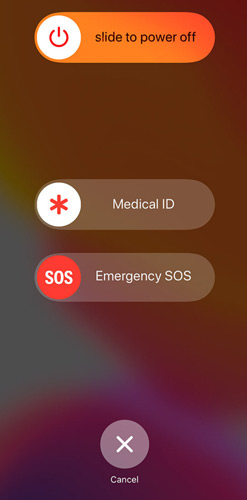
A simple restart can resolve temporary memory issues and background processes that may cause Apple Music to crash. Close your Music app and turn off your device, wait a few moments, and turn it back on.
iPhone/iPad/Android: Close Apple Music from the app switcher, hold down the power button and select Restart or power off.
Mac: Click the Apple logo in the top-left corner and select Restart.
PC: Click the Start menu, select the power icon, and choose Restart.
Fix 2. Update Apple Music and Your Device Software
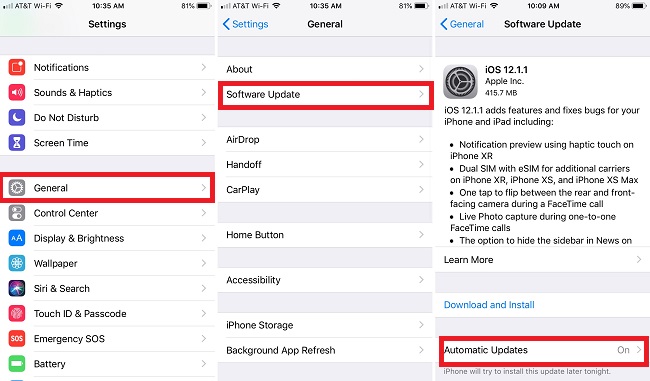
An outdated version of Apple Music or operating system of your device can cause compatibility issues and frequent crashes. Make sure both of them are up-to-date:
iPhone/iPad: iOS 26
Go to Settings > General > Software Update. Download and install any available updates.
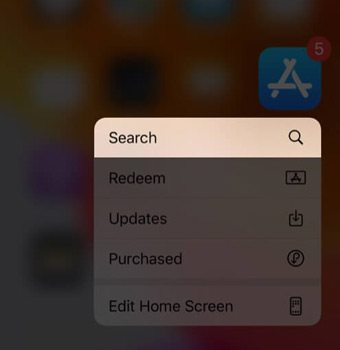
Open the App Store, search for "Apple Music," and check if an update is available. Tap Update if it appears.
Android: Android 17
Go to Settings > About phone > Software Updates to check for any updates.
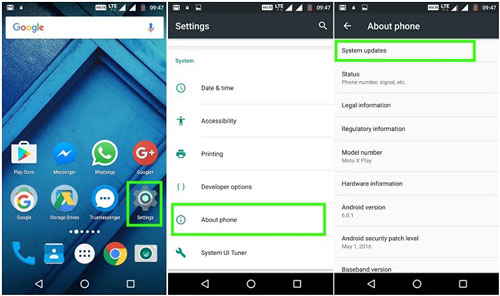
Go to the Google Play Store, search for "Apple Music," and update the app.
Mac: macOS 26
Go to System Preferences > Software Update and choose Update Now.
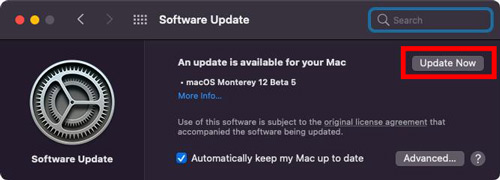
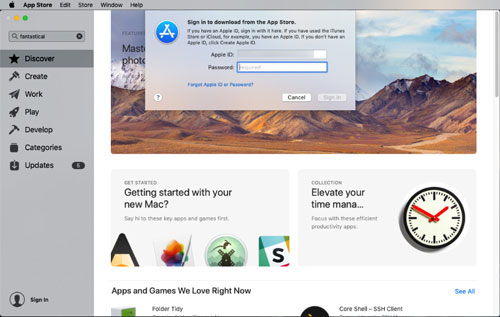
Open the App Store, search for Apple Music, or use Software Update if Apple Music is integrated into the system (macOS Music app).
PC: Windows 11
Open the Settings app, then go to Update & Security > Windows Update to check for updates.
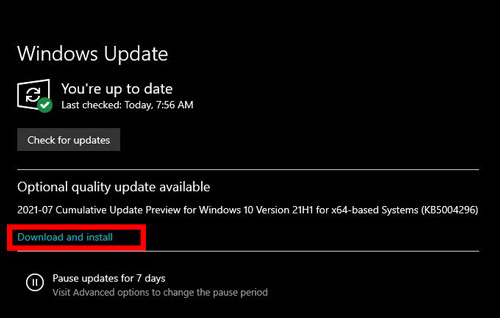
Visit the Microsoft Store to see the latest version of the Music app.
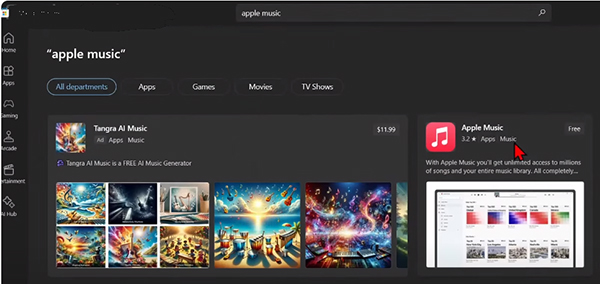
Fix 3. Check Whether a Specific Playlist or Song Causes the Crash
This is one of the most overlooked fixes. If Apple Music crashes after opening a certain playlist, you can:
- Try opening another playlist.
- Search for the problematic song manually.
- Remove downloaded copies that crash.
- Download the Apple Music song again.
If the app works normally afterward, the issue was likely caused by corrupted playlist or track data.
Fix 4. Turn Sync Library Off and On Again
If Apple Music crashes when playing songs due to syncing issues, you can try refreshing Sync Library to see if it resolves the problem.
iPhone/iPad:
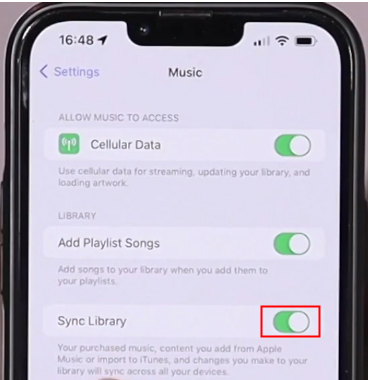
- Go to Settings > Music, and toggle off Sync Library on Apple Music.
- Restart the device, then turn Sync Library back on after some time.
Mac:
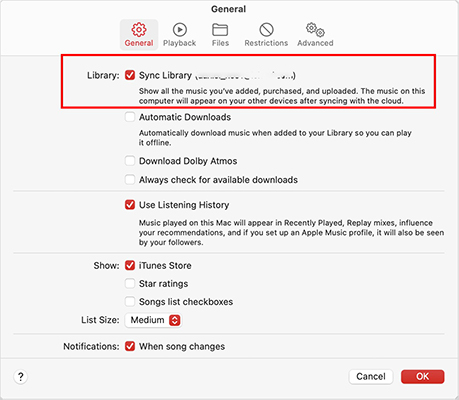
- Open the Music app, go to Preferences, and uncheck Sync Library under the General tab.
- Restart your Mac and then re-enable Sync Library.
Note:
Your Apple Music library stored in the cloud will remain available, but downloaded songs may need to sync again.
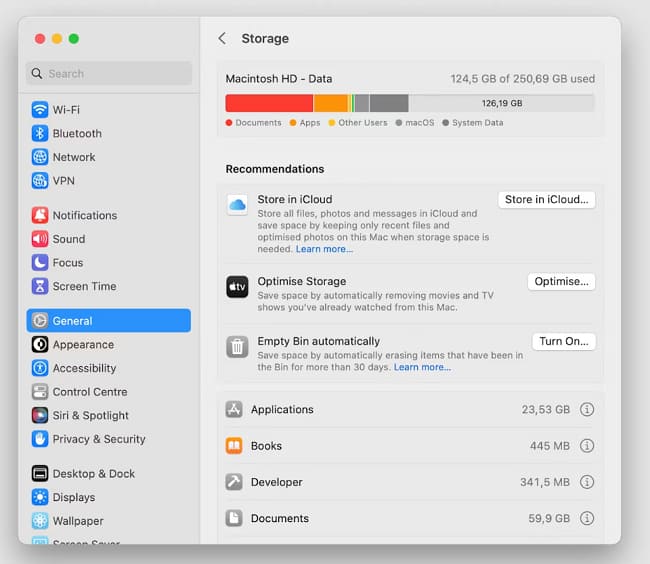
Fix 5. Free Up Storage Space
Apple Music might crash if your device is low on storage, especially when streaming or downloading songs. Free up space by deleting unnecessary apps, photos, or videos.
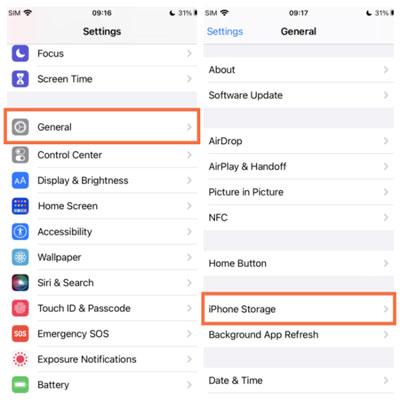
iPhone/iPad: Go to Settings > General > iPhone/iPad Storage to manage space by removing unnecessary videos, apps, and downloaded files.
Android: Go to Settings > Storage to see what's taking up space.
Mac/PC: Use the system storage manager to free up space.
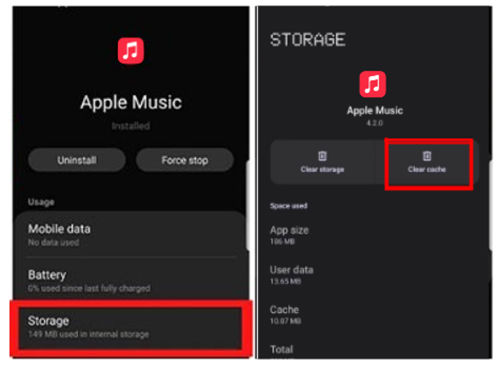
Fix 6. Clear Apple Music Cache (Android)
If Apple Music keeps crashing on Android devices, clearing the cache without deleting the Apple Music account can help fix this issue.
- Go to Settings > Apps > Apple Music > Storage.
- Tap Clear Cache. This won't delete your music but can resolve app performance problems.
Note:
iPhone and iPad do not provide a direct "clear cache" option for Apple Music. Reinstalling the app or resetting related settings is usually the workaround.
Fix 7. Reinstall the Apple Music App
If Apple Music keeps freezing or closing immediately, reinstalling the app can refresh damaged application files.
iPhone/iPad: Press and hold the Apple Music app icon, select Remove App, and then reinstall from the App Store.
Android: Go to Settings > Apps > Apple Music, tap Uninstall, and reinstall from the Google Play Store.
Windows 11: Uninstall Music from the Control Panel and reinstall it from the Microsoft Store.
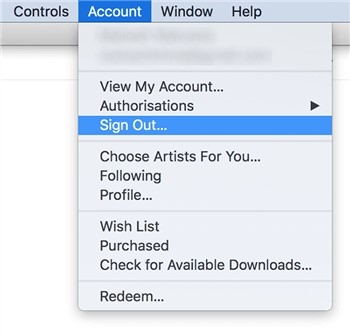
Fix 8. Sign Out and Sign Back Into Your Apple Account
Sometimes, simply signing out of your Apple Music account and signing back in can fix authentication problems causing the app to crash.
iPhone/iPad/Android: Go to Settings > [Your Name] > Sign Out. Wait a moment, then sign back in with your Apple Account.
Mac/PC: Open Apple Music, click Account > Sign Out, and then sign back in.
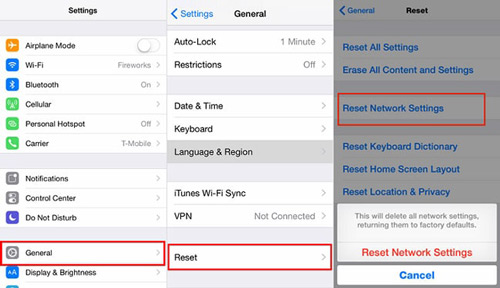
Fix 9. Reset Network Settings
If Apple Music crashes while loading songs or syncing your library, network configuration may be involved. Switch between Wi-Fi and mobile data if necessary, or try connecting to a different Wi-Fi network.
- Go to Settings > Wi-Fi and ensure you're connected to a strong network.
- If Wi-Fi is weak, switch to Mobile Data under Settings > Cellular.
Tips:
You can also go to the Settings and click the General > Transfer or Rest iPhone > Reset > Reset Network Settings to reset your network connection. Note: It removes saved Wi-Fi passwords.
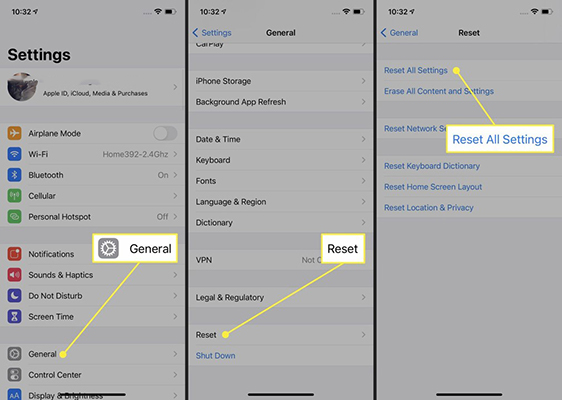
10. Reset All Settings on iPhone
If none of the above fixes work, resetting all settings can eliminate any underlying configuration issues.
- Go to Settings > General > Reset > Reset All Settings.
- This will restore system settings to default without deleting any data, but it can fix misconfigurations.
Part 3. My Troubleshooting Test: Apple Music Playlist Crash Scenario
To understand common Apple Music crash behavior, the following scenarios are worth testing:
| Test Scenario | Possible Result |
|---|---|
| Open large playlists | May trigger library loading issues |
| Play downloaded songs offline | Can reveal corrupted downloads |
| Disable Sync Library | Helps identify sync-related crashes |
| Remove one problematic playlist | Can confirm playlist corruption |
| Reinstall app | Refreshes damaged app files |
If Apple Music crashes only in one situation, avoid resetting the entire device. The issue is usually related to that specific feature or data.
How to Prevent Apple Music From Crashing Again
To reduce future crashes:
- Keep iOS, macOS, Android, and Windows updated
- Avoid keeping extremely large unused playlists
- Regularly remove failed downloads
- Keep enough free storage space
- Avoid interrupting library synchronization
For users who want an additional personal backup of their music collection, you can use DRmare Apple Music Converter to convert Apple Music into common formats such as MP3, FLAC, or WAV. It provides offline playback options without relying entirely on the Apple Music app.
Part 4. FAQ About Apple Music Crashing
Why does Apple Music keep crashing on my iPhone?
Apple Music usually crashes because of software bugs, corrupted Sync Library data, problematic playlists, outdated software, or storage issues.
Why does Apple Music crash when opening a playlist?
A specific playlist may contain corrupted song data or synchronization problems. Try removing the playlist or rebuilding it to see if the crash stops.
Will reinstalling Apple Music delete my songs?
Reinstalling the app does not delete your Apple Music library, but offline downloaded songs may need to be downloaded again.
Why is Apple Music crashing after an iOS update?
Major iOS updates can temporarily affect app compatibility. Updating to the latest patch and refreshing Sync Library often fixes these problems.
Part 5. Final Thoughts
Apple Music crashing can happen for many reasons, but most cases are related to software bugs, library synchronization problems, or corrupted playlist data. Start with simple fixes like restarting the app, updating software, and checking problematic playlists before trying advanced solutions.
If Apple Music continues crashing after all troubleshooting steps, the issue may require Apple Support assistance, especially if the problem is tied to your account or cloud music library.

 Home
Home





User Comments
Leave a Comment