





SoundCloud is a popular music streaming platform with millions of tracks across all genres. However, audio quality can vary greatly between uploads, leading to highly inconsistent audio fidelity. You may want to enhance your SoundCloud listening experience with an equalizer, which balances the sound and ensures each track plays at its best, tailored to your preferences.
In this guide, you'll learn how to get and use SoundCloud equalizers, play your music with any equalizer, and explore the top 7 SoundCloud EQ tools. You'll also find practical tips for adjusting equalizer settings on SoundCloud to achieve the best sound quality for any genre or device.
Part 1. Does SoundCloud Have an Equalizer
No, SoundCloud does not have a built-in equalizer in its app or web player. Unlike Spotify, which offers its own equalizer, SoundCloud relies on your device or third-party tools for sound customization. As a result, you can't adjust EQ settings directly within SoundCloud itself. However, improving SoundCloud's audio is still easy. In the sections below, we'll introduce three practical methods to get equalizers for SoundCloud.
Part 2. How to Use an Equalizer on SoundCloud
Since SoundCloud doesn't include its own equalizer, the best way to adjust the sound is by using an external SoundCloud EQ. Depending on the device you're listening on, you can enhance SoundCloud audio through a built-in system equalizer, a browser equalizer extension, or a dedicated equalizer app. Each option offers a different level of control and flexibility to meet your needs.
The Built-in SoundCloud Equalizer (Android)
Before downloading external applications, you should explore the native audio capabilities already present on your smartphone. Many Android devices, particularly Samsung models, feature a built-in equalizer seamlessly integrated into the operating system. This native tool allows you to instantly fine-tune your SoundCloud streaming quality. You can easily bypass the need for extra downloads and save precious device storage.
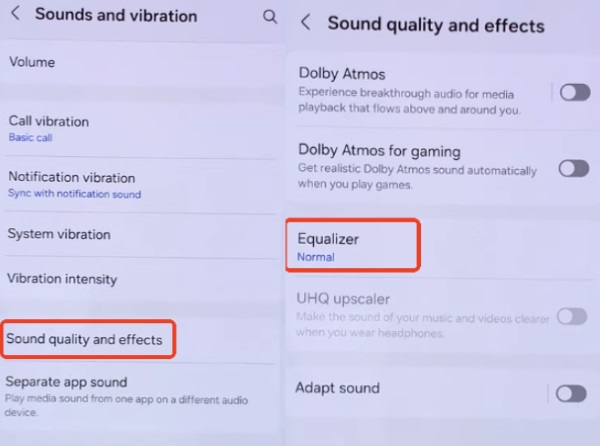
Step 1. Open the Settings app or tap the gear icon from your drop-down menu. Navigate to "Sounds and vibration", then select "Sound quality and effects" to reach the audio controls.
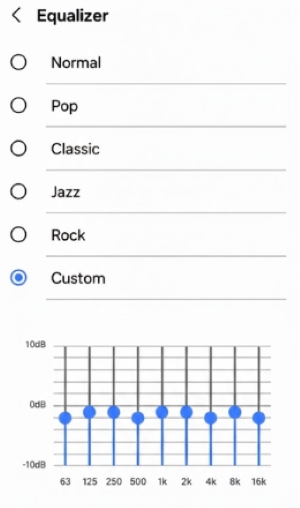
Step 2. Tap "Equalizer" to view the frequency bands. Play a SoundCloud track and experiment with the genre presets or adjust the custom sliders to find your perfect sound.
Note:
Unfortunately, you can't adjust the SoundCloud equalizer directly on an iPhone. iOS's built-in EQ only applies to Apple Music, not to other apps. To change the sound system-wide for SoundCloud, you need a dedicated equalizer for SoundCloud, like Bass Booster Volume Boost EQ.
Chrome Equalizer Extension for SoundCloud (Web)
If you used to listening to SoundCloud on a computer, using a Chrome equalizer extension is a quick and convenient way to fine-tune the audio. Audio Equalizer is a solid pick that works well with SoundCloud and other streaming sites, letting you tweak the SoundCloud music easily without any complicated setup.
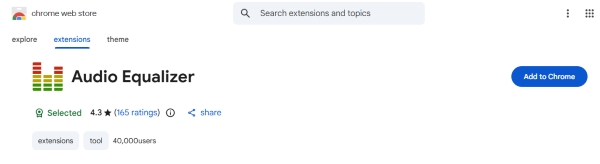
Step 1. Open Google Chrome and search for Audio Equalizer, then click "Add to Chrome" to install the extension.
Step 2. Go to SoundCloud and start playing a track. Click the Audio Equalizer icon in the browser toolbar to open it, and adjust the EQ settings in real time while the SoundCloud music is playing.
SoundCloud Equalizer App (Windows/Mac/Android/iOS)
For more precise audio control and richer sound than the built-in equalizer and browser extensions, a dedicated and universal equalizer is the best choice. Boom 3D is one such app for SoundCloud that is compatible with Windows, Mac, Android, and iPhone. It delivers immersive 3D surround sound and customizable intensity settings, allowing you to personalize your SoundCloud listening experience.
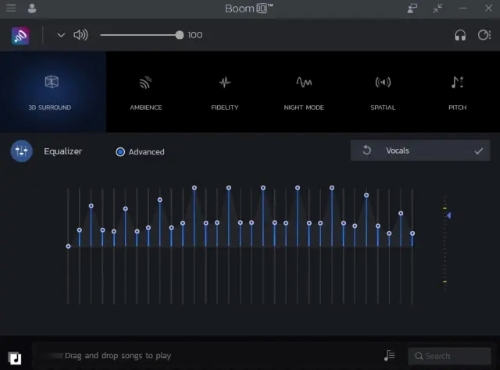
Step 1. Install Boom 3D on your devices, then open the application to complete the initial setup.
Step 2. Activate the Boom effects and pick a ready-made EQ preset or adjust the sliders to create your own custom sound profile.
Step 3. Launch SoundCloud and play tracks on your computer, then you can experience the improved audio instantly with enhanced clarity, deeper bass, and immersive 3D effects.
Part 3. Top 6 Best SoundCloud Equalizers for Android/ iOS/ PC/ Mac
Now that you know how to use system, browser, and app-based equalizers for SoundCloud, let's explore some of the best tools available. The following section highlights the top 7 best SoundCloud equalizers for Android, iOS, PC, and Mac, making it easy to enhance your listening experience no matter which device you use.
| Equalizer Name | Device Compatibility | Price | Key Features |
|---|---|---|---|
| Poweramp Equalizer | Android, iOS | Freemium | System-wide audio, custom multi-bands, advanced preamp. |
| VLC Media Player | Android, iOS, Windows, Mac | Free | Built-in EQ, classic presets, cross-platform compatibility. |
| Equalizer APO | Windows | Free | System-wide low latency, multi-channel support, highly customizable filters. |
| VOX Player | iOS, macOS | Freemium | 30 audio presets, native SoundCloud integration. |
| Equalizer+ | iOS | Free / Paid | 7-band EQ, independent bass boost, local audio optimization. |
| eqMac | macOS | Freemium | Mac system-wide control, basic/advanced modes, intuitive interface. |
1. Poweramp Equalizer (Android)
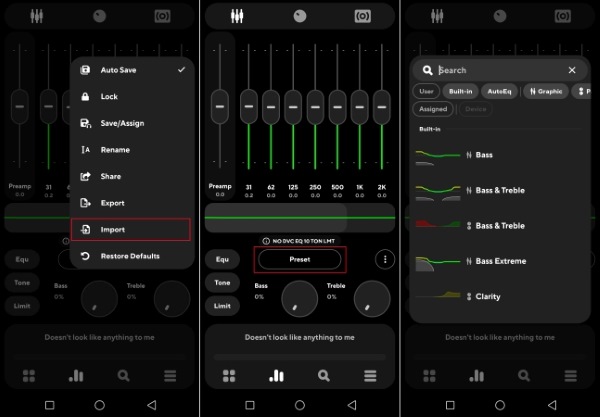
Poweramp Equalizer is a versatile EQ app available for both Android and iOS. This app works across your device's system sound, letting you tweak EQ settings, bass, and treble. It also offers advanced features like customizable bands, built-in presets, and preamp control, so you can shape the SoundCloud music exactly how you like.
Step 1. Search for Poweramp Equalizer on the Google Play Store and complete the installation on your device.
Step 2. Open the app and activate its audio enhancement features so they can affect all system sound, including SoundCloud playback.
Step 3. Launch SoundCloud, play a track you like, and experiment with the EQ sliders and other settings until the sound matches your preference.
2. VLC Media Player (Android/iOS/Windows/Mac)
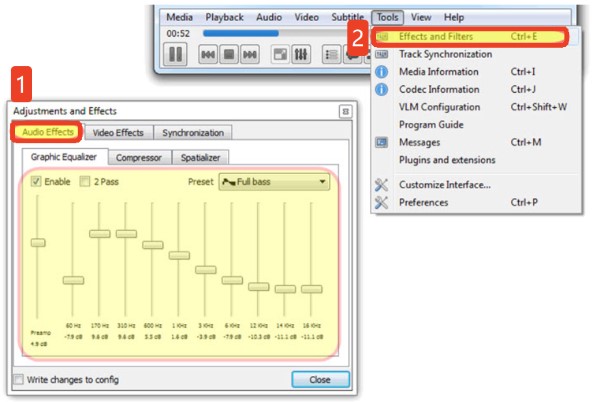
VLC Media Player is a free and cross-platform media player available on Windows, Mac, Android, and iOS. It comes with a built-in equalizer that lets you shape the sound during playback by boosting or reducing specific frequency ranges, such as bass, mids, and treble. With these controls, you can tailor the audio to your preferences.
Step 1. Install VLC Media Player on your computer or mobile device, then import your downloaded SoundCloud tracks into VLC's library or create a new playlist for playback.
Step 2. While a track is playing, open "Tools > Effects and Filters", switch to "Audio Effects", and turn on the "Equalizer". You can quickly apply a preset like Bass Boost, or adjust the sliders manually and save your own EQ settings for future listening.
3. Equalizer APO (Windows)
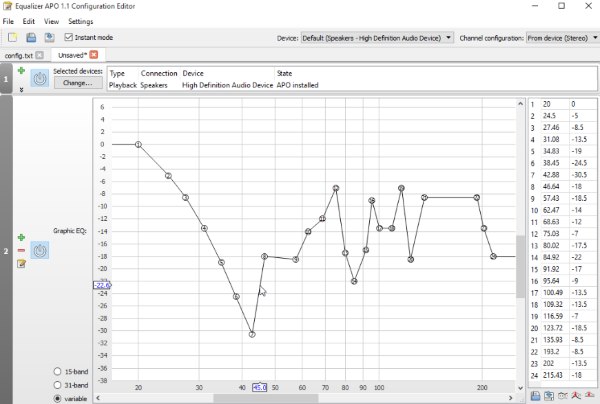
Equalizer APO is a free, lightweight parametric and graphic equalizer for Windows that works system-wide, making it perfect for improving SoundCloud audio. It supports multiple channels, low latency, and customizable filters like bass boost, high-shelf, and peak adjustments for precise SoundCloud EQ tuning.
Step 1. Download Equalizer APO and run the installer on your Windows PC.
Step 2. Pick the audio output you want the EQ to affect and complete the installation with a system restart.
Step 3. Launch the Configuration Editor to set up filters and adjust frequencies to shape the sound you like. Once ready, just open SoundCloud and your EQ settings will be applied automatically.
4. Vox Player (iOS/Mac)
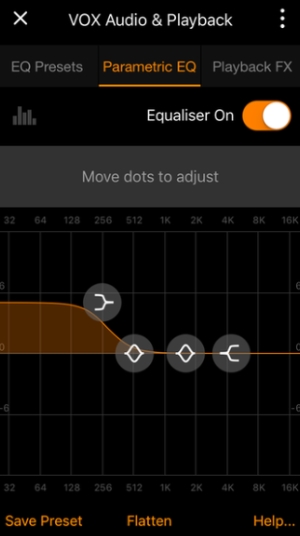
VOX Player is a practical audio player and equalizer option for iOS and macOS users. It combines a parametric equalizer with 30 presets, bass booster, and advanced playback effects like crossfade and tempo adjustment, making it easy to tailor SoundCloud tracks to different styles and devices. With built-in SoundCloud streaming, AirPlay, and CarPlay support, VOX fits seamlessly into everyday listening, making VOX a flexible and high-end EQ solution for SoundCloud fans.
Step 1. Download and install Vox Player, then sign in to your SoundCloud account within the app.
Step 2. Choose a SoundCloud track to play, then head to "Settings", choose "Equalizer & Audio Settings" to adjust the EQ for SoundCloud, and listen with VOX's high-quality sound enhancements enabled.
5. Equalizer+ (iOS)
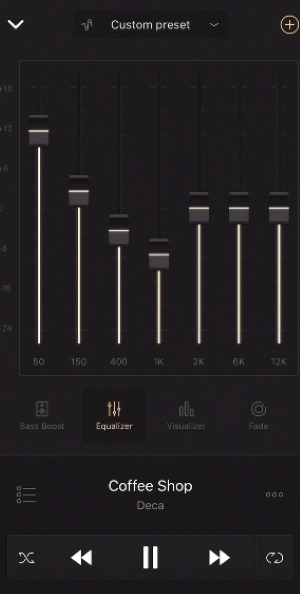
Equalizer+ is a popular SoundCloud equalizer for iPhone that combines a 7-band EQ, bass enhancement, and ready-made presets. Its standout feature is direct SoundCloud integration, which lets you stream SoundCloud playlists and fine-tune the sound in real time—no downloads required. With both free and premium options available, it's an easy way to shape SoundCloud playback to match your listening preferences.
Step 1. Download Equalizer+ on your iPhone and launch the app. Then sign in to your SoundCloud account to access your tracks.
Step 2. While SoundCloud music is playing, explore the EQ panel and fine-shape the sound to get the best equalizer effect for SoundCloud.
6. eqMac (Mac)
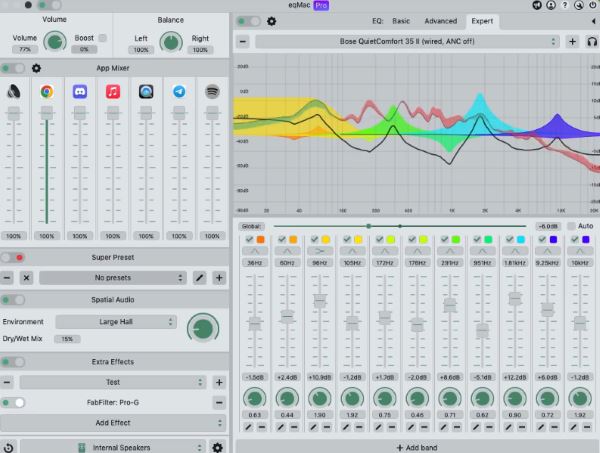
eqMac is a powerful equalizer for Mac that works across all apps, making it easy to improve SoundCloud audio. It offers advanced features such as customizable EQ presets, adjustable frequency curves, and volume boosting, giving you flexible control over your SoundCloud listening experience.
Step 1. Download and install eqMac on your Mac, then open the app and follow the quick setup guide.
Step 2. Start playing SoundCloud tracks, and click the eqMac icon in the menu bar to tweak EQ settings and shape the sound to your preference. Then you can enjoy enhanced audio with your customized SoundCloud EQ settings.
Part 4. Play SoundCloud Music with Any Equalizer App
Since most equalizer apps and media players work only with local files, if you want to access SoundCloud EQ on any device, a reliable solution is to save tracks locally first. DRmare Streaming Audio Recorder lets you download SoundCloud songs in FLAC and other formats like MP3, WAV, and AIFF, preserving all ID3 tags and metadata. Once saved, you can play these tracks through any equalizer app or system-wide EQ on Android, iOS, Windows, or Mac, giving full control over bass, mids, treble, and overall sound while keeping playlists intact for offline listening.
- Step 1Configure Output Settings For SoundCloud
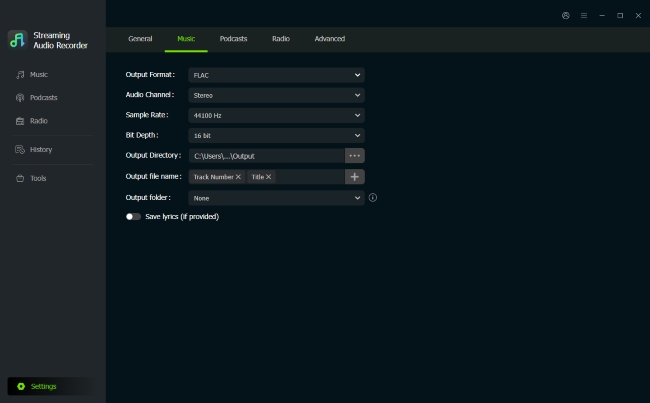
Before downloading SoundCloud tracks, open DRmare and choose "Settings" from the menu list and click "Music". Choose your preferred audio format, including MP3, FLAC, WAV, M4A, AIFF, and M4B. You can also adjust quality and channels to match your listening needs.
- Step 2Import SoundCloud Tracks to DRmare
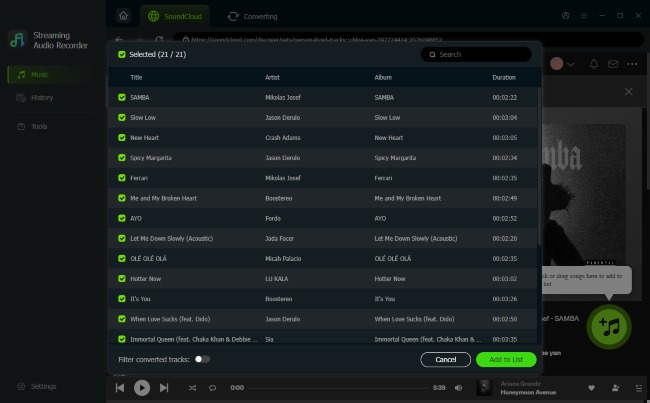
Log in to your SoundCloud account and access your playlists and tracks. Navigate to your favorite playlists in the SoundCloud web player. Use the green "Add" button on the right-lower corner, and tap "Add to List" to import SoundCloud songs. This ensures all your selected tracks from SoundCloud are ready for download and play on the equalizer.
- Step 3Download SoundCloud Music for Equalizer Use
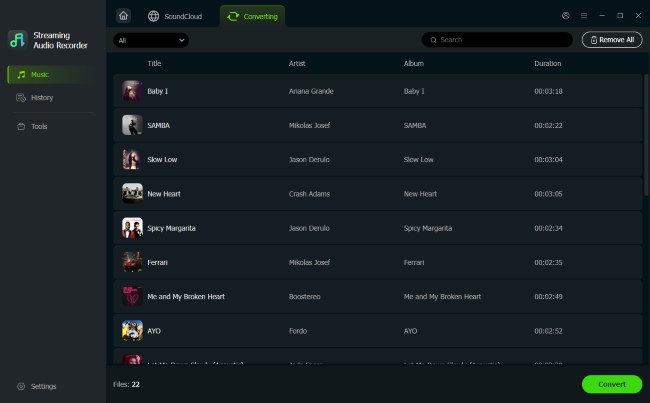
Click "Convert" to save the tracks as local audio files. Once finished, locate your downloaded SoundCloud songs under the "History" option or in your chosen folder. These files are now ready for use with any SoundCloud equalizer app.
- Step 4Play and Customize SoundCloud Songs with Any Equalizer
With your tracks saved locally, you can use them with any SoundCloud equalizer on mobile or desktop. Adjust SoundCloud EQ settings to your preference—bass, mids, treble, or full presets, and enjoy a personalized, high-quality SoundCloud audio experience.
Part 5. What Equalizer Settings Work Best for SoundCloud Playback
To get the best playback quality on SoundCloud, you should change the SoundCloud equalizer settings gently and based on the type of music you're listening to. With subtle tuning, the right EQ can noticeably improve clarity, balance, and listening comfort on SoundCloud.
General EQ Settings for SoundCloud
- Start flat: Reset the EQ to neutral before making changes so you can hear what actually needs improvement.
- Boost bass lightly (60–120 Hz): This adds depth and punch, but avoid heavy boosts to prevent distortion.
- Reduce muddy mids (250–500 Hz): Lowering this range slightly can make vocals and instruments sound clearer.
- Enhance presence (2–4 kHz): A small boost helps vocals and lead instruments stand out.
- Add clarity in the highs (8–12 kHz): Slight adjustments here improve brightness and detail without sounding harsh.
Adjust EQ by Music Type
- Hip-hop / EDM: Emphasize low bass and sub-bass, keep mids balanced.
- Pop / Rock: Boost vocals slightly and maintain tight bass control.
- Acoustic / Podcasts: Focus on mids and highs for natural voices and clear detail.
Tips:
For the best SoundCloud equalizer results, it's important to make small EQ adjustments (around ±2–3 dB) rather than large boosts. Additionally, test your EQ settings on SoundCloud with different tracks and save separate SoundCloud EQ presets for various devices or music genres to optimize your listening experience.
Part 6. Summary
Finding the right equalizer instantly elevates your SoundCloud experience. Whether using on mobile or on desktop, fine-tuning audio makes a massive difference. Pair these with DRmare Streaming Audio Recorder for flawless offline playback. And you can pick up these tools to unlock your perfect personalized sound.

 Home
Home





User Comments
Leave a Comment