





 How to download only the specific songs I want rather than full albums from Spotify?
--community.spotify.com
Sometimes you just want to download one single song from Spotify, maybe it's a brand-new release or a track you can't stop replaying. However, Spotify's download limitations can be confusing, and you may be curious about how to save a single track from Spotify locally. This guide will show you how to keep individual songs from Spotify on both mobile and desktop in official way, as well as how to download Spotify singles directly as audio files, even without a Premium subscription.
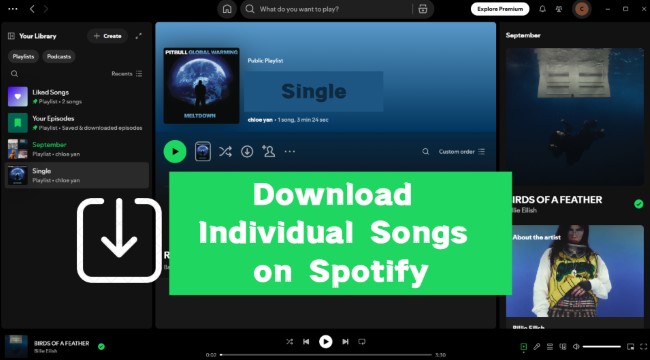
Part 1. Can You Download Individual Songs on Spotify?
Before jumping into the steps, it's important to understand the tracks download rules of Spotify. Indeed, individual song downloads aren't supported on Spotify, and there is no direct "Download" button for single songs. Instead, it only allows you to download playlists, albums, and podcasts, so you have to download an entire playlist rather than a single track from Spotify. But there are still alternative ways to download individual songs on Spotify. If you're a Spotify Premium user, you can save music for offline listening by adding your favorite singles to a playlist. You can also use a Spotify downloader to save your individual songs directly as audio files without Premium in Part 3.
Part 2. How to Download Single Tracks from Spotify (via Playlist)
Since Spotify doesn't support downloading single songs directly, the easiest workaround is to use a playlist and download it with premium. You need to first create a playlist with the individual tracks you want and then download the whole playlist. Next, we'll walk you through exactly how to download a single song from Spotify on both mobile and desktop with a premium subscription.
Save Spotify Individual Songs on iPhone/Android
Let's walk through the steps to download a Spotify single song on your mobile app.
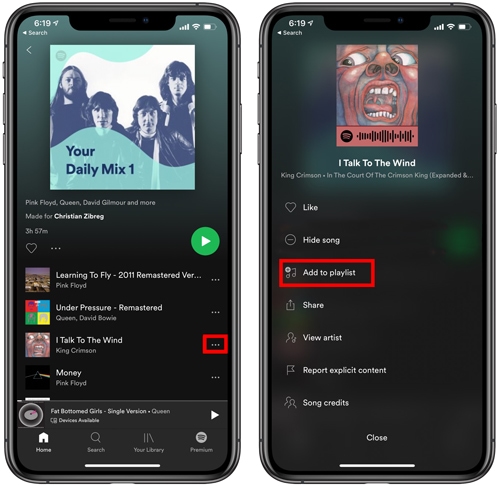
Step 1. Open your Spotify app and locate the single track you want to download.
Step 2. Then click the "Menu" icon with three dots on the right of the song and tap "Add to Playlist" from the pop-up list. Choose a name for your new playlist and then hit "Create".
Step 3. Open the new playlist you just made on "Your Library", then press the "Download" button and enjoy your favorite individual songs on Spotify.
Download a Single Song from Spotify on Desktop
If you're using Spotify on your computer, the steps are just as simple and work similarly to those on your phone.
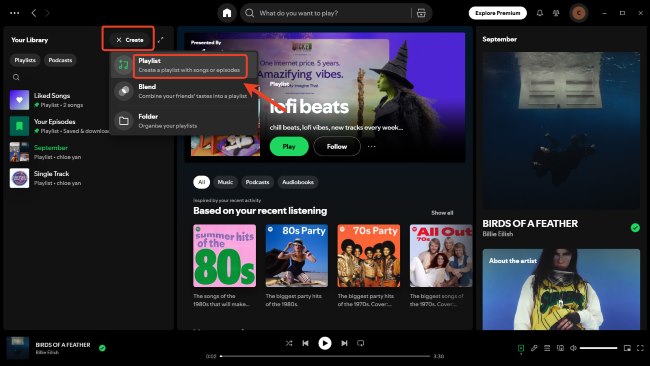
Step 1. Launch the Spotify desktop app. In the left sidebar, click the plus button (+) next to "Your Library" and select "Create"> "Playlist". Give it a name for the single song you want to save from Spotify.
Step 2. Search for your favorite song and right-click on it. tap "Add to Playlist" and choose the playlist you just created. This adds the single track to your new playlist.
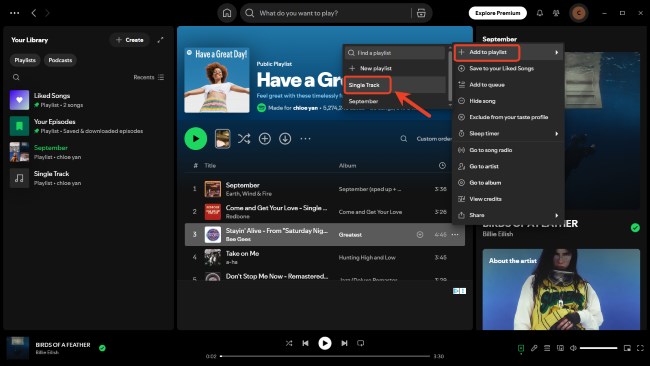
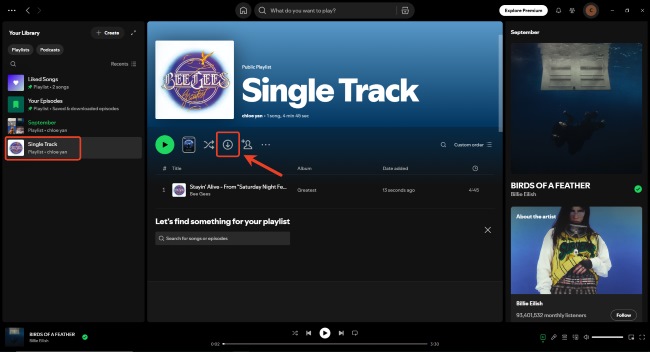
Step 3. Go to the playlist in "Your Library" and tap the "Download" button. Once the download is complete, your individual song will be available offline on your desktop.
Tips:
You can also use the "Liked Songs" playlist to save your Spotify singles. Just tap the heart icon on any single track to add it to your "Liked Songs", then you need to enable auto-download for your liked songs on the "Settings" toolbar. This way, your favorite individual songs will be saved offline automatically.
Part 3. How to Download Single Songs on Spotify Separately (Not Full Playlist)
Though you can keep single songs on Spotify with a Premium subscription, these downloads are only available within the Spotify app and can't be moved, shared, or played outside of Spotify. Don't worry, you can still download a single song on Spotify directly using the Spotify downloader tool DRmare Spotify Music Converter, without needing to add it to a playlist manually.
With DRmare Spotify Music Converter, you can easily download songs from Spotify without a Premium account. DRmare can convert your Spotify individual tracks into multiple audio files like MP3, FLAC, WAV, etc., while keeping the original sound quality and ID3 tags. Then you can play your favorite Spotify singles offline anywhere without relying on the Spotify app.
- Step 1Add Spotify Single Songs for Conversion
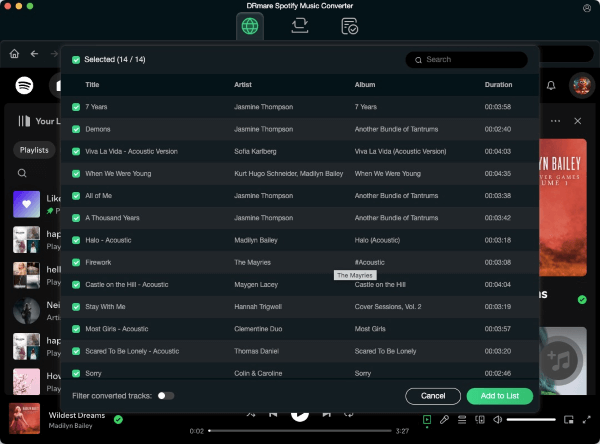
Once installed DRmare Spotify Music Converter on your computer, open it and you'll see Spotify's built-in web player on the main screen. Log in to your Spotify account and find the individual tracks you want to save. Then drag them directly to the green Music "Add" button in the bottom-right corner, then click "Add to List" for conversion. This makes it easy to download individual songs from Spotify without having to create playlists manually.
- Step 2Change Output Formats for Spotify Individual Songs
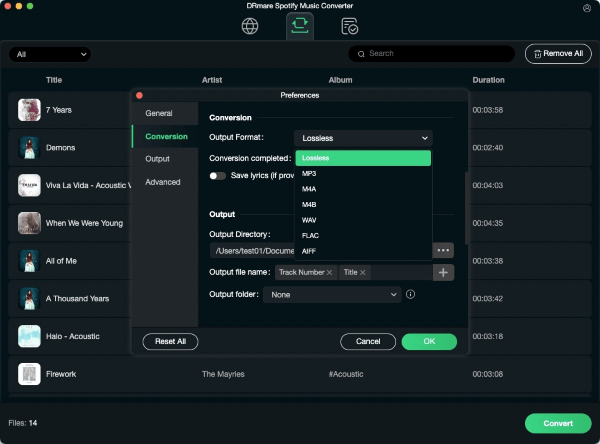
After add Spotify to DRmare, you need to set up your output preferences. Click the Menu in the top-right corner, then go to "Preferences" > "Conversion". Here, you can select your preferred audio format and adjust settings like bitrate. Configuring these options ensures that your downloaded single songs play smoothly on any device.
- Step 3Download Individual Tracks from Spotify
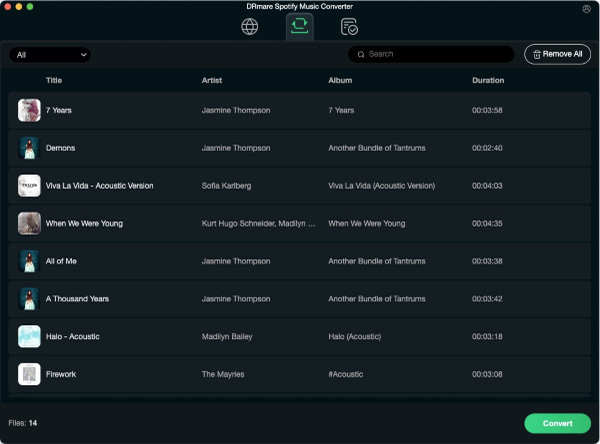
Click the "Convert" button once your tracks are loaded, and your single tracks will be downloaded by DRmare at speeds up to 15×. After the conversion is complete, go to the "Converted" section to access your locally saved files. These downloaded individual songs from Spotify are now fully offline, so you can enjoy your music anytime, anywhere.
Part 4. Conclusion
To download single tracks from Spotify, you can either use playlists with a Premium account or use a tool like DRmare Spotify Music Converter to save single songs from Spotify directly to your device. These solutions make it easy to enjoy your Spotify singles anytime, anywhere.

 Home
Home





User Comments
Leave a Comment