





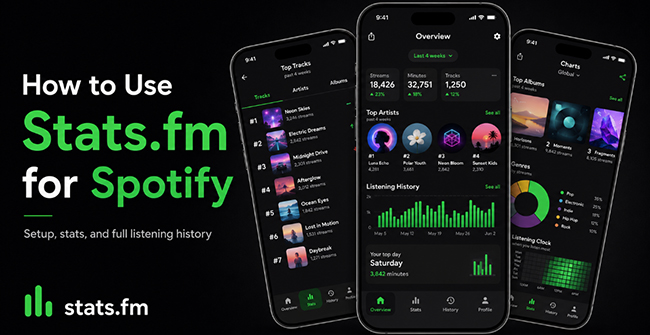
Stats.fm for Spotify breaks the annual limits of Spotify Wrapped to provide real-time listening statistics. It includes top tracks, artists, listening trends, recent streams, and, after importing your history, more detailed play counts and listening time.
Getting started is easy, but there is one detail that often confuses new users: connecting Spotify to Stats.fm is not the same as importing your complete Spotify listening history. This guide explains how to use Stats.fm for Spotify from basic Stats.fm setup to importing your full Spotify listening data and fix common tracking problems.

Part 1. How Does Stats.fm Work With Spotify?
Stats.fm is a third-party music statistics app that connects to your Spotify account and organizes your listening activity into a more detailed dashboard. There are essentially two levels of Spotify data that Stats.fm can work with. A normal connection is enough to start exploring your top music, while an Extended Streaming History import is needed for more complete lifetime statistics and count-based analysis.
| Goal | Required Action | Data Source |
|---|---|---|
| View recent streams and top artists | Basic authorization connection | Spotify Official API |
| Unlock exact play counts and listening time | Import deep historical data | Official data export (Plus required) |
| Custom timeframes and advanced rankings | Import deep historical data | Official data export (Plus required) |
Stats.fm Free vs. Plus: What's the Difference?
The current Stats.fm plan page lists the following major differences between Stats.fm free and Plus:
| Feature | Stats.fm Free | Stats.fm Plus |
|---|---|---|
| Top tracks | Up to 50 | Expanded |
| Top artists | Up to 50 | Expanded |
| Top albums | Not included in current Free listing | Available |
| Import Spotify history | No | Yes |
| Play counts after import | No | Yes |
| Listening clocks | No | Yes |
| Advanced sorting | No | Yes |
| Custom timeframes | No | Yes |
| Ads | Yes | Removed |
Part 2. How to Connect Stats.fm to Spotify
If your goal is simply to see your Spotify stats, you can start without requesting and downloading any data files first. The initial connection only takes a few steps.
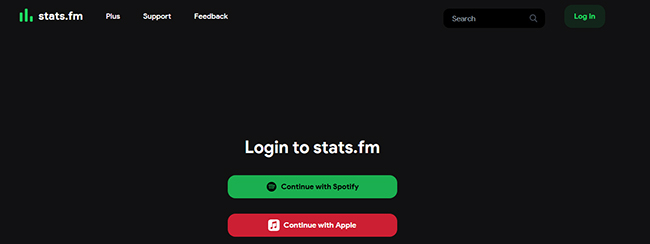
Step 1. Install Stats.fm on your phone or open its web version. Click Log in and Continue with Spotify to connect the Spotify account.
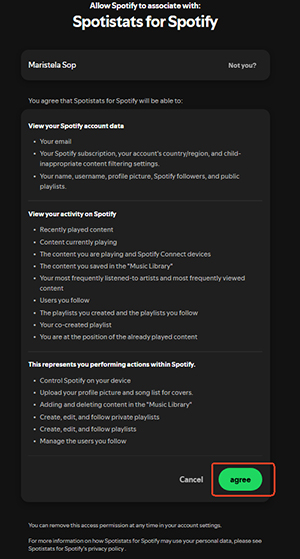
Step 2. Spotify will show an authorization screen explaining what Stats.fm wants permission to access. Review the permissions and click the Agree button to approve the connection if you are comfortable with them.
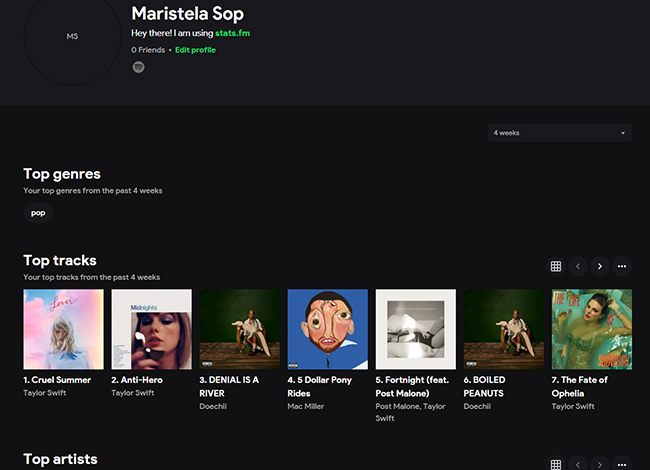
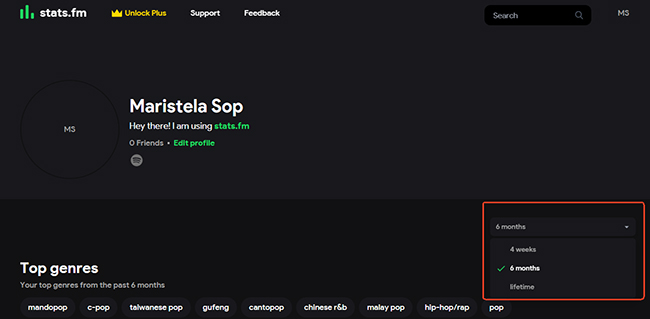
Step 3. Once the accounts are linked, Stats.fm can begin displaying information available through Spotify's API. You should be able to start exploring top artists, tracks, and recent activity by 4 weeks, 6 months, and lifetime.
Part 3. How to Use Stats.fm to See Your Spotify Stats
Connecting your account is just the beginning. To get the most out of Stats.fm, learn to read your dashboard across its key views and timeframes (4 weeks, 6 months, and lifetime):
- Top Genres: Gives you a broader breakdown of your musical taste distribution across different periods.
- Top Tracks: Shows your most-played songs. Before importing history, rankings rely on Spotify API data; after importing, they update to reflect your exact stream counts or listening time.
- Top Artists: Reveals your listening concentration. Switch between timeframes (4 weeks, 6 months, lifetime) to track how your favorite musicians change over time.
- Recent Streams: Tracks your latest activity. Note that sync happens periodically in batches (up to your latest 50 tracks), so slight delays after playing a song are normal.
Tips:
Do not worry if you cannot immediately find complete lifetime play counts. Those depend on a different source of data, which we will cover in the following part.
Part 4. How to Get Lifetime Spotify Stats on Stats.fm
If you want Stats.fm to go beyond Spotify's API and analyze your historical listening in detail, this is the part that matters most. You need to request your Extended Streaming History from Spotify and import it into Stats.fm. History importing currently requires Stats.fm Plus.
How to Request and Download Spotify Data
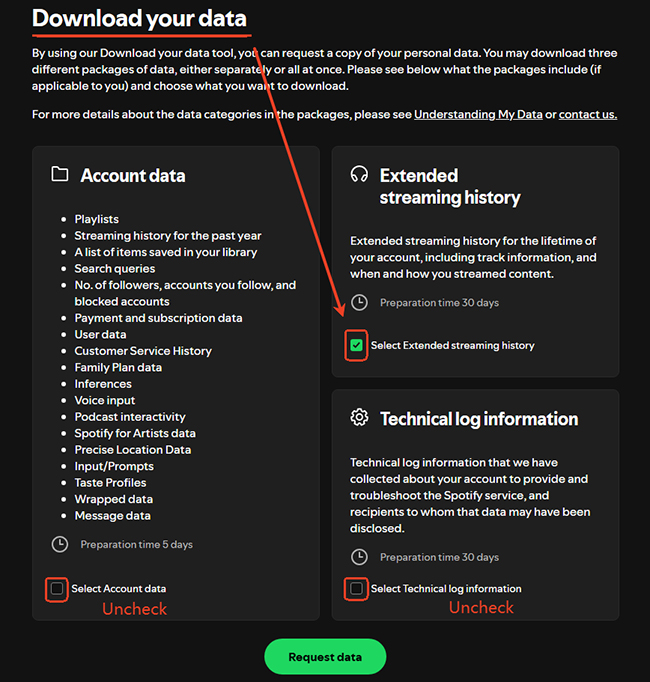
Step 1. Open Spotify's privacy page and scroll down to Download your data section. Check the box specifically labeled Extended streaming history and click the Request data button to get your data.
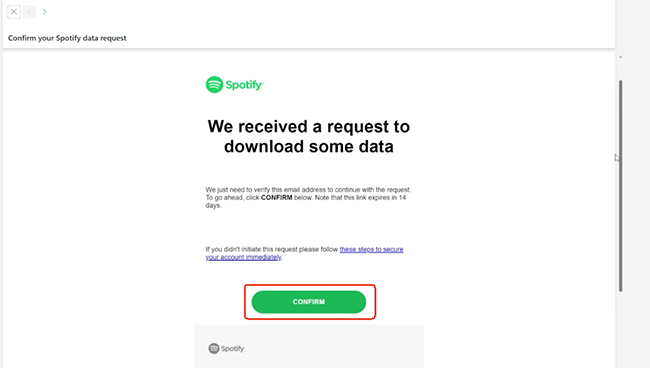
Step 2. Spotify sends a confirmation after the dat request is submitted. Confirm the request so Spotify can begin preparing the archive.
Note:
This is not normally an instant download. Extended Streaming History may take up to 30 days to arrive, although Stats.fm notes that two to three weeks is common.
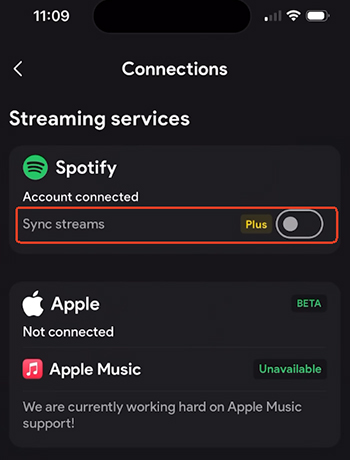
Step 3. While waiting for the data, turn on Sync streams under the Connections section in Stats.fm settings to ensure a seamless connection between your imported historical data and your newest plays.
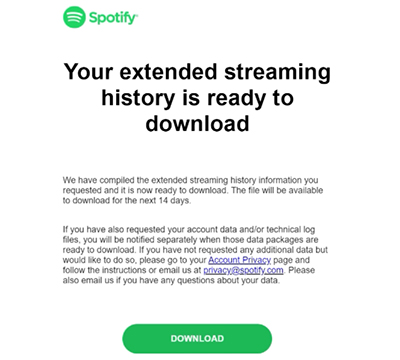
Step 4. When Spotify finishes preparing the package, you will receive a download link. Visit it and click the DOWNLOAD button to save the archive somewhere you can find it easily.
Safety Tips:
- Do Not Modify Files: Never rename, edit, or manually alter your Spotify data files. Doing so, or using files from another account, will cause Stats.fm to reject the import.
- Protect Sensitive Data: Your Extended Streaming History contains private details, including IP addresses, exact timestamps, and device info, so handle and store the archive securely.
How to Import Spotify Data Into Stats.fm
Once you receive the ZIP file from Spotify, you can currently import Spotify history using either Stats.fm's web importer or the mobile app.
From Stats.fm Website:
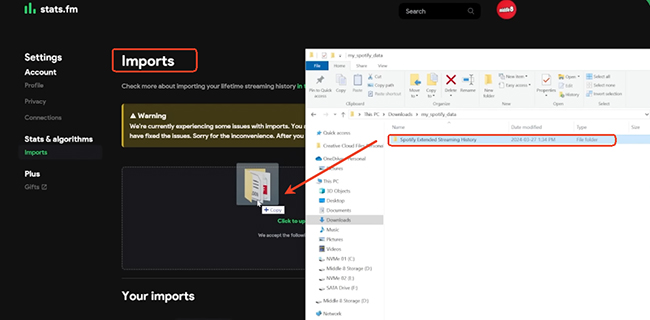
Step 1. Navigate to the Stats.fm import page via your browser and log in with your Plus account.
Step 2. Drag and drop the entire, unzipped folder directly onto the page to begin the process.
From Stats.fm App
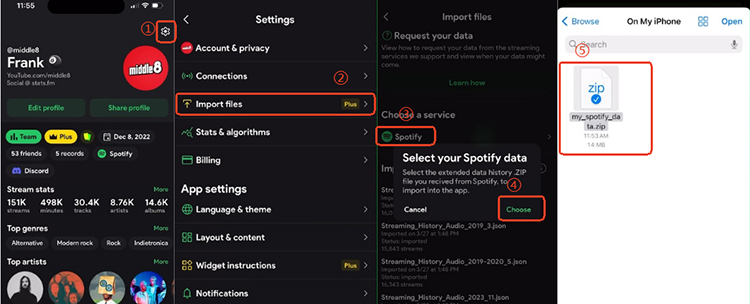
Step 1. Open Stats.fm app on your device and click the Settings icon.
Step 2. Go to the Import files > Spotify > Choose to choose the original Spotify history files and confirm the upload.
After upload, Stats.fm processes the streams, calculates statistics, and filters duplicates. Depending on the amount of data and server load, this can range from a short wait to several hours. Once processing finishes, the imported history can be used for full listening history, play-count statistics, advanced sorting, and other Plus features.
Bonus Tip: Back Up and Save Your Spotify Songs Locally
While Stats.fm is great for analyzing your streaming habits, streaming services still depend on an active connection or account. Even if you use Spotify for Free without a paid subscription, you are restricted by ads and online-only playback.
If you want to permanently save your favorite Spotify tracks, playlists, or albums locally to MP3 or FLAC formats for offline playback on any device, consider using DRmare Spotify Music Converter. It allows you to download music with lossless audio quality and preserves your original ID3 tags, giving you complete ownership of your library.
Part 5. Why Stats.fm Totals Don't Match Spotify (and How to Fix It)
Stats.fm data won't always match your Spotify JSON exports or update instantly. Here are the key causes and troubleshooting steps:
- Filtered Out: Stats.fm excludes plays under 30 seconds, skipped tracks, podcasts, and local audio files from its stream stats.
- Sync & Session Gaps: Live sync delays are normal (batched in windows of up to 50 tracks). Extended offline listening, Private Sessions, and shared account histories can also create tracking discrepancies.
Quick Troubleshooting Guide
| Issue | What to Check / Fix |
|---|---|
| Recent tracks delayed | Allow time for periodic synchronization (updates aren't instant). |
| Missing recent streams | Check if they appear in Spotify's official "Recently Played" list. |
| Incomplete lifetime totals | Confirm your Extended Streaming History was successfully imported. |
| Import rejected / failing | Ensure you use untouched original files, or try uploading individual JSONs. |
Part 6. FAQs About Using Stats.fm for Spotify
Do You Need Spotify Premium to Use Stats.fm?
No. It works with both free and premium account. However, Stats.fm Plus and Spotify Premium are separate services. Buying Stats.fm Plus does not give you Spotify Premium, and Spotify Premium does not automatically unlock Stats.fm's paid features.
Is Stats.fm Safe for Spotify?
Yes. The platform is generally considered secure by the community. Because the heavy data import uses local browser memory, and the app only requests standard API read permissions, your account remains well-protected.
Does Stats.fm Count Spotify Podcasts?
Stats.fm's current import documentation says podcasts are excluded from the visible stream statistics discussed in the app's historical music analysis.
Does Stats.fm Track Spotify Offline Listening?
Some offline activity may eventually be reflected, but normal synchronization has limitations because Stats.fm can only retrieve a limited recent-played window from Spotify. Long offline sessions may therefore create gaps until historical data is imported or updated.
Why Is Stats.fm Different From Spotify Wrapped?
Stats.fm and Spotify Wrapped are not calculating exactly the same experience from the same presentation layer. Stats.fm can use Spotify API rankings or imported history sorted by plays and listening time, while Wrapped is Spotify's own annual recap. As a result, top artists, songs, or listening totals do not necessarily line up one-for-one.
How to Disconnect Spotify with Stats.fm?
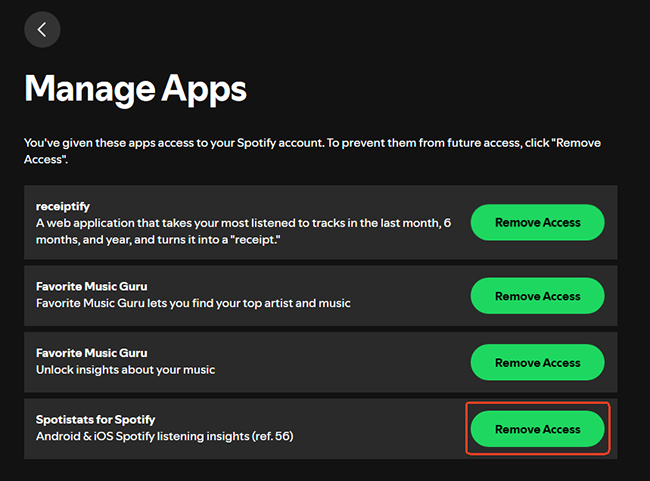
If you decide you no longer want Stats.fm connected, Spotify lets you remove third-party access from its Manage apps page by selecting Remove Access for the service.
Conclusion
Stats.fm gives Spotify users a deeper way to understand their listening habits beyond the limited insights from Spotify Wrapped. While basic connection is enough for viewing recent trends and top music, importing your Extended Streaming History unlocks more accurate lifetime statistics and detailed playback analysis.
If you only want to explore your listening patterns, the free version is a good starting point. For users who want complete history tracking, advanced rankings, and exact play counts, Stats.fm Plus with Spotify data import provides a much more comprehensive experience.

 Home
Home





User Comments
Leave a Comment