





Combining the stunning visual quality of a Sony Bravia TV with the premium content on Apple TV is a dream for many home theater enthusiasts. Whether you're looking to stream the latest Apple TV Originals or access your purchased library on Sony Bravia, getting everything up and running should be smooth. This guide walks through exactly how to get Apple TV on a Sony TV, from installation to alternative ways of watching Apple TV content offline, enjoying the best Apple TV experience on the big screen without any hassle.
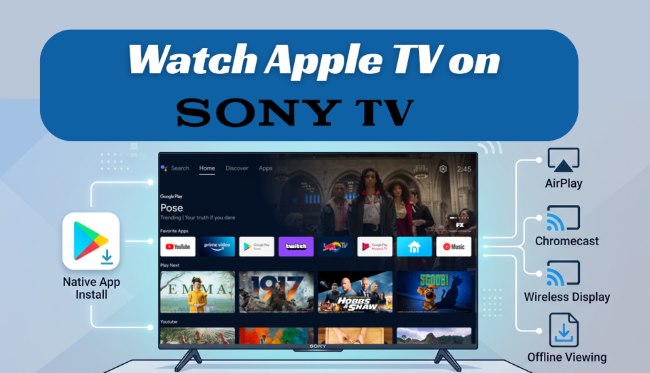
Part 1. Does Sony TV Support the Apple TV App
Yes, but compatibility heavily depends on the specific model and manufacturing year of your smart TV. Sony and Apple have worked together to bring the native Apple TV app to a wide range of devices, but it is not a universal feature for every television ever made.
- 2021 and Newer Models: If you own a recent Sony Google TV, the application is natively supported right out of the box. You simply need to sign in with your Google account, and the app will be ready for you to use.
- 2018 to 2020 Models: A vast majority of Sony Android TVs from this window are fully compatible, but they do not come with the app pre-installed. To gain access, you must perform a system software update to ensure your TV pulls the latest firmware required to run the app.
- 2017 and Older Models: Sony smart TVs released before 2018 generally lack the hardware requirements and OS support needed to run the native application smoothly. In these cases, you will need to rely on external hardware or screen mirroring features to access your content.
Part 2. How to Add Apple TV App to Sony Smart TV
If you have confirmed that your specific Sony display is compatible, bringing the Apple ecosystem directly into your living room is an incredibly straightforward process. Modern Sony TVs run on the intuitive Google TV or Android TV platforms, and securing the application is just like adding any of your other favorite streaming services.
Step 1. Turn on your Sony smart TV and scroll over to the "Apps" tab located near the top of your display to view your current application library. Then locate and open the Google Play Store.
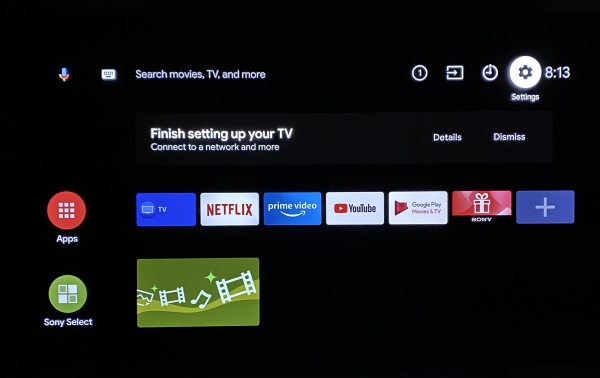
Step 2. Use your remote's voice command button or the keyboard to type "Apple TV" in the search section. Choose the Apple TV app from the search results. Click the "Install" button and wait a few moments for the software to download and install on your Sony TV.
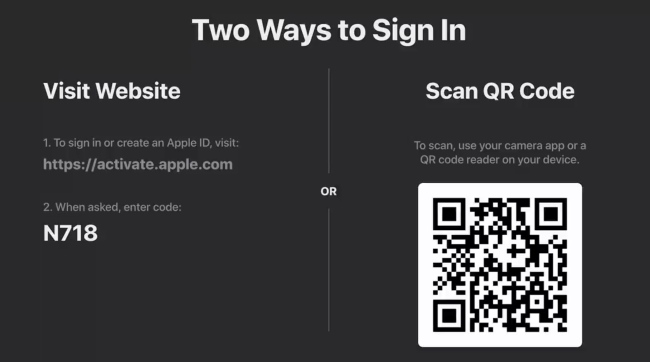
Step 3. Once the installation is complete, launch the app and sign in with your Apple account. You can use your phone's camera to scan the QR code. Alternatively, navigate to the website, then enter the pairing code shown on your television, and follow the quick prompts to finish linking your account.
Part 3. How to Screen Mirror from Apple TV to Sony TV
If your Sony TV model doesn't support the native Apple TV app, screen mirroring from your personal device is the most versatile solution. Modern Sony Bravia displays are designed to be universal receivers, supporting various wireless protocols depending on the device you are using.
Method 1. Apple AirPlay (iPhone/Mac)
Apple users can enjoy high-definition mirroring with almost zero latency using AirPlay 2. This is the gold standard for Apple-to-Sony connectivity, as iPhones do not natively support Chromecast for Apple TV content.
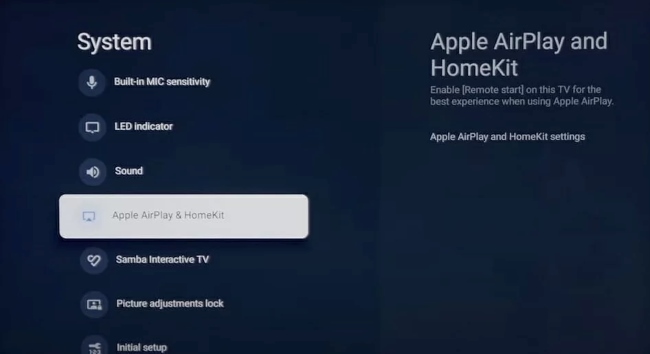
Step 1. Ensure your Apple device and Sony TV are connected to the same Wi-Fi network. On your Sony TV, navigate to "Settings > System > Apple AirPlay & HomeKit" and ensure the feature is toggled On.
Step 2. Swipe down on your Apple device to open the "Control Center" and tap the "Screen Mirroring" icon. Select your Sony TV from the drop-down list. If a secure passcode appears on the TV, enter it into your Apple device to begin the Apple TV streaming.
Method 2. Google Chromecast (Android)
For Android users, Apple has updated the mobile app to support Chromecast Apple TV content, allowing you to play Apple TV seamlessly on the Sony TV.
Step 1. Open the Apple TV app on your Android device and begin playing your desired movie or show. Tap the "Cast" icon located in the top corner of the video player.
Step 2. Select your Sony TV, and the video will hand off to the television, allowing you to keep using your phone for other tasks while the Apple TV plays on the big screen.
Method 3. Chrome Browser Tab Cast (Windows/Mac)
If you are struggling with native settings or app compatibility, the Google Chrome browser offers a universal web-based workaround for both operating systems.
Step 1. Open Google Chrome on your computer, navigate to the Apple TV website, and log in to play your content. Click the three-dot menu in the top right corner of the browser and select "Cast...".
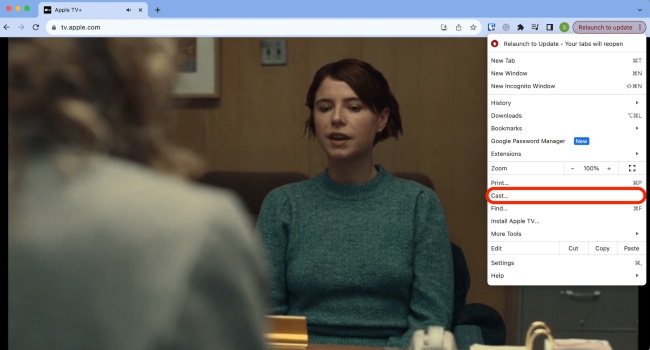
Step 2. Click the "Sources" drop-down button to ensure you are casting the single browser tab, then choose your Sony TV from the device list to beam the video over.
Method 4. Wireless Display (Windows)
Windows 10 and 11 users can easily extend or duplicate their desktop to a Sony TV wirelessly using the built-in Miracast standard.
Step 1. On your Windows keyboard, press the "Windows Key + K" simultaneously to open the "Connect" sidebar. Locate and select your Sony Bravia TV in the list of available wireless displays.
Step 2. Once successfully connected, press "Windows Key + P" to choose "Duplicate" (mirror) your screen to use the Sony smart TV as a wireless second monitor.
Part 4. How to Watch Apple TV on Sony Bravia Locally
While streaming via the native app is convenient, many users prefer to watch Apple TV content locally to avoid buffering or app compatibility issues. If you are looking for a reliable workaround to enjoy Apple TV without network or device restrictions, DRmare Apple TV Downloader is an excellent choice. This desktop tool downloads Apple TV directly to your computer, converting the streams into universally compatible local files.
- Flawless Sony Bravia Playback: It saves Apple TV content as DRM-free MP4 or MKV files, which are perfectly optimized for Sony's built-in media player, guaranteeing smooth playback.
- High Video Quality: It perfectly preserves the 1080p HD resolution and original multilingual subtitles, ensuring your movies look incredible on your Bravia display.
- Organized TV Interface: The tool automatically fetches and embeds metadata, allowing you to batch download with up to 5X conversion speed. And your media library will look neat and organized on your computer.
- Keep Your Content Forever: By saving these files locally, you completely bypass the Apple ecosystem. You can watch your shows offline on any device, even if your Apple TV subscription expires.
- Step 1Configure Output Formats for Your Sony TV
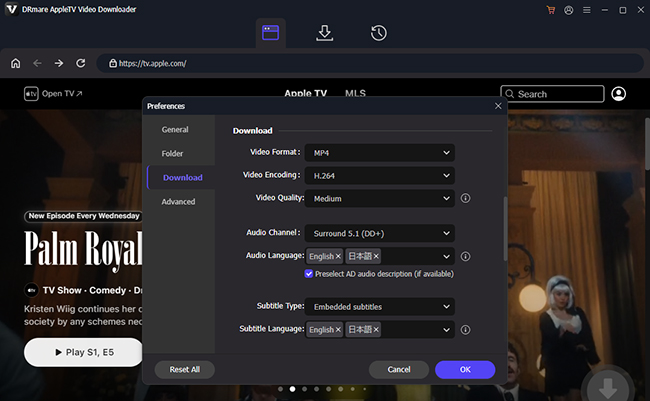
Open the DRmare Apple TV Downloader on your desktop and log in to your active Apple account. Head to the top menu and click on "Preferences > Download" to adjust your video parameters. Select formats like MP4 or MKV to ensure flawless playback on Sony TV.
- Step 2Select and Queue Your Apple TV Shows
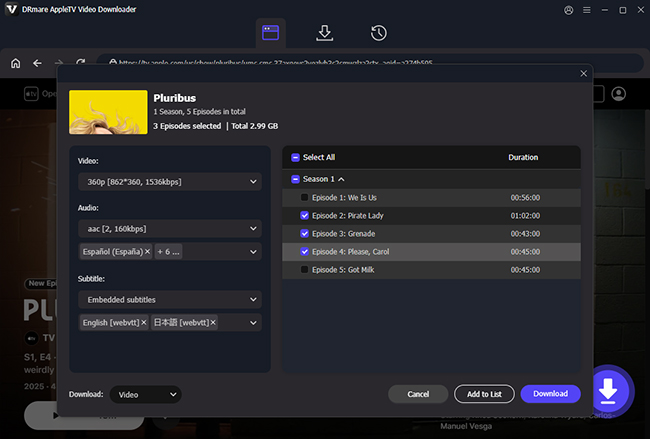
Search for the movies or series you want to watch offline on your Bravia TV screen. On a title's main page, simply click the "Add" or "Add to List" icon. This batch-selection feature allows you to queue up multiple episodes at once, streamlining the process of building your offline Apple TV library.
- Step 3Download Apple TV for Sony Smart TV
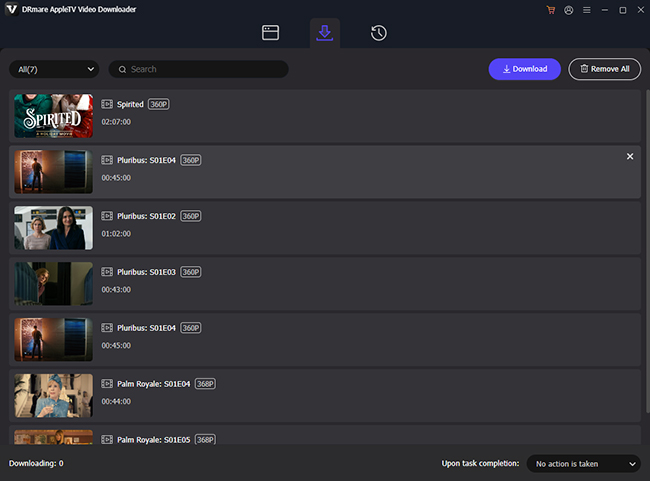
Click the "Download" button to strip away restrictions and save the files straight to your computer. Once finished, navigate to your designated output folder to locate your Apple TV files. They are now completely unprotected and ready to be transferred to your Sony TV using a USB flash drive.
Part 5. FAQs about Apple TV on Sony Bravia TV
How to fix the Apple TV app blurry or pixelated on my Sony TV?
This playback glitch is often caused by outdated firmware struggling with the app's high-bitrate streams. To resolve this, you often need to perform a manual firmware update on your Sony TV.
-
Visit Sony's official support website on your computer, locate your exact TV model, and download the latest firmware update to a USB drive.
-
Insert the USB drive into your Sony TV to force the installation. If the issue persists after updating, you can limit the playback quality to SD until a future software patch is released.
Why can't I find the Apple TV App on my Sony TV?
The app is usually missing because the TV is either the system software is out of date, or the model is not compatible. Check your "System Settings" for any updates. If your Bravia TV is updated but the app is still gone, it likely doesn't meet the hardware requirements. In this case, using an external device or AirPlay is your best workaround.
Apple TV App vs. Apple TV 4K Box on Sony TV?
The built-in app is a great option for most users, providing high-quality 4K HDR streaming. However, the physical Apple TV 4K box offers a much more powerful processor, leading to a faster interface and better frame-rate matching. If you are a dedicated Apple power user, the physical streaming box is a highly worthwhile upgrade for your Bravia display.
Part 6. Conclusion
Bringing the Apple ecosystem to your Sony Bravia TV transforms your living room into a premium home theater. Whether you are installing the Apple TV app on your Sony smart TV or utilizing screen mirroring from your phone, there is a seamless viewing solution for almost every setup. If you want to bypass internet issues and hardware limitations altogether, DRmare Apple TV Downloader offers the ultimate flexibility with a flawless viewing experience on your Sony display.

 Home
Home





User Comments
Leave a Comment