





More than just a gaming console, the PlayStation is also a powerful home entertainment device. If you're already invested in Apple's ecosystem, it's natural to wonder: Can you watch Apple TV on PS5 or PS4? Yes. This guide covers everything you need to know, from how to get Apple TV on PS5 and PS4 to fixing common playback issues, along with tips for enjoying Apple TV on PS consoles offline.

Part 1. Is Apple TV Available on PS5/PS4
Yes, Apple TV is available on PS5 and PS4. You can download the Apple TV app directly from the console to enjoy your favorite shows in native 4K Ultra HD. The experience is even enhanced by Sony's Tempest 3D Audio and Dolby Atmos for immersive sound. However, it's worth noting that Dolby Vision is not supported on PS4 or PS5. Instead, it is automatically converted to HDR10 during playback.
Part 2. How to Get Apple TV on PS5 & PS4
Now that you know Apple TV works on PS4/PS5, the next step is getting it set up on your console. Since the PS interface strictly separates gaming from entertainment, you need to head over to the console's media hub for downloading Apple TV. Here is the smoothest way to get Apple TV installed and connected to PS4 and PS5.
Get and Watch Apple TV on your PS5/PS4
Step 1. From your home screen, press the R1 button to shift your view from the "Games" tab to the "Media" tab at the top, then locate the Apple TV app in the media list. You can also use the search function to find Apple TV directly.
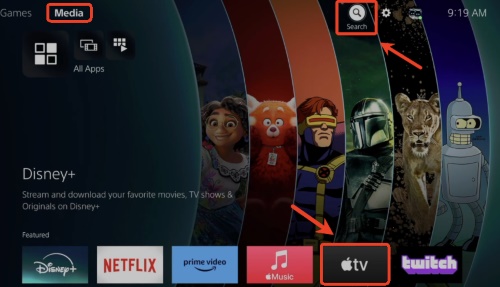
Step 2. Tap "Download" to install the Apple TV app for PS4 or PS5. Once the download is complete, click "Start" to launch Apple TV on your console.

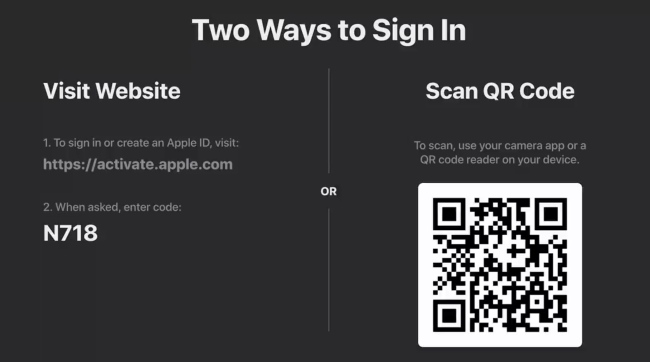
Step 3. When prompted, use your phone's camera to scan the QR code displayed on the PS4/PS5 screen. Sign in with your Apple Account on your phone and confirm the login to link your account. After that, you can start watching Apple TV content on your PS5 or PS4.
Can You Get Free Apple TV on PS5/PS4
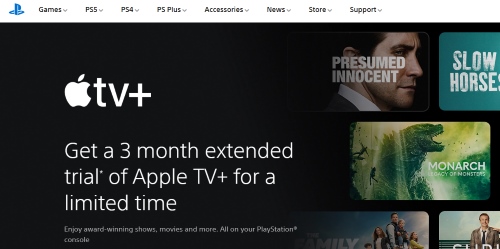
No, but there is a chance you can get an Apple TV for free. Sony and Apple frequently partner to offer a 3-month free trial exclusively for PlayStation owners. For instance, a major campaign recently concluded in early 2025, and similar offers tend to resurface throughout the year. To see if a promotion is currently active, you can check the official PlayStation deals page.
Note:
You must claim the offer directly through the Apple TV app on your PlayStation, and you cannot redeem it via a PC or phone. These trials are generally reserved for new or qualified returning subscribers. If you have an active subscription, you likely won't be eligible to stack the free months.
Part 3. How to Watch Apple TV on PS5/PS4 Offline
Though the PS offers an excellent streaming experience, a stable 4K stream requires significant bandwidth. To avoid buffering or to watch your favorite Apple TV shows without an active internet connection, you'll need a local backup. Since the native Apple TV app on PS is streaming-only, you can use DRmare Apple TV Downloader to bridge this gap to watch Apple TV on PS4 or PS5 offline.
DRmare converts Apple TV episodes into MP4 or MKV formats that are fully compatible with PS5, all at up to 5X conversion speed, ensuring high-quality playback on your PS5. It preserves the1080p HD resolution and original multilingual subtitles, which is a lifesaver if you've encountered the common "subtitles not syncing" bug on the console app. Once downloaded, you can simply move these files to a USB drive and play them via the PS5's Media Gallery anytime.
How to Download Movies and Shows from Apple TV for PS4/PS5
- Step 1Optimize Output Settings for PS5 and PS4
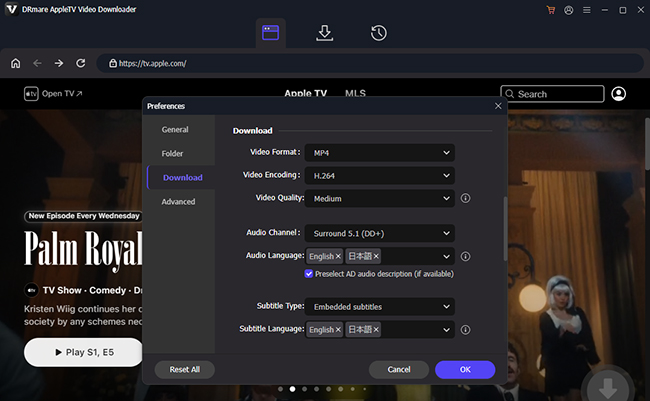
Launch DRmare on your computer and log in with your Apple Account. Firstly, adjust your output settings. Enter the menu and select "Preferences > Download". Change the output format to MP4, as this is the most reliable format for the PS consoles. You can also lock in your preferred audio tracks and subtitles here, as well as video resolution.
- Step 2Select Apple TV for Playing on PS5/PS4
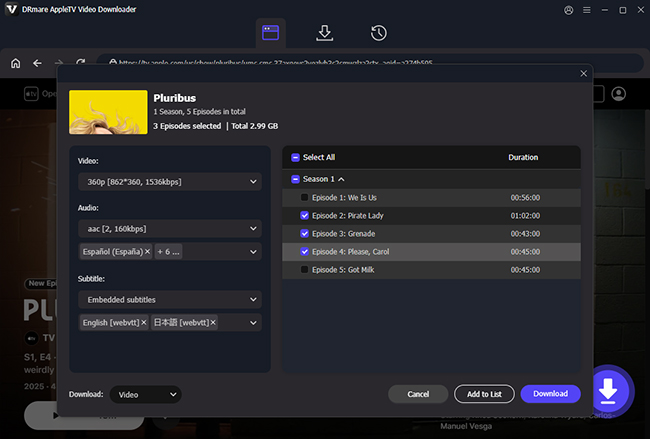
Browse the built-in library to find the movies or shows you want to watch offline, such as Severance from Apple TV. When you open a series page, use the "Add" and "Add to List" buttons to batch-select entire seasons at once.
- Step 3Convert and Download Apple TV Movies and Shows
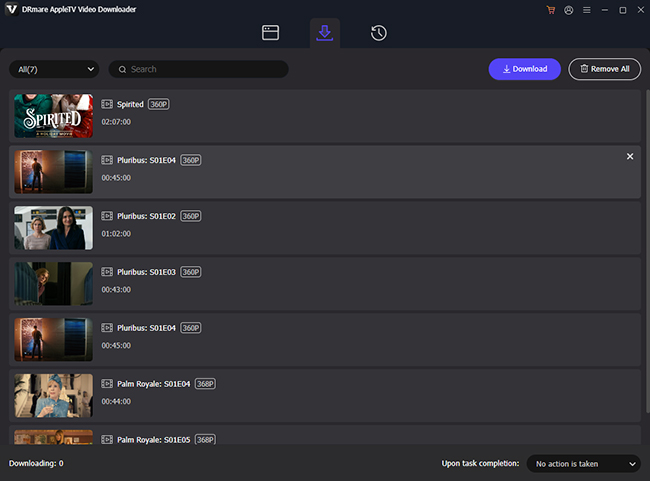
Click the "Download" button at the top to start converting the files at high speed. Once the process is complete, locate the files from Apple TV in your output folder.
How to Transfer and Play Apple TV to PS5 via USB
The PS5 is quite strict about external media. To ensure your console recognizes the drive, it must be formatted as exFAT or FAT32. And exFAT is strongly recommended because it supports individual files larger than 4GB, which is essential for high-definition 4K movies.
Step 1. Create a new folder named "Video" or "Movies" in the root of your USB drive, then copy your downloaded Apple TV content into this folder. Once that's done, plug the USB drive into one of the USB ports on the back of your PS5.
Step 2. On the PS5, locate the "Media Gallery" app. It usually appears on the Home Screen, and you can also find it in your "Game" library.

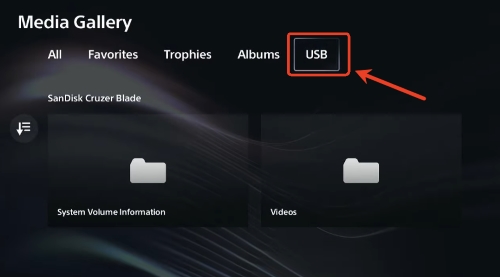
Step 3. Switch to the "USB" tab at the top inside Media Gallery. Your downloaded Apple TV shows and movies will show up there, and then choose a video to start playing on your console.
Note:
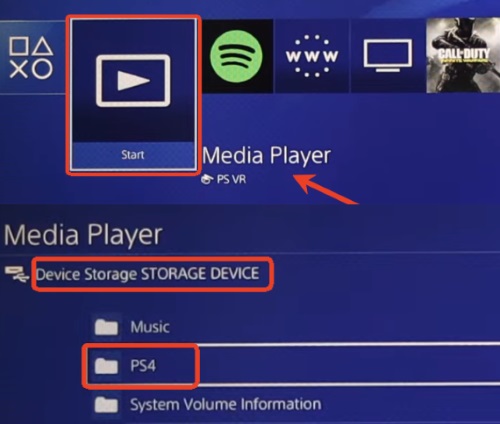
If you are using PS4 for Apple TV, the process is slightly different. You will need to download the "Media Player" app for free from the Store first, then choose your video file from your PS4 folder to begin playback.
Part 4. Troubleshooting Apple TV Not Working on PS5 or PS4
Even with everything set up correctly, you may still run into occasional issues when using Apple TV on PS5/PS4. Problems such as black screens, infinite loading loops, and technical hiccups can interrupt your viewing experience. Don't worry if Apple TV doesn't work on PS5 or PS4. We'll walk through practical fixes to help you get it running smoothly again on your console.
If Apple TV isn't working on your PlayStation, there are a few quick fixes for it:
- Restart the console and router, or reinstall the Apple TV app.
- Check for system and app updates to the latest version.
- Clear the console cache and reset network settings, or try a different connection.
Black Screen or Video Not Available
If you launch the app only to be met with a black screen or an error message, it is usually just a "digital handshake" failure between your console and TV. Streaming apps require a specific copyright protection protocol to run, so head into your PS5/PS4 "Settings > System > HDMI" and make sure "Enable HDCP" is toggled ON. Without this setting active, premium apps simply won't display video. Also, if you use a capture card for streaming or recording, you must disconnect it, as HDCP protection will block Apple TV content entirely.

PS5 Won't Load Online Content
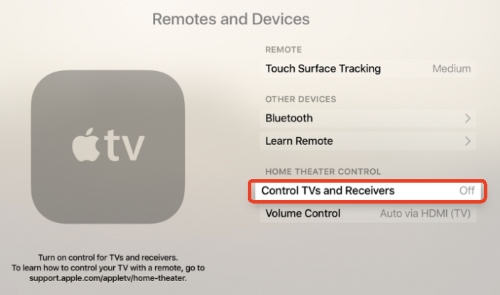
When your PS5 can't load the Store or streaming apps, your physical Apple TV box may be causing the issue. When both devices are connected to the same TV, an HDMI-CEC conflict can block the PS5's connection. To confirm this, unplug the Apple TV box and check whether the PS5 starts working again. For a long-term fix, go to your Apple TV "settings", select "Remotes and Devices", and turn off "Control TVs and Receivers" to prevent control conflicts.
Endless Spinning Wheel or Content Timeout
Getting stuck on an infinite loading circle often means your home router's security settings are blocking the app's specific handshake. A quick way to verify this is to temporarily connect your PS4 or PS5 to your phone's mobile hotspot.
Part 5. FAQs about Watching Apple TV on PS4 and PS5
Can you use Apple AirPlay on PS5/PS4 to watch Apple TV?
No. The PS5 and PS4 don't natively support Apple AirPlay, so you can't cast Apple TV content directly from an iPhone or iPad to the console. However, some third-party screen-mirroring tools (such as AirDroid Cast or tvee.app) may work as a workaround, though performance and stability can vary.
How to cancel Apple TV on PS5 or PS4?
You can't cancel an Apple TV subscription directly through the PS5. Instead, the subscription must be managed through your Apple Account. On your iPhone or Mac, go to "Settings > Apple Account > Subscriptions", select Apple TV, and choose "Cancel Subscription".
How to turn on Apple TV subtitles on PS5 and PS4?
While a video is playing, press the "Down" button on your DualSense controller to open the playback menu. Select the "Subtitle" with the speech bubble icon and choose your preferred language. If subtitles still don't appear, check your system settings by going to "Settings > Accessibility > Captions" and make sure "Display Closed Captions" is turned on. This can override app-level subtitle issues.

 Home
Home





User Comments
Leave a Comment