





Roku is a popular streaming platform that brings together apps like Netflix, YouTube, and Hulu in one place, and you may wonder if you can watch Apple TV on Roku. The answer is yes. But how? In this guide, you'll quickly learn how to get Apple TV on Roku and what to do if Apple TV is not working on Roku, like keeps buffering or keeps freezing. It also covers the option to save your Apple TV content for offline playback on any other device beyond Roku.
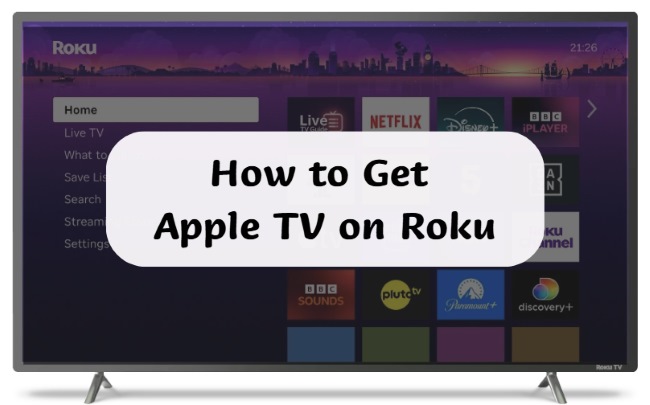
Part 1. How Can You Get Apple TV on Roku
Apple TV on Roku is available through the official Apple TV app, which gives you access to Apple TV movies and shows. While the app itself is free to download, Apple TV requires a separate subscription, with Roku simply serving as the streaming platform. Now, let's take a closer look at how to watch Apple TV on Roku step by step.
Step 1. On your Roku home screen, go to the left-hand menu and select "Streaming Channels".
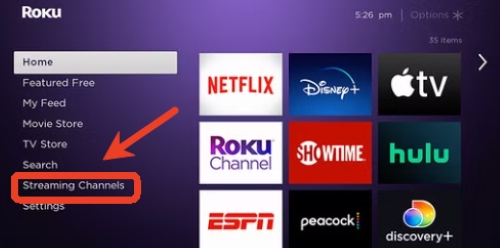
Step 2. In the Roku Channel Store, choose "Search Channels" and enter Apple TV in the search field.
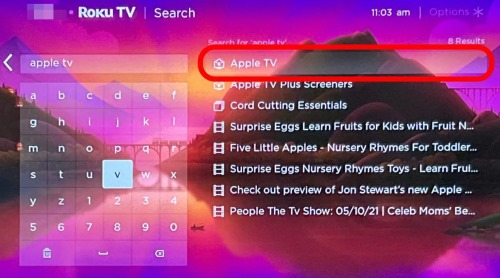
Step 3. From the search results, select the Apple TV app and click "Add channel" to install it.
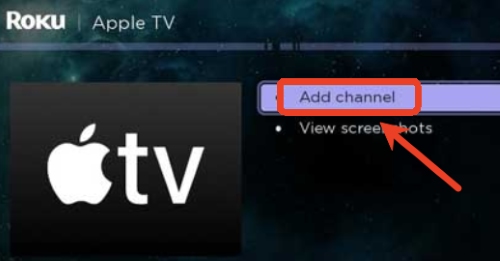
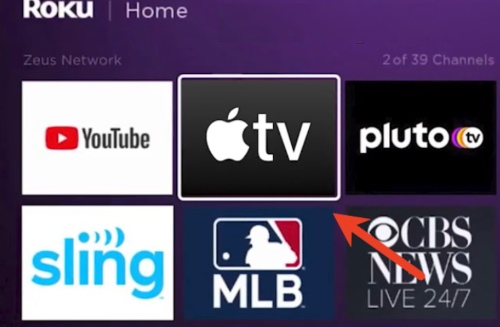
Step 4. After the installation is complete, press "OK", then return to your home screen. Locate the Apple TV app, open it, and sign in with your account to start streaming your favorite shows on Roku.
Part 2. Fix Apple TV Not Working on Roku
Now that you know how to watch Apple TV on Roku, everything works most of the time. However, like any streaming platform, occasional glitches can prevent the app from loading or playback from running smoothly. Whether the app crashes, can't sign in, or videos keep freezing, these interruptions can be frustrating. If your Apple TV app isn't working properly on Roku, try these solutions in order:
1. Check your internet connection
Make sure your Wi-Fi is stable. If possible, move your router closer, connect via Ethernet, or simply restart your router. A weak internet connection often causes streaming issues.
2. Update Roku software
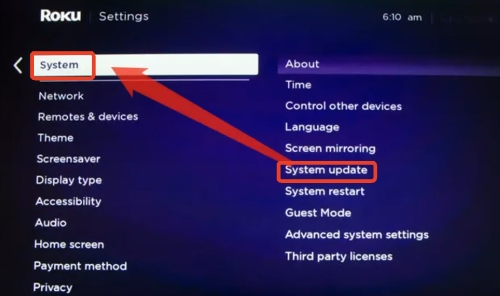
Keeping your Roku up to date can solve many glitches. Go to "Settings > System > System Update" to install the latest version.
3. Restart your Roku device
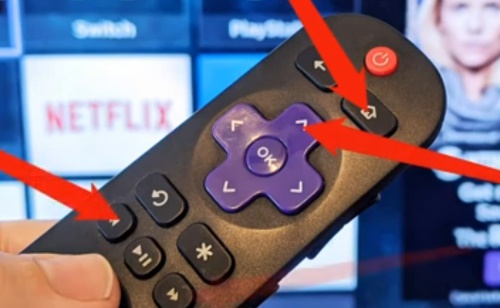
Restarting can fix temporary software issues. You can go to "Settings > System > Power > System Restart > Restart". After that, unplug the Roku device for 60 seconds, then plug it back in, and wait for your Roku to restart. You can also use the remote shortcut: From the Home screen, press "Home" five times, "Up" once, "Rewind" twice, "Fast Forward" twice.
4. Reinstall the Apple TV app
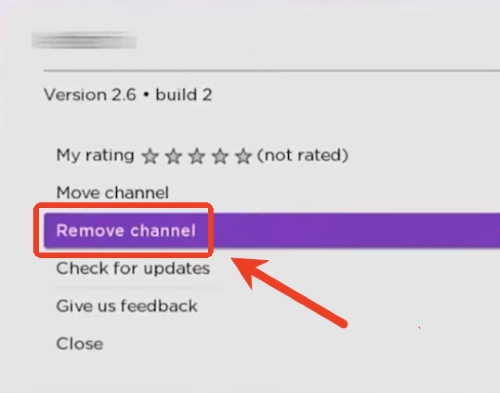
Sometimes the app itself is the issue. Highlight the Apple TV app on your home screen, press the " * "button, and select "Remove channel". After removing it, reinstall the app following the steps in the installation guide.
5. Check your remote
If your Roku remote isn't working properly, apps may appear unresponsive. So check your remote and swap out old batteries. When you use the Roku mobile app as a remote, make sure it's connecting correctly.
6. Factory reset your Roku
If nothing else works, a full reset can fix persistent issues. Note that this will remove all apps, accounts, and settings. And you need to set up Roku from scratch and reinstall the Apple TV app.
Part 3. Download and Keep Apple TV Content for Roku Permanently
While you can stream Apple TV on Roku, you can't watch Apple TV content on Roku without an active subscription. Still, you can use a dedicated tool to overcome this limitation. DRmare Apple TV Downloader lets you download Apple TV as MP4 or MKV files with original quality intact. You can keep the content of Apple TV even after your subscription ends and cast it to Roku for big-screen viewing, allowing you to enjoy your favorite shows anytime, anywhere.
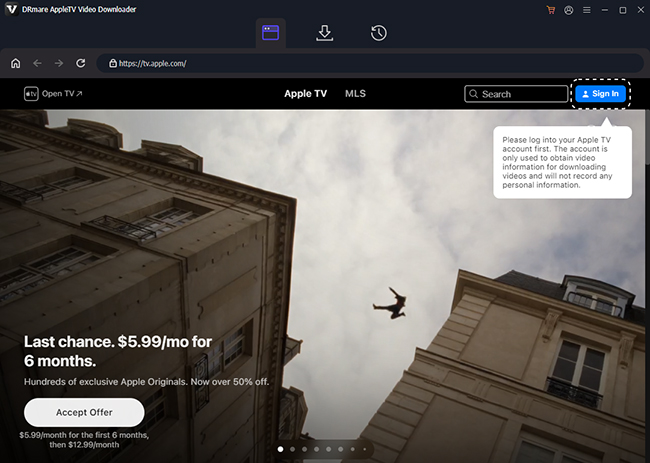
- Step 1Connect Your Apple TV Account
To prepare your Apple TV videos for watching on Roku without subscription restrictions, start by opening DRmare Apple TV Downloader on your computer. Click "Sign In" and log in with your Apple ID. Then the program will load your Apple TV library so you can choose the movies or shows you want to watch later on your Roku TV.
- Step 2Choose the Format for Playback
Before downloading, set the output format to ensure smooth playback on Roku. Open the menu in the top-right corner and navigate to "Preferences", then choose the "Download" section. MP4 is recommended for watching Apple TV content on Roku, but you can also adjust resolution, video quality, audio tracks, and subtitles based on your viewing preferences.
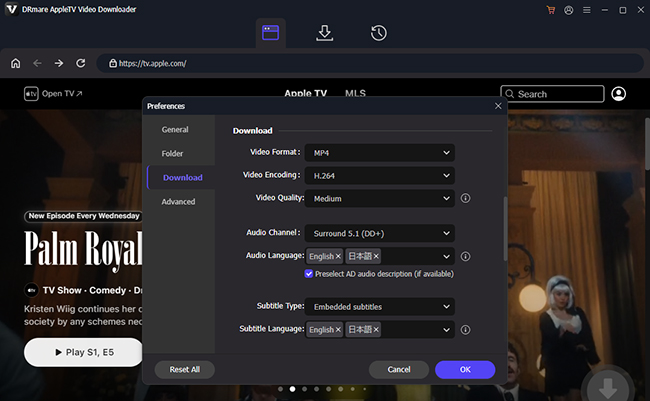
- Step 3Select Apple TV Movies or Episodes
Browse your Apple TV library and open the title you want to watch on Roku. Click the "Download" button, and it will be saved as local files. You can select multiple movies at once by tapping "Add to list", making it easy to prepare several Apple TV videos for Roku viewing in one session.
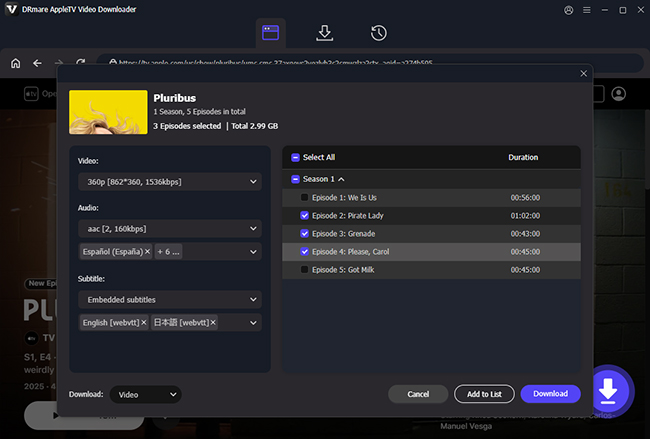
- Step 4Watch Apple TV Content on Roku Anytime
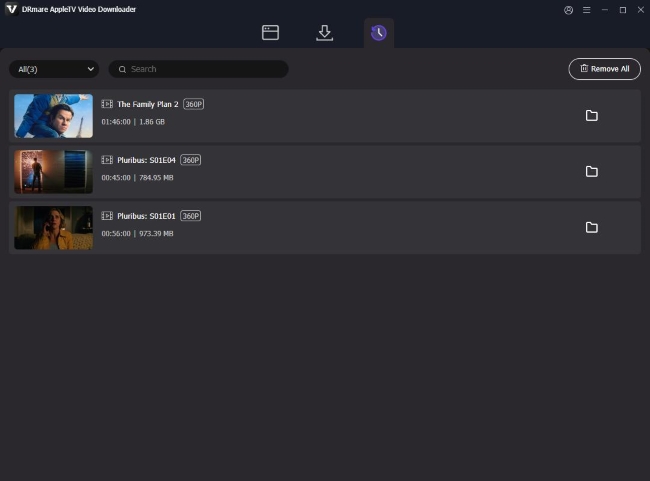
After the download finishes, your videos will be saved locally in the output folder or on the "History". You can cast or stream the downloaded files to your Roku for big-screen Apple TV playback, without needing an active subscription.
Part 4. FAQs about Apple TV on Roku
How to get Apple TV on Roku for three months?
Apple occasionally offers a 3-month free trial of Apple TV on Roku for new subscribers. To qualify, you generally need a new, eligible Apple device and must redeem the offer within 90 days through the Apple TV app on your Roku. After adding the app and signing in with your Apple ID, follow the on-screen prompts to redeem. The offer is limited to one per Apple ID or family and mainly targets new device owners rather than being a standalone Roku promotion.
Which Roku is compatible with Apple TV?
Most modern Roku devices support the Apple TV app and AirPlay, including Roku TVs and streaming players like Express, Stick, Premiere, and Ultra. Older Roku models may require a newer streaming stick, but any Roku with an HDMI port can run the Apple TV channel for your movies and shows.
How to cancel Apple TV on Roku?
Apple TV subscriptions are managed through your Apple ID rather than Roku. To cancel, sign in to your Apple ID, go to "Settings" and locate "Subscriptions", select Apple TV, and choose "Cancel Subscription". If you subscribed directly via Roku, press the Home button, highlight the Apple TV app, press the Star "*" button, select Manage subscription, and turn off auto-renew.

 Home
Home




Download Apple TV movies and shows at 5X download speed while preserving original quality, enabling offline viewing on any device without an Apple TV subscription.