





If you want to enjoy Apple's premium streaming service on a smart TV, especially a Hisense TV, you may run into a few initial hurdles. Since Hisense uses different operating systems, such as VIDAA or Roku, figuring out how to watch Apple TV on a Hisense Smart TV can sometimes be confusing. Fortunately, this guide will show you how to get the Apple TV app on a Hisense TV, explore various ways to stream without the native app, and help you quickly troubleshoot any playback issues.
Part 1. Does Hisense TV Have the Apple TV App
Yes, most modern Hisense TVs do support the Apple TV app. Hisense does not use a single, universal platform for all its televisions. Instead, they manufacture smart TVs powered by Google TV, Android TV, Roku OS, Fire TV, and their own proprietary system called VIDAA. Because of this variety, your app experience will vary based on the remote in your hand.
| Hisense TV Operating System | Apple TV App Support | Download |
|---|---|---|
| Google TV / Android TV | Yes | From Google Play Store |
| Roku TV | Yes | Via the Roku Channel Store |
| Fire TV | Yes | Through the Amazon Appstore |
| VIDAA OS | Yes | Via the VIDAA App Store |
Part 2. How to Get Apple TV on Hisense
Downloading the official Apple TV on Hisense provides the most straightforward and highest-quality way to enjoy your favorite Apple TV content. The setup process is generally quick, though the exact menus will vary slightly depending on your TV's operating system.
Get and Watch Apple TV on Hisense Vidaa
Step 1. Turn on your television and press the "Home" button on your Hisense remote control to navigate to the main dashboard. Ensure your device is connected to a stable Wi-Fi network before proceeding.
Step 2. Locate your specific operating system's application storefront. If you are using the brand's proprietary software, you will need to navigate to the "App Store" to find the Apple TV app on Hisense VIDAA. For a Google TV model, open the "Google Play Store" from your app row.
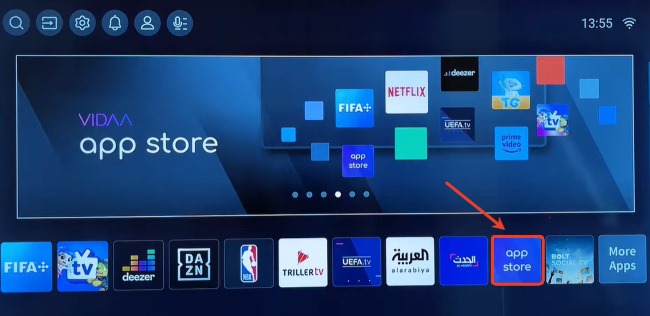
Step 3. Use the on-screen search function and type "Apple TV" into the search bar. Alternatively, you can also use VIDAA Voice to search for the app hands-free. Select Apple TV from the search results and click the "Install" button to add the Apple TV app to the Hisense TV.
Step 4. Open Apple TV and sign in using your existing Apple account. You can now browse your library and watch Apple TV on Hisense seamlessly from your living room.
Part 3. How to Watch Apple TV on Hisense TV Without the App
If your Hisense model doesn't support the native app, or you're having trouble accessing it due to regional restrictions, there are several effective workarounds to help you enjoy your favorite Apple Originals on the big screen without installing the Apple TV app.
Watch Apple TV on Hisense TV through Web Browser
Many Hisense smart TVs come equipped with a built-in web browser directly on the home dashboard. While navigating a website with a standard television remote isn't always the smoothest experience, it remains a highly accessible option for streaming without any extra hardware.
Step 1. Simply locate your Hisense TV's "Browser" from the app list, and enter it to navigate directly to the Apple TV web player.
Step 2. Log in to your active Apple account, and you can instantly watch Apple TV on Hisense TV through the browser's web interface.
Stream Apple TV on Hisense TV via Apple AirPlay
If you own an iPhone, iPad, or Mac, utilizing AirPlay for Apple TV streaming is incredibly convenient. Most modern Hisense TVs from 2020 and later support Apple AirPlay, allowing you to cast video directly from your mobile device to the television. Here is exactly how to use Apple AirPlay on Hisense TV:
Step 1. Ensure both your Apple device and your Hisense smart TV are connected to the same Wi-Fi network. Then, on your Hisense TV, navigate to "Settings > Connection", and select "AirPlay and HomeKit".
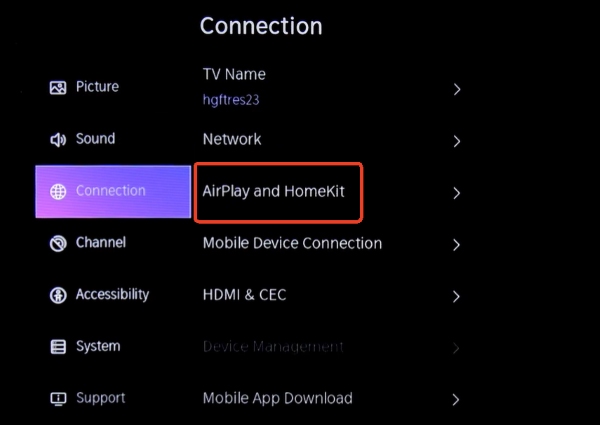
Step 2. Ensure the AirPlay feature is activated. On your iPhone or iPad, swipe down from the top right corner to open the Control Center. Tap the Screen Mirroring icon and select your Hisense TV from the list of available wireless devices.
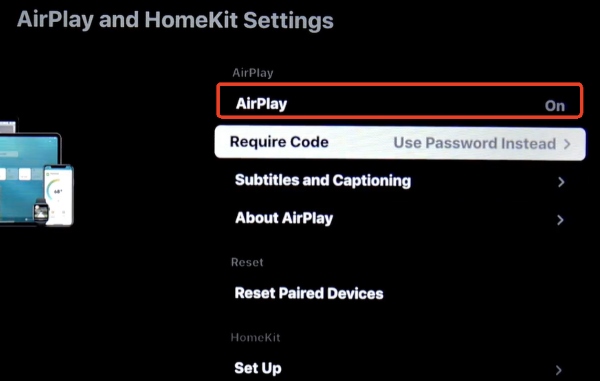
Step 3. If prompted, enter the passcode displayed on your Hisense TV screen into your Apple device to authenticate the connection. Your screen will instantly begin mirroring, allowing you to open the app on your phone and watch Apple TV on your Hisense smart TV.
Casting Apple TV for Google TV & Android:
If you are trying to cast to a Hisense TV using different hardware, there are two excellent backup options:
Chromecast Apple TV: If your Hisense TV has built-in Chromecast, the process is just as easy. Open the Apple TV app on your phone, tap the universal "Cast" icon, and select your HisenseTV to beam the video over.
Mirror from Android: If AirPlay is not available or you are an Android user, you can use reliable third-party screen mirroring apps like PigeonCast to bridge the wireless gap between your phone and your Hisense TV display.
Play Apple TV on Hisense Smart TV Offline with USB
While the native Apple TV app on Hisense provides an excellent viewing experience, a stable high-definition stream requires significant internet bandwidth. To avoid constant buffering, you will need a local backup. Since the Apple TV app is streaming-only, watching Apple TV on Hisense offline requires an alternative approach. DRmare Apple TV Downloader overcomes this limitation and bridges the gap.
It lets you download Apple TV content directly to your computer as MP4 or MKV files. It works at up to 5X conversion speed and perfectly preserves the 1080p HD resolution alongside the original multilingual subtitles. By saving these files locally, you can keep the content indefinitely, even after your Apple TV subscription ends.
- Step 1Optimize Output Settings for Hisense TV
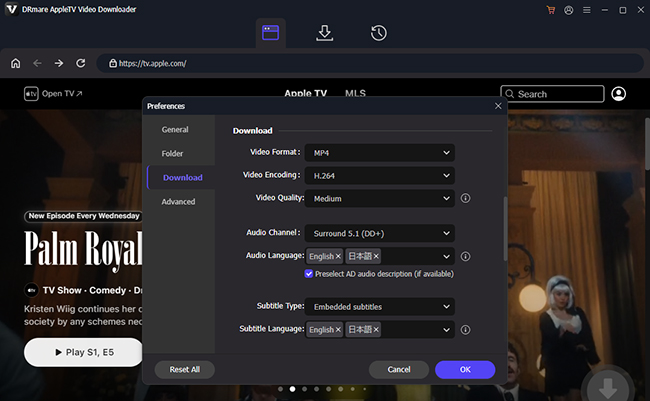
Launch the DRmare Apple TV Downloader on your computer and sign in with your active Apple account. Set up output settings for the best television playback experience. Navigate to the top menu and choose "Preferences > Download". Here, select MP4/MKV for compatibility with Hisense media players. You can also customize your preferred video resolution, audio language, and subtitle tracks in this menu.
- Step 2Select Apple TV Content for Hisense Playback
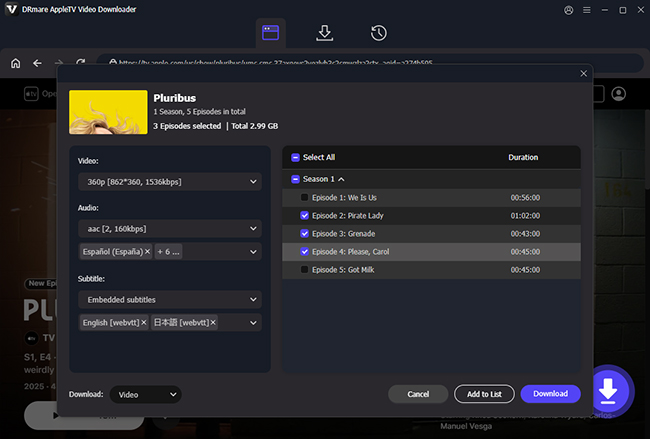
Log in and use the built-in browser to search for the series you want to watch locally. Once you navigate to a show's main page, simply click the "Add" or "Add to List" buttons. This handy feature lets you batch-select multiple episodes or even entire seasons at once, making it incredibly easy to gather all the content you need to watch Apple TV on Hisense offline.
- Step 3Convert and Download Apple TV Movies and Shows
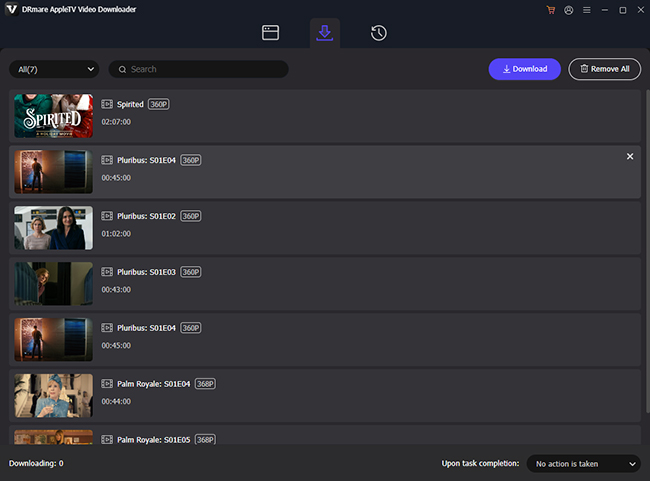
Hit the "Download" button located at the top of the interface to begin the high-speed conversion process. The software will process the files and save your chosen media directly to your computer's hard drive. Once the downloads wrap up, open your designated output folder to locate your unprotected video files.
- Step 4Connect the USB to Your Hisense TV
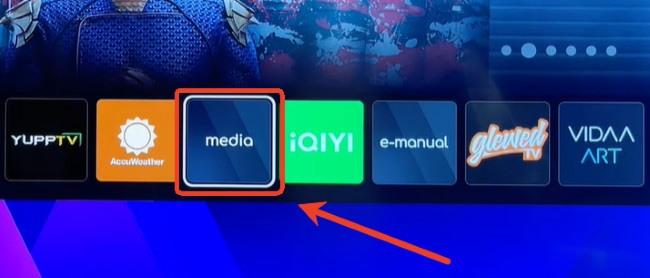
Transfer your downloaded Apple TV files onto a USB drive. Plug the drive into your television securely. Head over to your Apps section and launch the "Media" or "MultiMediaPlayer" app. Choose your connected USB device and navigate through your folders to play Apple TV on your Hisense smart TV without needing the native app or a Wi-Fi connection.
Part 4. Fix Apple TV Not Working on Hisense TV
Getting the Apple ecosystem to seamlessly integrate with your Hisense smart TV usually goes smoothly, but you might occasionally hit a roadblock. Whether you are dealing with Apple TV AirPlay or remote volume issues, Apple TV not working is incredibly common. Fortunately, restoring your connection is usually just a matter of tweaking a few specific settings.
Common Fixes for the Apple TV App on Hisense TV Not Working
When the Hisense Apple TV app is not working, a few basic troubleshooting steps can usually resolve the issue.
- Power cycle: Just unplug your television from the wall, wait about 60 seconds, and plug it back in, which clears temporary memory glitches that cause the app to freeze.
- Clear Cache or Reinstall: Navigate to your TV's app settings to clear the Apple TV app cache. If that fails, completely uninstall the app, restart the TV, and reinstall it from the app store.
- Update System Software: Ensure your TV's firmware is up to date and verify that your system's date and time settings are perfectly accurate, as mismatching clocks can instantly break streaming connections.
How to Fix Apple AirPlay on Hisense TV
Sometimes, you might find that Hisense TV Apple AirPlay is not working or failing to appear on your iOS device. Wireless mirroring relies on a clean, unrestricted network connection to function properly.
Step 1. Verify that your iPhone, iPad, or Mac is connected to the exact same Wi-Fi network band as your Hisense smart TV.
Step 2. Temporarily disable any active VPNs or ad-blockers on your mobile device, as these security tools can easily block AirPlay from discovering your television on the local network.
Step 3. Go into your television's system menus, found Settings > Connection and toggle the "Apple AirPlay and HomeKit" feature off and back on to force a system refresh.
Fixing Apple TV Remote Volume Control on Hisense
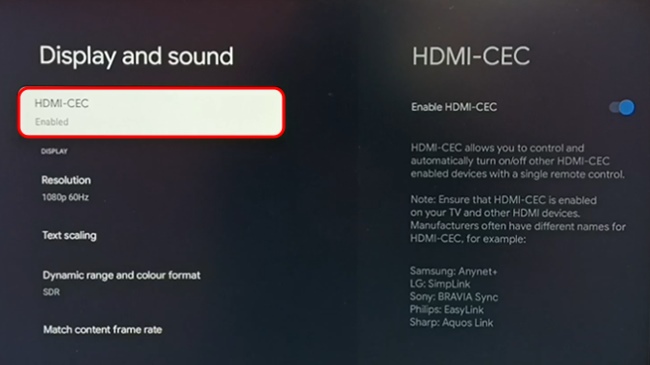
If you are using a physical Apple streaming box and find the Apple TV volume control not working on Hisense, the issue almost always stems from communication settings between the remote and the screen. You can usually fix this by configuring your HDMI-CEC or infrared IR settings.
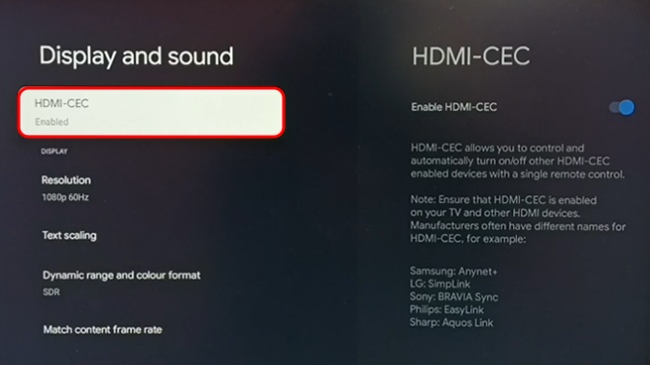
Step 1. Enable HDMI-CEC (some labeled as "Link" or "Sync" on various models) within your Hisense TV's main system settings.
Step 2. On your Apple TV interface, navigate to Settings > Remotes and Devices. Ensure that the "Control TVs and Receivers" option is toggled to ON.
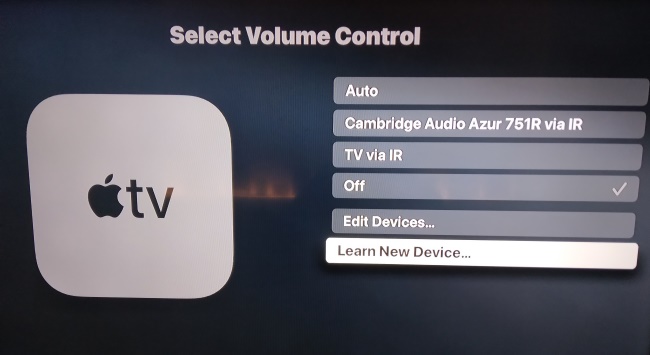
Step 3. If the volume still does not respond, you may need to force a manual infrared connection. In the same Apple TV settings menu, change the volume control setting from "Auto" to "TV via IR".
Step 4. Select "Learn New Device" and follow the on-screen prompts, using your original Hisense remote to teach the Apple TV remote the correct volume commands.
Note:
If your original TV remote connects via Bluetooth, you might need to temporarily disable Bluetooth in your Hisense TV settings to force it into IR mode during this learning process.
Part 5. Summary
Watching Apple TV on a Hisense smart TV is easy, regardless of the specific operating system your model uses. Whether you download the native app directly from the Hisense TV app store, use built-in web browser, or cast Apple TV with AirPlay to stream your favorite Apple TV Originals on Hisense. If you want to watch Apple TV on Hisense TV offline, utilizing the DRmare Apple TV Downloader to play content offline via a USB drive is a fantastic, restriction-free alternative.

 Home
Home




Download Apple TV movies and shows with original quality, enabling offline viewing on Hisense TV without an Apple TV subscription.