





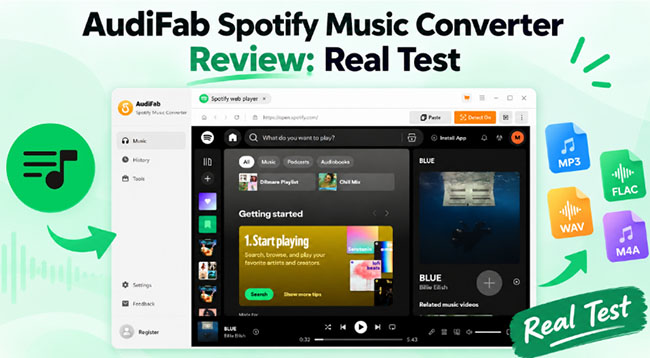
If you're looking for an AudiFab Spotify Music Converter review, you already know what the software does: It can rip and convert Spotify tracks to MP3, FLAC, and other local audio files. You don't need a detailed explanation of how it works. What you actually need to know is whether it lives up to its marketing claims, which output formats are available, how fast it really is, and if it's worth your hard-earned cash when Spotify Premium already offers offline listening.
I put AudiFab Spotify Music Converter through a hands-on test to see how it performs in everyday use. This review bypasses the standard feature-listing approach to focus directly on real-world performance metrics, user interface nuances, and the actual cost of entry. Here is what I found.
Part 1. 30-Second Verdict: AudiFab Spotify Music Converter Test Result
My AudiFab Test Environment
- Device: Windows 11 PC
- AudiFab Version: Latest version (V3.6.3) available at the time of testing
- Download Source: AudiFab official website
- Test Mode: Spotify Web Player and Spotify App
- Test Playlist: A randomly selected Spotify playlist
- Songs Tested: 10
- Total Duration: 36 minutes and 19 seconds
- Conversion Time: Approximately 4 minutes
- Test Focus: Conversion speed, available settings, output formats, extra features, and overall workflow
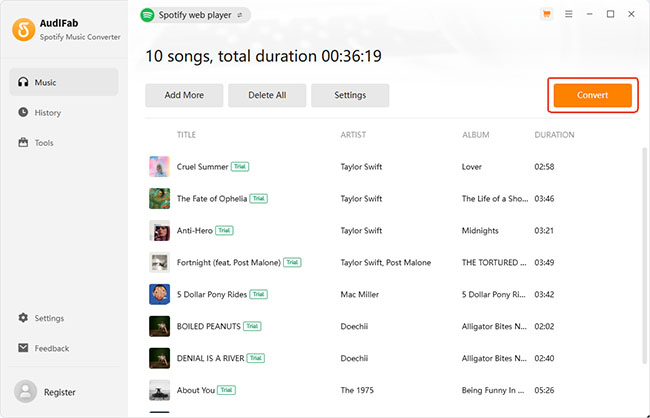
In my hands-on test, AudiFab Spotify Music Converter handled the core conversion workflow smoothly for both Spotify Web Player mode and Spotify App mode. Ten songs totaling 36 minutes and 19 seconds took about 4 minutes to convert, and the converted folder opened automatically afterward. The software also offers useful output controls and several extra tools that can be tried without a license.
The main caveats are the one-minute-per-song free trial, the lack of a monthly plan, and the fact that the tested interface showed a maximum of 10×, despite AudiFab advertising speeds up to 40×. Overall, AudiFab suits frequent users who need local audio files, including MP3, AAC, FLAC, WAV, AIFF, and ALAC, regularly more than occasional Spotify downloaders.
Part 2. AudiFab Spotify Converter Speed Reality Check: 40× vs. 10×
Let's cut right to the chase: speed is the most critical factor for this kind of software. AudiFab advertises conversion speeds of up to 40× in its current product materials, but that number shouldn't be treated as the speed you'll get on every playlist. In my test, 10 songs totaling 36 minutes and 19 seconds took about 4 minutes, which works out to roughly 9.1× overall. So while AudiFab can be fast, my test did not come close to the advertised maximum.
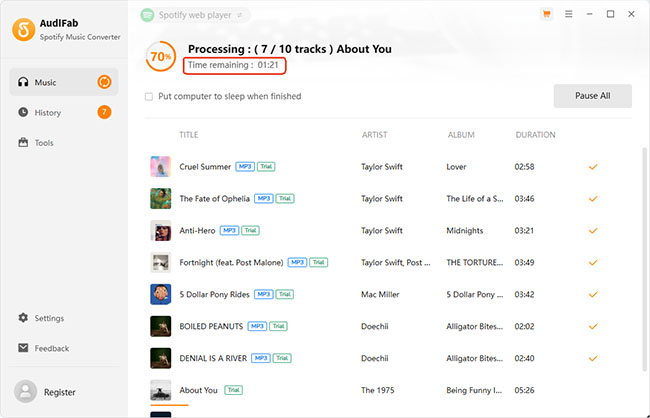
Is 4 minutes for an album-length playlist slow? Not at all. It's actually quite efficient. But you should definitely temper your expectations: don't buy this expecting 40x lightning speeds across the board.
Part 3. Deep Dive into AudiFab Spotify Music Converter Settings and Features
A converter's utility heavily relies on how well it adapts to your specific digital library organization. AudiFab Spotify Music Converter provides a surprisingly robust set of parameters.
Flexible Conversion Modes
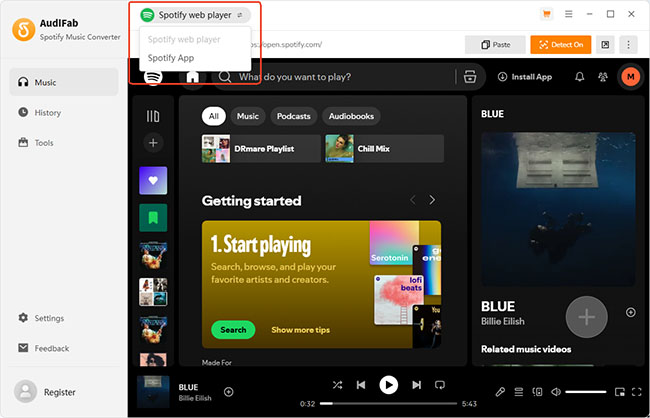
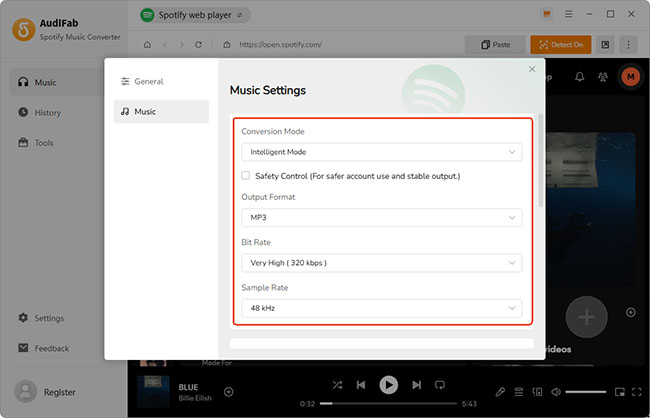
AudiFab supports two ways to access Spotify content: Spotify Web Player and Spotify App. After selecting the Spotify source, the Music Settings provide three different conversion modes, including Intelligent Mode, Record Mode, and YouTube Mode. You can choose any mode depending on its success rate with specific tracks. Intelligent Mode offers the most frictionless experience by automatically adjusting its capture method if an error occurs mid-download.
Output Formats and Organization
AudiFab supports a wide array of formats, prioritizing MP3 and AAC (.m4a) as its recommended defaults, while also offering FLAC, WAV, AIFF, and ALAC (.m4a) for audiophiles.
I tested the filename templates and folder-organization options with playlist content. The settings allowed me to organize files by artist, album, playlist, and other metadata fields, and name files using a combination of variables such as Track Number, Title, Artist, Album, Playlist Index, Year, and Disc Number.
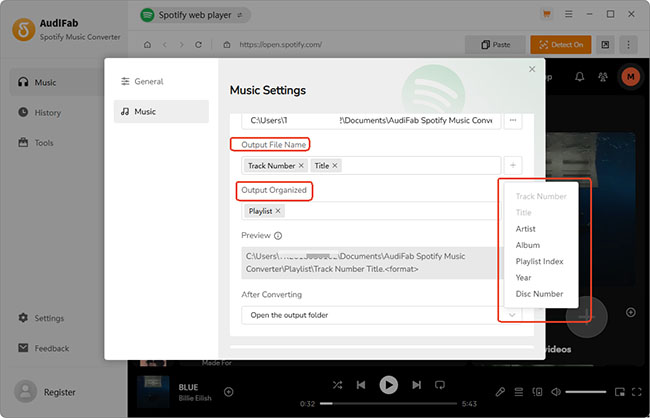
One neat little touch I loved? Once a batch finishes, the converted folder automatically pops up on your screen. This small quality-of-life feature makes managing large downloads significantly less tedious.
Part 4. AudiFab Spotify Converter Free Trial: What Can You Actually Test?
AudiFab's free trial is more useful than simply a locked demo interface, but it has one major restriction: each song is limited to the first minute of conversion.
That means you can explore the interface and get a feel for the workflow without immediately purchasing the software. You can also check things such as the available output formats, file organization, metadata handling, and whether the basic conversion process works on your setup.
However, a one-minute sample isn't enough to evaluate full-track conversion behavior or long playlist performance.
Extra AudiFab Tools You Can Use for Free
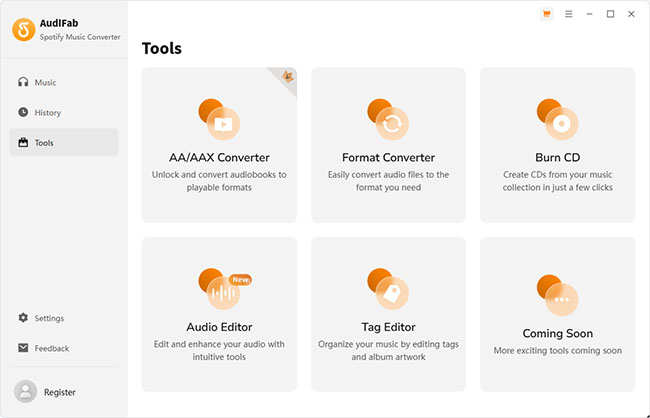
During my testing, I also found that some of AudiFab's additional tools could be tried without immediately purchasing them. Format Conversion, Burn CD, Audio Editor, and Tag Editor are completely free to use. You can edit tags or burn a CD without ever purchasing a license. The AA/AAX Converter is the exception and remains behind the paid version.
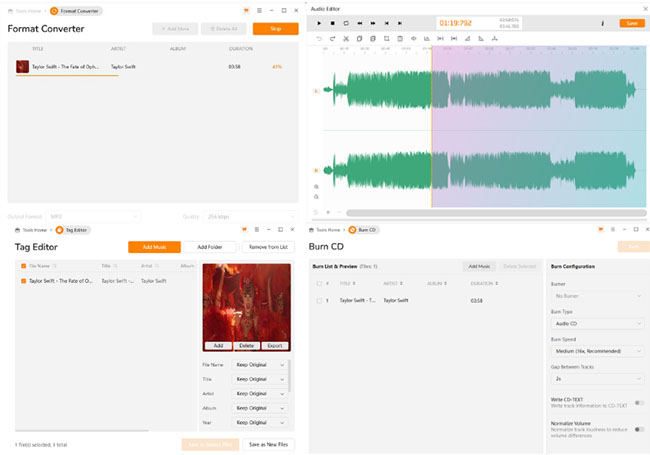
AudiFab Free Trial vs. Pro
| Feature | Free Trial | Paid Version |
|---|---|---|
| First-minute conversion | ✅️ | ✅️ |
| Full-song conversion | ❌️ | ✅️ |
| Access to main interface | ✅️ | ✅️ |
| Batch conversion | Limited by trial duration | ✅️ |
| Format Conversion | ✅️ | ✅️ |
| Burn CD | ✅️ | ✅️ |
| Audio Editor | ✅️ | ✅️ |
| Tag Editor | ✅️ | ✅️ |
| AA/AAX Converter | ❌️ | ✅️ |
The free version is therefore best viewed as a way to test the workflow, not as a practical solution for building a complete local music library.
Part 5. AudiFab Spotify Music Converter Pricing: Where's the Monthly Tier?
Evaluating the cost-to-value ratio is critical, especially when the software landscape is shifting toward subscription models. AudiFab's pricing structure presents a surprisingly steep barrier to entry for casual users.
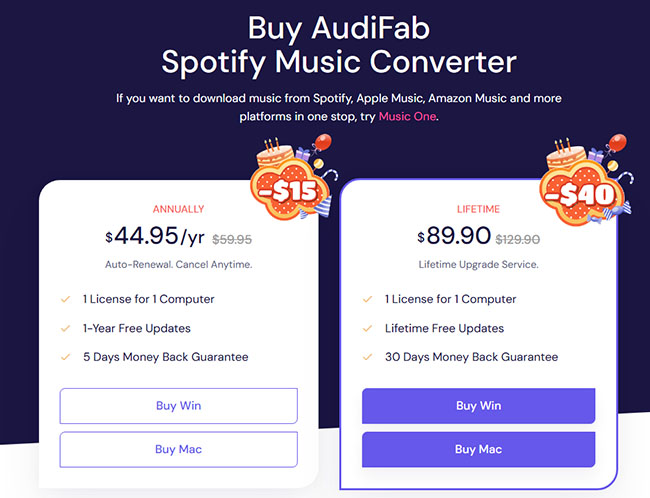
Currently, the software retails at $59.95 for a yearly license (often discounted to $44.95) and $129.95 for a lifetime license (frequently sitting at an $89.95 promotional rate). There is no monthly plan. Unlike competitors who let you pay $19.95 for a single month to convert a quick batch of songs and then cancel, AudiFab forces you into an annual commitment at minimum. If you're a power user, the $90 Lifetime tier is actually a steal. But for a one-off project, the barrier to entry is a bit steep.
Part 6. AudiFab User Experience: What Happens After Conversion?
The conversion workflow itself is relatively easy to follow. Here is how to use AudiFab Spotify Music Converter quickly:
Step 1. Get AudiFab Spotify Music Converter free download on your computer from its official website. Open it and choose how you want to access Spotify:
- Spotify App: Works with the desktop Spotify app and is recommended by AudiFab for better audio quality. It will automatically open the Spotify app.
- Spotify Web Player: Lets you work through Spotify's web player without installing the Spotify desktop app.
Note:
These are source/access options, not the same as AudiFab's Conversion Mode settings such as Intelligent Mode, Record Mode, and YouTube Mode.
Step 2. If you're using Spotify App mode, open Spotify and drag a song, album, or playlist into AudiFab. You can then select the tracks you want and click Add. In Web Player mode, open the playlist or album in AudiFab's built-in Spotify web player and use the Add icon and then the Add button to load the tracks.
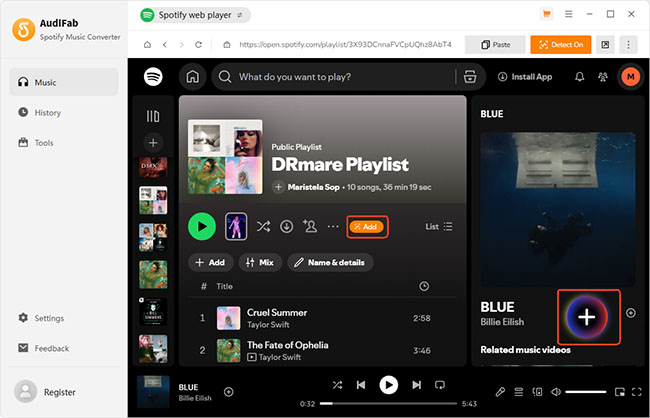
Step 3. Open Settings in the lower-left corner. Here you can choose the conversion mode, output format, save location, file naming rules, and how the converted files are organized.
Step 4. Return to the main screen and click Convert. AudiFab Spotify Music Converter will process the selected tracks and save them to the output folder you specified.
Step 5. After conversion, open the History section to check the completed tracks. You can also open the output folder directly to access the local audio files.
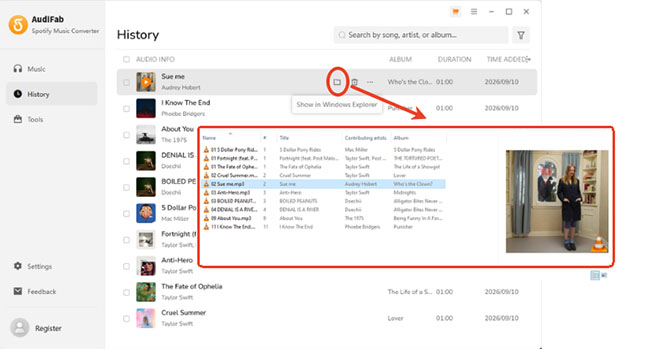
One small detail I liked during testing was what happened at the end: once the conversion completed successfully, AudiFab automatically opened the converted folder. That removes one otherwise unnecessary step. You don't have to remember where you configured the output location before checking the finished files.
The file-naming and organization settings also help when working with larger playlists. For example, you can structure output around artist, album, playlist, or other metadata instead of keeping every converted track in a single folder.
Part 7. AudiFab Spotify Music Converter: Pros and Cons
What I Like
- Flexible output options. MP3, AAC, FLAC, WAV, AIFF, and ALAC cover most common local-audio requirements.
- Useful organization controls. File naming and folder-organization options are helpful when converting albums and playlists.
- Straightforward post-conversion workflow. Automatically opening the converted folder saves a small but useful step.
- Several additional tools can be tested for free. Format Conversion, Burn CD, Audio Editor, and Tag Editor were available for trial use during testing.
What Could Be Better
- The advertised 40× speed needs context. The tested interface offered a maximum of 10×, while AudiFab's documentation associates the 40× figure with its Web Player mode.
- The free trial is limited to one minute per song. This lets you test the workflow but not complete songs.
- There is no monthly plan. Users have to choose between annual and lifetime licensing.
- The upfront cost may not suit occasional users. Even the discounted annual license requires a larger commitment than a short-term subscription.
Part 8. AudiFab vs. DRmare: Which Spotify Converter Fits You?
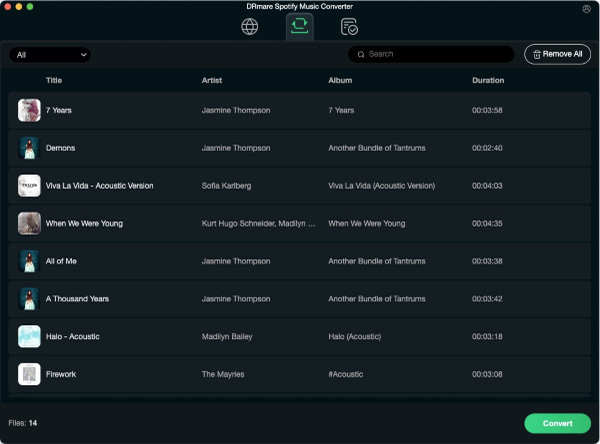
If you like the idea of converting Spotify music to local files but don't need AudiFab's additional tools or Spotify App mode, DRmare Spotify Music Converter is a more focused alternative worth considering.
The main difference is the workflow. DRmare is designed around the Spotify Web Player rather than offering the same Web Player/App source choice as AudiFab. It supports common formats such as MP3, M4A, FLAC, WAV, AIFF, M4B, and AIFF, with a faster conversion speed of up to 15×.
When DRmare May Make More Sense
For me, the biggest reason would be simplicity and entry cost rather than a longer feature list. If you only need a straightforward Spotify-to-local-audio workflow, DRmare may be a better fit. Its Web Player-based workflow is simpler, and the availability of monthly, yearly, and lifetime plans gives occasional users more flexibility.
| Features | AudiFab | DRmare |
|---|---|---|
| Main workflow | Spotify App / Web Player | Spotify Web Player |
| Max. advertised speed | Up to 40×* | Up to 15× |
| Output formats | MP3, AAC, FLAC, WAV, AIFF, ALAC | MP3, M4A, FLAC, WAV, M4B, AIFF |
| Monthly plan | No | Yes, $19.95/monthly |
| Best for | More flexible workflows and extra tools | A simpler, lower-commitment conversion workflow |
Note:
*In my tested version, the selectable speed topped out at 10×. AudiFab's 40× claim is associated with Web Player mode.
Part 9. FAQs About Using AudiFab Spotify Music Converter
Is AudiFab Spotify Music Converter safe to use?
AudiFab states that its software is free from malware, spyware, and adware. I recommend downloading it directly from the official AudiFab website rather than third-party download sites.
Is there an AudiFab Spotify Music Converter for Android?
No. AudiFab Spotify Music Converter is a desktop program for Windows and Mac, with no dedicated Android version.
Can AudiFab download Spotify songs without Premium?
Yes. AudiFab supports both Spotify free and premium accounts. You can use it to download and convert Spotify music without Premium.
Does AudiFab preserve Spotify metadata?
Yes. AudiFab can retain common metadata such as track title, artist, album, track number, and artwork.
Is AudiFab Spotify Music Converter free?
AudiFab offers a free trial, but it limits each song to the first minute. A paid license is required for full-track conversion.
Will Spotify ban my account for using AudiFab?
There is no guarantee that your account is safe from suspension when using third-party conversion software. Spotify's guidelines prohibit copying, ripping, recording, or transferring content where not expressly permitted.
Part 10. Bottom Line
AudiFab Spotify Music Converter performed well in my hands-on test, with a straightforward workflow, plenty of output options, and useful file-organization controls. The biggest gap between the marketing page and my test was conversion speed: AudiFab advertises up to 40×, but my 10-track test worked out to roughly 9.1× overall.
The bigger question is price. With no monthly plan, AudiFab makes more sense for people who expect to use it regularly rather than for someone who only needs to convert a few tracks once. If you want more flexible licensing or a simpler Web Player-focused workflow, alternatives such as DRmare may be worth comparing before you buy.

 Home
Home





User Comments
Leave a Comment