





Apple TV not working is a common but frustrating experience. Whether the app displays a black screen, lacks sound, or fails to sign in, it is usually not caused by a single error. This guide breaks down common reasons and provides step-by-step solutions to fix Apple TV not working across all your devices—including Smart TVs, mobile phones, and desktops.
Part 1. Why is Apple TV Not Working
Most Apple TV problems fall into a few clear categories: network issues, account verification errors, DRM restrictions, or device limitations. Knowing the reason makes it much easier to fix.
-
Network or DNS Issues: This is the most common reason. Apple TV relies on specific Apple servers to start playback. If your ISP's DNS is slow or outdated, your device may fail to connect to the correct server, even though other apps work fine.
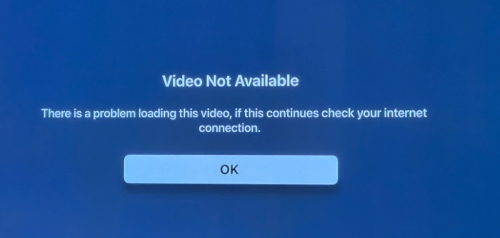
- DRM Restrictions: Apple TV uses FairPlay DRM, which requires a fully secure connection from the app to your screen. If something in that chain isn't trusted and the DRM check fails, then Apple TV may show a black screen.
- Sign-In Verification Problems: Apple TV uses temporary security tokens to keep you logged in. If a token expires, becomes corrupted, or your device's system time is incorrect, Apple TV will reject the login and loop endlessly.
- Device & Platform Compatibility Limits: Apple frequently updates its security requirements. Older Smart TVs or outdated browsers often lack the hardware-level security to decode 4K or HD content.
Part 2. Universal Fix for Apple TV Not Working
Before diving into complex device settings, try these four universal solutions. These steps address the core synchronization and cache issues that solve roughly 80% of all Apple TV streaming errors.
-
Restart Your Device. Unplug your TV or streaming device from the wall for at least 60 seconds. This is more effective than a remote restart because it fully drains the capacitors and clears the system RAM.
-
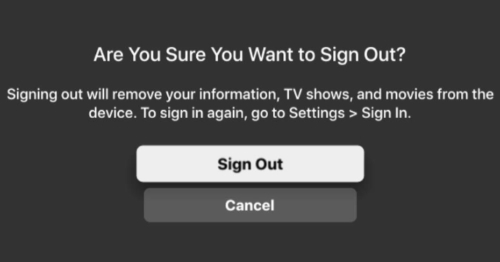
Sign Out and Back In. Go to "Settings > Accounts" and sign out. Restart the app before signing back in to refresh your authorization token and generate a fresh connection with Apple's servers.
-
Update App & System. A mismatch between the app version and your device's OS often triggers DRM failures. Check your device's app store for an Apple TV app is running the latest version, and also check your TV's main settings for a system update.
-
Optimize Your Network & DNS. Apple TV requires a "clean" path to its handshake servers. Toggle Airplane Mode/Wi-Fi or Flush DNS if you see "Server Unavailable". You can also try switching your device's DNS settings to a public provider.
Part 3. Fix Apple TV Not Working on Smart TV
Most Apple TV issues on smart TVs are caused by system caching or incomplete DRM handshakes. Thus, simply reopening the app often doesn't solve the problem. You can start with the common steps below, then move on to the specific solutions for Apple TV not working on Roku and other smart TVs.
Basic Fixes for Apple TV on Smart TV
Restart the TV: Unplug your TV from the wall for a full minute, which clears the temporary system cache.
App Update & Reset: Make sure the Apple TV app update to the latest version. Then reset the Apple TV App on your smart TV to wipe corrupted local data without deleting the app itself.
For Roku
If Apple TV on your Roku is "no sound" or stuck on the loading logo, you can try these steps:
Step 1. Network Connection Reset. Go to "Settings > System > Advanced system settings > Network connection reset". Your Roku will reboot and refresh its handshake with your router.
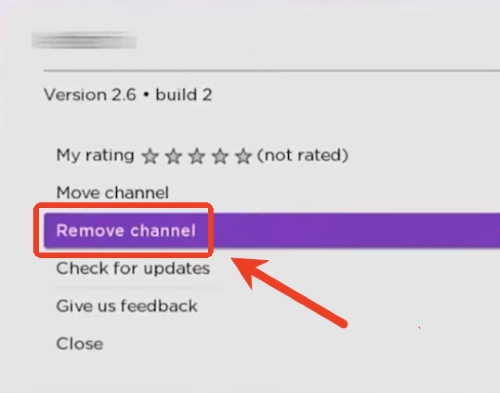
Step 2. Reinstall Apple TV. Highlight the Apple TV app on your home screen, press the Star (*) button, and select "Remove Channel", then reinstalling the app on Roku.
For Samsung & LG TV
In most cases, a "Cold Boot" is usually fix Apple TV not working on Samsung and LG TVs. When they keep apps "suspended," which can lead Apple TV to freezing.
For Samsung TV: Hold the Power button on your remote continuously until the TV turns off and the manufacturer's logo appears again, which clears the TV's RAM.
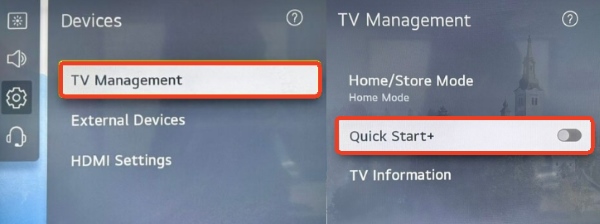
For LG TV: Go to "General > Devices > TV Management" and disable QuickStart+. It can prevent the TV from keeping buggy apps "awake" in the background, forcing a fresh load every time you watch.
For Fire Stick
If Apple TV on Fire Stick won't open, try clearing the "junk" manually since Fire OS is prone to app-specific data corruption.
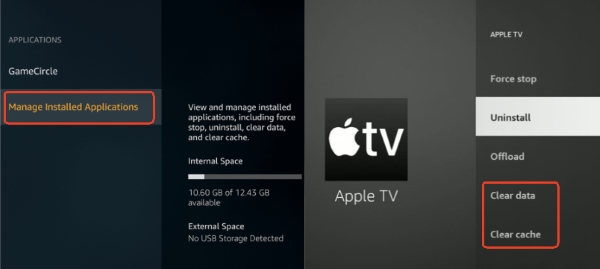
Step 1. On your Firestick, navigate to "Settings > Applications > Manage Installed Applications".
Step 2. Find Apple TV and select "Clear Cache and Clear Data". This resets the app to its factory state without deleting it from your Fire Stick.
Part 4. Resolve Apple TV Not Working on iPhone/Android
On mobile devices, the system focuses on saving battery and data instead of keeping apps fully connected in the background. This is why Apple TV issues are often linked to network interference, background limits, or security verification problems.
Quick Checks for Apple TV Issues on Mobile
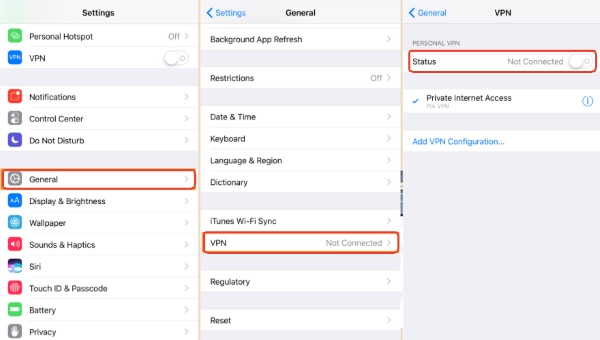
Disable VPNs and Ad Blockers: They are one of the most common causes of Apple TV playback failures, so turn off any VPN or ad-blocking tools before testing playback again.
Test the Network Connection: If you're using public Wi-Fi, the network may block the ports Apple TV needs to stream video. You can switch briefly to cellular data and try playing the video again.
Check Apple's Service Status: Go to Apple's System page to confirm whether Apple TV services are experiencing a temporary outage.
For iPhone
Apple TV on iPhone rely on deep background synchronization. If the app is glitchy, check your account and background permissions.
-
Refresh Your Apple TV Sign-In: Go to the Apple TV app settings, sign out of your Apple Account, then sign back in. This creates a new security token and often fixes sign-in loops or playback errors.
-
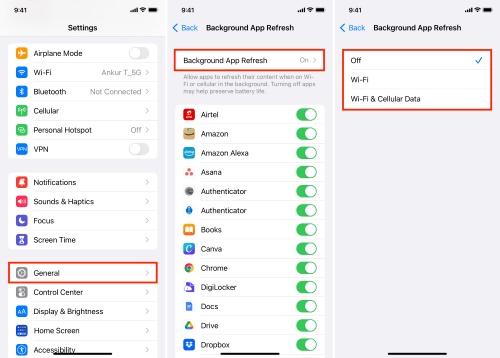
Enable Background App Refresh: Without background refresh, Apple TV may fail to verify your subscription while the app is idle, causing videos to stop or refuse to load. Go to "Settings > General > Background App Refresh" and make sure it's enabled for the TV app.
-
Confirm Your Account Region: Apple TV content is strictly region-locked, and a mismatch can prevent videos from playing. Go to "Settings > Your Name > Media & Purchases > View Account" and check your region.
-
Fix AirPlay Issues: If AirPlay isn't working, make sure both your iPhone and the receiving device are connected to the same Wi-Fi network and frequency.
For Android
On Android, Apple TV issues are most often related to battery restrictions or system time errors.
-
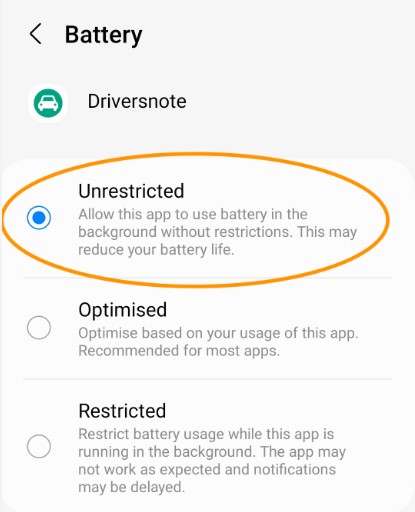
Disable Battery Optimization: Android's default battery optimization can stop background DRM checks, causing videos to freeze or quit unexpectedly. Go to "Settings > Apps > Apple TV > Battery" and set it to Unrestricted.
-
Sync Your System Clock: If your device time is out of sync, Apple's security certificates may fail, preventing playback entirely. Go to "Settings > System > Date & Time" and enable Set time automatically.
Part 5. Fix Apple TV Not Working on Windows/Mac
Unlike mobile devices, playback on Windows and Mac depends heavily on the browser or desktop app correctly handling Apple's security requirements. They are mainly caused by browser DRM limitations, sign-in token failures, or system compatibility problems.
Apple TV Sign-In Is Not Working on Windows PC
Clear Browser Cookies and Cache: Corrupted cookies can prevent Apple TV from storing authentication data correctly. So Clearing them often help you resolve mostly sign-in loops on Windows.
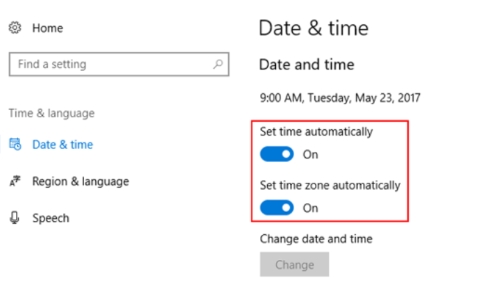
Sync System Time Automatically: Apple's authentication certificates will fail if your system clock is out of sync. Go to "Settings > Time & Language > Date & Time" and enable automatic time and time zone.
Apple TV Not Working on Chrome
Disable Browser Extensions: Privacy tools, script blockers, and screen-recording extensions often break Apple TV playback. Some VPNs, ad blockers can interrupt Apple's sign-in verification process and should be turned off while testing playback.
Use an Incognito Window: This temporarily disables extensions and cookies, making it easy to test whether Chrome settings are the issue.
Try a Different Browser: On macOS, Safari provides the most reliable Apple TV support. On Windows, Edge may work better than Chrome in some cases.
Part 6. How to Avoid Apple TV Not Working Again
Streaming technology is notoriously fragile due to its reliance on a perfect internet connection and stable DRM servers. To completely bypass apple tv app not working error, the most reliable option is streaming offline by converting Apple TV content into local files.
With a specialized tool like DRmare Apple TV Downloader, you can download your favorite Apple Originals as high-quality MP4 or MKV files. Once downloaded, these files can be played on any media player or transferred for your Smart TV. Even if the Apple TV server goes down or the app refuses to load, your Apple TV remains accessible.
How to Download Apple TV to Fix Apple TV Not Working
- Step 1Adjust Your Playback Preferences
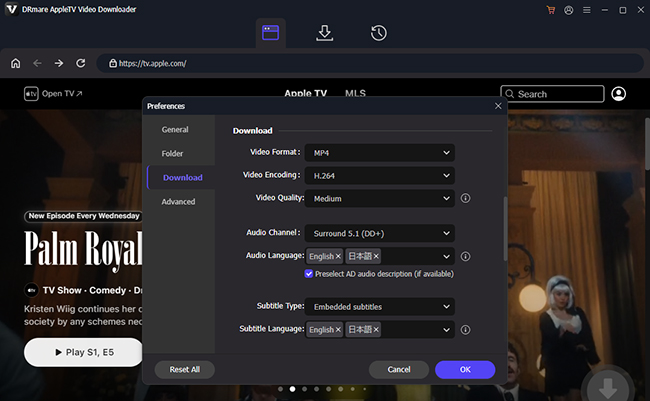
After opening the DRmare Apple TV Downloader, sign in to your Apple account. Then head to the "Preferences" menu and select the "Download" tab. Here, you can set the output format to MP4 or MKV. You can also choose your preferred resolution and ensure that original 5.1 audio tracks and subtitles are preserved for better experience.
- Step 2Build Your Offline Apple TV Library
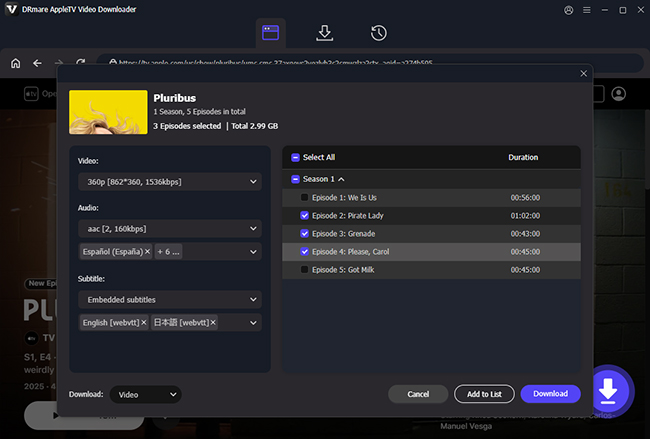
When you find the desired movie or series from Apple TV, simply click the "Download" icon. For series like Severance or Ted Lasso, use the "Add to List" function to batch-select entire seasons. This is a massive time-saver for preparing a full library of Apple TV content.
- Step 3Convert Apple TV Shows Locally
Click the "Download" button to begin the conversion process. DRmare will strip away the restrictive DRM layers and save the content as a standard MP4/MKV file. So you won't have to worry about the typical errors that plague Smart TVs.

- Step 4Enjoy Seamless Apple TV Anywhere
Once finished, you can check the videos in the "History" tab or your local destination folder. Now you can play Apple TV on your TV or watch it on computers and mobile devices without worrying about the Apple TV app not working.

 Home
Home




User Comments
Leave a Comment