





Building a massive Audible library is convenient until you hit the wall of Amazon's strict DRM encryption, which prevents true control of your audiobooks. To break free, many readers are turning to Audiobookshelf, the ultimate self-hosted media server. In this guide, we will walk you through exactly how to use and deploy your own Audiobookshelf server, and seamlessly stream your Audible to Audiobookshelf across computers and mobile.
Part 1. What Is Audiobookshelf
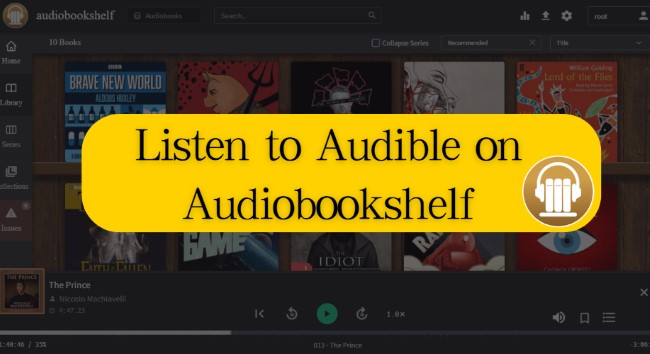
Audiobookshelf is a powerful, completely open-source media server designed specifically to manage and stream your personal collection of audiobooks and podcasts. You can think of it as a specialized alternative to platforms like Plex or Jellyfin, but laser-focused on delivering an intuitive, audio-first reading experience. It connects effortlessly with third-party APIs, like Google Books and Audible. It can even locate and insert accurate chapter markers for your audio files if that data exists online.
When it comes to getting your server running and listening to your books, the platform offers great flexibility:
- Complete Self-Hosting and Privacy: Host Audiobookshelf on your own hardware for full control over your media and data. It offers robust multi-user support with customizable access permissions, so everyone in your family can manage their own private libraries.
- Cross-Platform Streaming and Sync: Enjoy seamless listening across devices with the web interface or native iOS/Android apps. It syncs progress in real-time and supports offline listening.
- Automated Metadata and File Management: Automatically fetches cover art, author info, and chapter markers. Manage files with drag-and-drop uploads, daily backups, and tools for converting Audible files into M4B format.
Part 2. Can You Play Audible Books Directly on Audiobookshelf
No, you cannot directly import or play Audible files on your Audiobookshelf. Audible protects all its media with strict Digital Rights Management (DRM), utilizing proprietary AA or AAX file formats to keep you locked inside its specific ecosystem. In contrast, Audiobookshelf is built exclusively to read standard, DRM-free audio formats like MP3 or M4B. To truly own your media, you must first liberate your purchased content from the official app. This requires using specialized conversion software to strip the DRM from Audible and transform the audio into an unprotected format before importing it into your personal library.
Part 3. How to Transfer Audible to Audiobookshelf
Moving your purchased Audible collection to a self-hosted Audiobookshelf server requires a specific workflow to bypass Amazon's proprietary ecosystem. To achieve a seamless transition, you will need to complete three essential phases: converting your Audible audiobooks, installing Audiobookshelf, and finally importing those files into your dashboard to build your ultimate private library.
Convert Audible Books for Audiobookshelf
Before using Audiobookshelf, you must address the format restrictions on your purchased audiobooks. To decrypt your library into standard audio files, a dedicated utility like DRmare Audible Converter becomes an essential part of your self-hosting toolkit.
It directly decrypts and losslessly transforms your protected Audible downloads into DRM-free formats, including MP3, M4A, M4B, FLAC, AIFF, and WAV, allowing you to batch-convert your entire audiobook collection at 100X speed. More importantly, it retains all the crucial ID3 tags, ensuring that your Audiobookshelf server perfectly displays cover art, author details, and narrators.
How to Download Audiobooks for Audiobookshelf
- Step 1Accessing Your Audible Library
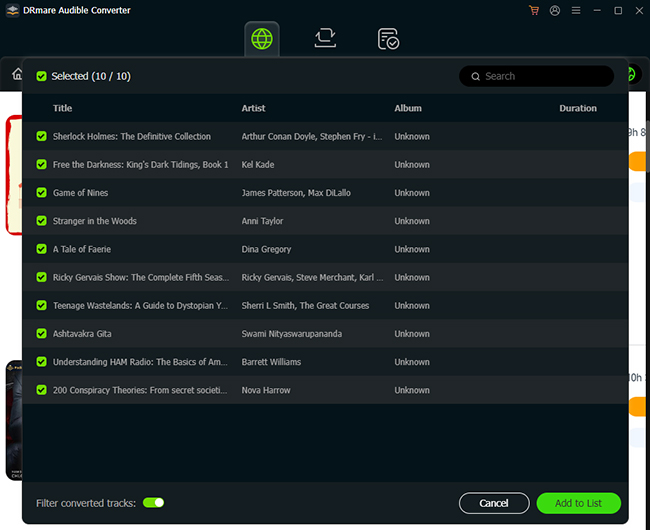
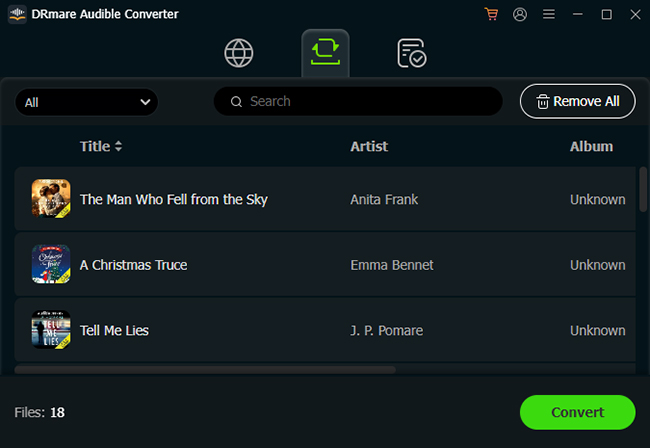
Launch the DRmare Audible Converter on your computer to access its integrated web player. Log in to your Audible account securely through this window to view your complete library. Locate the specific audiobooks you want to self-host, then hit "Add" and select "Add to List" to place them in the software's processing queue.
- Step 2Optimizing Format and Metadata
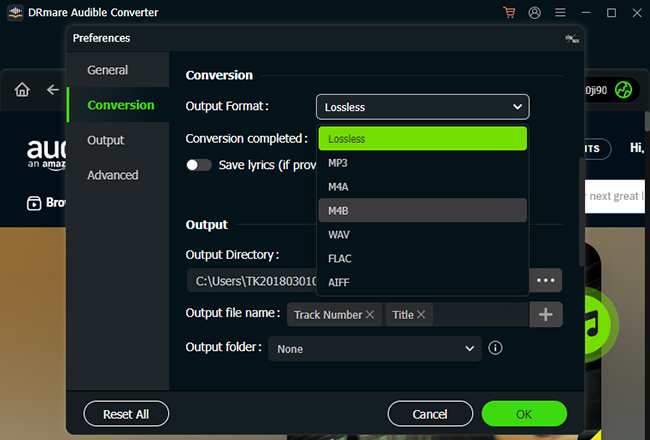
Navigate to the top menu, click "Preferences" and select the "Conversion" tab to set your output. For the absolute best experience on Audiobookshelf, it is highly recommended to select the M4B format, which preserves built-in chapter markers for easy navigation on mobile devices.
- Step 3Extracting Audible for Audiobookshelf
Click the "Convert" button at the bottom of the interface to begin the extraction. The software will rapidly remove the DRM restrictions and save the high-quality audio files directly to your computer. And they can be transferred directly into your Audiobookshelf media directory.
Install and Set up Audiobookshelf on a Computer
After converting the audiobooks, you need to set up Audiobookshelf on your personal computer to host them. Depending on your operating system and technical comfort level, there are a couple of different paths you can take to install the Audiobookshelf server. Simply choose the deployment method below that best fits your workflow.
Method 1: The Docker Route
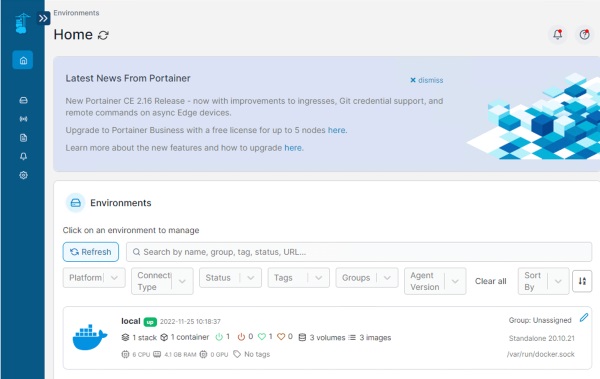
Utilizing Docker is the most universally supported method for getting your server off the ground. While it requires a brief moment in the command line, it ensures your audio platform runs flawlessly in the background without interfering with your other applications.
Step 1. Head over to the official website and install the Docker Desktop application tailored for Windows. During the setup process, ensure that the WSL 2 feature remains checked, as this is crucial for optimal performance. You can always consult the official Docker documentation for help.
Step 2. Launch PowerShell on your computer to download the necessary server components. Type or paste the command for the most recent version of the Audiobookshelf:

Step 3. Deploy the container by linking your freshly converted audiobooks to the new server. You will need to run a configuration string that maps your local Windows directories to the Docker environment.
Step 4. Open your preferred web browser and navigate directly to http://localhost:13378. You will immediately see the initial setup screen, meaning your private audiobook server is officially live and ready to use.
Method 2: Native Windows Installer
If you are operating on a PC and prefer to avoid command-line interfaces altogether, there is a fantastic community-driven alternative. A dedicated executable file handles all the necessary backend dependencies, including Node.js, directly during the standard installation process.
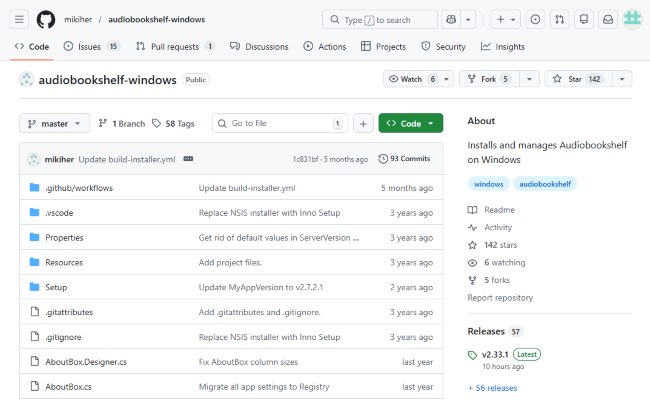
Step 1. Navigate to the audiobookshelf-windows GitHub repository and download the latest .exe release.
Step 2. Run the installer, follow the standard prompts, and launch the application directly from your Start menu or system tray.
Import Audible Books into Audiobookshelf
With your server successfully deployed, you will be immediately greeted by the Audiobookshelf initial setup screen. Your system is now completely ready to ingest the DRM-free audio files you prepared earlier.
- Step 1Moving Your Media Files
Upload your newly unlocked audiobooks by moving them directly into your designated media directory. You can simply copy and paste or drag your organized folders into this location so the server can read them. For a Docker setup, place the files in the local folder you mapped to /audiobooks/. For a native Windows install, place them in the folder path you specified during the setup process.
- Step 2Configuring Your Dashboard
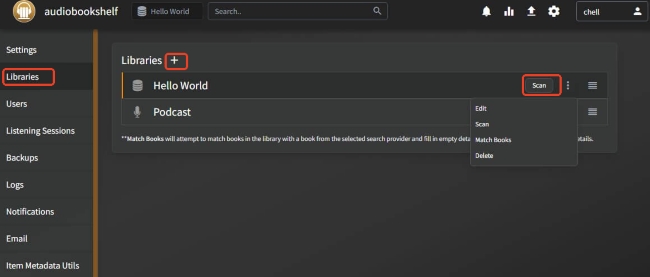
Once logged in, set up your new audiobook library by pointing the dashboard directly to the local folders you just populated. Navigate through your admin dashboard to "Libraries", click the "+" icon, and select "Scan". Audiobookshelf will immediately begin scanning your directory for new content and automatically extract the embedded metadata.
- Step 3Playing Your Audiobooks
Once this scanning process is complete, your converted titles will be beautifully displayed across your dashboard. Click on any audiobook in your newly populated library. A dedicated media player will seamlessly appear at the bottom of your browser, allowing you to start playing your media instantly.
Part 4. How to Play Audible Books on the Audiobookshelf App
Now that your personal server is up and running with your newly converted audiobook collection, it is time to listen to your books on Audiobookshelf. Here is how you can access your newly built library from your mobile devices:
Step 1. Download the official Audiobookshelf app to your phone. Android users can easily find it in the Google Play Store, while iOS users can currently access the app via Apple's TestFlight program.
Step 2. Connect the app to your home server. On the initial login screen, simply enter your server's IP address along with the port number or your custom domain name.
Step 3. Once authenticated, your entire library will populate on your device. Now just choose an audiobook from your library to play. Your listening progress will automatically sync across all your connected devices, providing a seamless experience.
Mobile App Availability:
The dedicated Audiobookshelf mobile apps are currently in active beta testing. If you are an Android user, you can easily download the app directly from the Google Play Store to get started right away. However, iOS access is managed through Apple TestFlight, and that specific testing program is unfortunately full at this time.
Part 5. FAQs about Audiobookshelf
Is Audiobookshelf free?
Yes, Audiobookshelf is completely free. As an open-source and self-hosted media server, there are no licensing fees or hidden costs. You can download, install, and use it without paying. However, if you choose to host the server on a Virtual Private Server (VPS) for remote access, you'll need to cover the hosting fees from your chosen cloud provider.
Do I still need an Audible subscription to listen to my library on Audiobookshelf?
No. The primary benefit of a self-hosted server like Audiobookshelf is achieving true digital ownership of your media, freeing you entirely from recurring monthly fees. Once you have purchased your books, removed the DRM using a conversion tool, and hosted them on your personal server, they belong to you forever. You can cancel your Audible subscription completely and continue listening to your existing library without any interruption.
Does Audiobookshelf support ebooks?
Absolutely, the platform has expanded well beyond just audio content. Audiobookshelf supports ebooks seamlessly, allowing you to upload EPUB, MOBI, and PDF files. You can read these documents directly within the web interface or through the mobile companion apps, making it a comprehensive solution for all your digital reading needs.

 Home
Home




User Comments
Leave a Comment