





 I recently got a Samsung Smart TV and have several movies purchased on iTunes. Is there an app I can download, similar to Netflix or Amazon Prime, that will let me watch my iTunes movies directly on the Samsung TV?
-- From discussion.apple.com
As Smart TVs evolve, Samsung continues to lead the market with versatile features and broad app compatibility. For those who have invested heavily in iTunes movies, the transition to a Samsung display is smoother than ever. There are now multiple ways to enjoy a seamless, cinematic experience at home. From native app integration to easy wireless casting, here is everything you need to know about unlocking and playing your iTunes videos on your Samsung Smart TV.
Part 1. How to Watch iTunes Movies on Samsung TV via the Apple TV App
For many years, the only way to get iTunes content onto a Samsung TV was through an external Apple TV box. However, since 2019, Samsung and Apple have collaborated to integrate the Apple TV app directly into the Samsung Tizen OS. This app acts as your centralized hub for all iTunes movies, TV shows, and Apple Original content. Here is how to set it up:
Step 1. Check Compatibility: The Apple TV app is pre-installed on most Samsung Smart TVs from 2018 to 2026. This includes:
- QLED & Neo QLED Series (4K and 8K)
- The Frame, The Serif, and The Sero lifestyle TVs
- Crystal UHD (6, 7, and 8 Series)
- OLED and Mini LED models (including the newest 2026 H-series)
Tips:
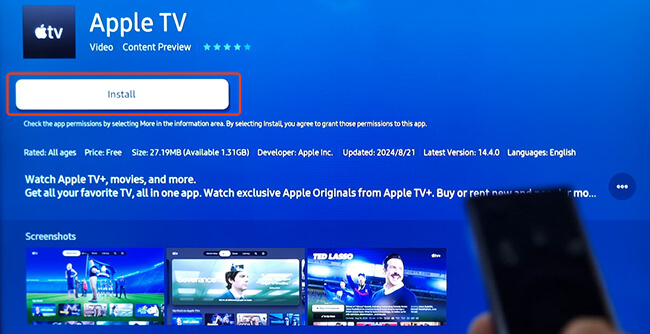
If you don't see the app on your home bar, go to the Apps icon on the left side of the screen and search for "Apple TV" to download and install it manually on Samsung Smart TV.
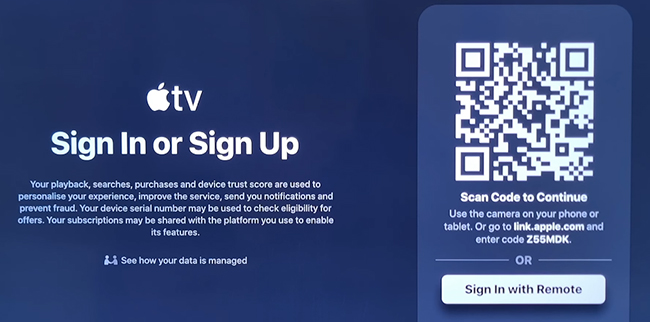
Step 2. Sign In with Your Apple ID: Once the app is open, you need to link it to your Apple account to access your iTunes purchases. Tap the 'Sign In or Sign Up' button to sign in with remote or mobile device.
Tips:
A QR code will appear on your TV; scan it with your iPhone or Android phone to sign in instantly without typing a password with your remote.
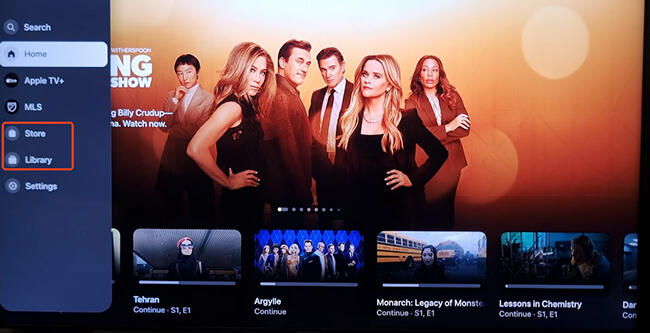
Step 3. Access Your iTunes Extras and Movies on Samsung Smart TV: After signing in, your entire history of iTunes purchases is synced. You can use the sidebar to navigate to the 'Library' tab. Here, you will see your "Recent Purchases," "Movies," and "TV Shows". Now, select a iTunes movie and click 'Play' to watch it on Samsung TV.
- 4K HDR & Dolby Atmos: If you purchased a movie in 4K on iTunes, the Samsung app will automatically stream it in the highest quality supported by your TV hardware.
- Consolidated Viewing: With the latest tvOS 26.4 updates, Apple has removed the standalone "iTunes Movies" apps, making the Apple TV app the single, streamlined place for all your content.
- Genius Browse: A new feature that provides personalized recommendations based on your previous iTunes and streaming history.
Part 2. How to Play iTunes Videos on Samsung Smart TV [All Models]
While the Apple TV app is a great solution for newer TVs, it isn't available on older Samsung legacy TVs. Additionally, even on newer sets, the app requires a constant internet connection. If you want a truly universal solution that works on all Samsung Smart TVs, including older models, playing your iTunes movies as local files via a USB drive or media server is the most reliable method.
Samsung TVs are highly versatile and natively support common video containers like MP4, MKV, AVI, and MOV. However, movies and TV shows purchased from the iTunes Store are encoded in encrypted M4V format. This digital protection prevents the Samsung built-in media player from recognizing or playing the files directly. To bypass these compatibility issues, you can use a dedicated tool like DRmare M4V Converter. This software allows you to download and convert iTunes movies, including iTunes Extras to an unprotected and compatible format, supported by Samsung TVs. It can convert iTunes movies to MP4, MKV, AVI, etc. at 30X faster speed without touching the original video quality.

 Security verified. 6, 896,804 people have downloaded it.
- Remove DRM from iTunes M4V videos with simple process
- Support multiple output devices such as Samsung Smart TV
- Retain the original 1080p resolution, along with AC3 5.1 surround sound and multilingual subtitles.
- 100% clean, reliable and it comes with high performance
With the help of this software, you can watch iTunes movies and TV shows on your Samsung Smart TV via several methods. Here's how:
How to Convert iTunes Movies for Samsung Samsung TV
- Step 1Download and open DRmare M4V Converter
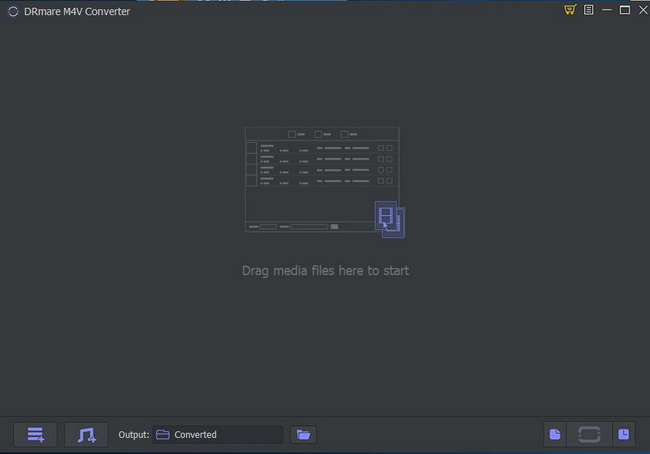
Tap the above 'Download' button to download the M4V Converter for your computer (available for both Windows and macOS). Follow the installation instructions to set up DRmare M4V Converter on your computer.
- Step 2Load iTunes movies that you'd like to play on Samsung TV
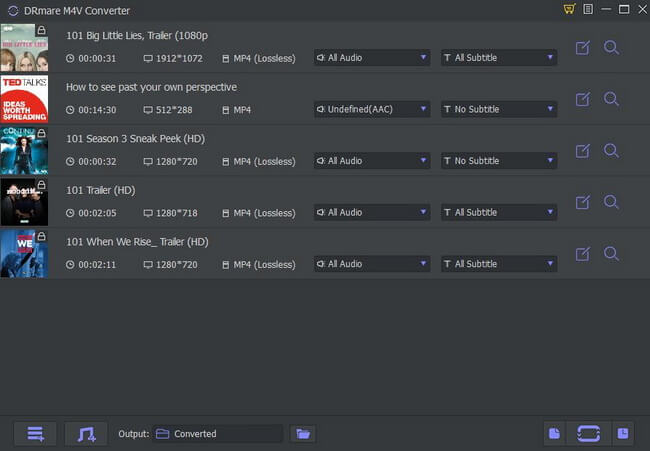
Launch the software on your computer. Click the "Load iTunes Library" button, the software will load your content from the iTunes library, and you can select iTunes movies from the library to your M4V Converter. Alternatively, you can drag and drop your iTunes movies and TV shows into the DRmare M4V Converter interface.
- Step 3Define iTunes movie output format for Samsung TV
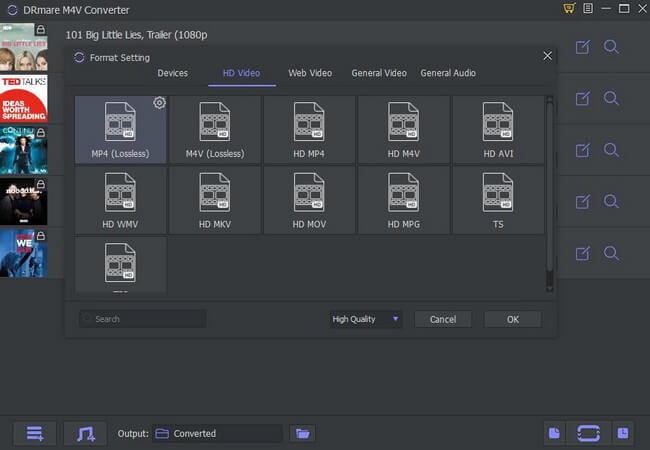
Click on the "Format" button to open the setting window. Tap the drop list from the bottom and then click 'Devices' tab to find all the supported devices. Please locate and select the device as 'Samsung TV'. You can also click the select a format compatible with Samsung Smart TVs, such as MP4 under the "General Video" tab.
- Step 4Convert iTunes movies for Samsung Samsung TV
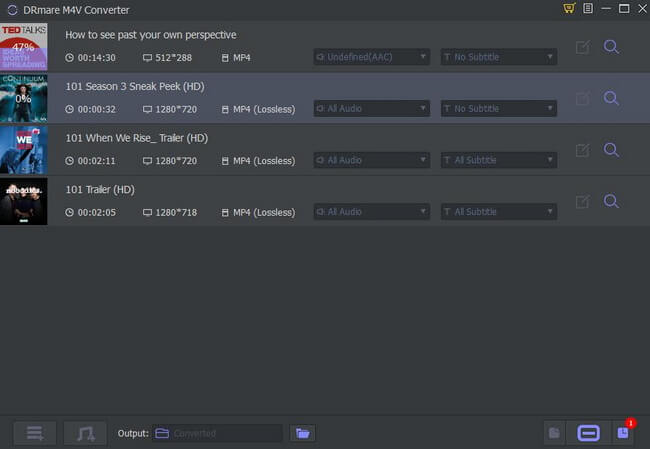
After adjusting the settings, click the "Convert" button to begin the conversion process. DRmare M4V Converter will remove DRM protection and convert the iTunes movies and TV shows into the selected format. The duration will depend on the number and size of the files being converted. Once done, you'll have unprotected MP4 files ready for playing on Samsung TV.
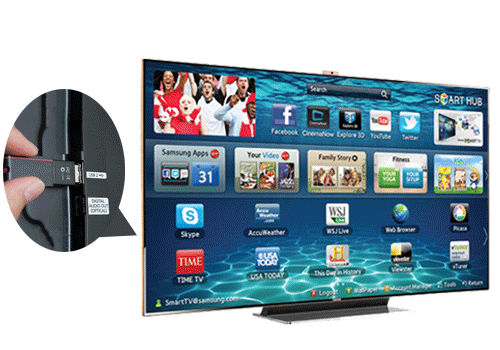
Watch iTunes Movies on Samsung Smart TV via USB Flash Drive
Almost every Samsung Smart TV supports USB flash drives. And it is the most common and easiest way. Now, let's see how to play iTunes videos on Samsung TV via USB drive.
Step 1. Plug a USB drive into your computer. Transfer the converted iTunes files to the USB drive from your computer. Safely eject the USB drive from your computer.
Step 2. Insert the USB drive into one of the USB ports on your Samsung Smart TV. Use your TV's remote to navigate to the USB drive. Go to the "Source" or "Input" menu and select the USB drive.
Step 3. Locate the converted movies and TV shows from iTunes on the USB drive and select them to play. Your Samsung Smart TV should now be able to display the content without any issues.
Play iTunes on Samsung TV via Burning a DVD
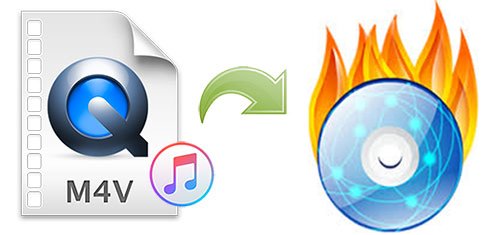
If you have a DVD burner on your computer, then you can try to burn the converted iTunes videos to a DVD and access them on Samsung TV via a DVD player.
Step 1. Burn the converted iTunes videos to a DVD if you have a DVD burner.
Step 2. Plug one end of the HDMI cable into the HDMI OUT port on your DVD player and the other end into an available HDMI input on your Samsung Smart TV.
Step 3. Turn on your TV and use the remote to select the HDMI input you connected the DVD player to. This is usually done by pressing the "Source" or "Input" button on your remote and choosing the appropriate HDMI channel.
Step 4. Plug in and power on your DVD player. Open the DVD player's tray, place the DVD into the tray, and close it. The DVD player should automatically start playing the DVD. If not, press the "Play" button on the DVD player's remote or on the player itself.
Get iTunes on Samsung Smart TV via Samsung AllShare
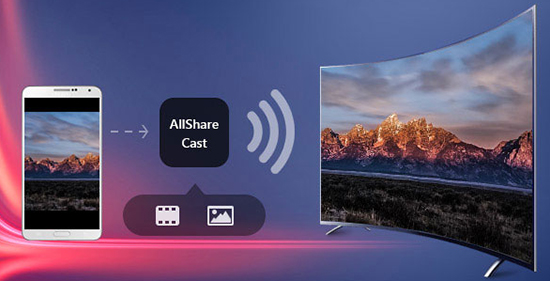
Samsung AllShare supports to share locally linked content from PC and Media Servers to Samsung TV. Just follow the simple steps here and see how it works.
Step 1. Download and install Samsung AllShare on your PC.
Step 2. Share the folder containing the converted iTunes videos.
Step 3. On your Samsung TV, select Source to access the shared folder and play the videos.
Play iTunes Videos on Samsung Smart TV via Plex Server
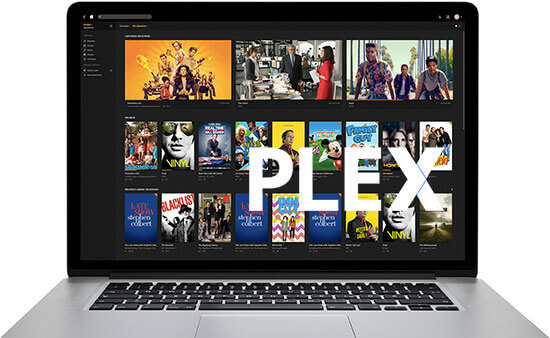
Plex is a versatile media server application that organizes and streams your digital content across various devices, including your Samsung TV. By setting up Plex on your computer and adding your iTunes movie library, you can effortlessly watch your favorite films on the big screen without needing to convert files or use external drives.
Step 1. Install Plex Media Server on your PC and add your iTunes movies to the Plex library.
Step 2. Download the Plex app on your Samsung TV from the Samsung App Store.
Step 3. Use the Plex app to watch iTunes on your Samsung TV.
Part 3. How to Watch iTunes Movies on Samsung Smart TV via Other Ways
Beyond native apps and local USB playback, modern connectivity features make it easy to "bridge" your Apple devices and your Samsung hardware. Whether you want to mirror your phone screen or sync your library across different platforms, these three methods offer excellent flexibility:
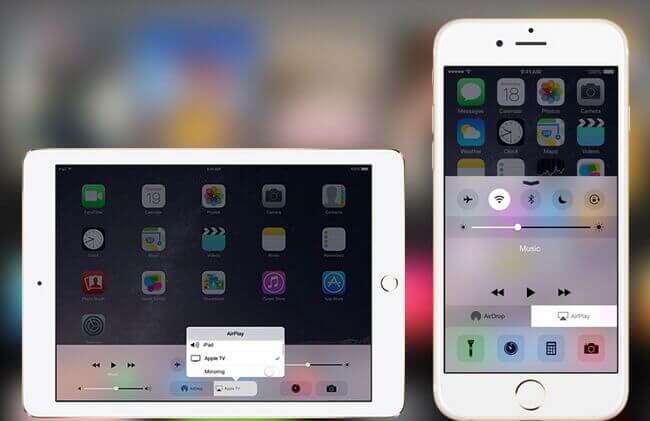
Method 1: Stream iTunes to Samsung Smart TV via AirPlay
For Samsung Smart TVs that support AirPlay 2, you can stream content, including iTunes videos directly from your Apple device.
Step 1. Ensure both your Samsung Smart TV and Apple device (iPhone, iPad, or Mac) are connected to the same Wi-Fi network.
Step 2. Go to the settings on your Samsung TV and enable AirPlay.
Step 3. Stream iTunes movies from Your Apple Device:
- iPhone/iPad: Open the iTunes app, select the movie, tap the AirPlay icon, and choose your Samsung TV.
- Mac: Open the movie in iTunes, click the AirPlay icon in the menu bar, and select your Samsung TV.
Method 2: Cast iTunes Movies to Samsung TV via Apple TV 4K
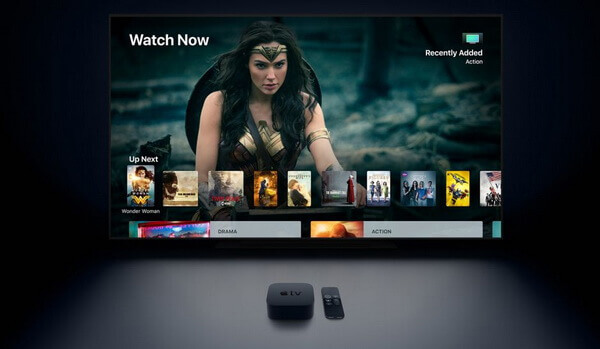
If you have an Apple TV 4K, then you can use it to access your entire iTunes library and cast iTunes content to your smart TV directly. The process is straightforward, here is how to do it:
Step 1. Use an HDMI cable to connect the Apple TV 4K to an available HDMI port on your Samsung Smart TV. Turn on your TV and select the corresponding HDMI input.
Step 2. Plug the Apple TV 4K into a power outlet and turn it on. Follow the on-screen instructions to set up the device. Connect it to your Wi-Fi network and sign in with your Apple ID.
Step 3. Once your Apple TV 4K is set up, navigate to the Apple TV app on the home screen. Go to the "Library" tab within the Apple TV app to access your purchased or rented iTunes movies and TV shows.
Step 4. Choose the iTunes movie you want to watch from your library. Click on the movie to start playback. The movie will play on your Samsung Smart TV via the Apple TV 4K.
Step 5. Use the Apple TV remote to control playback options such as play, pause, rewind, and fast-forward.
Method 3: Use iTunes Movies on Samsung Smart TV via HDMI Cable
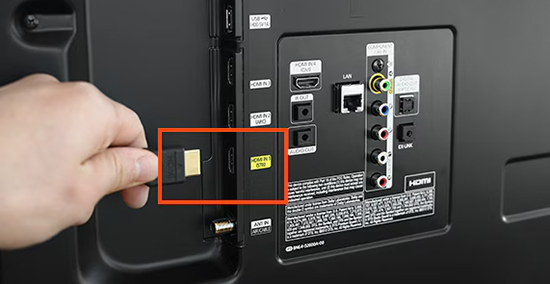
Another option is to use an HDMI cable to connect your computer to your Samsung Smart TV. Here's how:
Step 1. Plug one end of the HDMI cable into your computer and the other end into your Samsung Smart TV's HDMI port.
Step 2. Change the TV's input to the corresponding HDMI port.
Step 3. Launch iTunes on your computer and navigate to your movie library.
Step 4. Select the movie you want to watch and play it. The movie will be displayed on your Samsung Smart TV.
Part 4. FAQs about Playing iTunes Videos on SamSung TV
Is Apple TV 4K compatible with Samsung Smart TV?
Yes. You can connect an Apple TV 4K hardware box to any Samsung Smart TV via an HDMI port. It allows you to deliver 4K resolution and HDR10+.
Can I put the Apple TV app on my Samsung Smart TV?
Yes, on most models. You likely don't even need to put it there, as it comes pre-installed on almost all Samsung Smart TVs from 2018 to 2026.
Can Samsung TVs play iTunes via AirPlay?
Yes. Most Samsung Smart TVs manufactured from 2018 onwards support Apple AirPlay 2.
Part 5. In Conclusion
Whether you have the latest Neo QLED or a reliable older Samsung model, you no longer have to feel locked out of your iTunes library. The integration between Apple's ecosystem and Samsung's hardware has come a long way, offering a variety of ways to enjoy your favorite films.
Whether you're using the Apple TV app, Apple TV 4K, HDMI cable, AirPlay, HDMI cable, DVD player, or a USB drive. Each method has its own set of steps and requirements. So, choose the one that best suits your setup and preferences. Grab the popcorn, settle into your favorite spot, and play your iTunes videos on your Samsung Smart TV in stunning clarity.

 Home
Home





User Comments
Leave a Comment