





 I have purchased some 4K and 1080p movies and TV shows from the iTunes Store on my Windows 10 and subscribed to Apple TV plan on my Mac computer. Since Chromecast can now support these videos, I tried to Chromecast iTunes movies on my home high-definition TV. But I failed and was told that the video is not a Chromecast-supported file. Why it happened? I haven't yet tried casting Apple TV content to Chromecast.
You were not alone with this problem while casting iTunes to Chromecast. Fortunately, the landscape has changed. While Apple and Google used to be walled gardens, they are now more compatible than ever. However, certain DRM (Digital Rights Management) and device limitations still exist. This article provides the ultimate guide to casting videos from Apple TV and iTunes to any Chromecast device without any problem.
Part 1. Can You Chromecast Apple TV/iTunes Movies? (The 2026 Reality)
The short answer is Yes, but the how depends on your device:
- For both Apple TV content and iTunes purchases and rentals, you can now cast directly from the Android Apple TV app, or use a Chrome browser on a PC/Mac.
- If you have a Chromecast with Google TV device, you can directly install an Apple TV app to access your Apple library on your Chromecast-enabled device.
- But, users on iOS (iPhone/iPad) still face a wall, Apple does not provide a Cast button in the iOS app, only AirPlay.
The Format Issue: iTunes movies use the encrypted M4V format. While modern apps handle the stream, if you want to play these files offline or via a local media server (like VLC) to Chromecast, the encryption will block the Cast signal. This is why tools like DRmare M4V Converter remain essential for total freedom. It can convert iTunes movies to MP4 for offline viewing anywhere.
Part 2. Official Ways to Cast Apple TV/iTunes to Chromecast
In late 2025, Apple released a major update (Version 2.2) for the Android Apple TV app, finally bringing native Google Cast support. This means you no longer need complex workarounds if you have the right hardware. Here are the three official ways to watch your library on Chromecast-enabled devices:
1. Cast via the Android Apple TV App (New)
This is now the most seamless way for Android users to stream Apple TV streaming content and iTunes purchases and rentals to any Chromecast-enabled device.
- Update the App: Ensure you have downloaded the latest Apple TV app from the Google Play Store (Version 2.2 or later).
- The "Cast" Button: Open the app and sign in. You will notice the familiar Google Cast icon in the top-right corner of the home screen and within the video player.
- Control from Phone: Once connected, your phone becomes a sophisticated remote. You can control playback via a dedicated mini-player, scrub the timeline, and even manage subtitles or audio tracks directly from your mobile screen while the movie plays on the TV.
Note:
Unlike earlier web-based methods, this native app fully supports your iTunes Library, including all 4K/HDR movies you've purchased or rented.
2. Native Installation on Chromecast with Google TV
If you have the newer Chromecast hardware (the one with a dedicated white remote), you can bypass "casting" entirely for a more stable experience.
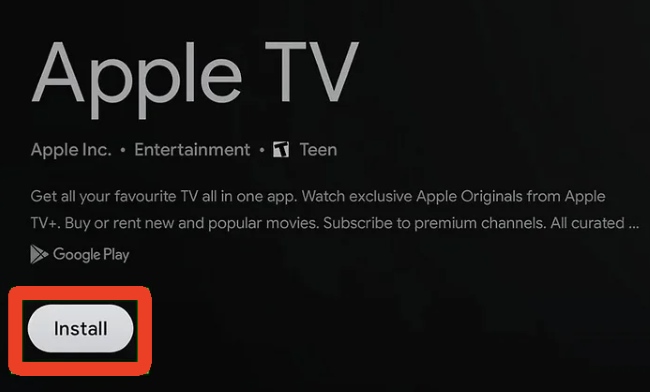
- Direct App Support: Navigate to the Apps tab on your Google TV home screen and search for "Apple TV."
- Best Quality: By installing the app directly on the device, you get the most reliable 4K, HDR10, and Dolby Vision playback.
- Sync Library: After logging in with your Apple ID, your entire iTunes purchase history and Apple TV subscriptions will sync automatically to the "Library" tab. This is the recommended method for home theater enthusiasts who want the highest bit-rate possible.
3. Cast via Web Browser (PC/Mac)
This remains the best official fallback for Windows or Mac users who don't want to install additional software, though it requires a stable Wi-Fi connection.
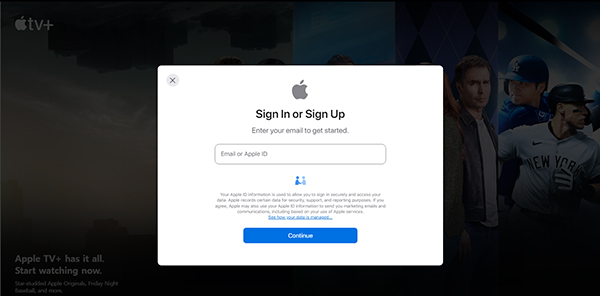
- The Mirroring Process: Open Google Chrome or Microsoft Edge and go to tv.apple.com. After logging in, start playing your desired movie.
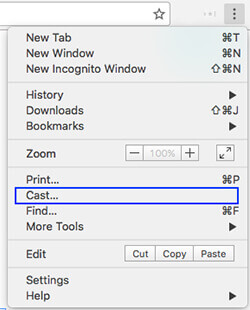
- Cast the Tab: Click the Three Dots in the browser's top-right corner, select "Save and share", then click "Cast...". Choose your Chromecast device from the list.
- Audio/Visual Quality: While convenient, keep in mind that "Tab Casting" mirrors your browser's output. This can sometimes result in slightly lower resolution (often capped at 1080p) or minor lag compared to the native App methods mentioned above.
Note:
If you are on macOS 15 (Sequoia) or later, you must grant Chrome "Local Network" and "Screen Recording" permissions in System Settings for the cast to work properly with sound.
Part 3. Total Freedom to Cast iTunes to Chromecast (For Offline & PC/iOS)
If you are using an iPhone (which lacks a Cast button for Chromecast) or want to keep your iTunes rentals forever and play them on any TV through any media player without lag, converting them to MP4 is the best solution.
Section 1. Preparations
First of all, you need to prepare three things below.
1. Your Downloaded iTunes Movies/TV Shows
To Chromecast iTunes movies from iPhone or personal computer, you have to download them on your iTunes Library.
2. DRmare M4V Converter
To convert iTunes movies for Chromecasting anywhere, we'll need a professional M4V video converter, which can convert Apple movies to Chromecast-compatible video files. For an all-featured M4V movie unlocker, DRmare M4V Converter could be the best option.
This smart iTunes to Chromecast converter can convert all kinds of iTunes videos. It includes all the purchased and rented movies from iTunes Store and more. During converting, it won't touch the original video and audio tracks. It keeps the AC3 5.1 audio, CC, audio descriptions, and subtitles for the HD 1080P/720P and SD iTunes movies. The highlight feature of this program is the ability to convert iTunes M4V movies to MP4 and other formats supported by Chromecast. Streaming and watching iTunes movies on Chromecast is no longer a problem with the help of this software.

 Security verified. 6, 896,804 people have downloaded it.
- Convert iTunes rentals and purchases at a faster speed
- Batch convert iTunes videos without any quality loss
- Convert iTunes M4V to multiple video formats supported by Chromecast
- Support to edit iTunes movies metadata
3. Chrome Browser
To make Apple movies Chromecast integration, the Chrome browser can't be ignored. Please download the latest version of the Chrome browser on your Windows or Mac computer.
Section 2. How to Convert iTunes Movies for Chromecast to Cast
Once you got ready, you can see how to convert iTunes movies for Chromecast step by step in this section. After doing the following steps, you can then easily Chromecast iTunes movies to TV.
- Step 1Open DRmare M4V Converter and add downloaded iTunes movies
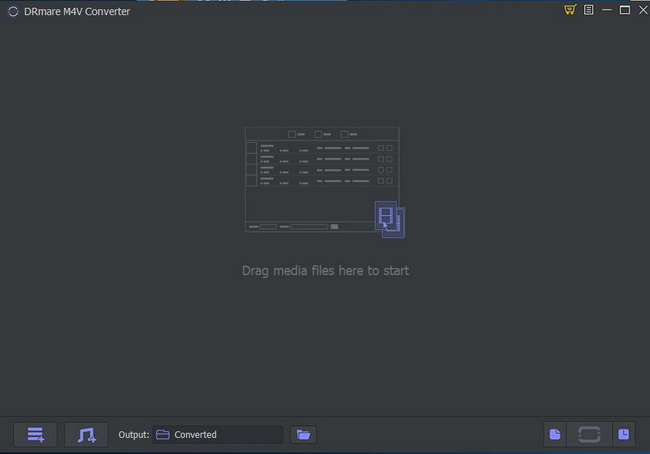
- Download and install the free version of DRmare M4V Converter on your computer. Then launch DRmare iTunes to Chromecast Converter. And then click 'Load iTunes Library' button. Then a drop-down menu will appear. You can choose the iTunes movies you want to stream to Chromecast from your iTunes library. Click 'OK' and the videos will be loaded to the converter. You are also allowed to add the iTunes M4V movies by drag-and-drop.
- Step 2Customize output settings for Chromecast iTunes movie
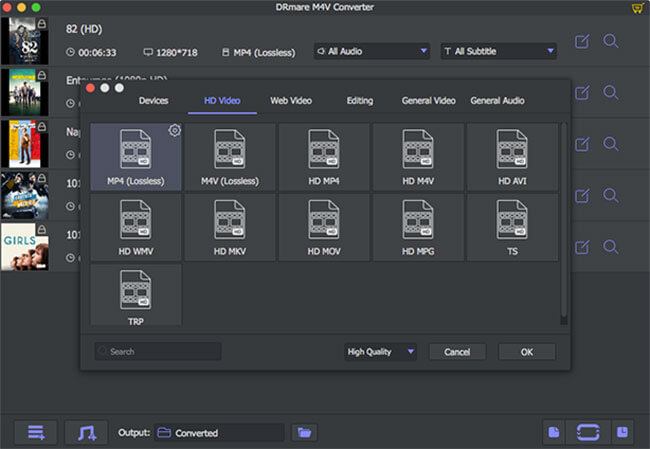
- To get iTunes movies cast to Chromecast, choose the output format as 'Lossless MP4' from the profile list. The quality of the output iTunes video will be the same as the original file. All audio tracks including the AC3 5.1 sound, AD, CC, and subtitles will be retained. Or you can choose HD MP4. It lets you set the video parameters, such as video codec, size, bit rate and so on according to your own needs.
- Step 3Convert iTunes to Chromecast
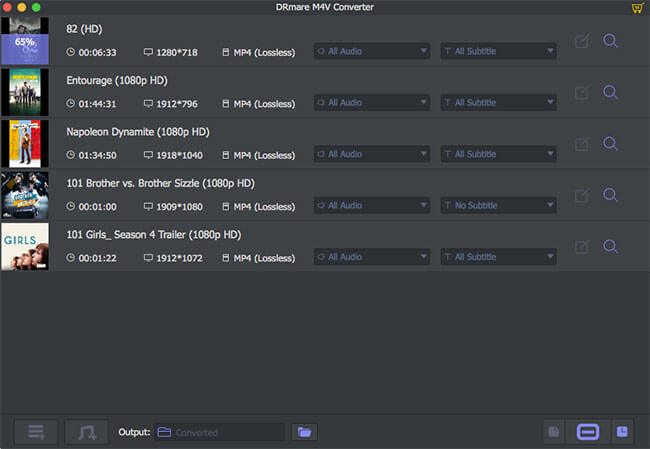
- Click the 'Convert' button in the lower right corner. It will start converting iTunes movies to Chromecast-compatible MP4 files. After conversion, you can click the 'Converted' panel. Then you will find those well-converted iTunes videos, which are available to cast to Chromecast now!
Section 3. How to Cast iTunes to Chromecast for Playing on TV
Congratulations, you should have already got the common iTunes videos now. In this part, let's see how to cast from iTunes to Chromecast on TV from PC and mobile. Then you can watch iTunes videos on your TV. You can do that on Windows/Mac computers or iPhone/Android phones.
Method 1. Cast iTunes/Apple TV to TV via Chromecast from Computer
Tools You'll Need:
- Google Chromecast streaming stick
- HDTV set supports HDMI port
- Chromecast app installed or Google Cast extension for Chrome Browser on your computer
- A stable WiFi connection
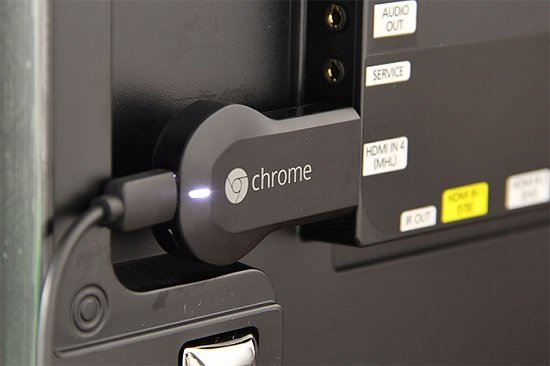
Step 1. Plug Chromecast Streaming Stick to HDTV
Plug Chromecast into your TV's HDMI port. Then you'll be directed to the Chromecast setup page. Follow the instructions to set it up.
Step 2. Download Google Cast Extension for Chrome Browser
If you have already installed Cast for your Chrome, you can skip this step. If not, please go to Chrome Web Store to search Google Cast. Then download and install it on your Chrome browser.
Step 3. Add iTunes Movies from Computer to Chrome for Playing
With a Chrome browser open, hit 'CTRL + O' for PC or 'Command + O' for Mac. Then locate the converted iTunes movies you wish to play via Chromecast. You can also copy & paste the path of the video file in the Chrome browser address bar. Right-click on the video file > Properties. Then choose Security Tab > Copy Full video path > Paste in the Chrome browser.
Step 4. Begin to Chromecast iTunes Movies
Click the 'Cast this' tab in the Chromecast streaming menu on the right side of the Chrome address bar. Then you can start the iTunes Chromecast to TV. At last, you can watch and control iTunes movies in any way you like.
Video Tutorial - How to Chromecast iTunes Movies to TV
If the user guide on how to play iTunes movie on Chromecast is hard for you, you can follow the video guide here. It offers an easier way to learn how to watch iTunes movie on Chromecast.
Method 2. Cast from iTunes to Chromecast from iPhone/Android Phone
Also, you can cast iTunes movies/Apple TV movies to Chromecast from iPhone/Android mobile phones to HD TV. Just transfer the converted iTunes videos to Android or iOS mobile devices first. And then you can get Apple movies Chromecast and play on your TV.
Method 3. Cast Apple Movie to Chromecast via VLC
To stream iTunes/Apple TV movie to Chromecast, you can also use some media players like VLC to help you.
- Play the converted iTunes movies on VLC or other media players you want.
- Hit on the 'Google Cast' icon on the Chrome browser.
- Touch the 'down' icon next to your Chromecast. Then select the 'Cast Entire Desktop'.
- After that, movies will be streamed from iTunes to your Chromecast.
Part 4. How to Cast Apple TV/iTunes Movies to Chromecast via Movies Anywhere
Here is an extra tip on how to Chromecast Apple TV and iTunes movies from iPhone with the help of the Movies Anywhere app. By using this app, you can access all your Apple TV content and mirror them to a Chromecast-enabled device easily. Now let's see how it works.
How to Cast Apple TV/iTunes to Chromecast from iPhone
Step 1. Download and install the Movies Anywhere app from the App Store on your iPhone.
Step 2. Launch the app and create a Movies Anywhere account. Then you need to agree with the terms and conditions of Movies Anywhere.
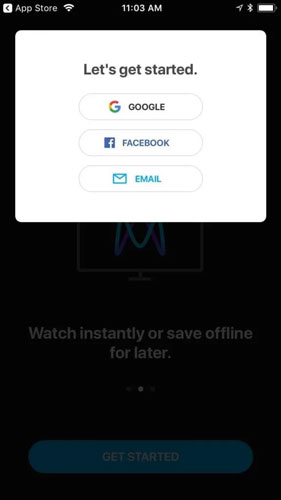
Step 3. Touch on 'More' at the bottom bar. And then choose 'Manage retailers' from the menu.
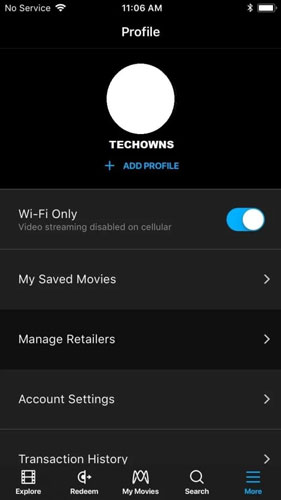
Step 4. Go to iTunes and hit 'Connect' to connect to your iTunes movies or Apple TV movies.
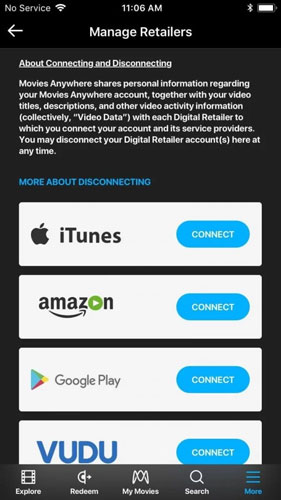
Step 5. Link your account to Movies Anywhere by accepting the terms and conditions.
Step 6. Log in to your account by entering your Apple ID and password. Then wait for your iTunes movies or Apple TV movies synced to Movies Anywhere.
Step 7. Hit on the 'Cast' icon from the top right corner.
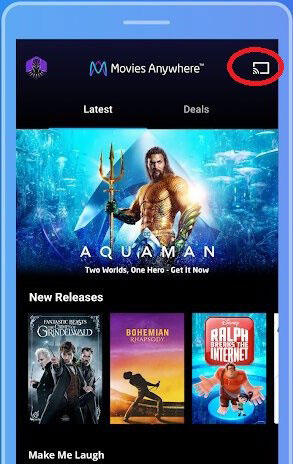
Step 8. Then your iPhone will search for and detect the Chromecast devices. Then choose your Chromecast device.
Step 9. Play any iTunes movie or Apple TV video and it will be streamed to your Chromecast.
Step 10. To stop the casting, touch the 'Cast' icon. Then hit the 'Stop Casting' or 'Disconnect' option.
Note:
Now Movies Anywhere app is only available in the USA. Not every movie studio allows their content to be used on Movies Anywhere. The studios with official support are Disney, Universal, Fox, Warner Bros and Sony Picture.
Part 5. Know More about Chromecast, Apple TV and iTunes
What Is Chromecast?
Chromecast is a media player device developed by Google. It can be plugged into your TV's HDMI port via a USB cable. The contents on the device can be "cast" onto your TV.
Chromecast is quite similar to Roku Streaming Stick and Apple TV. It is a great streaming box that lets you enjoy lots of video channels from YouTube, and more on the TV sets.
Also, you can throw content from your Chrome browser to the big screen. You can do that via your phone or computer when linking Chromecast to your TV.
The standard version comes in three distinct colors: black, coral, and lemonade. And it features three built-in antennas, a malleable HDMI cord, and support for 802.11ac and 5 GHz bands.
To get the best performance from your 4K TV, you can use Chromecast Ultra. It comes with 4K streaming ability yet faster, smoother and more reliably.
What Is Apple TV?
The Apple TV app is a streaming application developed by Apple that consolidates content from various streaming services, cable TV providers, and Apple’s iTunes Store and Apple TV streaming library. The app provides a unified experience for discovering, watching, and managing TV shows, movies, and other media content.
What Is iTunes?
iTunes allows users to manage and enjoy their music, movies, and more they already had. And users can buy content they want on iTunes. Besides, iTunes Store owns a large number of HD movies and TV shows. But all the iTunes movies are protected to avoid users to playing them on non-Apple devices.
Part 6. In Conclusion
| Scenario | Best Method |
|---|---|
| Have an Android Phone | Use the Apple TV App (Native Casting). |
| Have Chromecast with Google TV | Install the App directly on the stick. |
| Have an iPhone & Old Chromecast | Use DRmare M4V Converter or Movies Anywhere. |
| Want to watch Offline/Rentals | Use DRmare M4V Converter to save as MP4. |
While Apple has made it easier to Chromecast content via Android and Google TV, the DRmare M4V Converter is still the ultimate "Swiss Army Knife" for users who want to bypass Apple's ecosystem restrictions entirely and enjoy their 4K/1080p purchases on any hardware without limitations.
If you have another way to cast from iTunes and Apple TV to Chromecast, please write it down in the comment part.

 Home
Home





For watching Apple TV streaming movies and TV shows on Chromecast-enable devices without any issue, you can use Apple TV Downloader.