





Since the official Qobuz Connect release date, the protocol has quickly matured into a powerhouse feature supported by leading hardware partners. But how does it elevate your playback? Wanna figuring out how to use Qobuz Connect with your speakers? this guide covers everything you need to know.
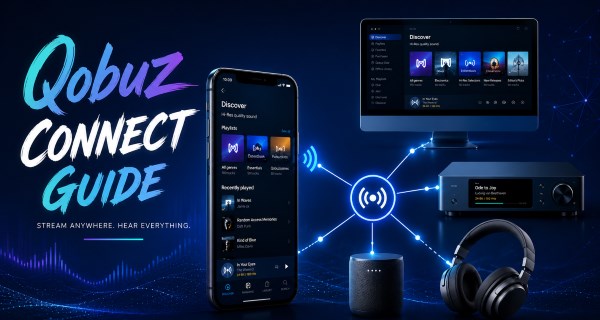
- Capabilities & Compatibility: Currently supported by over 100 premium audio partners, and stream lossless audio (up to 24-bit/192kHz FLAC) directly from the cloud to your hi-fi hardware.
- Setup Requirements: You must have an active Qobuz Studio or Sublime subscription, and both your control device (phone/PC) and streamer must be connected to the same Wi-Fi network.
- Offline Alternative: For listening outside of the Qobuz ecosystem, tools like the DRmare Streaming Audio Recorder allow you to securely convert your lossless streams into DRM-free files for playback on any device.
Part 1. What is Qobuz Connect
At its core, Qobuz Connect is a native Wi-Fi streaming protocol designed for high-resolution lossless audio. It lets you use the Qobuz mobile or desktop app as a remote control, allowing compatible Hi-Fi devices to stream music directly from Qobuz's cloud servers. In simple terms, you can view Qobuz Connect as a seamless digital bridge between your home audio system and the Qobuz streaming platform.
Which devices are compatible with Qobuz Connect?
Because delivering bit-perfect sound requires strict hardware coordination, Qobuz spent years certifying individual brands before their official launch. You can operate the protocol using the Qobuz app on iOS, Android, macOS, or Windows (provided you are running version 9.0 or higher).
As of 2026, the ecosystem has expanded rapidly, making it incredibly easy to find a Qobuz Connect compatible device. Here are some of the most popular Qobuz Connect devices and integrations available today:
| Device Category | Supported Brands & Ecosystems |
|---|---|
| Streamers & DACs | WiiM, Eversolo, Volumio, FiiO |
| Multi-Room & AV | Bluesound (BluOS), Marantz / Denon (HEOS) |
| Hi-Fi Heavyweights | Cambridge Audio, Auralic, Innuos, Linn, Naim, Yamaha |
| Active Speakers | KEF, JBL, Focal |
Part 2. What Makes Qobuz Connect Different?
Since Qobuz Connect is built around native cloud streaming rather than screen casting or audio mirroring, it offers several advantages over traditional wireless protocols such as AirPlay or Spotify Connect. Here are the key features that set it apart from standard casting protocols.
What Makes Qobuz Connect Stand Out:
- Native Bit-Perfect Hi-Res Audio: Bypassing lossy intermediary protocols like Bluetooth or AirPlay, it streams uncompressed audio up to 24-bit/192kHz directly from Qobuz servers to your premium hardware.
- Uninterrupted, Drain-Free Playback: Because streams travel straight to your speaker, your phone simply acts as a remote. Playback won't stop for phone calls, notifications, or if your device leaves the Wi-Fi network.
- Seamless Cross-Device Control: Effortlessly switch playback between compatible devices without losing your spot, since every supported Qobuz app can function as a remote control.
Qobuz Connect vs Spotify Connect vs Tidal Connect
While all three protocols turn your smartphone into a remote control over Wi-Fi, the underlying technology and audio delivery are drastically different.
| Feature | Qobuz Connect | Tidal Connect | Spotify Connect |
|---|---|---|---|
| Max Audio Quality | 24-bit/192kHz (FLAC) | 24-bit/192kHz (FLAC) | 320 kbps |
| Primary Focus | Uncompressed passthrough, Audiophile gear | Mainstream hardware & Smart TVs | Universal mass market hardware |
| Hardware Ecosystem | Premium Hi-Fi (Bluesound, KEF, Cambridge) |
Wide (Hi-Fi + Smart TVs) | Almost all Wi-Fi audio devices |
| Target Audience | Pure Audiophiles & Critical Listeners | Hi-Fi Fans wanting Algorithm Discovery | Mainstream Casual Listeners |
Part 3. How to Use Qobuz Connect
Since Qobuz doesn't offer a free tier, you'll need an active Qobuz Studio or Qobuz Sublime subscription to use Qobuz Connect. The feature is included at no additional cost with all standard paid plans, giving every subscriber seamless remote control and high-resolution streaming across compatible devices.
Step 1. Make sure your control device and your playback device are connected to the same local Wi-Fi network. If one device is on the 2.4 GHz band and the other is on 5 GHz with network isolation enabled, they may not detect each other.
Step 2. Open the Qobuz app on your mobile device or computer, then play any song, album, or playlist you'd like to listen to.
Step 3. Tap the "Audio Output" button next to the "Playing" button, A list of available playback devices on your network will appear. Select your Qobuz Connect-compatible streamer or speaker with "Qobuz Connect" label beneath their name.
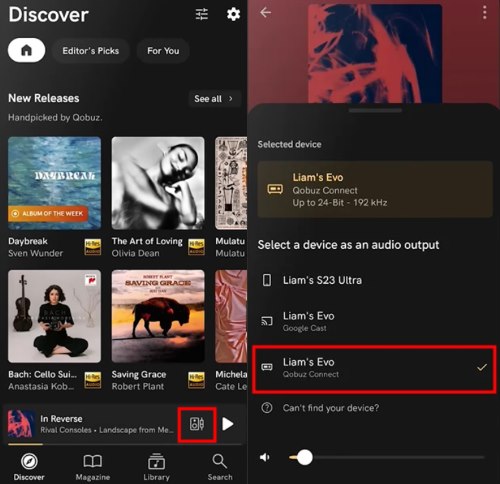
Step 4. Alternatively, open the "Now Playing" screen and tap the icon in the bottom-left corner. From there, choose your preferred audio output device and adjust the playback volume directly within the app.
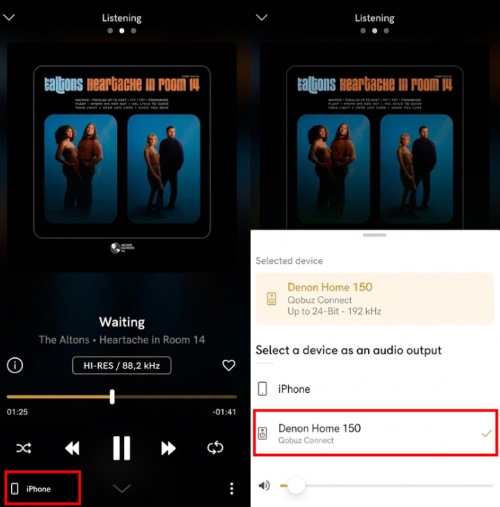
Step 5. Once connected, your selected device becomes the active playback destination. You can switch between compatible speakers, pause or skip tracks, and manage playback directly from the Now Playing screen.
What if My Device Isn't Compatible with Qobuz Connect?:
Even with broad adoption, some hardware, such as older Sonos systems, legacy network receivers, basic Bluetooth devices, and active speakers lacking firmware updates that does not support Qobuz Connect. If you own unsupported gear, you still have several alternative workarounds:
- Chromecast & AirPlay: You can cast from the Qobuz app to your speakers using Chromecast or Apple AirPlay for casual listening, while you won't get the maximum resolution that native Connect offers.
- Network Streamers (Bridges): Adding a dedicated streamer, such as a Bluesound Node, a WiiM Pro, or a custom Raspberry Pi running MoOde Audio, which is best treated as a fallback option if Connect is unavailable.
Part 4. Taking Your Qobuz Hi-Res Audio Offline
While Qobuz Connect offers incredible convenience, it is completely dependent on a flawless Wi-Fi connection and a continuous streaming service. Home network congestion can trigger frustrating micro-stutters during critical listening. Furthermore, some legacy high-end DAPs and traditional car stereos lack internet connectivity, leaving them locked out of the Qobuz Connect ecosystem.
For audio purists who refuse to let network instability ruin their experience, maintaining a local backup of master tracks is the ultimate failsafe. By using a profeesional tool like the DRmare Streaming Audio Recorder, you can systematically convert high-resolution streams into uncompressed files. This permanently removes the need for an active internet connection, ensuring your favorite playlists are always ready for pristine, offline playback on any device.
- Step 1Dial In Your Audio Preferences
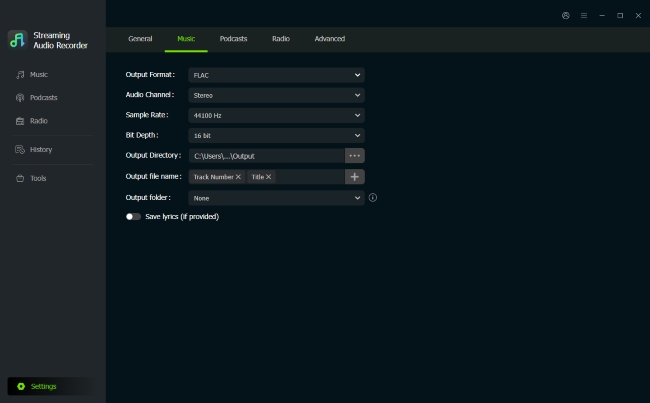
Before downloading any music, it is always a good idea to configure your output settings so you get the exact sound profile you want. Click the "Settings" icon tucked in the lower-left corner, and scroll down to the "Music" section.
You can select the Qobuz music output format as FLAC or WAV to match its studio quality. Here, you can also fine-tune your sample rate and bit rate, as well as customize how your output folders and file names are organized.
- Step 2Access Your Qobuz Library
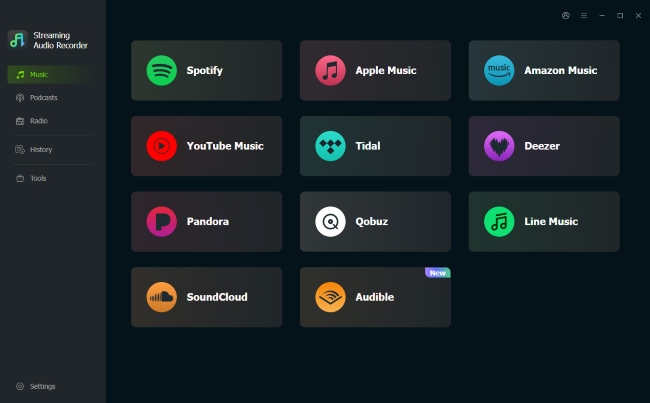
Once your settings are locked in, navigate back to the main interface where you will see a list of supported music platforms. Click the Qobuz icon to open the built-in web player. Sign In with your account to access your Qobuz music library within the software.
- Step 3Select and Queue Up Your Tracks
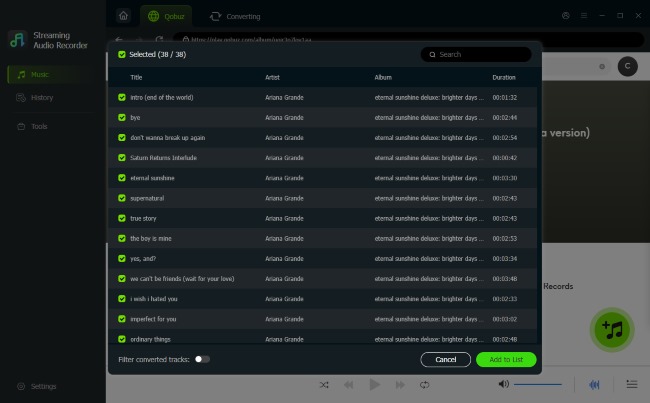
Pick up the music you want to keep. Then click the "Add" button, and a pop-up window will appear displaying all the available tracks. Select the specific tracks you want to download, and tap "Add to List". Your chosen songs are now prepped and loaded into the conversion queue.
- Step 4Convert Lossless Qobuz Music and Enjoy Anywhere
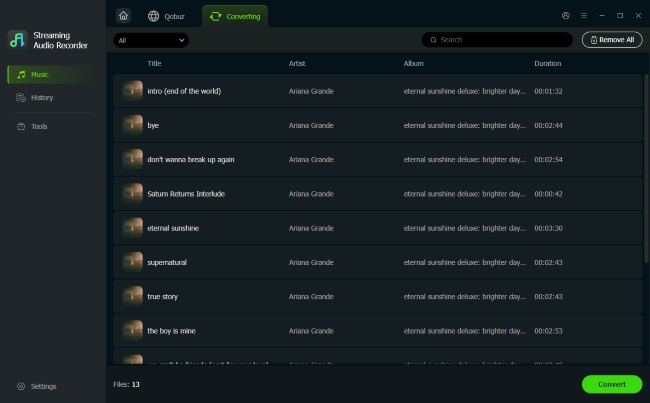
Switch over to the "Converting" section at the top tab. You will see all your queued tracks lined up. Simply click the "Convert" button to set the process in motion. When the downloads wrap up, click open the History tab on the left-side toolbar. All of your Hi-Fi tracks from Qobuz will be saved as local files permanently.
Part 6. FAQs on Qobuz Connect
Can Qobuz Connect be used with multiple accounts at the same time?
At this time, Qobuz Connect only supports a single active account per device. It is not possible for multiple users to control the same hi-fi hardware simultaneously using different credentials. If another person attempts to cast music from a separate account, their command will instantly override and interrupt the current listening session.
Why isn't my audio device showing up in the app?
If your streamer is missing from the list, first verify that both your control device and audio hardware share the exact same Wi-Fi network. Next, iPhone or Mac users must check their privacy settings to ensure the Qobuz app is granted "Local Network" permissions. Finally, confirm that your hi-fi equipment has the latest firmware update installed.
Does Qobuz Connect use up my phone's cellular data or battery?
Not at all. Your smartphone simply functions as a wireless remote control. Instead of funneling heavy audio files through your mobile device, your hi-fi streamer fetches the high-resolution music directly from Qobuz's cloud servers via your home router. This architecture completely eliminates battery drain and preserves your mobile data allowance.
Is Qobuz Connect compatible with voice assistants such as Alexa or Google Assistant
Unfortunately, Qobuz Connect does not currently support integrations with smart voice assistants like Amazon Alexa or Google Assistant. You cannot use voice commands to control your high-resolution streams.
Part 7. To Sum Up
Qobuz Connect makes it much easier to enjoy high-resolution music across compatible speakers, streamers, and desktop devices without relying on Bluetooth or AirPlay. If your current equipment isn't compatible, or you want to enjoy your Qobuz library without Wi-Fi, the offline DRmare method covered above offers a practical alternative for lossless playback across your devices.

 Home
Home





User Comments
Leave a Comment