





Tesla is renowned for its cutting-edge electric vehicles, innovative autopilot features, and high-tech infotainment system that transforms the in-car experience. Although it offers several built-in streaming services like Spotify on Tesla, you might still want to enjoy SoundCloud on the road and wonder whether it works on Tesla. In this guide, you'll discover four effective ways to play SoundCloud in Tesla—via Browser, Bluetooth, USB drive, and Mobile Mirror, allowing you to enjoy seamless streaming or offline playback, whether you drive a Model 3, Model Y, or any other Tesla.

Part 1. Is SoundCloud Available on Tesla
Currently, SoundCloud is not officially available on Tesla. Tesla's infotainment system does not include a dedicated SoundCloud app, so you won't find it among the built-in streaming services. However, Tesla supports several popular streaming platforms, allowing you to enjoy music, podcasts, and radio directly from the touchscreen with a Premium Connectivity plan or Wi-Fi. You can access multiple platforms, including Spotify, Apple Music, Amazon Music, YouTube Music, and TIDAL, as well as Apple Podcasts, TuneIn, and Audible on Tesla.
Part 2. How to Play SoundCloud on Tesla via Web Browser
Tesla's built-in web browser offers a simple way to access SoundCloud directly. While it's not as smooth as a native app, it can be a convenient option for quick streaming when your car is connected to a stable Wi-Fi.
Use SoundCloud through the Tesla Web Browser
Step 1. Tap the "Browser" app to open Tesla's web browser. In the address bar, enter soundcloud.com and load the site.
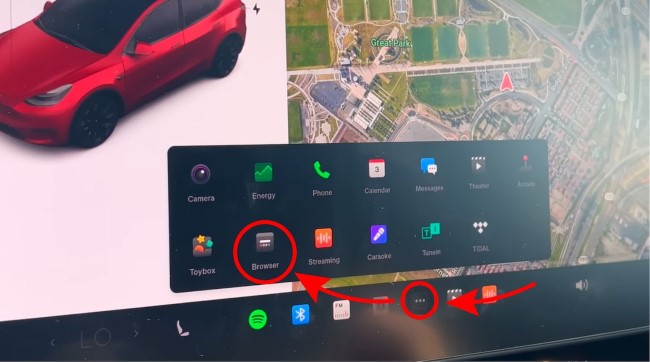
Step 2. Once the page loads, sign in with your SoundCloud account. And you may need to enter your login details manually or confirm the login on your phone according to your security settings.
Step 3. After logging in, you can browse and play your favorite SoundCloud tracks as usual. Once playback starts, just minimize the browser and control the music through the Media Mini-Player at the bottom of the screen.
Part 3. How to Connect SoundCloud to Tesla via Bluetooth
Bluetooth streaming is another reliable way to use SoundCloud on a Tesla. By connecting your iPhone or Android to Tesla via Bluetooth, you can stream SoundCloud directly from your phone to Tesla's audio system without installing extra apps or using the web browser.
Stream SoundCloud to Tesla via Bluetooth
Step 1. Open the settings on your phone and turn on Bluetooth. Keep your phone nearby so Tesla can detect it during the pairing process.
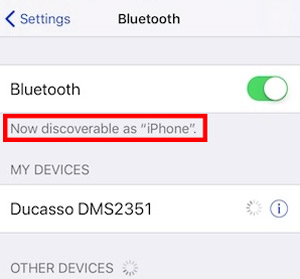
Step 2. On your Tesla's main screen, go to "Controls > Bluetooth" and make sure Bluetooth is enabled. Then set Bluetooth as the audio source so the car is ready to receive media from your phone.
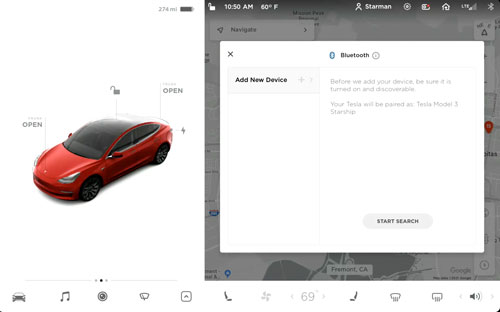
Step 3. When your phone appears in the list of available devices, select it and confirm the pairing request on both the phone and the touchscreen. Once connected, your phone will be saved as a paired device for future use.
Step 4. Open the SoundCloud app on your phone and start playing any SoundCloud playlist, and you can control SoundCloud playback from either your phone or Tesla's media controls.
Part 4. How to Play SoundCloud on Tesla by USB Drive
If you care about sound quality in your Tesla, Bluetooth streaming isn't always the best option. Audio compression, connection drops, and reliance on your phone can affect the listening experience. For a stable, offline playback with better audio quality, using a USB drive is a more reliable solution.
The key challenge is saving and transferring SoundCloud tracks to a USB drive for Tesla playback. This is when DRmare Streaming Audio Recorder can help. It lets you download and convert SoundCloud playlists into MP3, WAV, or FLAC formats, which are fully supported by Tesla's media player. Then plug the USB flash drive into your Tesla to enjoy offline SoundCloud playback, free from buffering or subscription limitations, while preserving sound quality and track details.
Note:
While Bluetooth bitrates are limited, playing SoundCloud FLAC files from a USB drive in your Tesla Model Y/3 allows you to fully utilize the premium audio system's potential, delivering true 24-bit lossless sound.
Use SoundCloud in Tesla with USB Flash Drive
- Step 1Set the SoundCloud Output Format for Tesla
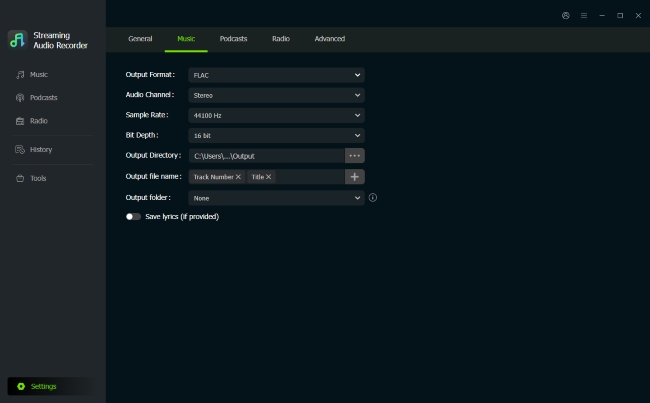
Before playing SoundCloud on your Tesla, you need to choose a format that it supports. Open DRmare and click the"Settings"icon. In the "Music" tab, pick an output format for SoundCloud, such as WAV, MP3, or FLAC, that works with Tesla. You can also adjust other settings to match your preferences. Once done, click the SoundCloud icon to open the built-in SoundCloud web player and log in to your account.
- Step 2Add SoundCloud Playlists
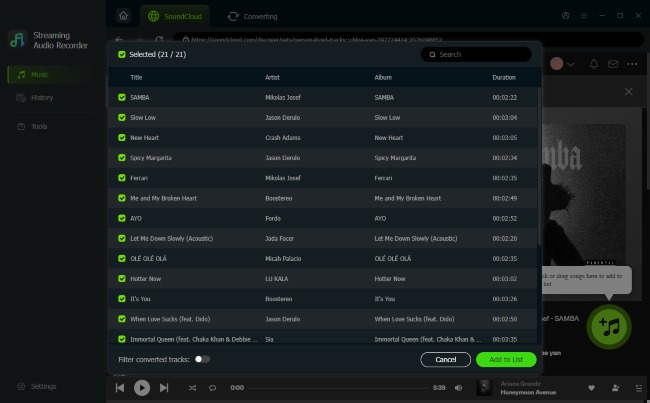
Browse the SoundCloud playlists or albums you want to enjoy offline on Tesla. When you find a track, drag it to the "Add" button or just tap it, then press "Add to List" to load it into DRmare's conversion queue, which lets you organize all the songs you want to transfer to your Tesla in one go.
- Step 3Convert and Download SoundCloud Music
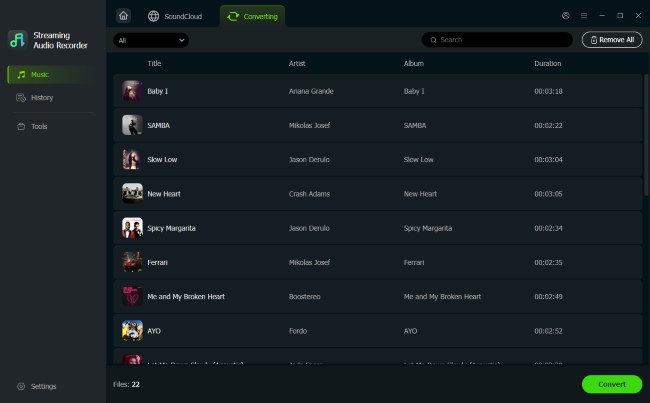
Hit the "Convert" button to start downloading and converting your SoundCloud tracks into Tesla-compatible audio files. Once finished, click the "History" icon to locate your local files on your computer.
- Step 4Play SoundCloud on Tesla via USB Drive
Plug a USB flash drive into your computer and copy the converted SoundCloud tracks into it. Once all files are transferred, safely eject the USB and insert it into your Tesla's USB port. Open the media player on the touchscreen, locate your SoundCloud files, and you can play your SoundCloud tracks offline on Tesla, regardless of your subscription status.

Part 5. How to Use SoundCloud in Tesla with Mobile Screen Casting
If you want to listen to SoundCloud on Tesla without relying on Bluetooth or a USB drive, screen-mirroring apps offer a convenient solution. By using tools like TeslaMirror or Car Cast, you can project your phone's display onto Tesla's touchscreen. This lets you browse and play your SoundCloud tracks directly from Tesla, giving you full control over your music while keeping the driving experience smooth and uninterrupted.
Play SoundCloud in Tesla Using Mirroring App
We'll use TeslaMirror as an example and demonstrate the steps on an iPhone to show how it works. The process for Android is very similar, but you need to download TeslaMirror from the Google Play Store.
Step 1. Go to the Apple App Store and download TslaMirror onto your iPhone or iPad.
Step 2. Open your phone's Bluetooth settings, find your Tesla in the list, and tap it to pair your devices.
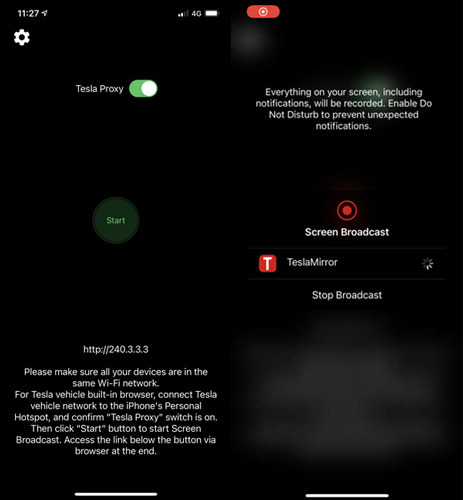
Step 3. Launch the TslaMirror app on your iOS device and select "Start Mirroring". Your phone's screen will now appear on Tesla's touchscreen.
Step 4. Open the SoundCloud app on your iPhone and start playing any track, playlist, or station. You can now control and enjoy your SoundCloud music directly from Tesla's display.
Part 6. FAQs about SoundCloud in Tesla
Does Tesla support Apple CarPlay or Android Auto?
No, Tesla does not natively support Apple CarPlay or Android Auto, as it relies on its own built-in infotainment system to control navigation, media, and vehicle functions. As of early 2026, while Tesla is reportedly testing Apple CarPlay internally, it is not yet officially available. And Android Auto remains unsupported. And for now, you can use screen-mirroring apps or USB drive solutions as alternatives.
How to fix the SoundCloud login error on the Tesla browser?
If you're having trouble signing in to SoundCloud on Tesla's built-in browser, start with the basics.
- Try clearing the browser's cache and cookies, then make sure any VPN or ad-blocking features are turned off, as these can interfere with login pages.
- Restart the browser or reboot your car to refresh the system, since Tesla uses a built-in browser that can't be manually updated.
- If the issue persists, try logging in to SoundCloud on another device first and try again later, as SoundCloud's security checks or a temporary site issue may be preventing access on Tesla.

 Home
Home





User Comments
Leave a Comment