





Sunnify Spotify Downloader is a popular free Spotify downloader on GitHub. It's particularly interesting because it combines a point-and-click desktop interface with a CLI, supports entire Spotify playlists, and does not ask for a Spotify account or Premium subscription.
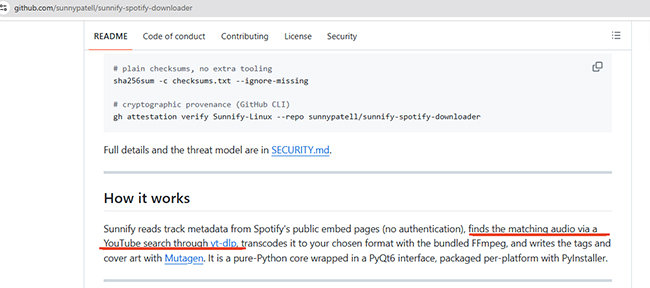
There is, however, one important detail to understand before installing it: Sunnify does not download the original audio stream from Spotify. It relies on Spotify for track information, but sources the actual audio from YouTube via yt-dlp, processing it locally with FFmpeg.
That distinction affects audio quality, track-matching accuracy, reliability, and even how you should interpret Sunnify's FLAC option. This Sunnify review looks beyond the feature list to see where the program works well, where its limitations come from, and what alternatives you should consider if you need true high-fidelity audio.
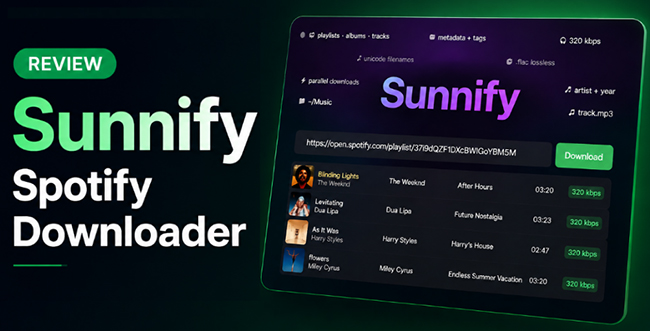
Part 1. Sunnify Spotify Downloader at a Glance
The current Sunnify v2.3.0 was released on August 9, 2026, with builds for Windows, macOS, and Linux. Here is the quickest way to understand what Sunnify currently offers.
| Item | Sunnify Spotify Downloader |
|---|---|
| Current version | v2.3.0 |
| Latest release | August 9, 2026 |
| Price | Free |
| Source code | Publicly available on GitHub |
| Supported OS | Windows, macOS, Linux |
| Interface | Desktop GUI + headless CLI |
| Web version | Metadata preview only |
| Supported Spotify content | Tracks, albums, playlists |
| Formats | MP3, M4A, Opus, FLAC, WAV |
| Lossy quality settings | 128, 192, 256, 320 kbps |
| Spotify account required | No |
| Spotify Premium required | No |
| Spotify API key required | No |
| Audio source | YouTube via yt-dlp |
| Metadata source | Spotify public/embed pages |
| FFmpeg | Bundled with prebuilt desktop releases |
| Batch downloads | Yes |
| Resume playlist downloads | Yes |
| Embedded metadata | Title, artist, album, year, track number, artwork |
Quick Verdict:
Sunnify is an excellent choice if you want a free, GUI-based Spotify playlist downloader and don't mind that the audio is pulled from YouTube. However, if your priority is obtaining exact, lossless audio streams directly from Spotify without version mismatches, you will need a dedicated professional converter.
Part 2. What Is Sunnify Spotify Downloader?
- GitHub Repository Link: https://github.com/sunnypatell/sunnify-spotify-downloader
Created by Sunny Jayendra Patel, Sunnify is a Python/PyQt6 desktop application. Unlike many GitHub projects that force users into a command-line terminal, Sunnify is highly approachable.
- Sunnify Desktop App: This is the core downloading tool. Prebuilt versions include FFmpeg, meaning you don't need to configure Python environments. You simply paste a Spotify link, and it saves local MP3 or FLAC files. The prebuilt releases support both Apple Silicon and Intel Macs alongside Windows and Linux.
-
Sunnify Web App: This is a Preview Mode only. It displays playlist metadata but cannot download MP3s.
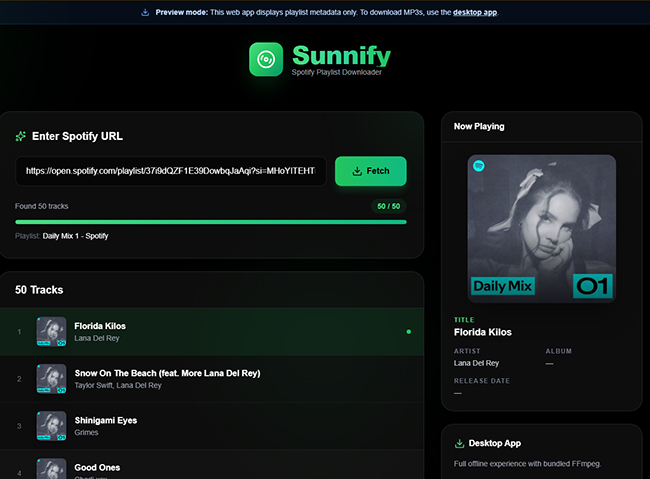
- Sunnify CLI: Bundled within the desktop app, this allows advanced users to automate bulk downloads via scripts.
Key Features of Sunnify Spotify Downloader
- Playlist & Album Support: It handles large playlists well. While Spotify's public embed limits visibility to 100 tracks, Sunnify uses a fallback endpoint to retrieve metadata for larger lists.
- Parallel Downloads & Resume: It fetches up to four tracks simultaneously. If your internet drops, running the link again skips already-downloaded files.
- Excellent Tagging: It accurately writes the title, artist, album, year, and individual track artwork into the files, making it perfect for Plex, MusicBee, or Jellyfin servers.
- Smart Track Matching: By comparing the title, artist, and track duration, it tries to avoid downloading live versions or weird YouTube remixes, though mismatches still happen.
Part 3. How Does Sunnify Spotify Downloader Actually Work?
The term Spotify downloader can be misleading because different tools use Spotify links in very different ways. Spotify's public embed pages provide information such as the song title, artist, album, and track details. Sunnify then builds a YouTube search for the song, uses yt-dlp to obtain matching audio, transcodes it into the chosen format with FFmpeg, and writes metadata and artwork into the finished file. Sunnify's current workflow can be simplified as:
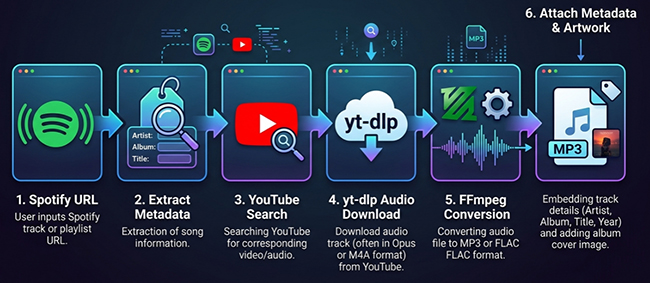
The current Sunnify v2.3.0 documentation states that all audio is sourced from YouTube through yt-dlp, while Spotify's embed infrastructure is used to retrieve metadata. Because it never touches Spotify's restricted audio servers, it doesn't need your login credentials. However, this means the resulting local file might not sound exactly like the version you stream on Spotify. It is essentially a smart YouTube downloader driven by Spotify metadata.
Sunnify's Audio Quality: Is Its FLAC Really Lossless?
This is where users need to temper their expectations. Sunnify lets you select MP3, M4A, Opus, FLAC, or WAV. Seeing FLAC easily creates the impression of lossless downloads, but this is false.
A FLAC file is a lossless container, but Sunnify fills that container with audio extracted from YouTube (which is heavily compressed).
Converting a lossy YouTube stream into FLAC does not magically restore discarded acoustic data. You simply get a massive file size with standard YouTube audio quality. For ordinary listening through Sunnify, stick to 320 kbps MP3 or Opus.
Part 4. How to Download and Use Sunnify Spotify Downloader
The desktop Sunnify application is easier to set up than many GitHub projects because prebuilt releases are available and FFmpeg is already bundled.
Step 1. Download Sunnify for your computer: Choose the current Windows executable, macOS Apple Silicon/Intel package, or Linux build from the project's GitHub Releases page. Mac users can also install Sunnify through its Homebrew cask.
Step 2. Copy a Spotify link. In Spotify, copy the URL of the track, album, or playlist you want to process.
Step 3. Paste the URL into Sunnify. Open the desktop app, insert the Spotify link, then select your output location, file format, audio setting, and preferred filename style.
Step 4. Start the download. Sunnify retrieves the Spotify metadata, searches for corresponding audio, processes the files, and saves them in a folder named after the playlist or album.
Windows users can run the provided executable without a traditional installer. On Linux, the binary may need executable permission before launch.
Note for Mac Users:
Direct-download builds are ad-hoc signed rather than Apple-notarized, so macOS may initially block the app. The project recommends either installing through Homebrew or approving the direct download through macOS Privacy & Security settings.
Part 5. Sunnify Spotify Downloader Pros and Cons
Sunnify's strengths make the most sense when viewed alongside the tradeoffs created by its YouTube-based architecture.
Pros
 Free to use
- Publicly available source code
- Windows, macOS, and Linux builds
- GUI plus built-in CLI
- No Spotify login, Premium, or API key needed
- Downloads tracks, albums, and playlists
- MP3, M4A, Opus, FLAC, and WAV output
- Embedded metadata and individual cover art
- Parallel downloads
- Resume support for long playlists
Cons
 Does not retrieve Spotify's original audio stream
- Audio quality depends on the YouTube source
- Track matching may occasionally find the wrong version
- FLAC output should not be confused with guaranteed lossless-source audio
- Relies on Spotify and YouTube infrastructure that can change
- macOS direct download is not Apple-notarized
- Not intended as a licensed replacement for Spotify's own offline feature
- Some users may prefer a more polished commercial app
Part 6. Sunnify Alternatives: Open-Source vs. Premium Converters
If Sunnify's limitations, specifically the reliance on YouTube audio and track mismatches, are dealbreakers for you, you have two main upgrade paths:
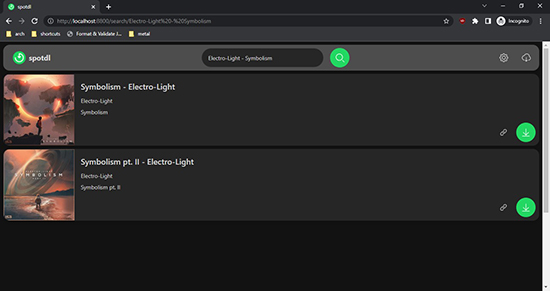
1. The CLI Alternative: spotDL
If you like the free YouTube-matching method but want deeper terminal integration, spotDL is the industry standard. It functions almost identically to Sunnify (using Spotify metadata to download from YouTube) but boasts a more robust command-line ecosystem for power users.
2. The Premium Direct-Source Alternative: DRmare Spotify Music Converter
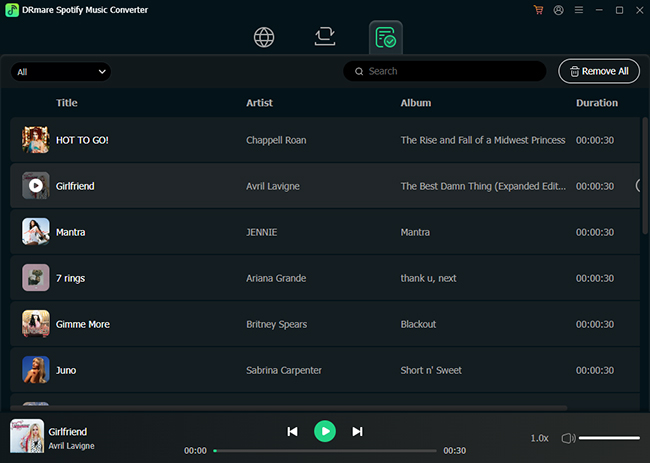
If you want the actual audio stream from Spotify rather than a YouTube rip, you need a dedicated professional tool. Software like the DRmare Spotify Music Converter fundamentally changes the architecture of how the audio is sourced.
Sunnify vs SpotDL vs DRmare Spotify Music Converter
| Feature | Sunnify (Free) | spotDL (Free) | DRmare Spotify Music Converter (Premium) |
|---|---|---|---|
| Audio Source | YouTube Search (Lossy) | YouTube Search (Lossy) | Direct from Spotify servers |
| Audio Quality | Standard YouTube quality | Standard YouTube quality | True up to 320kbps (Bit-perfect matching) |
| Track Accuracy | Prone to mismatches/music videos | Prone to mismatches/music videos | 100% exact match to your playlist |
| User Interface | Basic Desktop GUI | Primarily CLI | Built-in Web Player |
| App Dependency | Relies heavily on yt-dlp updates | Relies heavily on yt-dlp updates | Autonomous (No Spotify desktop app required) |
Tips:
Why the Built-in Web Player matters: Modern premium tools like DRmare have evolved to include an autonomous internal web player. You log in directly within the software, completely eliminating the need to install the bulky Spotify desktop app or deal with copy-pasting URLs. You get the exact master audio track, perfect ID3 tags, and zero risk of downloading a live YouTube cover by mistake.
Part 7. Sunnify Spotify Downloader Review Verdict: Is It Worth Using?
Sunnify is significantly more capable than its simple "GitHub downloader" label suggests. For users building a casual local music collection who want a free, GUI-based tool with excellent metadata handling, it is absolutely worth using.
However, it is not a true Spotify audio extractor. If audio provenance, guaranteed track accuracy, and true 320kbps fidelity are your priorities, the YouTube-matching architecture will inevitably frustrate you. In those cases, bypassing open-source workarounds and investing in a professional tool with a built-in web player is the far superior choice.
Part 8. FAQs About Sunnify Spotify Downloader
Is Sunnify Spotify Downloader free?
Yes. The current project is distributed free of charge, with its source code available publicly on GitHub. The developer describes it as an educational/student portfolio project rather than commercial software.
Is Sunnify Spotify Downloader safe?
Its publicly inspectable source, checksums, SBOM, Sigstore attestations, and SLSA provenance provide useful ways to verify official releases, which are stronger transparency measures than many anonymous downloader sites offer. They cannot guarantee that software is entirely risk-free, so downloading from the official project and verifying the release where appropriate remains sensible.
Why can't I download music from the Sunnify website?
Because the hosted web version currently runs in Preview mode. It displays Spotify playlist metadata but directs users to the desktop application for MP3 downloads.
Is Sunnify still maintained in 2026?
At the time of this review, yes. Sunnify v2.3.0 was released on August 9, 2026, and the project's security policy currently lists the 2.3.0 release line and active development branch as supported.

 Home
Home





User Comments
Leave a Comment