





Apple Music is usually stable, but occasional errors can interrupt playback, syncing, or downloads, especially after major macOS and iOS updates like macOS 26 and iOS 26. One of the most common messages users see is:
 Sorry, there was a problem with Apple Music.
This Apple Music issue can appear suddenly when songs stop playing, playlists fail to load, or the app refuses to sync your library. The good news is that most cases are caused by predictable triggers such as network instability, account sync issues, or temporary Apple service disruptions.
Below is a structured troubleshooting guide that focuses on real causes first, then practical fixes that actually work. Let's solve Apple Music not working now!
Part 1. Why Is My Apple Music Not Working (Common Causes)
Before jumping into fixes, it helps to understand what is usually going wrong behind the scenes. Most Apple Music not working problems come from one of these areas:
- Temporary Apple server disruptions
- Unstable Wi-Fi or mobile data connection
- Apple Account authentication or sync failure
- Outdated iOS or Android system software
- Corrupted cache or app data after updates
- Expired or invalid subscription status
When Apple Music fails, it is rarely caused by a single fixed bug. It is usually a combination of connection, account, and sync behavior.
Part 2. How to Fix Apple Music Not Working (Step-by-Step Troubleshooting)
When Apple Music says there was a temporary problem completing your request, it indicates that there's an issue preventing the service from functioning properly. There are several basic steps you can take to resolve it.
Step 1. Check Apple Music System Status
Sometimes the issue is not on your device at all. If Apple's servers are experiencing downtime, Apple Music may fail to load, stream, or sync.
- Visit the Apple System Status page to check if there's any reported problem with Apple Music.
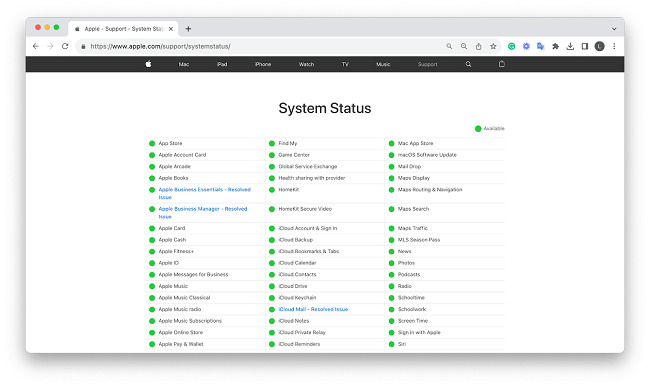
If Apple Music is down temporarily, you can:
- Wait until the service is restored
- Avoid reinstalling the app repeatedly (it won't help during outages)
If everything is green, move to the next step.
Step 2. Fix Internet Connection Issues
Apple Music depends heavily on stable internet access. A poor or intermittent internet connection can break playback or cause loading errors. You can try the following ways:
- Switch between Wi-Fi and mobile data to check if the connection is the issue.
- Move closer to your router
- Turn Airplane Mode on and off
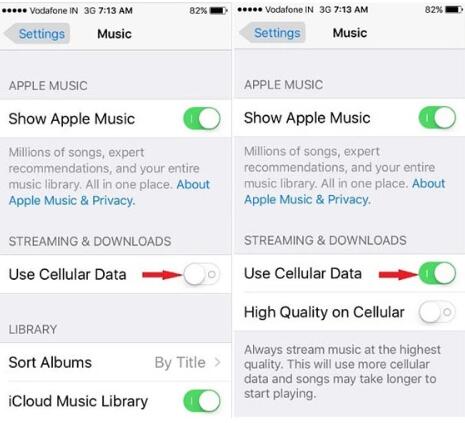
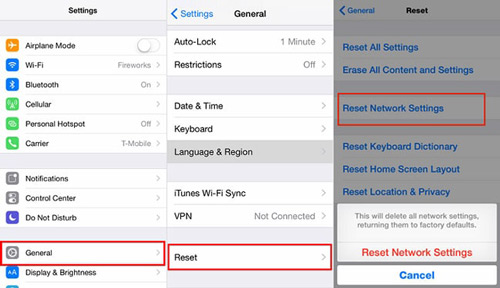
If the issue persists, resetting network settings on your device may help:
- Go to Settings > General > Reset > Reset Network Settings. This will reset Wi-Fi passwords, VPN settings, and other network configurations, so be sure to have your Wi-Fi passwords handy. A fresh network state often resolves hidden connectivity conflicts.
Step 3. Restart Apple Music App and Your Device
Temporary Apple Music glitches often disappear after a clean restart. This helps clear temporary memory errors, background sync conflicts, and frozen playback sessions.
- Close and reopen the app: Double-tap the home button (or swipe up from the bottom of the screen on newer iPhones) to view open apps, then swipe Apple Music off the screen to close it and then launch it again.
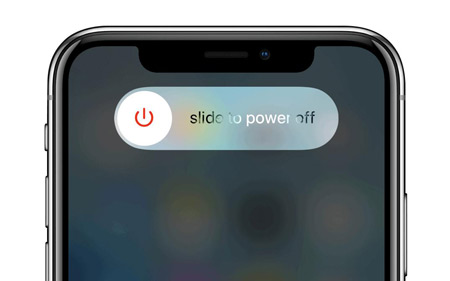
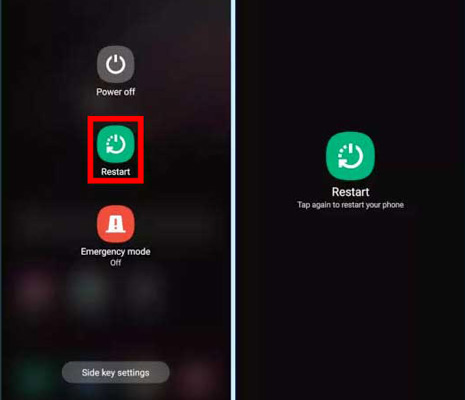
- Restart your device: A simple restart of your iPhone, iPad, or Android device can clear temporary software issues that might be causing the error.
- On iPhone/iPad: Press and hold the power button (and the volume button on newer models) until the slider appears. Slide to power off, then turn the device back on after a few seconds.
- On Android: Press and hold the power button, then select Restart from the options that appear.
Step 4. Sign Out and Sign Back Into Apple Account
Apple Music relies on Apple Account authentication for syncing your library, playlists, and downloads. If sync breaks, you can try to sign out and log back in your Apple Account.
- Go to Settings > [Your Name] > Media & Purchases and tap Sign Out. After signing out, sign back in using your Apple Account.
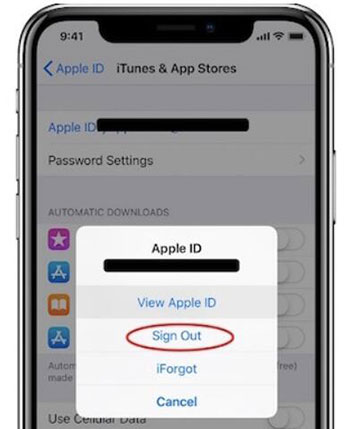
This refreshes your account connection and often restores missing content or playback errors.
Step 5. Check Your Apple Music Subscription
If your Apple Music subscription has expired or payment failed, Apple Music may partially stop working. You have to confirm that your Apple Music subscription is active, the billing information is valid, and family sharing status is correctly configured (if applicable).
- Go to Settings > [Your Name] > Subscriptions to check the status of your Apple Music subscription.
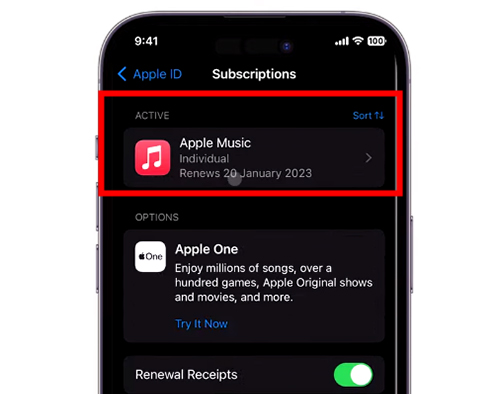
Without an active subscription, Apple Music streaming and syncing features will be restricted.
Step 6. Update iOS, Android, or macOS
Outdated system software can break compatibility with Apple Music, especially after major updates like iOS 26 and macOS 26. Ensure that your device is running the latest software.
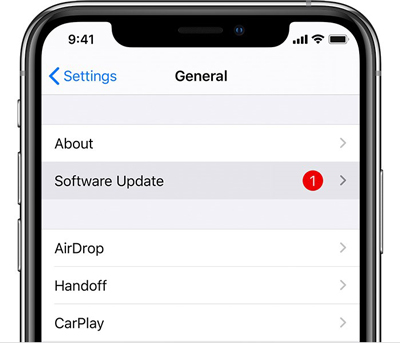
- On iPhone/iPad: Go to Settings > General > Software Update and check for updates.
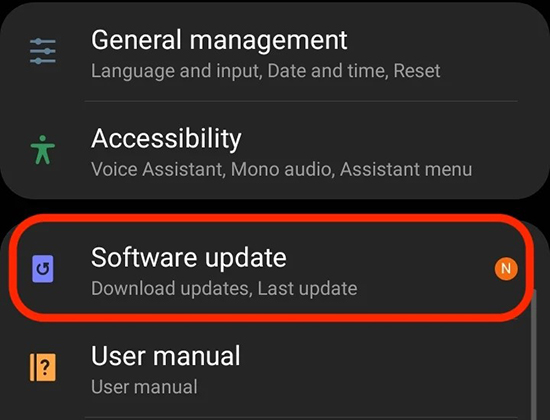
- On Android: Go to Settings > System > Software Update and install any available updates.
Keeping your device updated ensures:
- Better app stability
- Fixed known bugs
- Improved media syncing performance
Always install the latest available system update before deeper troubleshooting.
Step 7. Clear Apple Music Cache and Data (Android Only)
On Android devices, corrupted cache data can cause playback errors or freezing. You can clear the Apple Music app's cache and data to resolve these issues.
- Go to Settings > Apps > Apple Music > Storage, then tap Clear Cache and Clear Data. Note that clearing data may log you out of the app, so make sure you have your Apple Account credentials handy.
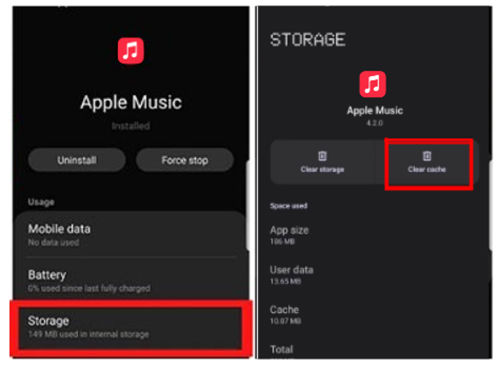
After clearing data, you may need to log in again, but it often resolves persistent issues that other steps cannot fix.
Part 3. Specific Apple Music Problems and How to Fix
Apple Music Library Not Loading or Syncing
One of the most frustrating issues with Apple Music users face is when their Apple Music library fails to load. This often happens after an iOS update or due to network problems. If you're stuck at the loading screen, try the following fixes:
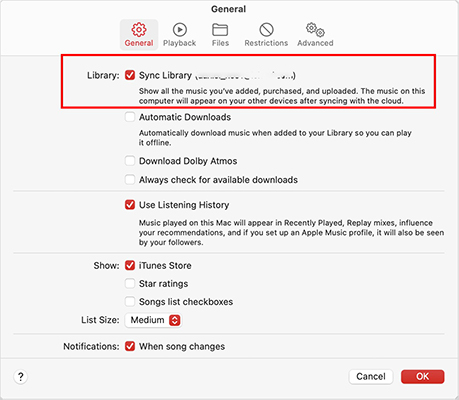
- Turn Sync Library Off and Back On: Go to Settings > Music on iPhone or iPad, and toggle on Sync Library. For Android, go to Settings > Music, and enable Sync Library.
- Refresh Network Connect: Enable Airplane Mode for a few seconds, then disable it. This can refresh your network connection.
- Check Regional Availability: Some content on Apple Music may not be available in your region due to licensing agreements. To verify this, check if the content is available in another region or country.
Apple Music Playlist Gone/Missing Songs and Albums
If your Apple Music library disappears after reinstalling the app or signing out, don't panic. Here's how to restore it:
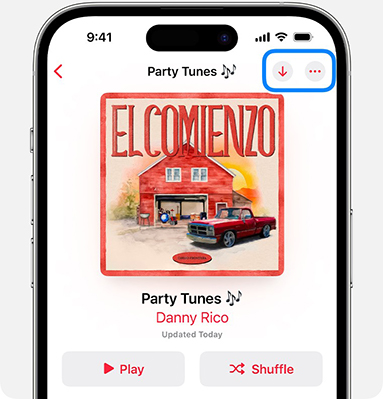
- Re-download Missing Music: If your music was downloaded but is now missing, go to Library > Downloaded and check for missing content. If needed, tap the download icon next to the songs to redownload them.
- Verify Sync Library: If you've manually added music to Apple Music, ensure that Sync Library is turned on. This allows music from other sources to sync with Apple Music.
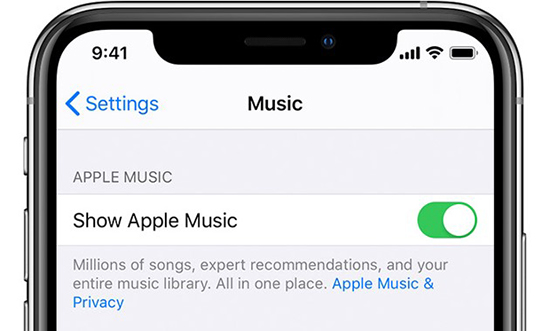
- Enable "Show Apple Music": Go to Settings > Music, and toggle on the Show Apple Music option to display your library.
Apple Music Songs Not Playing or Skipping
Many users report issues where Apple Music songs won't play, such as stuttering, lagging, or skipping especially after updating their iOS version. Here's how to fix it:
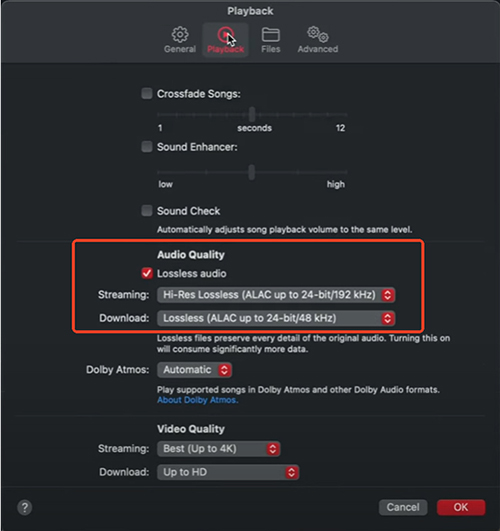
- Switch to Low-Quality Streaming: If you're on a limited or slow internet connection, switch to low-quality streaming. On iMac, go to Music > Preferences > Playback > Audio Quality, and set the streaming quality to Low.
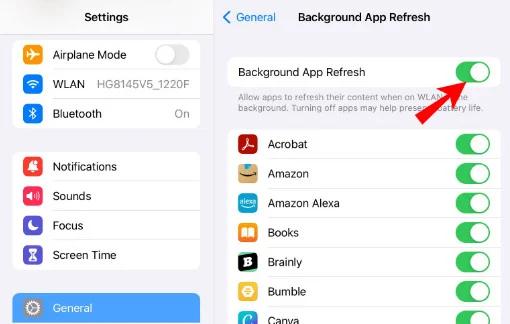
- Disable Background Apps: Too many apps running in the background can drain system resources and affect performance. Close unnecessary apps to improve performance.
- Enable Sync Library: You can re-sync your library to refresh track metadata.
Apple Music Offline Not Working
Downloaded songs sometimes stop playing offline due to expired login session, corrupted downloads, insufficient storage space. You can try the following solutions:
- Check Download Status: Ensure that your songs are fully downloaded. Open the Apple Music app, go to your Library, and check for any songs with a download icon next to them. If you see this, tap the icon to redownload the song.
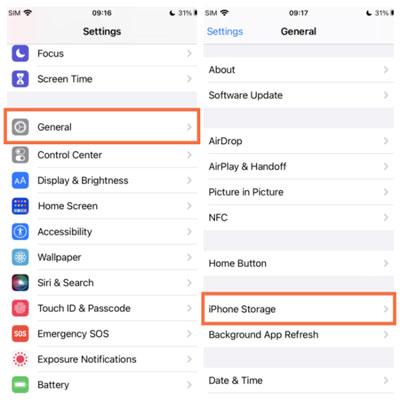
- Free Up Storage Space: Apple Music needs enough free space on your device to store downloaded music. If you're running low on storage, delete some files or apps to free up space for your downloaded music.
Apple Music Lyrics Not Showing
Apple Music has an extensive library of lyrics, but sometimes they may not show up as expected. If lyrics are missing during playback, try these steps:
- Ensure The Song Supports Lyrics.
- Enable Lyrics Display: Make sure that the lyrics feature is enabled. To check, go to Music app, play a song to enter the Now Playing screen, and hit on Lyrics button.
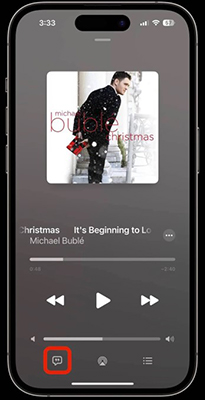
Not all Apple Music tracks include lyric data, so missing lyrics are not always an error.
Apple Music Keeps Deleting Downloads Automatically
If downloaded Apple Music disappears automatically, your device may be optimizing storage. This happens when storage space is low. To reduce this behavior:
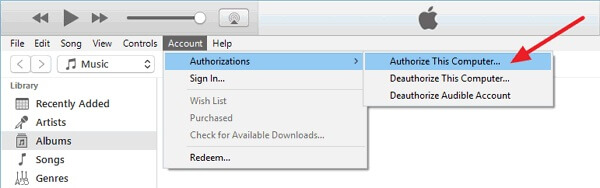
- Reauthorize the Computer: Deauthorize and then reauthorize your computer to resolve any issues with syncing and downloads.
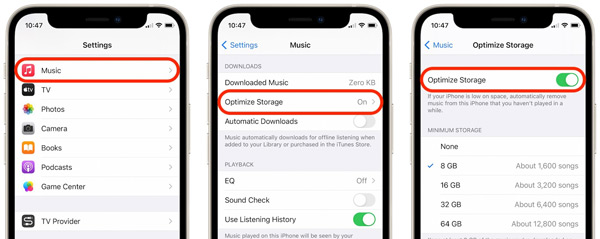
- Disable Optimize Storage: Go to Settings > Music, and turn off the Optimize Storage option to prevent Apple Music from removing your downloads.
- Re-download the Songs: If songs were deleted, simply download them again from your library.
Apple Music Keeps Skipping Songs
If Apple Music skips songs in in playlists or albums, it can be due to connectivity issues or playlist problems. Here's how to solve it:
- Check Song Compatibility: Ensure the songs in your playlist are playable. If they're grayed out, they're unavailable. Broken links or unavailable songs can interrupt playback flow.
- Re-enable Sync Library: Toggle Sync Library off and then back on to ensure songs are synced properly.
- Re-add Songs to Playlist: If the issue occurs with specific playlists, remove the songs and re-add them.
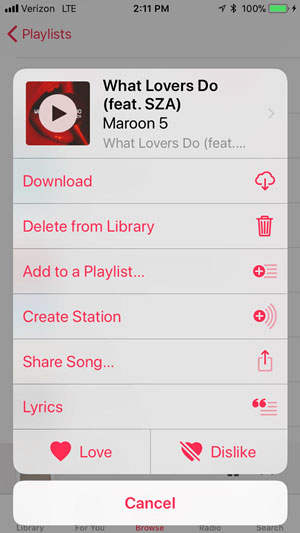
Sources to Fix Other Small Problems with Apple Music
Part 4. Alternative Way to Avoid Apple Music Playback Issues
If you frequently experience Apple Music streaming interruptions, some users prefer keeping a personal offline music library for stability and flexibility. You can use DRmare Apple Music Converter to store Apple Music locally in formats like MP3 or FLAC, which can be played without relying on streaming servers. This approach is mainly used for:
- Offline playback reliability
- Format compatibility across devices
- Long-term music access independent of network conditions
-
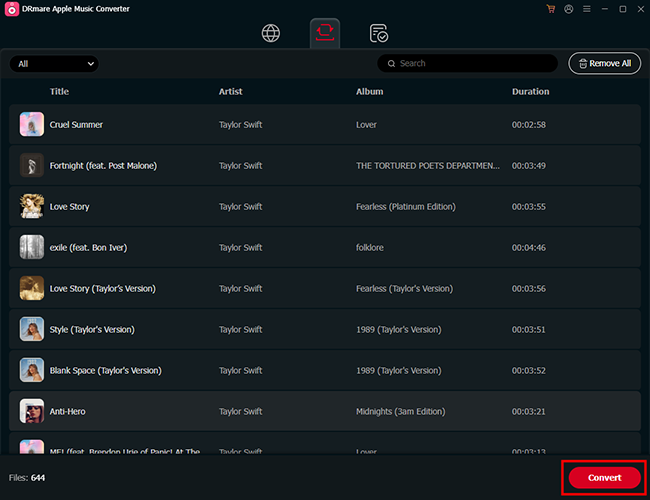
Install and launch the DRmare Apple Music Converter on your computer. Tap on the 'Add' > 'Add to List' icon to import the Apple Music files to the download queue.
-
click on the 'Menu' > 'Preferences' > 'Conversion' option to select the audio format you want to convert the Apple Music into. When it is done, tap on 'OK' to proceed
-
Click on the 'Convert' button to download Apple Music into your preferred audio format. Then you can find them on your computer. At last, you can listen to Apple Music offline anywhere and anytime, ensuring you never run into issues with Apple Music again.
Part 5. Final Words
Most Apple Music not working issues are temporary and related to network, sync, or account authentication problems rather than permanent app failures. A structured approach works best:
If Apple Music problems continue after all steps, it is often tied to service-side issues or device-level system conflicts that require waiting for updates or checking Apple's service status.

 Home
Home





User Comments
Leave a Comment