





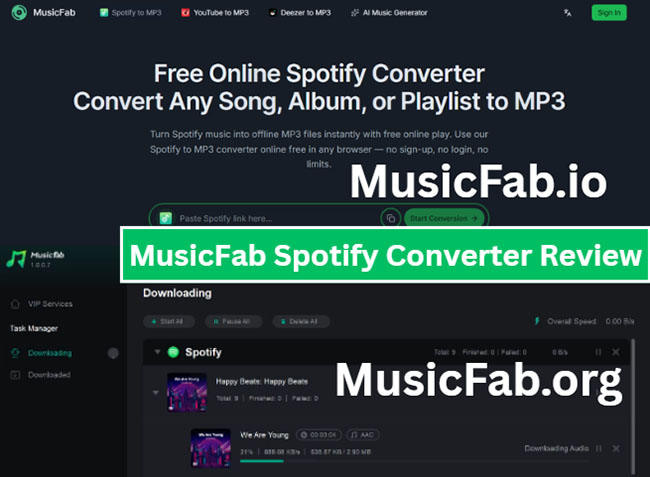
You might find yourself confused when searching for MusicFab Spotify Converter, as two different websites are using the same brand name: one offering a browser-based online conversion tool (MusicFab.io) and the other a desktop application designed for more advanced conversion tasks (musicfab.org).
So, should you opt for the free online version for quick conversions, or choose the more powerful desktop software better suited for long-term use? This article compares the online and desktop versions of MusicFab Spotify Converter, evaluating their workflows, features, limitations, and practical use cases, while also exploring whether there are more suitable alternatives for certain users.
Testing Approach: How I Evaluated MusicFab Spotify Converter
To provide a practical review of MusicFab Spotify Converter, I evaluated both its usability and real-world conversion performance rather than focusing only on advertised features. The test focused on the below aspects:
Test Environment:
- Operating System: Windows 11
- Browser: Google Chrome
- Test Content: The Life of a Showgirl album (12 tracks, 41 minutes 45 seconds total duration), Honey song, and The Fate of Ophelia song
Evaluation Criteria:
- Setup and ease of use
- Conversion workflow
- Output format options
- Audio quality control
- Playlist and album handling
- Metadata organization
- Overall value
Quick Answer: Choose MusicFab Spotify Converter Online or Desktop by Real-World User Scenarios?
Both options target the same general need, making Spotify content available as local audio files, but they are designed for different types of users. The better choice depends on how you plan to use it.
| Your Need | Recommended Option |
|---|---|
| Convert a few Spotify tracks quickly | MusicFab Online |
| Avoid installing software | MusicFab Online |
| Download playlists or albums regularly | MusicFab Desktop |
| Need multiple output formats | MusicFab Desktop |
| Want more control over audio settings | MusicFab Desktop |
| Build a long-term offline music library | MusicFab Desktop or alternatives |
Quick Summary:
- MusicFab.io Online is suitable for occasional users who want a quick Spotify MP3 conversion without installation.
- MusicFab Spotify Converter desktop software is better suited for users who regularly manage large Spotify collections and want more control over output quality and formats.
First Impression: What Is MusicFab Spotify Converter?
When analyzing MusicFab Spotify Converter, I find two versions available on the market under the same brand name. However, there is currently no evidence of a direct connection between the two, even though both are tools designed to convert Spotify content into local audio files.
- MusicFab.io: A online Spotify downloader that works directly in a browser. It targets users who want a simple way to convert Spotify links without downloading software.
- MusicFab Spotify Converter for Windows and Mac: An installed application focuses on more advanced conversion features, including additional output formats and batch processing.
This difference matters because the two products are not really competing versions of the same tool. They are designed around different user expectations.
Testing MusicFab.io Spotify Converter Online: The Quick Web Fix
Setup Experience: Simple and Beginner-Friendly
The biggest advantage of MusicFab.io is the low barrier to entry. You do not need to install anything, worry about operating system compatibility, or dedicate hard drive space to a new program. The general workflow is straightforward:
Step 1. Copy a Spotify song link from your Spotify app or Web Player.
Step 2. Paste it into the Musicfab.io and click the Start Conversion button.
Step 3. Wait it to generate the download link and then tap the Download MP3 button to download the resulting audio file on your computer.
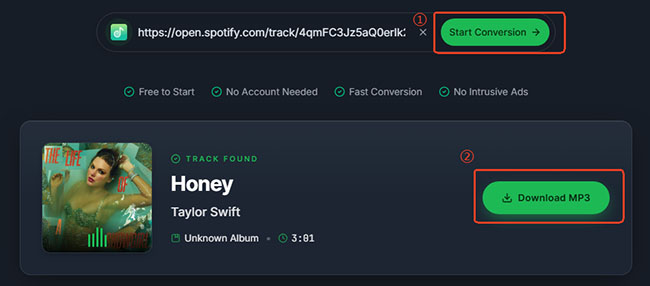
This frictionless experience is perfect for mobile users or someone who just needs a quick MP3 for a video editing project.
MusicFab Online Conversion Experience
The online version prioritizes simplicity over extensive customization. It features an ad-free user interface, showcases key functions, and supports MP3 output format only. I successfully downloaded Spotify songs in MP3 format and located the files saved on my local computer.

However, when I enter a Spotify album or playlist link into this converter, it displays an "API service returned error" message indicating that it does not support playlist or album URLs.
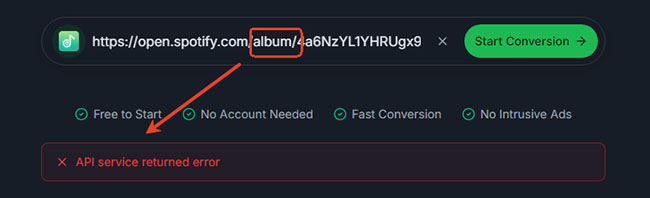
Furthermore, when downloading individual Spotify tracks, it sometimes fails to complete the final download step, requiring me to repeatedly refresh the page and retry the process to succeed.
MusicFab.io Audio Quality Analysis Using Spek
To evaluate the actual audio quality produced by MusicFab.io, I analyzed two converted MP3 files using Spek, a spectrum analyzer that visualizes frequency distribution and helps identify encoding characteristics.
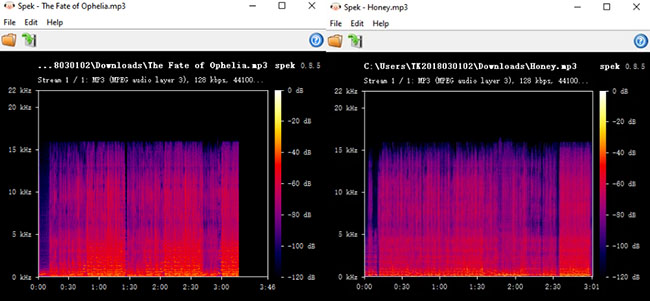
| Tested File | Format | Bitrate | Sample Rate | Duration | Frequency cutoff |
|---|---|---|---|---|---|
| The Fate of Ophelia.mp3 | MP3 | 128 kbps | 44.1 kHz | 3:46 | Around 16 kHz |
| Honey.mp3 | MP3 | 128 kbps | 44.1 kHz | 3:01 | Around 16 kHz |
Based on the Spek analysis, the visible frequency range extends to approximately 16 kHz. MusicFab.io produces standard 128 kbps MP3 output rather than high-bitrate or lossless audio. The output quality is suitable for basic offline listening, but it is not comparable to higher-quality formats or higher-bitrate conversions.
Pros
 No software installation
- Easy for beginners
- Works directly from a browser
- Fast setup
- No Spotify account requirement
Cons
 Limited format choices
- Less control over output settings
- Don't support Spotify playlist and album links
- Low audio quality
Testing MusicFab's Spotify Converter Desktop Software - The Audiophile Powerhouse
Installation Experience: Clear Guidelines, But Time-consuming
The desktop version requires more setup, but the additional complexity comes with more features. Compared with the online version, the desktop application provides a more structured environment for users who regularly convert Spotify content.
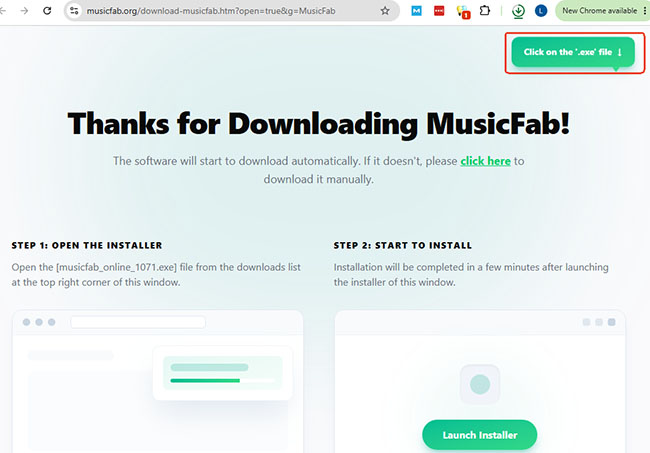
After clicking "Download," MusicFab provides clear, step-by-step instructions. However, the installation process itself is rather time-consuming; it took about five minutes to complete on my computer.
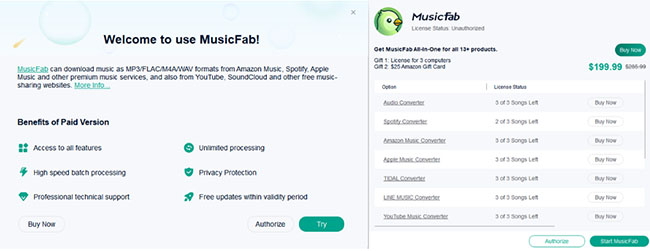
Additionally, every time I open MusicFab, I am presented with a large number of promotional recommendations, which somewhat detract from the user experience.
MusicFab Desktop Conversion Experience
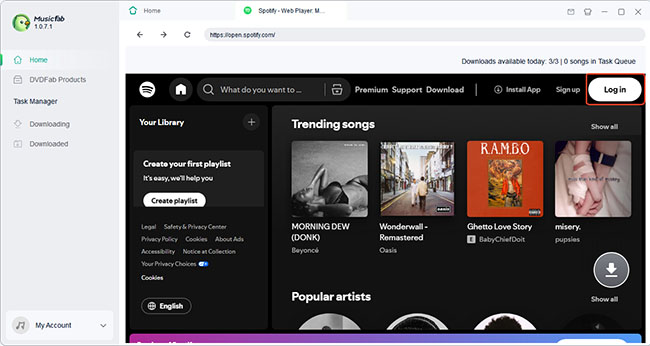
On the plus side, the entire process of downloading Spotify is fairly smooth and simple, requiring just a few clicks. However, unlike online tools, it requires you to authorize your Spotify account. Here is how to use MusicFab Spotify Music Converter on your computer:
Step 1. Open the MusicFab application and click the Log In button to authorize your Spotify free or premium account.
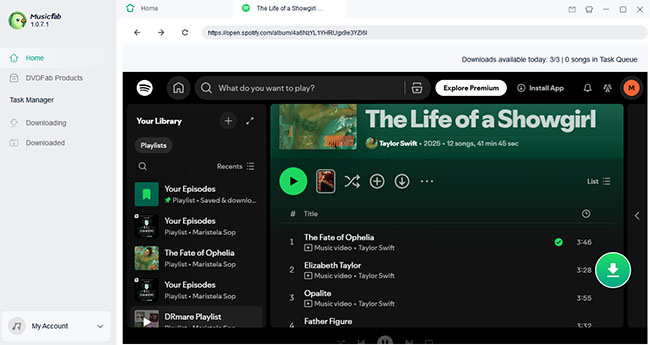
Step 2. Access Spotify content through the built-in interface and select the target songs, albums, or playlists to load by clicking the + button.
Step 3. You can now customize the output preferences, such as the output format (M4A, FLAC, OPUS, MP3, and WAV), and the audio quality.
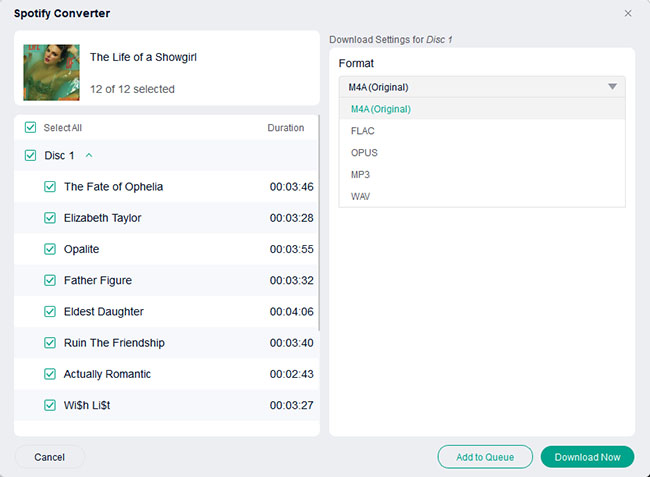
Step 4. Click the Download Now button, it will automatically download added Spotify tracks to your local computer.
It makes more sense when dealing with larger Spotify music collections. Instead of repeatedly processing individual links, you can manage playlists, albums, and multiple tracks from a single application.
One thing to note is that the free version of the product only allows you to convert three songs; you need to pay to unlock full access.
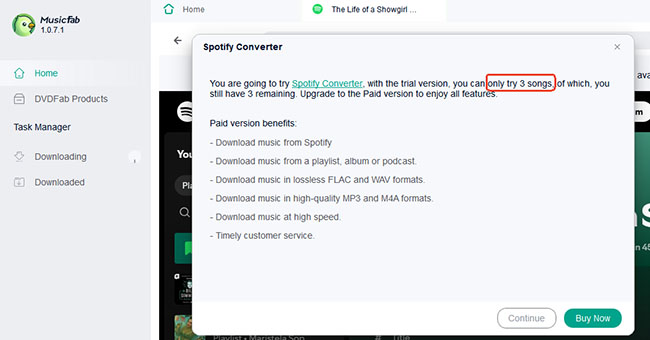
- 1-Year License: $69.99
- Lifetime License: $89.99
MusicFab Desktop Audio Quality Analysis Using Spek
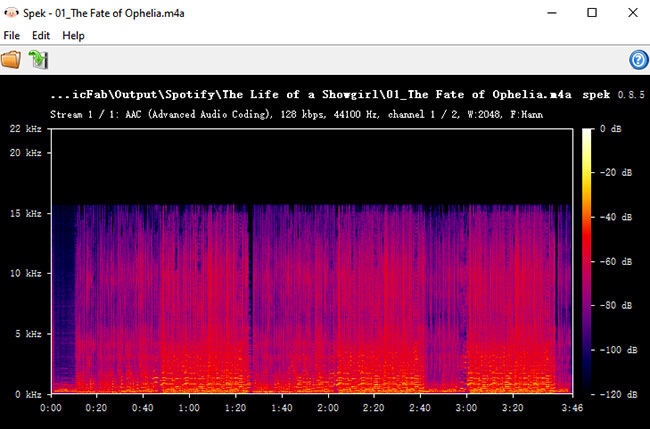
- Format: AAC (Advanced Audio Coding)
- Container: M4A
- Bitrate: 128 kbps
- Sample Rate: 44.1 kHz
- Codec: AAC lossy compression
Based on the Spek spectrum analysis of "The Fate of Ophelia.m4a" downloaded with MusicFab Desktop, it produced a genuine 128 kbps AAC file with a clean spectrum and a natural cutoff around 16 kHz. No obvious upscaling or artificial frequency reconstruction was detected.
While the file is not lossless and loses some extreme high-frequency details, AAC compression provides acceptable clarity for everyday listening. For casual users, the output quality is solid; however, audiophiles should consider lossless formats when available.
Note:
The output audio quality matches the current output selection and the quality provided by a free Spotify account. For high-quality audio, you can upgrade to Spotify Premium and select the FLAC or WAV output format.
Pros
- More output formats
- Better suited for playlists and albums
- More customization options
- Better for long-term music organization
Cons
- Requires installation
- More complex than online tools
- Require to authorize Spotify account
- 3 songs download only for free trial
MusicFab Spotify Downloader Online vs Desktop: Full Comparison
| Feature | MusicFab Spotify Converter Online | MusicFab Spotify Converter Desktop |
|---|---|---|
| Installation | Not required | Required |
| Spotify account | Not required | Required |
| Platform | Browser-based | Windows/macOS application |
| Ease of use | Very simple | Requires setup |
| Output formats | MP3 | MP3, FLAC, WAV, OPUS, M4A |
| Audio customization | Limited | More options |
| Playlist/album conversion | No | Yes |
| Batch processing | Limited | Supported |
| Metadata handling | Basic | More comprehensive |
| Best for | Occasional users | Regular users |
| Rating | ⭐⭐⭐ | ⭐⭐⭐⭐ |
MusicFab Spotify Converter Alternatives for Online and Desktop
MusicFab covers both quick browser-based conversion and more advanced desktop workflows, but it is not the only choice available. Depending on your priorities, such as audio quality, playlist handling, conversion speed, pricing, or ease of use, some alternatives may provide a better overall experience.
DRmare Spotify Music Converter: A More Complete Desktop Alternative
DRmare Spotify Music Converter is one of the closest alternatives to MusicFab's desktop version. However, the installation speed of DRmare is relatively fast and it provides a broader range of output options, including MP3, FLAC, WAV, M4A, M4B, and AIFF.
Its pricing is also designed for users who want flexible access rather than committing immediately to a long-term license. The monthly plan costs $19.95/month, making it a lower-commitment option for users who only need Spotify conversion for a limited period.
| Feature | DRmare Spotify Music Converter | MusicFab Spotify Converter |
|---|---|---|
| Output formats | MP3, FLAC, WAV, M4A, M4B, AIFF | MP3, FLAC, WAV, OPUS, M4A |
| Playlist conversion | Yes | Yes |
| Album conversion | Yes | Yes |
| Batch processing | Yes | Yes |
| Metadata handling | Supported | Supported |
| Audio customization | More flexible | Available |
| Pricing | $19.95/month, $44.95/year, $89.95/lifetime | $69.99/year, $89.99/lifetime |
| Best for | Long-term music library management | General Spotify conversion |
SpotiDownloader: A Free Online Alternative for Quick Spotify Downloads
SpotiDownloader focuses on browser-based downloading with support for more Spotify content types. During testing, SpotiDownloader requires verification before processing downloads. However, unlike MusicFab.io, it can handle Spotify playlists and albums instead of only individual tracks.
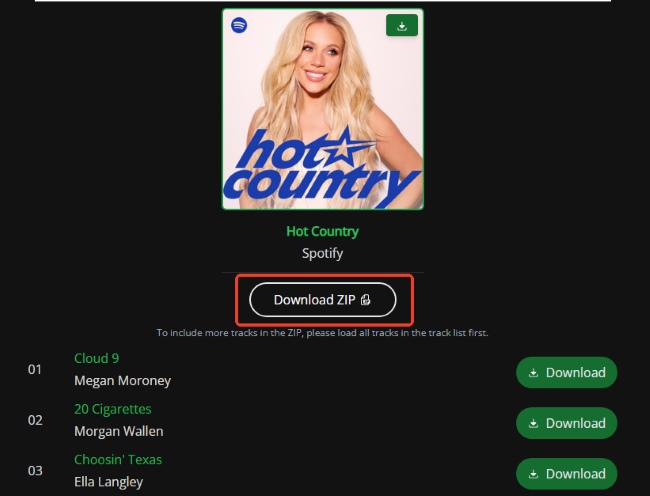
| Feature | SpotiDownloader | MusicFab.io |
|---|---|---|
| Installation | Not required | Not required |
| Playlist support | Yes | No |
| Album support | Yes | No |
| Batch download | Yes | No |
| Output format | MP3, ZIP, FLAC | MP3 |
| Metadata | Available | Basic |
| Best for | Free quick downloads | Individual track conversion |
FAQs About Using MusicFab Spotify Downloader
Is MusicFab Spotify Converter Safe?
MusicFab Spotify Converter is generally safe to use when downloaded from its official source and used as intended. Avoid cracked versions, unofficial downloads, or websites that request unnecessary personal information, as they may pose security and privacy risks.
It is also important to understand that converting streaming content may involve restrictions depending on Spotify's Terms of Service and copyright regulations in your region. Users should only use converted files in ways they are legally allowed to.
Is MusicFab Spotify Converter free?
MusicFab offers different versions with different features. The online converter is free but desktop software requires you to pay for it to access full features.
Does MusicFab Spotify Converter support FLAC?
The desktop version supports additional formats, including FLAC, while the online version focuses mainly on MP3 conversion.
Does MusicFab Spotify Converter keep metadata?
The desktop version focuses more on metadata preservation and music organization than the simpler online converter.
Final Verdict
After testing both versions of MusicFab Spotify Converter, it is clear that they target different types of Spotify users rather than competing directly with each other.
MusicFab.io Online is the better choice for users who need a quick and simple conversion without installing software. Its browser-based workflow is convenient, but the experience is limited by MP3-only output, lack of advanced controls, and limited support for playlists or albums.
MusicFab Spotify Converter Desktop, on the other hand, is a more complete solution for users who regularly manage Spotify content. It provides more output formats, batch conversion, playlist support, and better control over audio settings. However, the longer installation process, account authorization requirement, and paid upgrade make it less suitable for occasional users.

 Home
Home





User Comments
Leave a Comment